How to Make a PDF Editable: Edit in Place, Convert to Word or Use OCR
Edit a PDF in place, convert it to Word, or use OCR on a scan. How to tell which route fits your PDF, and what to check before you use the result.
Written by the Pixoate team. We check how each tool behaves before we describe it, and we date any prices or portal rules we quote.
To make a PDF editable, first find out what is inside it. Someone sends you a PDF, the next sentence is "can you update it?", and the file will not let you type. A price changed, a name is misspelled, a section needs rewriting.
The answer depends on what kind of PDF you have. A PDF made from a document has real text you can change in place. A PDF made from a scan has no text at all, only a picture of it. This guide shows how to tell them apart, which of three routes fits, and how to check the result before you send it on.
Make a PDF editable: first, find out what kind of PDF it is
Open the file, try to select a sentence with your cursor, or search it for a word you can see on the page.
- If the words highlight, the PDF has a text layer. Use route 1 or route 2.
- If nothing highlights, the PDF is a scan or a photographed page. Use route 3.
PDF Editor also tells you. When it opens a scanned PDF it shows a notice that the file looks scanned and offers OCR on the page.
Choose the route by what you need to change
| What you need | Route | Why |
|---|---|---|
| A date, a figure, a name or a sentence | 1: edit in place | The layout stays exactly as it is |
| Several paragraphs or a whole section rewritten | 2: convert to Word | Word is a better place for paragraphs and tables |
| A line or two on a scanned page | 3: run OCR on that page, then edit | Only the pages you need are read |
| A searchable copy with no wording changes | 3: build a searchable PDF | The page stays as it looks, with text behind it |
| Boxes to type into on a form | Not editing: fill the form | See the second question below |
Route 1: edit the PDF in place
- Open PDF Editor and upload the file.
- Click into the sentence or figure that is wrong and retype it. Font, size, bold and italic can be adjusted.
- To add something new, pick Add text and click where it should go. Image, Sign and the drawing tools sit in the same tool row.
- Step through the pages in the preview. Undo is there if a change went wrong.
- Select Download edited PDF.
New wording is typeset in a common typeface chosen to resemble the original, so a distinctive font will look slightly different. Pages that are rotated open for viewing only, and a few complex layouts cannot be rewritten safely. If your change touches the look of a page, compare it with the original.
Route 2: convert to Word for a long rewrite
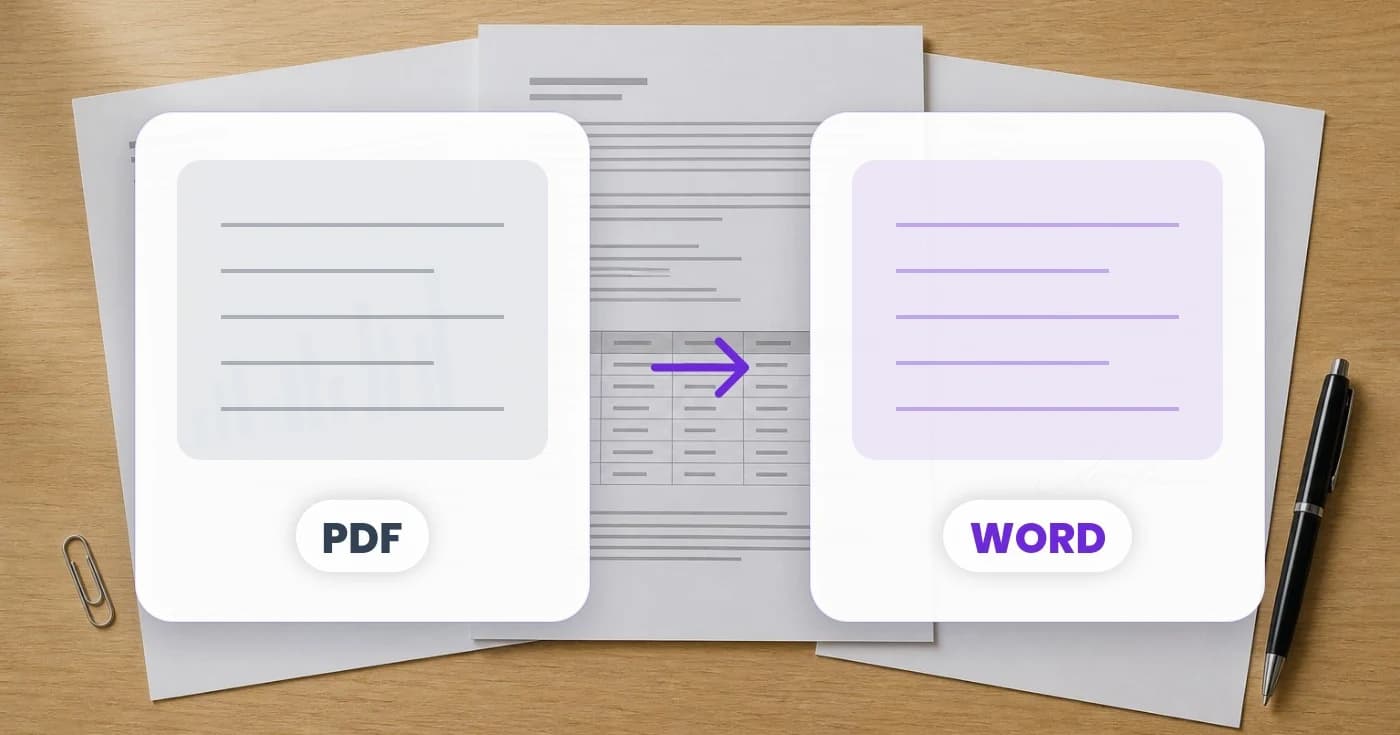
When you are restructuring paragraphs, editing line by line in a PDF gets tedious. PDF to Word offers two modes, and the choice matters.
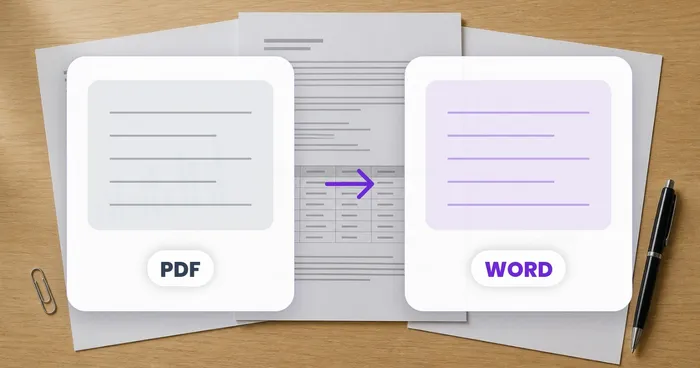
- Edit the content rebuilds supported text, tables and layout as editable Word content. It works from the text already in the PDF and does not run OCR, so a scan will not become editable text this way.
- Keep the exact appearance places every page in Word as a picture. The page looks the same, but its contents are not directly editable. It is for scans and complex layouts you must preserve, not for rewriting.
Convert, open the document and read it against the PDF before you rely on it. If you plan to finish the job in Google Docs, the guide to converting a PDF to Google Docs covers what usually comes across. PDF and Word lay pages out differently, so complex fonts, forms and multi-column designs may need adjustment.
Route 3: use OCR when the PDF is a scan
OCR reads the letters on a page image. If you want the background first, what OCR is and how it reads a picture explains why a clean scan reads better than a blurry one. What you do with the result depends on what you need.
To change some lines, stay in PDF Editor. Choose the document language, select Run OCR to edit this page, and the recognized lines become text you can click and change. It works page by page, so run it only on the pages you need.
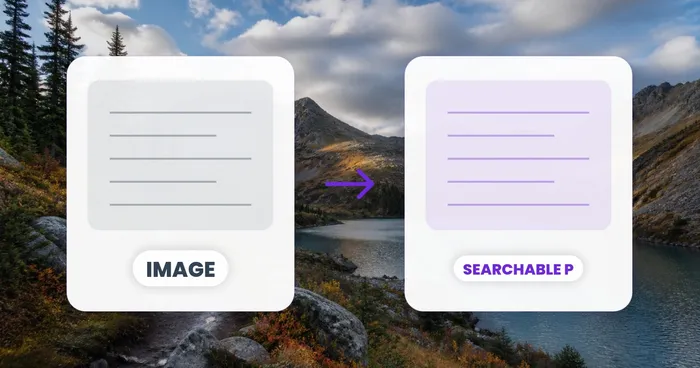
To make a whole document searchable and copyable without changing it, use Searchable PDF. It keeps every image visible and adds the recognized text behind it. It takes image files, not existing PDF documents, so a scanned PDF first needs its pages exported as images. Then choose the language of the document and build the PDF.
If you scan with a phone camera, Scan to PDF has a Searchable PDF option that adds the text layer as it builds the file, so you do not need a second pass.
Two worked examples
A quote with a changed price. A twelve-page quote has the wrong price on page 3. The text is selectable, so use route 1: click the figure, retype it, check that the total on page 12 still agrees, and download. Nothing else on the pages moves.
A scanned contract with one changed clause. A twelve-page scan needs new wording in one clause on page 5. Use route 3 in PDF Editor: run OCR on page 5 only, edit the lines, and read the other eleven pages as they are. Check the corrected page at full size, because OCR can misread a number or a name.
How to decide when two routes both fit
Some files could go either way, for example a text PDF in which you need to change one figure and also reword a paragraph. A practical rule is to count the edits. A handful of small changes belong in the PDF itself, because nothing else on the page moves. If the changes are spread across many pages or involve moving content around, a Word copy is easier to work in, but you accept that the layout may shift and that you will export again afterward.
There is also a case for doing neither. If the recipient only needs to know what changed, a short note or a marked-up copy is clearer than a silently edited file. And if the PDF is a signed or official document, editing it can make it a different document from the one that was signed, so ask whether a corrected version from the original author is the right answer.
When something does not work
| What happens | Likely cause | What to do |
|---|---|---|
| You cannot click the text | The page is a scan | Run OCR on that page |
| The Download edited PDF button is unavailable | You have not made a change yet | Make at least one edit |
| A page will not accept edits | Rotated pages open for viewing only | Use route 2 for that page, or ask for an upright copy |
| The new text looks different | A standard typeface replaces a rare font | Check each edited line at full size |
| The converted Word file looks different | PDF and Word lay out pages differently | Compare it with the PDF and adjust, or use route 1 |
| The file asks for a password | It is protected | Remove the password you know, then edit |
Check the result before you use it
OCR can misread, and conversion can shift a layout. Whichever route you took, check the parts where an error costs something.
- Read every number, date, name and total against the original page.
- Look at line breaks and alignment in tables.
- Make sure the page count matches the original.
- If the language is not English, confirm that accents and special characters came through.
Keep the original PDF unchanged next to the edited copy. If the edited file is going to a recipient who expects the original layout, tell them what you changed.
Frequently asked questions
How do I know whether my PDF has real text?
Try to select a word, or search for one you can see. If it highlights or is found, the page has a text layer. If neither works, the page is a picture of text and needs OCR before you can edit it.
Is an editable PDF the same as a fillable one?
No. People say editable when they mean a form with boxes to type into, but that is a fillable form. A fillable form fills fields the PDF already has, and it does not create new ones in a flat document.
Can I edit just one page of a long scan?
Yes. OCR in the editor runs page by page, so you recognize only the page you need and leave the rest as pictures. That keeps the work small and limits where recognition mistakes can enter.
What should I check after running OCR?
Check anything where one wrong character matters: amounts, dates, names, reference numbers and look-alike characters such as 0 and O. Compare the recognized text with the scan before you send it.
Check whether your PDF has selectable text, then open it in PDF Editor.