What Is OCR? Optical Character Recognition Explained, and When to Use It
OCR turns the letters in a photo, scan or screenshot into editable text. See how it works, what affects the result and how to prepare and check a picture.
Written by the Pixoate team. We check how each tool behaves before we describe it, and we date any prices or portal rules we quote.
You have a photo of a page, a screenshot of a chat or a scanned letter, and the words in it will not select, copy or search. OCR, short for optical character recognition, is the technology that lets you extract text from an image: it reads the letters in a picture and hands them back as real text you can edit.
Here is how OCR works, why a sharp scan reads well and a blurry photo does not, which kind of OCR fits which job, and how to prepare and check a picture.
What optical character recognition is, in plain terms
OCR is also called text recognition. A picture of text is only a grid of colored dots with no letters inside it, which is why you cannot select or search it. OCR software studies the dots, recognizes shapes that match letters, digits and punctuation, and writes them out as characters.
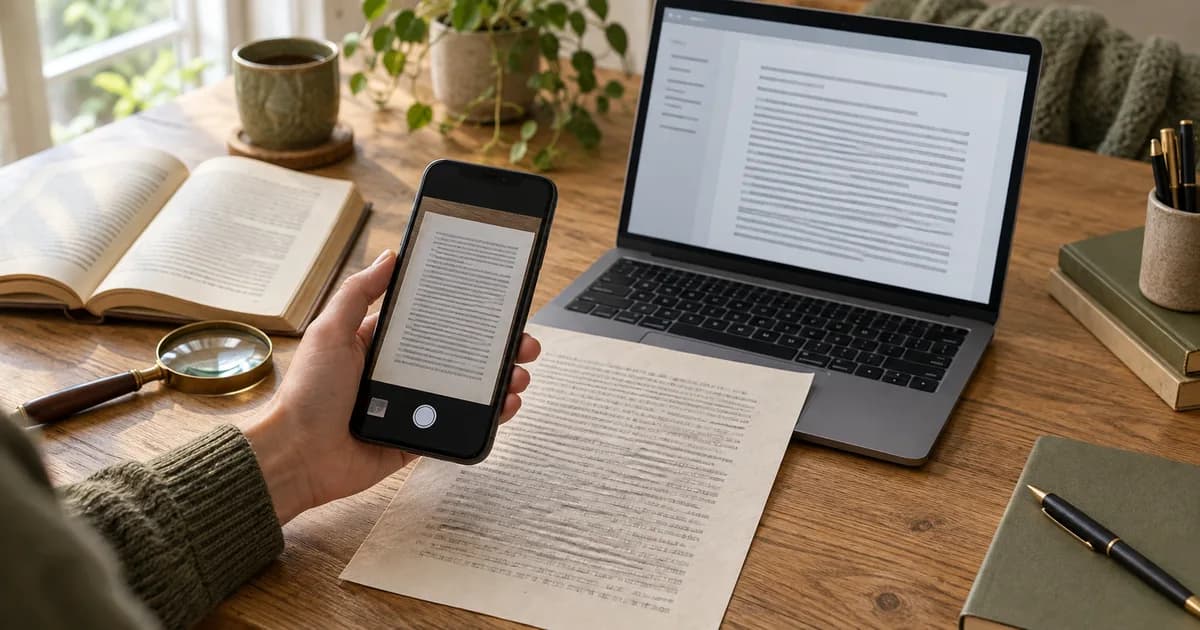
OCR reads shapes, not meaning, so a clearly printed wrong word is as readable to it as a right one. And "OCR scanning" usually names two steps: a scanner or phone camera captures the picture, then OCR software reads it. The scanner makes the image; the OCR makes the text.
How OCR works, step by step
Tools differ in the details, but most follow this path:
- Clean up the image. The software straightens a tilted page, evens out the lighting and separates dark text from the background.
- Find the layout. It locates blocks of text, lines and words, and decides the reading order. Columns, tables and captions are the hard part.
- Recognize each character. It compares every shape with what it has learned for the language and script and picks the most likely letter. Many engines also use the surrounding word to choose between look-alikes such as 0 and O.
- Assemble the output. The characters are joined into words, lines and paragraphs, as plain text or with the page's spacing kept.
Step three is why you set the language: the software expects a particular alphabet and vocabulary, and the wrong choice produces confident nonsense.
Why a clean scan reads well and a blurry photo does not
OCR works from letter outlines. In a sharp scan each letter has a clear outline and clear space around it. In a blurry or dark photo the outlines soften, neighboring letters merge and the software has to guess, so "rn" becomes "m" or a faint decimal point disappears.
These are the things that most often make a picture harder to read:
- Blur from camera shake, a small image, or a screenshot of a screenshot.
- Low contrast, such as gray text on a colored background or a faded thermal receipt.
- Shadows and glare, especially on glossy paper or a screen photographed with a phone.
- A tilted or curved page, where lines slope and letters change shape toward the edges.
- Very small or decorative type, or a busy background behind the words.
Accuracy therefore depends on the picture, the text and the settings together. A percentage quoted for any OCR tool was measured on someone else's pages and says little about yours, so check your own output.
Which kind of OCR fits which job
Use OCR when the words are trapped in a picture and the alternative is retyping them. Skip it when you have the original file, such as a word-processor document or a PDF that already holds text, or when a short passage is quicker to retype than to check.
Printed pages, photos of documents and screenshots are the ordinary case, and a general image to text converter handles them; it is the tool this guide finishes with. Screenshots are often the easiest, because the text is already sharp. Other jobs need something more specific:
- One line or one quote: if you only need a sentence, you can select and copy a single line right on the picture. The words become selectable on the picture, like text on a web page, so nothing is exported.
- Handwriting: neat block letters can sometimes be read by a general tool, but cursive and rushed notes are a separate problem. A handwriting reader built for notes and cursive groups nearby words into lines, which suits notebooks and whiteboards. Treat the result as a first draft.
- Tables: plain OCR returns a table as lines of text, so the cells are not separated. A table reader that turns a picture into an editable spreadsheet grid keeps rows and columns together and shades the cells it is unsure about.
- Receipts and invoices: you usually want fields, not one block of text. You can scan a receipt or invoice into vendor, date, total and tax and get them, with currency and line items, as structured data.
- PDFs: a PDF exported from a word processor already holds real text and needs no OCR, while a scanned PDF is a stack of pictures and does. When you extract the text from a PDF, scanned pages included, text that is already there is copied and only the pages that are pictures are read with OCR.
Handwriting OCR, Image to Excel and Receipt Extractor each show the result on screen as a free preview first, so you can check it before you decide to copy or download. Batch mode in Handwriting OCR is Premium, and the .xlsx file from Image to Excel is an export step: Premium includes it, and other signed-in accounts use an export allowance or credits.
How to prepare a picture for a cleaner read
Preparation changes the result more than any setting. A library page photographed at an angle, with curved lines and a dark corner, reads far more cleanly once it is flattened, evenly lit and shot straight down.
- Capture the page flat and square-on, with the whole page in frame and the text upright. If your scanner lets you pick a resolution, 300 DPI or higher is a sensible start.
- Use even light. Move away from a window or lamp that throws a shadow across the text, and tilt glossy paper to avoid glare.
- Get close enough that letters are sharp, and hold the phone still. Digital zoom adds softness; stepping closer does not.
- Use the original file where you can. A picture forwarded through a messaging app has already lost detail.
- Crop to the part you need. Removing borders, desk and neighboring columns gives the software less to misread.
- Set the language of the text before you run it, and rotate the picture upright if it came out sideways.
Here is an invented example
Someone photographs a printed utility bill with a phone, held at an angle under a kitchen light, and runs it straight through OCR. The result reads well except for the account number, where an 8 became a B, and the amount due, where a faint decimal point vanished so that 142.50 reads as 14250. Both mistakes look plausible, and neither would stand out in a skim.
The same bill, retaken flat under even light and cropped to the page, reads cleanly. The lesson is practical: the picture decided the outcome more than any setting, and the two errors were in exactly the fields that matter. Anyone copying figures from OCR into a payment, a form or a spreadsheet should check those fields against the original.
How to check the result before you use it
Read the output against the original once, top to bottom, before the text goes anywhere else. Give the most attention to places where one wrong character changes the meaning:
- Numbers, amounts and phone numbers, including any decimal point.
- Names, email addresses and codes.
- Look-alike characters such as 0 and O, 1 and l and I, or 5 and S.
- Dates, because 03/04 can mean two different days depending on where the document was written.
Check the values you would act on, not only the words that look odd. Keep the original beside the extracted text, and ask the document's owner when a value is unclear.
When it goes wrong, and what to try
- Gibberish or the wrong alphabet. The language setting is probably wrong. Set it to match the page and run again.
- Missing lines or half a page. The image may have been cropped, too dark in one corner or too small. Retake or rescan it.
- Words in the wrong order. Columns and sidebars are a layout problem. Crop one column at a time.
- Numbers that look right but are not. Compare them with the original, digit by digit.
- Nothing selectable after you convert a PDF. If you chose a route that keeps pages as pictures, the text is not there. See the guide to making a PDF editable for the routes that add a text layer or rebuild the content.
If the source is a table that has to stay in columns, the guide to converting PDF tables to Excel without retyping covers a route built for that.
Frequently asked questions
Is OCR accurate?
On a sharp, upright, printed page it can be very good; on a blurry photo, handwriting or a crowded table it is noticeably worse. No honest tool can promise a figure for every document, so judge it on your own file and check the values that matter.
Can OCR read handwriting?
Sometimes. Neat, separated letters read far better than joined-up cursive or fast notes. A reader built for handwriting helps, but its output is a draft to correct against the page.
Does OCR work on PDFs?
Only when the PDF is made of pictures. A PDF exported from a word processor already holds real text, while a scan or a photographed page does not, so OCR has to read it. If you cannot select the words on a page, it is probably a picture.
Do I need to install OCR software?
Not for occasional jobs. A browser-based converter runs on a computer or phone with nothing to install. The trade-off is that the picture is uploaded for processing, so keep files that must stay on your device out of any online tool.
Is OCR the same as AI?
Modern OCR often uses machine learning to recognize characters, so the line is blurry. The limit is the same either way: it reads the shapes in the picture and does not know what they mean, so review the output.
Start with one clear photo and extract its text with an image to text converter, then check the numbers and names before you use it.