How to Extract Tables from Scanned Supplier PDFs into Excel
Extract supplier price tables from scanned PDFs into Excel with Pixoate. Check page breaks, units and totals before comparing purchasing costs.
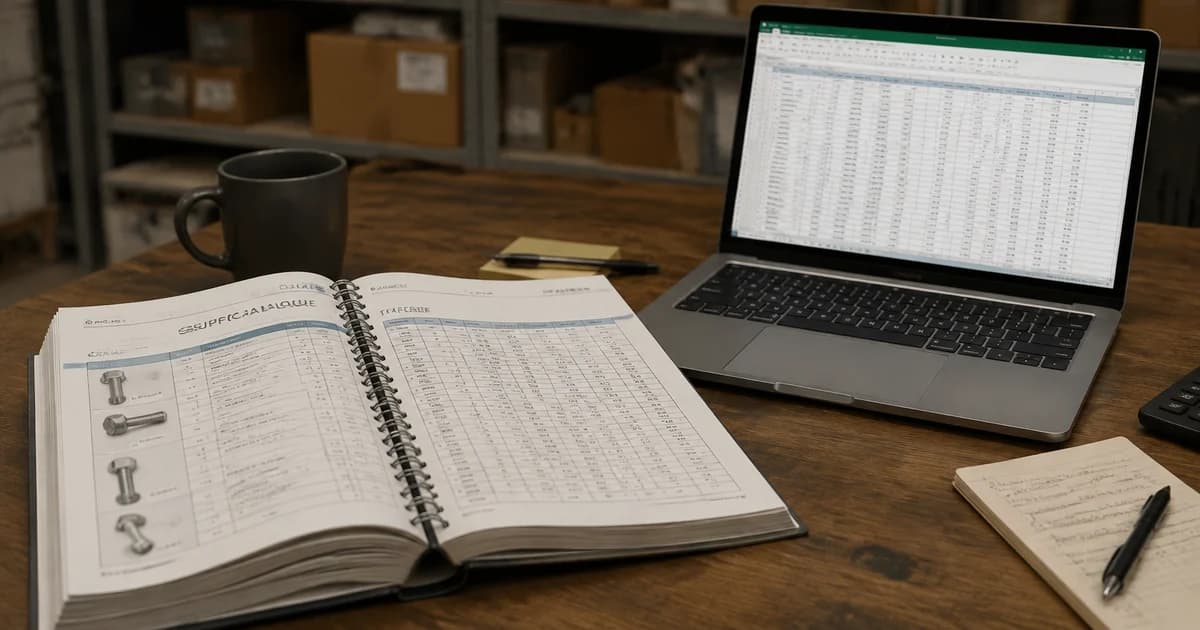
A supplier's PDF price list is convenient to read and awkward to compare. You can see the rows, but sorting by unit cost or matching product codes against last month's file requires editable data.
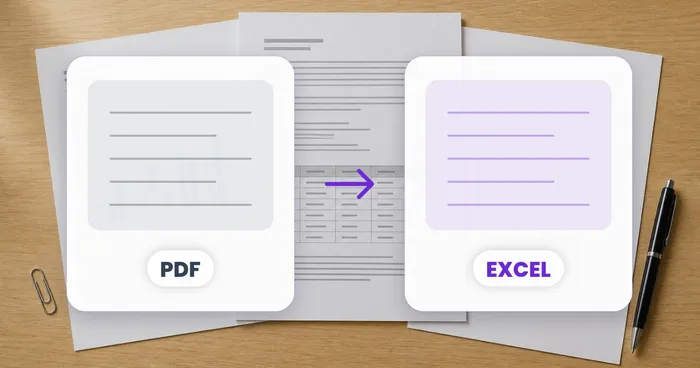
Pixoate's PDF-to-Excel converter for supplier tables extracts recognised table content into a workbook. Scanned pages can require OCR, and complex layouts still need review. The goal is a dependable comparison sheet, not merely a successful download.
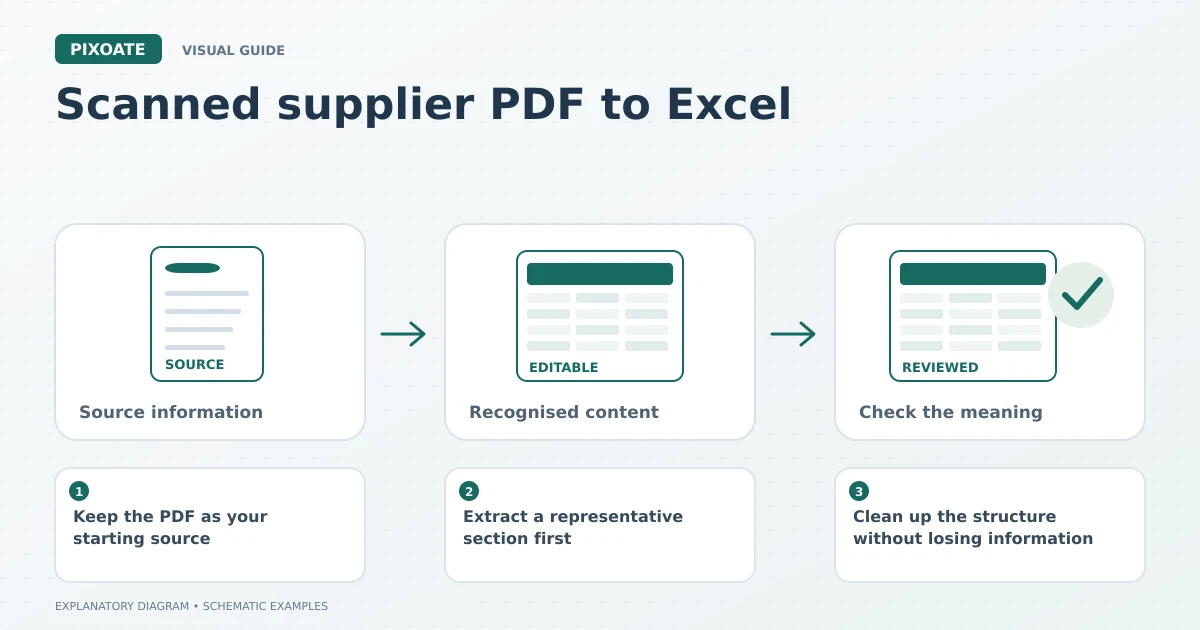
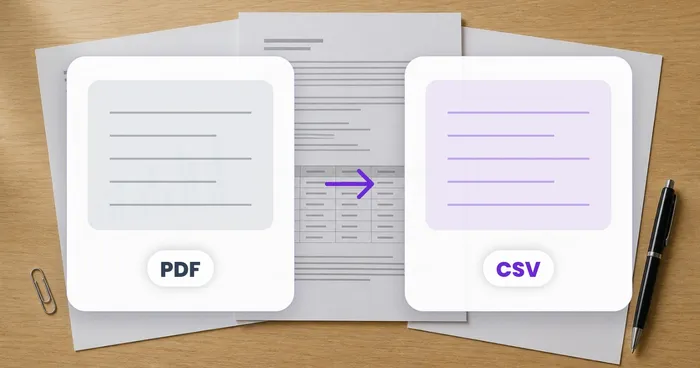
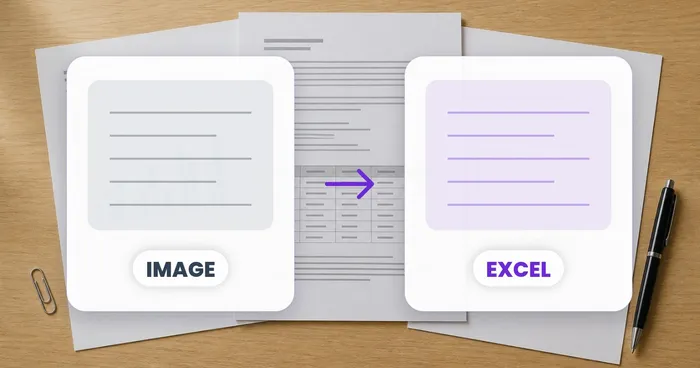
Original explanatory graphic. The scenes and sample records are schematic illustrations, not screenshots or measured tool results.
Keep the PDF as your starting source
If you have the original PDF, use it rather than taking screenshots of the pages. A screenshot can reduce readable detail and omit a heading, footnote or continuation row.
Check which pages contain the table. A cover page, delivery terms and a product appendix may each need different handling. If the document repeats column headings on every page, watch for those headings becoming data rows after extraction.
Retain the source filename and the date received. Two documents with the same supplier logo may quote different pack sizes or apply to different periods.
Extract a representative section first
Open PDF to Excel, upload the source and use the available table-reading settings. Review a page with ordinary rows and one with a difficult layout, such as a merged heading or a product description spanning two lines.
Download the workbook and inspect complete rows from left to right. Confirm that the product identifier, description, quantity and price remain associated. A shift of one cell can produce a spreadsheet full of plausible but mismatched values.
For a supplier that sends images instead, convert its photographed price tables to Excel. Keep the review routine consistent even when the input formats differ.
Clean up the structure without losing information
| Source feature | What to check in the workbook |
|---|---|
| Repeated page headings | Remove them from data rows only after confirming they are headings. |
| Multi-line descriptions | Keep all the wording with the correct product. |
| A table continuing on the next page | Confirm that no row is missing or duplicated. |
| Footnote symbols beside prices | Preserve the condition they refer to. |
| Separate currency or unit labels | Carry them into explicit comparison fields. |
Do not assume that a converted workbook contains the original formulas. A PDF generally presents displayed values and layout; calculations should be created from reviewed inputs in your spreadsheet application.
Prepare a file for the next system
If your purchasing workflow requires CSV, use PDF-to-CSV table extraction or export your reviewed workbook accordingly. Pixoate's PDF-to-CSV workflow can produce separate files for detected tables, collected in a ZIP when there are several. Inspect which table each file represents before combining them.
Match the destination's required headers and identifier conventions. A product code that contains only numbers may still need to remain text. Review dates explicitly when documents move between US and UK teams.
Why did a table split into several pieces?
Large gaps, page boundaries and visually separate sections can affect table detection. Review each result against the source before joining anything; unrelated tables should not be combined merely because they share column counts.
What if only one page extracts badly?
Inspect that source page for low resolution, rotation, faint text or an unusual layout. Try another available reading option, or obtain a clearer source when the original values are unreadable.
Start with Pixoate PDF to Excel, retain the PDF and make source review part of the conversion. That gives the purchasing team a worksheet it can question, correct and use with confidence in the verified values.