How to Scan Business Cards into Phone Contacts After a Trade Show
Scan trade show business cards into phone contacts with Pixoate. Review names, numbers and vCard details before importing your new connections.
You return from a trade show with a stack of business cards and a clear memory of several promising conversations. A week later, the names begin to blur together and the contact details are still on paper.
Pixoate Business Card Scanner extracts contact details and provides a vCard file for compatible contacts applications. Review each record while the conversation is still fresh.
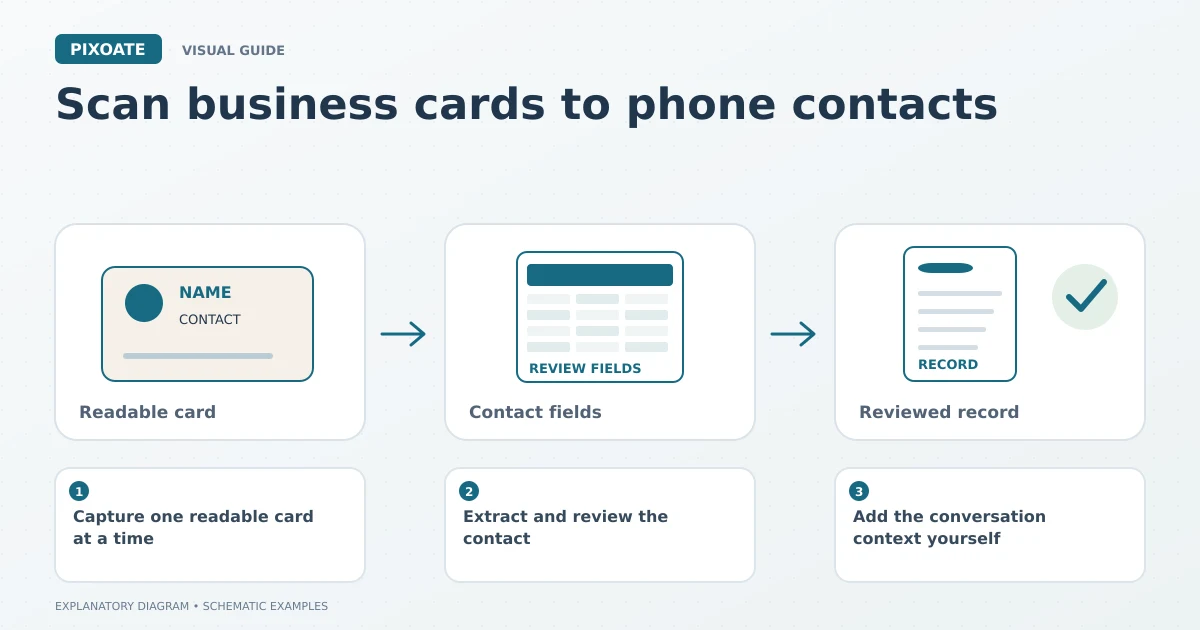
Original explanatory graphic. The scenes and sample records are schematic illustrations, not screenshots or measured tool results.
Capture one readable card at a time
Photograph the card squarely in even light. Keep names, company information and contact lines inside the frame. Glossy cards may need a different angle to avoid reflections.
If the reverse side contains useful details, retain it as part of your source record. Do not assume that a logo, slogan or office address is the person's preferred contact route.
Extract and review the contact
Upload the card, choose the relevant language and reader options, and compare the recognised fields with the source. Check email addresses character by character. A small error can send a message to the wrong address or cause it to fail.
Review phone country codes, extensions, job titles and company names. Use Copy Text from Image if you only need a particular passage rather than a complete contact file.
Download the vCard and import it into a compatible contacts application. Review the imported fields and any duplicate-contact prompt before saving. CRM support varies; a vCard download is not an automatic CRM connection.
Add the conversation context yourself
Record the event, the discussion topic and the agreed next step in your own contact process. The card cannot tell the scanner what you promised or whether the person requested follow-up.
For unfamiliar-language wording, Image Translator may help you understand supported text. Verify names and addresses against the source rather than replacing them with a guessed translation.
| Check | Why it matters |
|---|---|
| Correct person and company | Similar cards can be confused. |
| Email and phone | Small character errors prevent useful contact. |
| Duplicate records | Existing contacts may already have newer information. |
| Follow-up context | The card alone does not describe the conversation. |
Can I add every scanned person to a marketing list?
Scanning a card does not establish consent or a subscription request. Use the contact details according to the actual conversation and your applicable contact-management requirements.
Start with Pixoate Business Card Scanner, verify the details and add the context that makes the next conversation personal and relevant.