
Botanical Product Scene Generator
Generative output can vary; review the full result before publishing
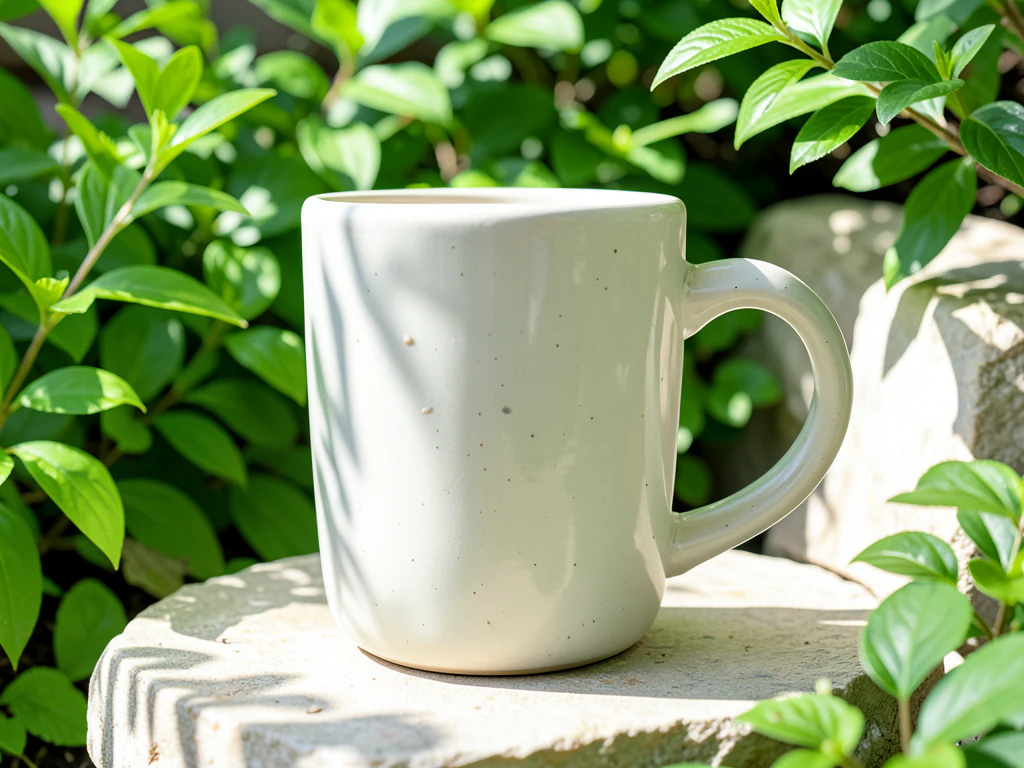
The botanical theme filters commerce through garden light — leaf shadows crossing the product, greens breathing at the edges. This direction stages your product in that freshness: the theme for natural positioning, restrained enough that the garden frames rather than swallows.
- Prepared Botanical direction
- Editable prompt
- Source-detail review required
Choose a source image for Botanical
JPG, PNG, WebP, HEIC, and other supported formats. Free up to 20 MB; Premium and higher up to 50 MB for this tool.
Botanical theme: leaf shadows and greenery that frame rather than hide
Greenery is easy to overdo. Ask for foliage at the edges of the frame and as shadow across the backdrop, such as monstera leaves casting dappled light or a eucalyptus stem lying beside the product, rather than plants growing around it. Generated leaves crossing in front of the label would hide the name buyers need to read, so keep the front panel clear in the prompt.
This look reads as a natural-ingredient story. Use it when the product backs that up, and match plants to the formula where you can: lavender for a lavender soap, not a rose. Shoot under daylight so the product greens and creams stay true next to generated foliage, and in the result follow any stem that passes behind the bottle; it should reappear on the other side in a believable place.
For a marketplace version, stage the product on a botanical set. Skincare lines often pair this theme with skincare product scenes.
Set up for Botanical Product Scene Generator
Prepared settings
- Starting point
- Upload one source image
- The page opens on the correct edit workflow; upload is the only required setup step.
- Prepared workflow
- Prepared Botanical scene direction
- Botanical Product Scene Generator opens with the Botanical direction preselected, so there is no need to find the operation manually.
- Output shape
- Same as your upload
- The result keeps the shape of the image you upload.
- Review rule
- Preserve the source subject and verify factual details
- Generated imagery can vary; the final result stays under the user's approval before download.
Best-fit uses
- Natural-positioning campaigns
- Spring and renewal launches
- Wellness-adjacent product worlds
Frequently asked questions
- When is botanical the honest theme choice?
- When formula or material backs the natural story — the theme reads as an ingredient claim. Products without the substance borrow credibility the label must then refund.
- How much green before the product drowns?
- Foliage as light and margin — leaf shadows on the surface, blur at the frame edge — never jungle around the object. The product sits in a garden's morning, not its undergrowth.
- What should I review in a Botanical result?
- Check the subject, product geometry, colors, labels, logos, identity-relevant details, shadows, and edges against the source. Reject any output that changes a factual detail.
- What rights checks apply to a Botanical client project?
- Use only source material and references you have rights to, follow the destination platform rules, and obtain any required person or property permissions. Generated output still needs a human accuracy and rights review.
What you can do with AI Product Scene Generator
Review the main capabilities before you begin.
- Build a scene around your product from a single photo
- Create editorial, ecommerce, and social campaign concepts
- Generate coherent props, surfaces, lighting, and shadows
- Ask the AI to keep the product as photographed
Settings reference
4 settings
Available controls for AI Product Scene Generator.
Workflow
- Single image or Batch imagesPresets
- Process one image, or use Premium Batch images to apply the same automatic recipe to a set and download one ZIP.Options: Single imageBatch images
Scenes
- One-tap presetsPresets
- Pick a ready-made direction with one tap; generation uses the selected preset automatically.Options: Bathroom counterKitchen lifestyleOutdoor lifestyleEditorial podiumSocial ad
- Custom instructions (optional)Text input
- Describe the requested change, relevant materials, lighting, perspective, and details that must remain unchanged.
Selection
- Selection brush sizeSliderRange: 4–160px · Default: 32px
- The subject area is found automatically. This brush appears only if that automatic area could not be found; paint the area to edit, then generate again.
Related tools for Botanical Product Scene Generator
Tools for common next steps after Botanical Product Scene Generator.
Background Studio
Remove Background
Remove a photo background and download a transparent PNG. Review hair and edges before use.
Try it now
Background Studio
White Background Maker
Replace a photo background with white for product listings.
Try it now
Product Photography Studio
AI Product Photos
Generate a background scene around your product. Describe the setting and review the result.
Try it nowGuides for this tool
- How to Create Lifestyle Product Photos Without a PhotoshootBuild a believable scene around a real product photo, check scale, shadows and details, and keep lifestyle images honest and secondary to accurate shots.
- How to Improve Restaurant Food Photos for Menus and Delivery AppsLight, plate and shoot dishes for menus and delivery apps, then polish the photo without changing what the customer receives.
Watch each transformation land
Every photo crosses the slash untouched and comes out the other side finished.























