


Brand Product Scene Generator
Generative output can vary; review the full result before publishing
Brand guidelines describe a world — a palette, a set of materials, a quality of light — and most product photography ignores all of it because building that world costs a shoot day. This direction generates the set to the brand rather than to a generic studio default, around a product the AI is asked to keep as shot, with the scene matched to the light in your photo. Check logos, labels, text and colors against the original.
- Prepared Brand Product Scene Generator direction
- Editable prompt
- Source-detail review required
Generative output can vary; review the full result before publishing
Choose a source image for Brand Product Scene Generator
JPG, PNG, WebP, HEIC, and other supported formats. Free up to 20 MB; Premium and higher up to 50 MB for this tool.
Turning brand guidelines into a repeatable product scene
Most brand books already describe the set: two or three colors, a surface family, a direction of light. Translate those lines into the prompt box in plain words, for example terracotta backdrop, unglazed clay plinth, low light from the left, and save that sentence where your team can reuse it. The page opens on the Color block look; Water splash, Stone podium and Fabric drape sit beside it as alternatives, and each can be rewritten before you generate.
The AI is asked to keep the product as photographed while it builds the surroundings, so the source photo still decides how the product looks; compare labels and edges with the original afterwards. Shoot it evenly lit with empty space on every side, and crop to square, portrait or wide first, because the result keeps the shape of your upload. A whole range can go through Batch images on Premium (up to 60 files, 200 on Pro) with one shared prompt, the simplest way to keep a set consistent.
Keep the logo and tagline out of the prompt and place the real artwork afterwards with your own logo stamped at a set position and opacity. For sets tied to a holiday or a time of year, the seasonal scene generator is the better starting point.
Generate a branded product scene from one product photo
This brand product scene generator builds a styled setting around your own product photo, such as a bold color block, a splash of water or a stone plinth, so a small brand can show a campaign look without hiring a set designer. You choose the look, adjust the wording to your brand and check the result against the real product before it goes into a campaign.
Create a product scene in 5 steps
One product photo goes in and one scene comes out, in the same shape as the upload. Shoot the item sharp and evenly lit with empty space around it, because the scene is built from whatever the photo shows.
- Upload a sharp product photo with empty space around the item.
- Under Styles, choose Color block, Water splash, Stone podium or Fabric drape.
- Edit the prepared text in Custom instructions (optional) to name your colors, surface and props.
- Select Generate Product scene.
- Compare the result with your photo, then download the PNG.
Which look suits which product
Color block is a bold two-tone backdrop with directional light and a graphic shadow, which suits simple shapes and strong colors. Water splash puts the product in a crown of droplets on a deep backdrop with a wet floor, a natural match for drinks and skincare. Stone podium raises it on a plinth in soft light, a classic for cosmetics, candles and jewelry. Fabric drape sets it on folded cloth with warm raking light, which flatters ceramics, books and handmade goods.
Product scene, product photo or ad: which page to use
Pick by what the image has to do. A clean catalog picture belongs on the AI product photography page, an advertisement with space for a headline on the product ad generator, and a holiday or seasonal campaign on the seasonal scene generator. This page sits between them: a styled setting that carries a brand mood, built around one product.
Before a scene goes into a campaign
- Compare the product color with the real item in daylight, not with a thumbnail.
- Read every word on the label at full size against your photo.
- Look at the edge where the product meets the surface for halos or missing pieces.
- Check that props and backdrops carry no readable text or logo that is not yours.
- Keep the original photo and the generated scene together in the campaign file.
Set up for Brand Product Scene Generator
Prepared settings
- Starting point
- Upload one source image
- The page opens on the correct edit workflow; upload is the only required setup step.
- Prepared workflow
- Prepared Brand Product Scene Generator scene direction
- Brand Product Scene Generator opens with the Brand Product Scene Generator direction preselected, so there is no need to find the operation manually.
- Output shape
- Same as your upload
- The result keeps the shape of the image you upload.
- Review rule
- Preserve the source subject and verify factual details
- Generated imagery can vary; the final result stays under the user's approval before download.
Best-fit uses
- Campaign visuals that follow an existing brand palette
- Keeping one styling direction across an entire product range
- Concept boards for a shoot brief before booking a studio
Frequently asked questions
- How do I keep generated scenes on-brand?
- Describe the brand world concretely rather than by name: the actual colors, materials, surfaces and light quality your guidelines specify. Naming a brand produces a generic impression of it; describing warm terracotta, unglazed ceramic and low afternoon light gets much closer to the set you meant.
- Can I reference another brand's look?
- Copying a competitor's signature art direction is a poor idea both legally and commercially — a distinctive look can be protected, and imitating one makes your brand read as derivative. Describe the underlying qualities you admire and build your own version instead.
- How do I keep a whole range consistent?
- Fix the set direction once and apply it to every product rather than art-directing each item. Consistency comes from repetition — same palette, same light angle, same surface family. The light on each product comes from your photo, so shoot the range the same way. Products differ; the world they sit in should not.
- Can these scenes carry brand copy and logos?
- Add real logos and approved copy afterwards in a design tool, where they stay sharp, correctly colored and legally accurate. Generated readable text is unreliable, and a generated approximation of your own logo is worse than no logo at all.
- What is a product scene?
- A product scene is an image of a product placed in a styled setting, with a surface, a backdrop, props and light, so it reads as part of a campaign instead of a catalog cutout. This page builds that setting around your own photo and asks the AI to keep the product as you photographed it.
- How is a brand product scene different from a product photo background?
- A background swap changes what sits behind the item. A scene builds a whole setting, with a surface, props and a mood. Use AI Product Photography for catalog images and this page when the picture has to carry a brand atmosphere.
- Can I add props such as flowers, fruit or fabric to the scene?
- Yes. Name them in Custom instructions with where they sit, for example a sprig of eucalyptus on the left of the plinth. Keep to 2 or 3 props, and check small ones at full size, since leaves, fruit and beads can come out with odd shapes or overlap the label.
- Will the scene match my exact brand colors?
- Close, not exact. Generated colors vary from run to run, so name colors in words, such as terracotta or deep green, and check them against your brand swatch in daylight. Apply exact brand colors, logos and type in a design tool afterward.
What you can do with AI Product Scene Generator
Review the main capabilities before you begin.
- Build a scene around your product from a single photo
- Create editorial, ecommerce, and social campaign concepts
- Generate coherent props, surfaces, lighting, and shadows
- Ask the AI to keep the product as photographed
Settings reference
4 settings
Available controls for AI Product Scene Generator.
Workflow
- Single image or Batch imagesPresets
- Process one image, or use Premium Batch images to apply the same automatic recipe to a set and download one ZIP.Options: Single imageBatch images
Scenes
- One-tap presetsPresets
- Pick a ready-made direction with one tap; generation uses the selected preset automatically.Options: Bathroom counterKitchen lifestyleOutdoor lifestyleEditorial podiumSocial ad
- Custom instructions (optional)Text input
- Describe the requested change, relevant materials, lighting, perspective, and details that must remain unchanged.
Selection
- Selection brush sizeSliderRange: 4–160px · Default: 32px
- The subject area is found automatically. This brush appears only if that automatic area could not be found; paint the area to edit, then generate again.
Related tools for Brand Product Scene Generator
Tools for common next steps after Brand Product Scene Generator.

Background Studio
Remove Background
Remove a photo background and download a transparent PNG. Review hair and edges before use.
Try it now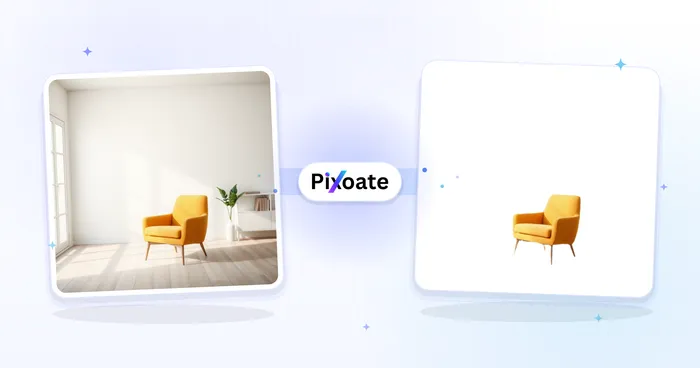
Background Studio
White Background Maker
Replace a photo background with white for product listings.
Try it now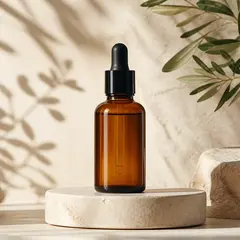
Product Photography Studio
AI Product Photos
Generate a background scene around your product. Describe the setting and review the result.
Try it nowWatch each transformation land
Every photo crosses the slash untouched and comes out the other side finished.























