
Diwali Rangoli Visualizer
Generative output can vary; review the full result before publishing
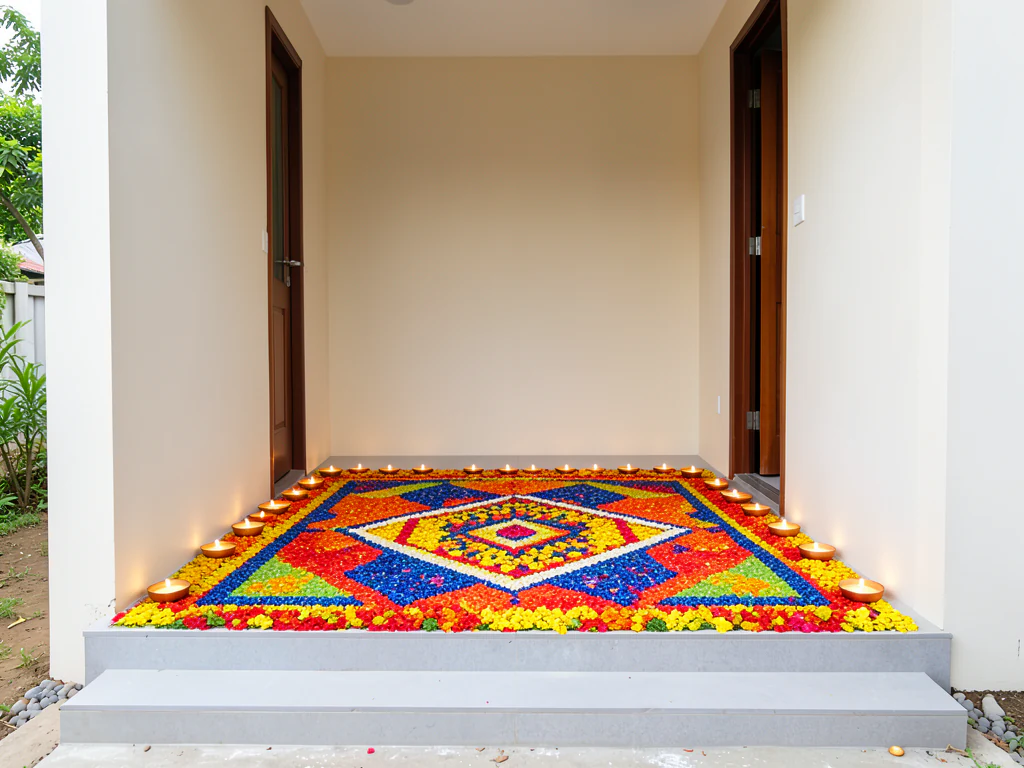
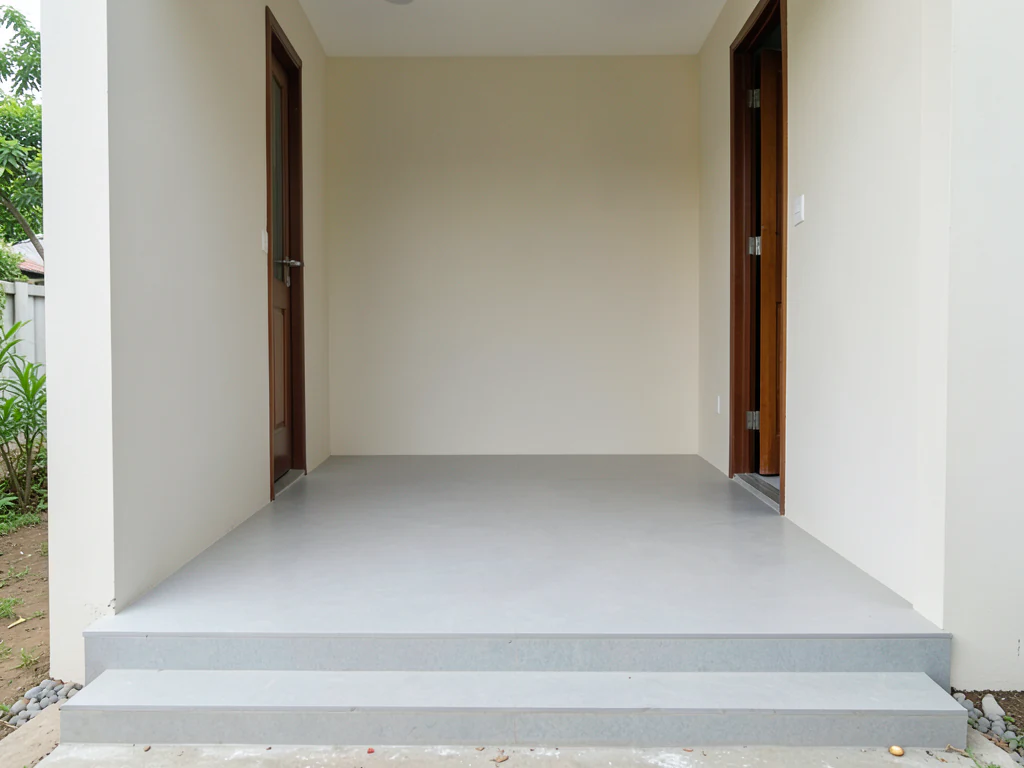
Rangoli designs are saved from feeds shot on someone else's floor — and a pattern that glows on white marble can disappear on your grey tile or dark stone. This page previews rangoli on your actual entrance photo: patterns, scale, and color schemes rendered on your real floor in your real light, so the design is chosen and sized for your threshold before a single packet of color is opened on Diwali morning.
- Prepared Rangoli direction
- Editable prompt and explicit output controls
- Full-result review required
Generative output can vary; review the full result before publishing
Choose a source image for Rangoli
JPG, PNG, WebP, HEIC, and other supported formats. Free up to 20 MB; Premium and higher up to 50 MB for this tool.
Set up for Diwali Rangoli Visualizer
Prepared settings
- Starting point
- Upload one source image
- The page opens on the correct edit workflow; upload is the only required setup step.
- Prepared workflow
- Prepared Rangoli decoration
- Diwali Rangoli Visualizer opens with the Rangoli direction preselected, so there is no need to find the operation manually.
- Output shape
- 4:3
- The recommended composition is selected automatically and can be changed before processing.
- Review rule
- Review the complete generated result before use
- Generated imagery can vary; the final result stays under the user's approval before download.
Best-fit uses
- Pattern tested on your actual floor color
- Rangoli sized to your real doorway width
- Color schemes compared before buying powders
Frequently asked questions
- Will I be able to draw the rangoli exactly as shown?
- The preview is the design decision, not a stencil — your hand, your powders, and the morning rush will all shape the real one. What it settles is the part that matters most: which pattern, what size, and which colors work on your specific floor.
- Can NRIs use this for a different kind of floor?
- Yes — that is exactly the point. Upload your apartment entrance, balcony, or hallway wherever you live, and preview traditional patterns on that floor. Recreating home traditions works better when the design is planned for the space you actually have.
- What should I review in a Rangoli result?
- Inspect faces, hands, object geometry, small details, perspective, readable marks, and any claim implied by the scene. Regenerate or reduce the requested change when something is inaccurate.
- What rights checks apply to a Rangoli client project?
- Use only source material and references you have rights to, follow the destination platform rules, and obtain any required person or property permissions. Generated output still needs a human accuracy and rights review.
What you can do with AI Image Editor
Review the main capabilities before you begin.
- Expand photos into square, portrait, or landscape layouts
- Fill a painted area with newly described content
- Remove or replace selected objects in a photo
- Change skies, backgrounds, weather, or scene styling
- Stage empty rooms while retaining their architecture
- Place product photos into studio or lifestyle scenes
- Protect original pixels outside a painted local edit
Settings reference
5 settings
Available controls for AI Image Editor.
Edit
- Edit typeDropdown
- Choose the focused editing workflow so the image, prompt, optional selection, and output shape are handled consistently.Options: Text-based editGenerative fillMagic eraserObject replacerBackground changerProduct backgroundAI expandUncrop imageLandscape to portraitPortrait to landscapeSky replacementRoom stagingProduct sceneProfessional headshot
- Describe the editText input
- Describe the visual change in up to 1000 characters; object removal, replacement, and scene changes require it, while expansion can run without extra direction.
Selection
- Selection brush sizeSliderRange: 16–160px · Default: 64px
- Generative fill and object replacement require a painted area. Automatic cleanup, background, sky, and staging modes expose the same brush only through Refine area manually; pixels outside a manual selection are restored from the prepared source.
Output
- Expanded aspect ratioPresets
- Choose the new canvas shape for expand and uncrop workflows while retaining the original image inside the generated frame.Options: Square 1:1Portrait 4:5Story 9:16Wide 16:9Portrait 3:4Landscape 4:3
- Ask AI to preserve subject identity and product detailsOn / Off
- Ask the editor to retain the main subject's shape, identity, logos, labels, and readable text unless your instruction explicitly changes them.
Related tools for Diwali Rangoli Visualizer
Tools for common next steps after Diwali Rangoli Visualizer.
AI Image Studio
AI Image Generator
Generate AI images from text prompts in square, landscape, portrait, or wide formats and download the result as PNG.
Try it now
Photo Editing & Utilities
Online Photo Editor
Crop and resize photos. Add text, shapes, effects and templates, or use AI editing tools.
Try it now
Creative & Design
Add Text to Image
Add styled text with custom fonts, colors and outlines to supported image formats, then download the edited image.
Try it nowGuides for this tool
Watch each transformation land
Every photo crosses the slash untouched and comes out the other side finished.























