
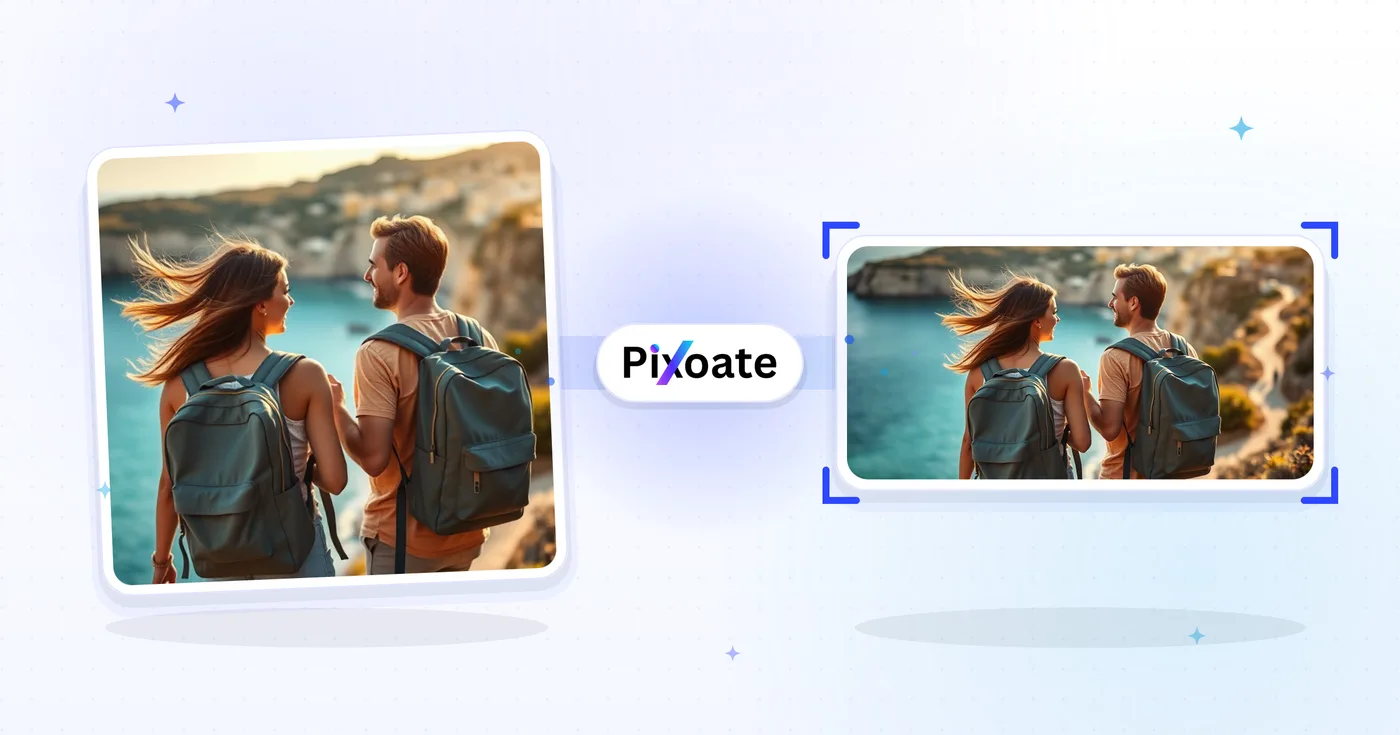
Resize Photo for Facebook Profile, Cover and Posts — Free
Covers and profile pictures each demand their own size — get the right one in a click, with the whole image visible and nothing cut off.
Drop a photo — pick cover or profile size
Facebook Image Sizes
Facebook Posts
Post image: 1200x630px Event image: 1920x1080px
Facebook Stories
Story image: 1080x1920px
Facebook Profile
Profile picture: 800x800px Cover photo: 1640x664px
How to Use
Upload your image, select the Facebook format you need, and download the perfectly sized image for your Facebook content.
Facebook resize capabilities
Perfect Sizes
All sizes are optimized for Facebook's requirements. No more rejected uploads.
Direct controls
Resize images instantly with our intuitive interface. No complex software needed.
Security and retention
Server-processed files are handled under our Security policy.
Resize image for Facebook: profile picture, cover photo and post sizes
This Facebook photo resizer fits a picture to the Facebook size you pick: an 800×800 profile picture, a 1640×664 cover photo, a 1200×630 post image, a 1920×1080 event image, a 1640×856 group photo or a 1080×1920 story image. On the cover, post, event, group and story sizes the whole photo stays in the frame, and the spare space is filled with a blurred copy of the picture, a color or a background you choose.
Resize Facebook profile picture to 800×800 with face framing
Select Profile Picture (800×800), the Facebook profile picture size in this tool. It finds the largest face, frames the head and shoulders and fills the whole square, so a group photo is cut down to that face and a photo without a face is centered. Facebook displays profile pictures as a circle, so a circular guide outlines what stays visible, and the Hide safe zone button switches it off. The Background tab is unavailable here because the framed crop leaves no empty space. To replace the background behind you instead, make a profile picture with a new backdrop.
Resize photo for Facebook cover without cropping at 1640×664
Choose Cover Photo (1640×664) and keep Maintain Aspect Ratio checked to convert a photo to the Facebook cover photo size. The whole photo then sits inside the wide frame with nothing cropped, and the space beside it is filled with a blurred copy of the same photo by default. Open Background to switch to a solid Color, a Gradient, a ready-made Design or your own Photo. For new scenery instead of a fill, turn a narrow photo into a landscape one first. Unchecking Maintain Aspect Ratio stretches the photo to fill 1640×664.
- Upload the photo you want on the cover.
- Select Cover Photo under Facebook Image Sizes.
- Leave Maintain Aspect Ratio checked and look at the preview.
- Open Background if you want a fill other than the blur.
- Select See result, then use Download on the result page.
Resize image for Facebook post, event, group and story sizes
To resize an image for a Facebook post, pick Post Image (1200×630). Event Image is 1920×1080, Group Photo is 1640×856 and Story Image is 1080×1920, and the preview shows the frame with its name in the corner. The same whole-photo rule applies, so a vertical photo in Post Image gets filled sides instead of a crop. To reuse the picture on Instagram, reshape it as a 4:5 portrait post.
Keep the whole photo in a square profile picture
The Profile Picture size frames a face, so it crops. To keep the entire photo in the square, select Extend background with AI instead. It continues the scene around your photo until it fills 800×800, uses your AI allowance and delivers downloads on the free plan at web size. Look over the new edges before you upload, because generated areas can contain details that were not in the original.
Before you upload to Facebook
- Check the name and pixel size shown on the preview, because they say which size you are about to export.
- Output Format starts from the type of photo you uploaded (JPEG, PNG, WebP or GIF). GIF is switched off while a gradient, design or photo background is active.
- Raise Quality for a sharper cover and lower it for a lighter file.
- Facebook decides how each surface is cropped, so leave margin around faces and words.
- Many photos for one size? Batch mode on Premium resizes the queue and returns one ZIP.
Preparing the rest of your Facebook images
When a photo is too narrow for the 1640×664 cover, widen the scene with an AI or blurred fill before resizing; to preview how a profile picture looks inside a circle, crop it round with a transparent edge. The same post image can be reshaped into a 4:5 Instagram portrait post.
What you can do with Facebook Resize
Review the main capabilities before you begin.
- Resize photos for Facebook profile and cover
- Make a page cover fit without awkward cropping
- Add a blurred or solid-color background to fill space
- Fit the whole image to Facebook's dimensions
- Check the safe zone before uploading
- Choose output format and quality for sharing
Settings reference
10 settings
Available controls for Facebook Resize.
- Processing modePresets
- Process one input, or switch to Premium batch mode to process multiple inputs with shared settings. Available input types depend on the tool.Options: Single imageBatch
Size
- Facebook Image SizesPresets
- Pick the Facebook placement to resize for; each preset targets the exact pixel dimensions, from 800×800 Profile Picture to 1080×1920 Story Image.Options: Profile PictureCover PhotoPost ImageEvent ImageGroup PhotoStory Image
Output
- Maintain Aspect RatioOn / Off
- Keeps your photo's proportions and pads any leftover space instead of stretching; turn it off to stretch the image to exactly fill the chosen size.
- Blur backgroundOn / Off
- Choose Blur in the Background tab to fill empty space around your photo with a softly blurred, zoomed copy of it instead of solid color bars; background fills apply while Maintain Aspect Ratio is on.
- QualitySliderRange: 10–100% · Default: 92%
- Sets the compression quality of the exported image; higher values look sharper but produce larger files, so 90 or above is best for covers and stories.
- Blur IntensitySliderRange: 5–50 · Default: 20
- Controls how soft the blurred backdrop looks while Blur is the selected background; lower values keep more texture, higher values give a cleaner, more abstract fill.
- Background ColorColor picker
- Chooses the solid padding color around your photo when Color is the selected background and aspect ratio is kept, via a color picker and swatches.
- Output FormatDropdown
- Selects the file type of the resized image; it auto-matches your uploaded file's format, with JPEG best for photos and PNG for graphics or transparency.Options: JPEGPNGWebPGIF
Preview
- Show safe zoneOn / Off
- Toggles an overlay marking Facebook's circular profile-picture crop on the preview so you can center your subject; it appears only for the Profile Picture preset.
AI extension
- Extend background with AIOne-click
- Continue the scene into the selected size with AI while keeping the prepared source photo. Free downloads are web size. Premium or credits unlock full resolution. Supported ratios require maintaining aspect ratio. In Batch, every queued image is extended and delivered at the size and format you chose.
Related tools for Facebook Resize
Tools for common next steps after Facebook Resize.
Social Publishing
Instagram Resize
Fit a full photo to Instagram dimensions using blurred or solid-color padding when needed.
Try it now
Social Publishing
LinkedIn Image Resizer
Resize images for LinkedIn banners, profiles, posts or article headers using the listed dimensions.
Try it now
Social Publishing
X / Twitter Image Resizer
Resize images for listed X header, profile, post, card and ad dimensions.
Try it nowFrequently Asked Questions
How Facebook Resize helps you get it done
Real problems it solves every day — for businesses, creators, and everyday tasks. Find the use case that fits you and start.
Facebook Profile Picture 170x170 Size
Resize photos to Facebook profile picture dimensions 170x170 pixels for crystal clear display on all devices
Facebook Business Page Posts 1200x630
Resize images to optimal Facebook post size 1200x630 for business pages, better engagement, and professional appearance
Business Pages
Create properly sized images for Facebook business pages, advertising, and brand promotion
Event Covers
Design event cover photos that look great on Facebook event pages and attract attendees
Group Posts
Size images for Facebook groups so the preview does not crop the point of the photo
Facebook Ads 1200x628 & Square 1080x1080
Resize images for Facebook ad campaigns with perfect dimensions 1200x628 for feed ads and 1080x1080 for square ads
Real Estate Listings
Resize property photos for Facebook Marketplace so the room, not the ceiling, fills the thumbnail
Restaurant Marketing
Resize menu photos for a restaurant Facebook page so the dish survives the square crop
Personal Branding
Create perfectly sized images for personal branding posts and professional networking on Facebook
Product Showcases
Meet the Facebook Shop image size instead of having listings rejected or cropped
Reuse a LinkedIn Headshot as Your FB Photo
Drop the same professional headshot you use on LinkedIn into the Profile Picture preset and toggle the safe-zone overlay to confirm your face stays inside Facebook's circular crop before you upload it.
Turn Any Phone Photo Into a Clean Cover
Portrait phone photos rarely match Facebook's wide Cover Photo ratio; choose Blur in the Background tab so the mismatched edges fill with a soft blurred version of the same photo instead of ugly white bars.
Pad Photos With Your Exact Brand Color
Choose Color in the Background tab and pick your brand's color so every portrait photo gets padded bars matching your Page's palette instead of a generic blur or white space.
Event Promo Art for Launches & Shows
Use the 1920×1080 Event Image preset to size announcement art for book launches, concerts and public appearances so the cover photo fills a Facebook Event page cleanly without cropping the headline text.
Turn a Landscape Photo Into a Facebook Story
Pick the Story Image preset (1080×1920) with the Blur background chosen so a wide landscape or product photo fills the tall Stories canvas with a soft blurred backdrop instead of black bars above and below.
Watch each transformation land
Every photo crosses the slash untouched and comes out the other side finished.























