
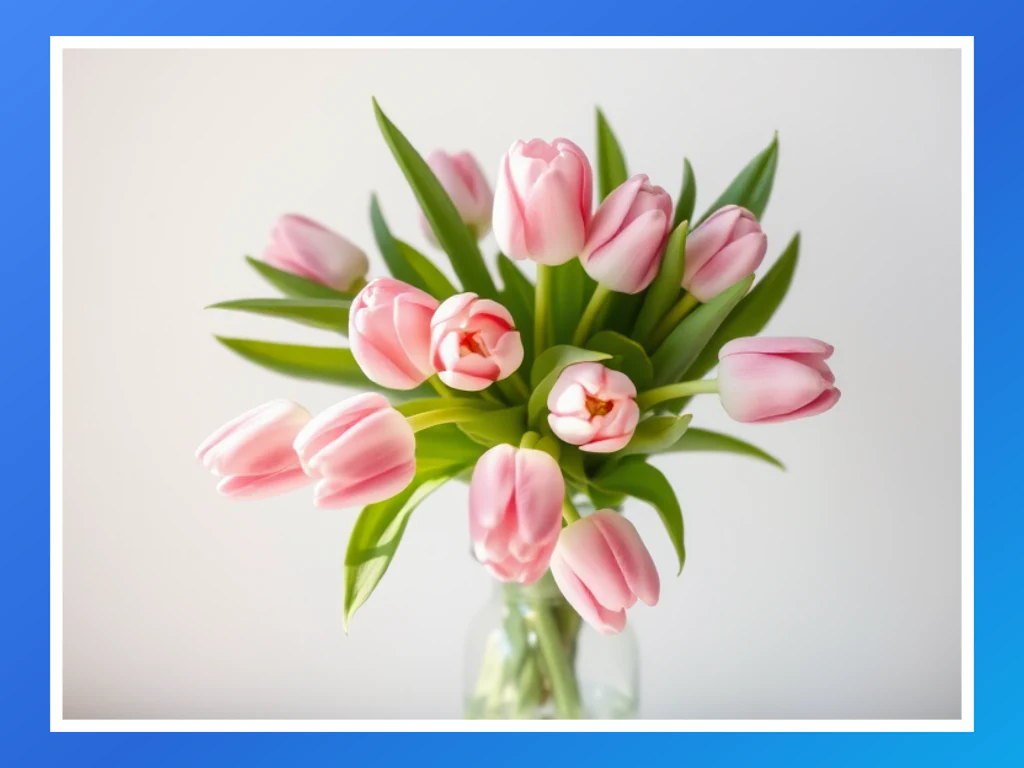
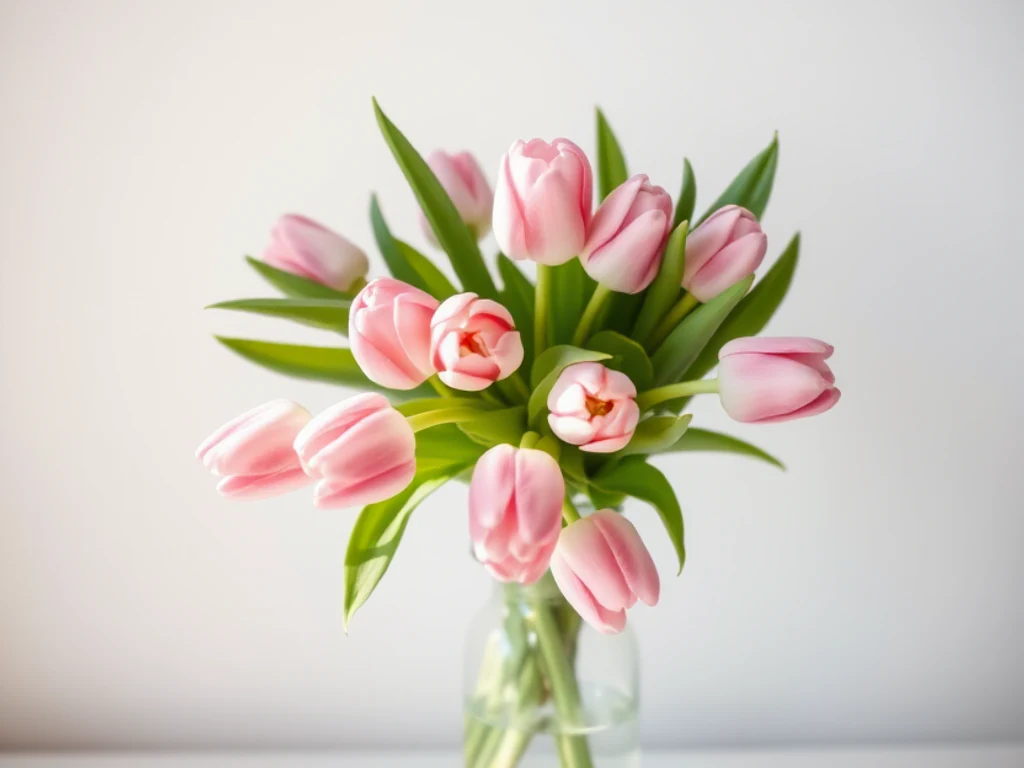
Add Border to Photo — Free Photo Frame and Border Maker
JPG, PNG, WEBP and more
The photo looks unfinished next to everything else on the wall or in the feed. Add a border to it — clean, polaroid, gradient or rounded — and it reads as deliberate.
- Make a photo look framed and finished, not cropped and dumped
- Solid, gradient, polaroid and rounded-md border styles
- Border a whole set at once and download one ZIP
JPG, PNG, WEBP and more
Drop a photo — style your border live and download the framed image
How to Add Borders to Images
Step 1: Upload Your Photo
Drop your Instagram photo or click to browse. Works with JPG, PNG, GIF, WebP formats.
Step 2: Create Instagram Border
Add white border, adjust thickness, and enable rounded corners. Perfect for social media posts.
Step 3: Download for Instagram
Download your perfectly bordered photo ready for Instagram, TikTok, or any social platform.
Border Styles
Choose from various border widths, colors, and styles to match your needs.
Photo border online: add a border to a picture in black, white, gradient or Polaroid
This photo border maker adds a frame to a photo, or a border to an image, online. Upload a picture, choose a Border Type such as Solid, Gradient, Polaroid or Rounded, set the Border Width and the colors, and download the framed image. The border is added around your photo rather than over it, and the tool works in a phone or computer browser.
Add a border to an image online: upload, style and download
Drop a photo into the upload area and the preview shows the frame as you change it. Use the Border tab for the Border Type and the Border Width, and the Colors tab for the Border Color and the Background Color. The editor opens on an Inset style with a blue color, so choose the style you want first. When the preview looks right, download the framed image.
- Upload your photo in the upload area.
- Choose a Border Type in the Border tab.
- Set the Border Width and the Border Color.
- Select See result, then use Download.
Add a black border to a photo, or a white one
Choose Solid as the Border Type, then select Black Border or White Border in the Colors tab for a plain frame in one tap. It is the quickest way to add a white border to a photo for a post. Border Width sets how thick it is. Dashed, Dotted and Double draw patterned lines, and the Background Color shows through their gaps. Black Background and White Background change the surface behind a patterned frame.
Pick a photo border design: Polaroid, gradient or rounded
The Polaroid photo border has an even border on 3 sides and a wider strip along the bottom, filled with your Background Color, which is the classic instant-photo look. Gradient blends the Border Color into Gradient Color 2 at an angle you choose, with presets such as Sunset, Ocean and Candy. Rounded sets the photo on the Background Color with softly rounded corners for an app-icon look.
Crop, pad or frame the photo before you post it
To add a frame to a photo without covering any of it, remember that the border adds the same width on every side and makes the picture larger. For an Instagram post, choose Solid or Polaroid with white and a moderate width. Crop the picture first if the composition needs tightening, or crop the photo into a circle for a round frame. To pad a photo out to a post size with colored bars instead of an even frame, fill it with a background color. For a caption on a white strip, add meme text after framing, and to frame several photos together, arrange them in a collage.
Before you download
- The result is a JPG, so the transparent areas of a PNG are filled in and do not stay see-through.
- The finished picture is larger than the original by the border on each side; resize it afterward if a site needs exact dimensions.
- Border Width can reach 40 percent of the longest side, so a very thick frame suits a large photo.
- Batch mode, a Premium option, frames a whole set in one ZIP.
Before and after adding a border
Settle the composition before framing by cropping to the area you want to keep; for a round frame instead, crop the photo into a circle. To frame several shots together, arrange them in a collage with spacing and borders, or combine the frame with text and graphics in the full editor.
What you can do with Add Border
Review the main capabilities before you begin.
- Add a solid color border around a photo
- Frame images with a smooth gradient edge
- Create a white polaroid-style frame
- Round the corners of your picture
- Adjust the border thickness to taste
- Add matching borders to many photos at once
Settings reference
12 settings
Available controls for Add Border.
Mode
- Single image / BatchPresets
- Switch between framing one photo or applying the same border settings to many photos at once and downloading them together as a ZIP.Options: Single imageBatch
Border
- Border TypePresets
- Picks the frame style, from flat and 3D line effects to polaroid, two-color gradient and rounded-corner frames; the live preview updates as you choose.Options: SolidDashedDottedDoubleGrooveRidgeInsetOutsetPolaroidGradientRounded
- Border WidthSliderRange: 1–500px · Default: 111px
- Sets the frame thickness in pixels, with the slider maximum auto-scaling to 40% of your photo's longest side; in batch mode it swaps to a 1-45% slider (default 12) that sizes the border relative to each image's own longest side so mixed-size photos get a consistent frame.
Colors
- Border ColorColor picker
- Chooses the color of the frame line itself via a swatch picker or hex code; it also serves as the first color of the gradient frame.
- Black BorderOne-click
- Quick preset that instantly sets the border color to pure black for a classic gallery-style outline.
- White BorderOne-click
- Quick preset that instantly sets the border color to pure white, ideal for clean Instagram-style frames.
- Gradient Color 2Color picker
- Sets the second color of the two-tone gradient frame; this picker appears only when the Gradient border type is selected.
- Gradient angleSliderRange: 0–360° · Default: 135°
- Sets the direction of the gradient frame: 135° fades top-left to bottom-right, 90° left to right; the preview bar shows the exact fill your frame will use, and one-tap preset pairs like Sunset and Ocean fill both colors at once.
- Background ColorColor picker
- Fills the canvas behind the border; it shows through the gaps in dashed and dotted styles and forms the surrounding mat on rounded and polaroid frames.
- Black BackgroundOne-click
- Quick preset that sets the background fill behind the border to pure black.
- White BackgroundOne-click
- Quick preset that sets the background fill behind the border to pure white for a clean mat look.
- Gradient presetsPresets
- Set both gradient colors with one tap. These presets appear when the gradient border or outline style is selected.Options: SunsetOceanVioletGoldLimeCandy
Related tools for Add Border
Tools for common next steps after Add Border.
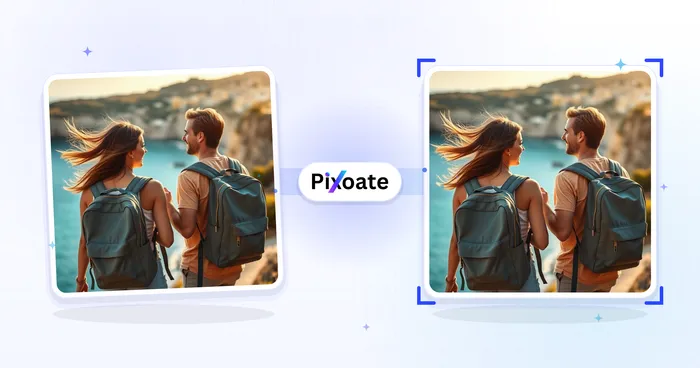
Photo Editing & Utilities
Crop Image
Drag to crop an image. Choose a preset ratio or enter exact dimensions.
Try it now
Photo Editing & Utilities
Resize Image
Resize an image to exact dimensions or by percentage. Preview and download the result.
Try it now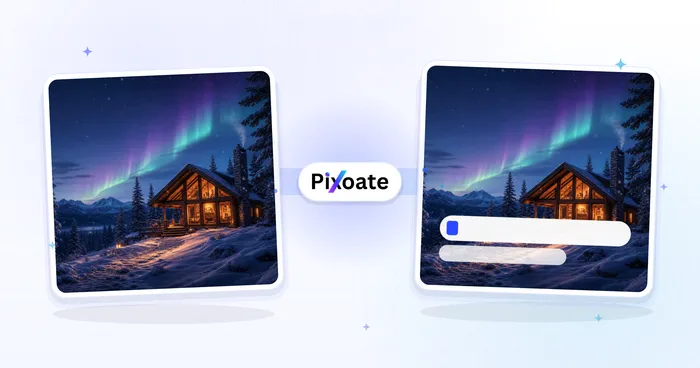
Creative & Design
Add Text to Image
Add styled text with custom fonts, colors and outlines to supported image formats, then download the edited image.
Try it nowFrequently Asked Questions
How Add Border helps you get it done
Real problems it solves every day — for businesses, creators, and everyday tasks. Find the use case that fits you and start.
Instagram White Border Posts
Give a busy Instagram photo room to breathe with a white border, in feeds, stories and reels
PowerPoint & Business Presentations
Add professional borders to PowerPoint slides, quarterly reports, and client presentations for a polished corporate look
Family Photo Albums & Wedding Books
Create beautiful polaroid-style borders for family photos, wedding albums, and baby scrapbooks that preserve memories
Amazon & Etsy Product Photos
Give Amazon, Etsy and Shopify listing photos one consistent frame instead of twelve different edges
Digital Art & Design
Create framed artwork and digital designs with custom borders for portfolios, galleries, and art exhibitions
Wedding & Event Photography
Add elegant borders to wedding photos, event pictures, and special occasion memories for professional albums
Real Estate Listings
Frame real estate listing photos so a phone-shot room reads as a considered listing
Restaurant Menu Photos
Add appetizing borders to food photos for restaurant menus, websites, and social media marketing
LinkedIn Profile & Personal Brand
Create professional profile photos with borders for LinkedIn, resume headshots, and personal branding across platforms
Christmas Cards & Party Invitations
Add festive borders to holiday greeting cards, birthday invitations, and seasonal announcements for family and friends
TikTok & YouTube Thumbnail Borders
Border TikTok covers and YouTube thumbnails so the subject does not bleed into the feed behind it
WhatsApp Status & Story Borders
Stop WhatsApp status, Instagram stories and Snapchat cropping the edges off your photo
Certificate & Diploma Framing
Use the Groove, Ridge, Inset or Outset border styles to give certificates, diplomas and awards a formal, engraved-looking frame without opening a design app — pick matching Border and Background colors for a classic embossed look.
Batch-Bordered Product Catalogs
Switch to Batch mode to frame an entire product photo shoot at once with one consistent border color and width, then download every image in a single ZIP — the percentage-based width keeps thumbnails and hero shots looking uniform even when photos are different sizes.
Retro Polaroid Photo Booth Strips
Pick the Polaroid border type with its wide white bottom strip for instant-camera style keepsakes from weddings, parties and photo booths — perfect for printing and handing out on the day.
Brand-Gradient Social Carousels
Choose the Gradient border type and set Border Color and Gradient Color 2 to your two brand colors for a cohesive, on-brand frame across an Instagram or LinkedIn carousel post.
Rounded-Corner App Screenshot Mockups
Apply the Rounded border style to app or website screenshots for App Store listings, product decks and documentation, giving flat screenshots the soft-corner device look without a mockup tool.
Watch each transformation land
Every photo crosses the slash untouched and comes out the other side finished.























