

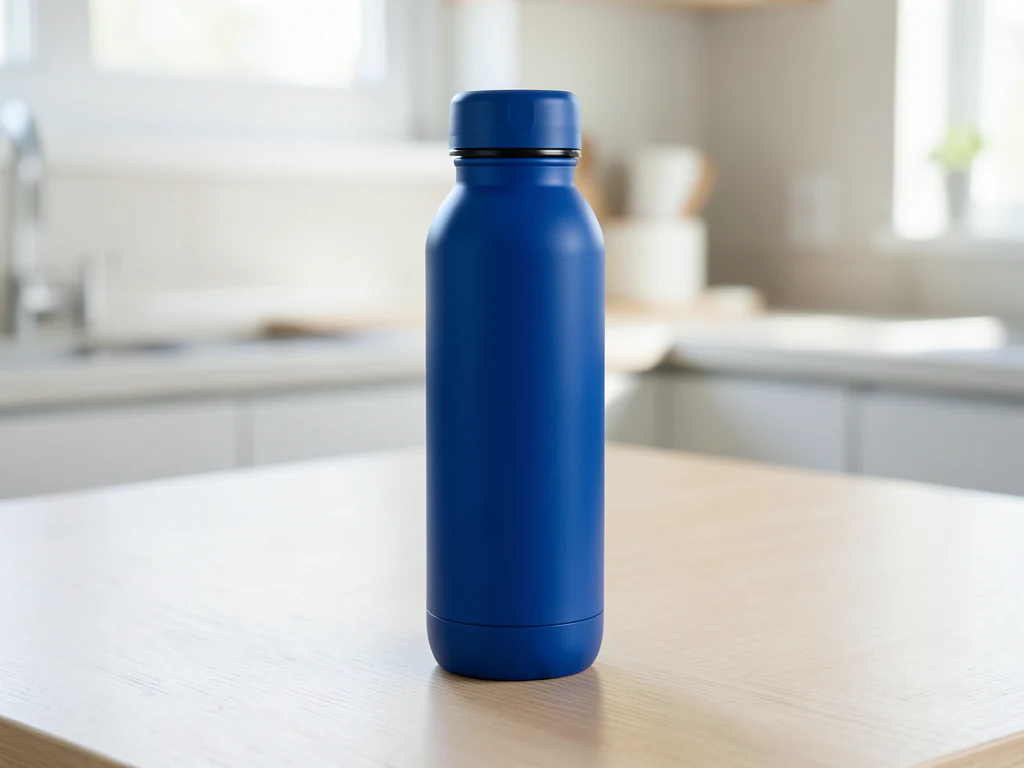
Product Ad Generator
Generative output can vary; review the full result before publishing
A product ad has two jobs that pull against each other: show the product accurately, and build a world around it that makes someone want it. This direction generates the campaign scene around your photo while asking the AI to keep the product as photographed, so the aspiration is in the setting. AI can still change fine details such as labels or logos, so compare the result with the real product before the ad runs.
- Prepared Product Ad Generator direction
- Editable prompt
- Source-detail review required
Generative output can vary; review the full result before publishing
Choose a source image for Product Ad Generator
JPG, PNG, WebP, HEIC, and other supported formats. Free up to 20 MB; Premium and higher up to 50 MB for this tool.
Shooting the product photo that the campaign scene is built around
Unlike the text-only ad pages, this one starts from your upload: the AI is asked to keep the product as photographed while it builds the scene around it, so compare labels and logos with the real product. The result follows the framing of the photo you upload, so shoot or crop the product photo to the shape of the placement first, with some room around the item. Photograph it straight on in soft, even light, and wipe off dust and fingerprints, because whatever the camera records is what the ad will carry.
Four ready looks sit under the prompt box. Room for copy puts the product to one side with open space for words, Bold color uses a saturated backdrop and a graphic shadow, Sunlit surface adds warm daylight and a long shadow, and Dark and moody uses a deep background with a rim light. Premium batch mode can run a whole range of product photos through the same look.
Compare each result with the real item before it goes anywhere near an ad account: label text, logo placement, cap shape, the color of the liquid, reflections and where the shadow meets the surface. For a marketplace main image, which often has to show the product on a plain backdrop, use a clean listing image instead of a campaign scene.
Turn a product photo into an ad image with room for your copy
This product ad generator is a product image generator that starts from a photo of your real product and builds an advertising scene around it, with a bold or moody backdrop and clear space where a headline or an offer can go. It is for small brands, marketers and sellers who need ad creative for social, display or a store banner without a shoot. You add the words afterward, so they stay sharp and accurate.
Make an ad image from a product photo in 5 steps
The scene is built around the item in your photo, and the image comes back in the same shape as the upload. Photograph the product straight on with room around it, then run it through one of 4 looks.
- Upload the product photo, cropped to the shape of the ad placement.
- Under Styles, choose Room for copy, Bold color, Sunlit surface or Dark and moody.
- Open Custom instructions (optional) to change the color, surface or light.
- Select Generate Product scene and compare the product with your original.
- Download the PNG and add your headline, price and logo in a design or text tool.
Match the look to the kind of ad you are running
Room for copy suits offers, launches and sale banners, because the empty side holds a headline and a price. Bold color works for social posts where the product has to read at thumbnail size. Sunlit surface gives a natural, everyday feel for organic posts and email headers. Dark and moody fits fragrance, watches and spirits, where a deep background with one bright edge light signals premium. If none fits, name your own backdrop, light and product position in the instructions.
Add your headline, price and logo after generating
Keep words out of the generated picture. The prepared direction asks for no lettering, so you place the text yourself, for example by putting the headline on the image in your own font and color. Stamp a logo with a watermark tool that sets position and opacity. Changing a price or an end date later then means editing text, not generating the scene again.
Create ad variations from one product photo
Run each of the 4 looks on the same photo and keep the ones that still read at a small size. Every run starts from your original, so each variant begins from the same product photo and the scene is what you vary, which makes the set easy to compare in a test. Check the product in each one, and name the files by look. For a set tied to a holiday or season, the seasonal scene generator is written for occasion-based campaigns.
Set up for Product Ad Generator
Prepared settings
- Starting point
- Upload one source image
- The page opens on the correct edit workflow; upload is the only required setup step.
- Prepared workflow
- Prepared Product Ad Generator scene direction
- Product Ad Generator opens with the Product Ad Generator direction preselected, so there is no need to find the operation manually.
- Output shape
- Same as your upload
- The result keeps the shape of the image you upload.
- Review rule
- Preserve the source subject and verify factual details
- Generated imagery can vary; the final result stays under the user's approval before download.
Best-fit uses
- Campaign creative built from existing catalog photography
- Seasonal ad variants for the same product
- Concept boards for a campaign before a shoot is approved
Frequently asked questions
- How is this different from product photography?
- Catalog photography answers what the product is, on a clean backdrop, for a listing. Ad creative answers why you want it, and needs atmosphere and copy space. Same product, different job — which is why the two sets rarely interchange well.
- Can the ad show the product in use?
- Scenes involving people and hands are where generated images fail most visibly, so inspect them closely. It is also where claims creep in: a product shown solving a problem is making a promise. Keep the depiction to something the product genuinely does.
- Do generated ad scenes create advertising-claim risk?
- They can. A scene implying a result, an ingredient, a certification or a use case the product does not support is a claim, whether or not it is written in words. Review every generated setting for implied promises before the ad runs.
- Where does the offer text go?
- Added afterwards in a design tool, over the space the scene leaves clear. Keeping offers out of the generated image means you can update a price or an end date without regenerating the creative or restarting a campaign learning phase.
- What is the difference between this and an AI image generator?
- This page, a product picture generator, starts from your own product photo and builds a scene around it, so the ad starts from the item you sell. The AI Image Generator creates a picture from a text description alone, with no source photo. Use this one when the ad must be built on your real product, and compare the result with the item before it runs.
- Why is there lettering or a logo in my generated ad?
- The prepared direction asks for no lettering, but a generated scene can still show text-like marks or alter label details on the product. Generate again, and compare the label with your photo. Do not rely on any generated text, and add your own words afterward.
- Can I use the generated scene in paid social or display ads?
- You are responsible for the rights to the photo you upload. Ad platforms publish their own policies, which can include rules about synthetic imagery and about how a product may be shown, so read the current ones for each network you use. Compare the product with the real item before the ad goes into an account.
- How much empty space should I leave for text?
- Leave enough clear space that a headline and an offer can be set large enough to read on a phone, and keep the product away from the edges where a platform may crop it or cover it with buttons. Room for copy places the product to one side for this reason, so check the result at phone size.
What you can do with AI Product Scene Generator
Review the main capabilities before you begin.
- Build a scene around your product from a single photo
- Create editorial, ecommerce, and social campaign concepts
- Generate coherent props, surfaces, lighting, and shadows
- Ask the AI to keep the product as photographed
Settings reference
4 settings
Available controls for AI Product Scene Generator.
Workflow
- Single image or Batch imagesPresets
- Process one image, or use Premium Batch images to apply the same automatic recipe to a set and download one ZIP.Options: Single imageBatch images
Scenes
- One-tap presetsPresets
- Pick a ready-made direction with one tap; generation uses the selected preset automatically.Options: Bathroom counterKitchen lifestyleOutdoor lifestyleEditorial podiumSocial ad
- Custom instructions (optional)Text input
- Describe the requested change, relevant materials, lighting, perspective, and details that must remain unchanged.
Selection
- Selection brush sizeSliderRange: 4–160px · Default: 32px
- The subject area is found automatically. This brush appears only if that automatic area could not be found; paint the area to edit, then generate again.
Related tools for Product Ad Generator
Tools for common next steps after Product Ad Generator.
AI Image Studio
AI Image Generator
Generate AI images from text prompts in square, landscape, portrait, or wide formats and download the result as PNG.
Try it now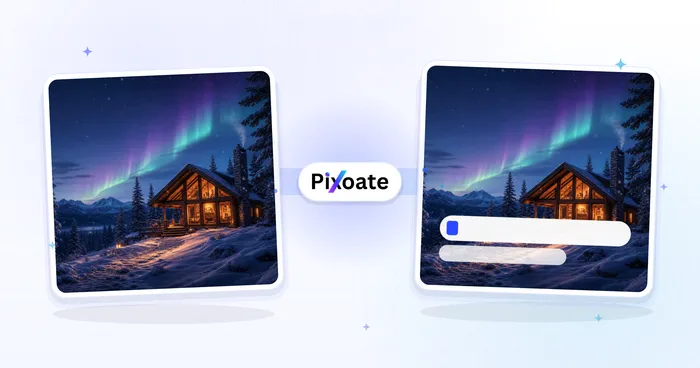
Creative & Design
Add Text to Image
Add styled text with custom fonts, colors and outlines to supported image formats, then download the edited image.
Try it now
Photo Editing & Utilities
Online Photo Editor
Crop and resize photos. Add text, shapes, effects and templates, or use AI editing tools.
Try it nowWatch each transformation land
Every photo crosses the slash untouched and comes out the other side finished.























