Check statement transactions without manually entering every row
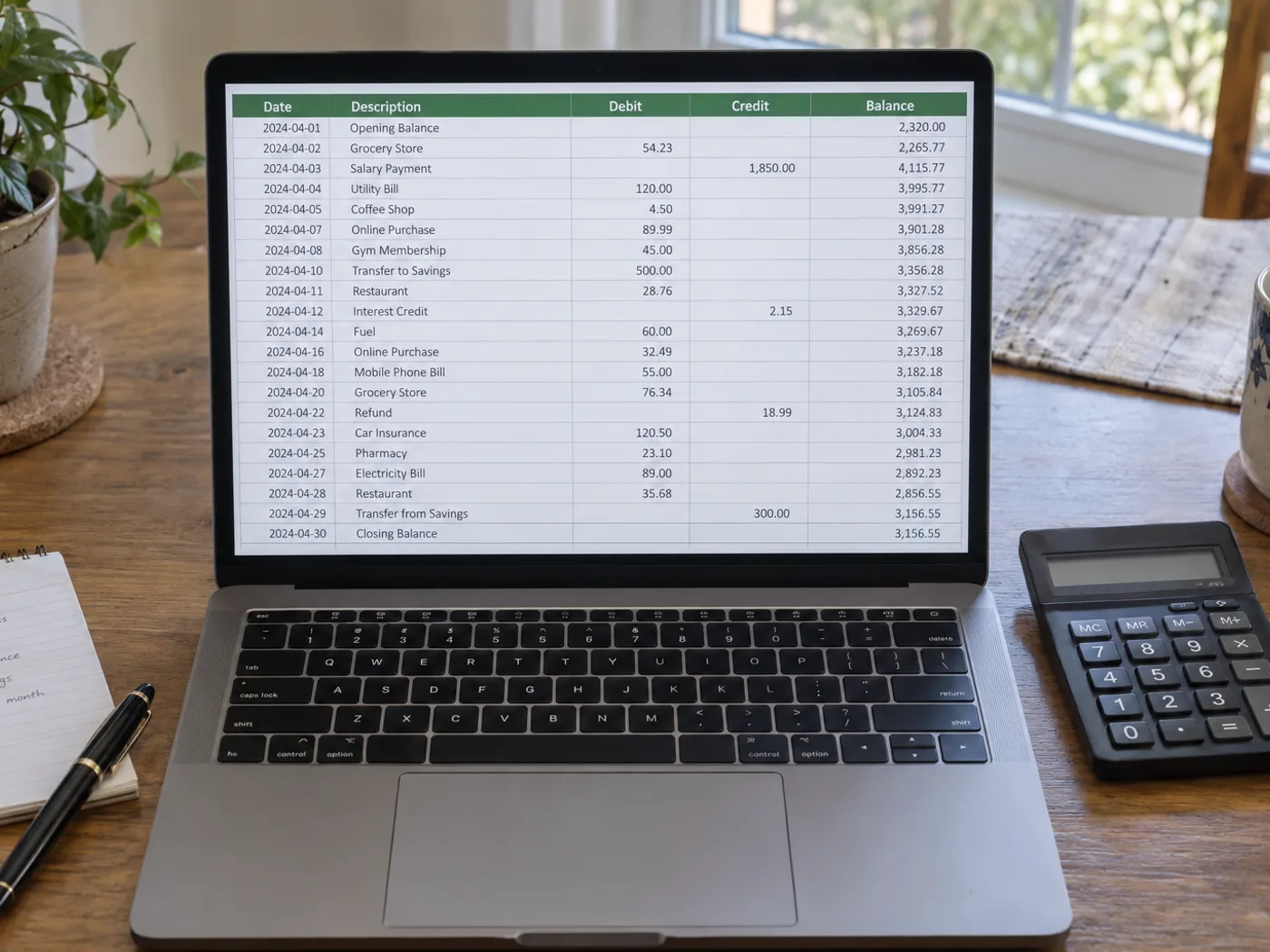
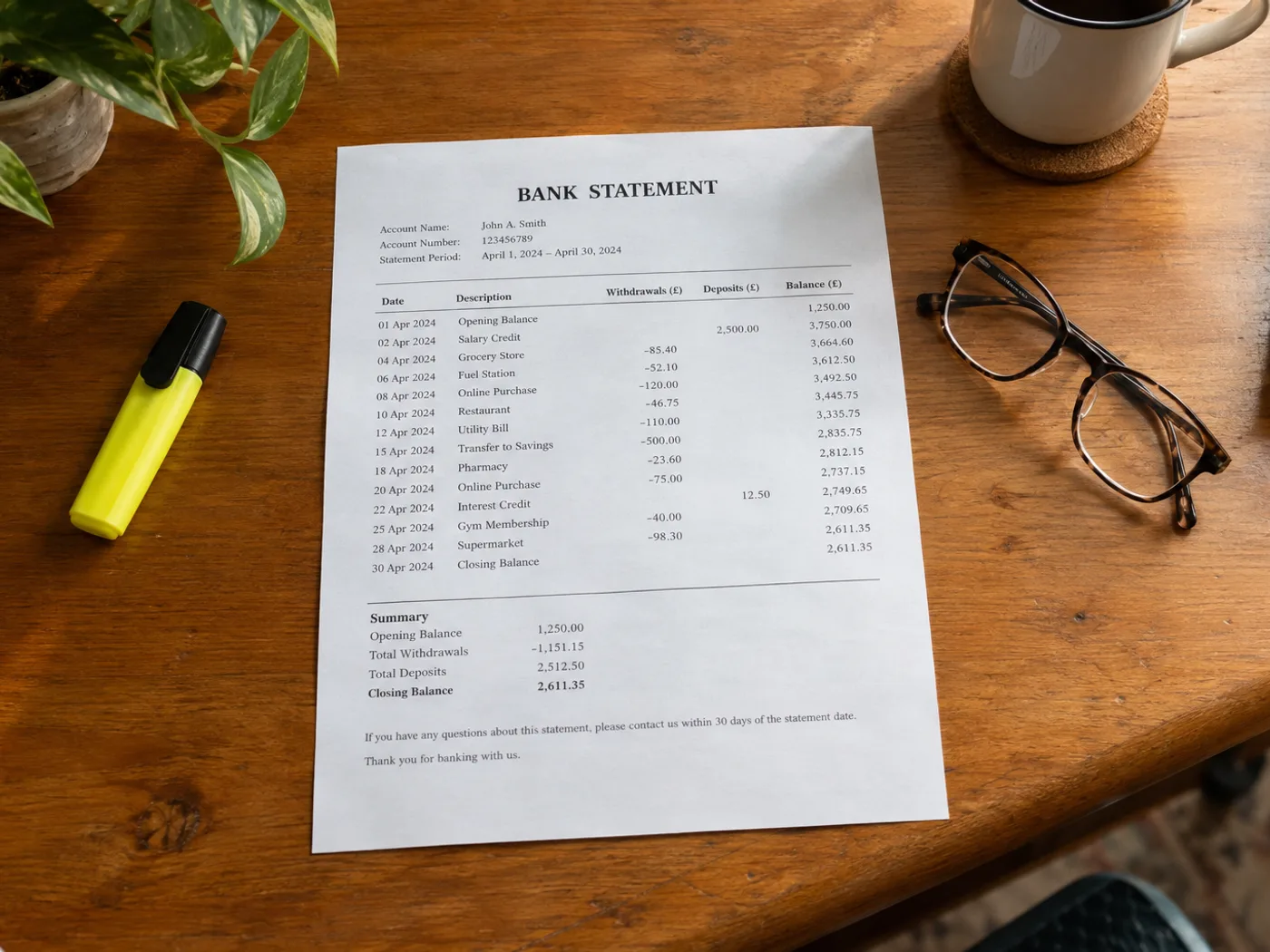
Read the transaction table from a bank statement photograph or scan image into Excel for manual reconciliation. Verify debit and credit columns, date order and running balances; a readable spreadsheet is not proof that the transcription is correct.
Personal transaction categorization
Prepare reviewed rows before adding your own budget categories. Confirm whether each amount is an incoming or outgoing payment.
Comparing statement entries with a ledger
Use the extracted references and amounts as a starting point for a manual match against records you already maintain.
Verify signs and dates before reconciling the worksheet
- Select a statement image with transaction headings and the relevant balance context.
- Verify every date, amount sign and reference; watch for descriptions wrapping onto another line.
- Export the corrected workbook and reconcile it against the original statement.
Bank access, debit signs and balance-checking limits
- Does this connect to my bank to retrieve transactions?
- No. It processes the statement image you upload and does not request bank login credentials or access your bank account.
- How do I check debit and credit signs in the Excel result?
- Compare the source column headings and any minus signs or parentheses. Confirm the direction of each transaction before applying your own formulas.
- Can I upload my bank's PDF statement on this page?
- Use PDF to Excel for an existing PDF. This image workflow is for photographed, scanned-image or screenshotted statement tables.
- Will the converter certify that the statement balances?
- No. OCR can misread amounts or omit rows. Reconcile totals independently and retain the original statement for reference.
- Why is a daily total in my History chart wrong?
- The chart adds up the single column you chose across every saved row, so an opening balance, a closing balance or a page total in that column is counted too. Delete those rows from the table, choose the right Amount column, and check the line under How values will be read, which shows how many rows were counted.
- Which date format should I choose for a statement?
- Choose the order the statement prints: YYYY-MM-DD, DD/MM/YYYY, MM/DD/YYYY, DD-MM-YYYY or DD.MM.YYYY. Read a date where the day is above 12 to be sure. A row whose date cannot be read is left out of the chart, and the panel counts those rows so you can see how many.
- Does saving to History change the workbook I download?
- No. History keeps a copy of the checked table in your account, while the .xlsx you download is built from the same grid. Edits you make in the grid before you save or download appear in both, and a table you remove from History does not delete a file you already downloaded.
- Can I mix statements from different accounts in one collection?
- Amounts in a collection are added together by date, so combine accounts only when you want one daily total across them and they share a currency. For separate totals, create one collection per account. Column names that differ from the collection are matched by position, so keep the layouts alike.
- What does the duplicate warning mean when I save a statement?
- The panel noticed that the same file or a table with the same contents was already saved, and it shows the date of that save. Choose Save anyway only when it is a different document, such as two genuinely identical pages, otherwise your daily totals will count the same transactions twice.
- Do I have to sign in to use the History tab?
- Yes. Saved tables belong to your account, so a signed-out visitor sees a prompt to sign in instead of the collection controls. Reading the statement into the grid and correcting it does not depend on History.