A table without a source workbook still needs usable cells
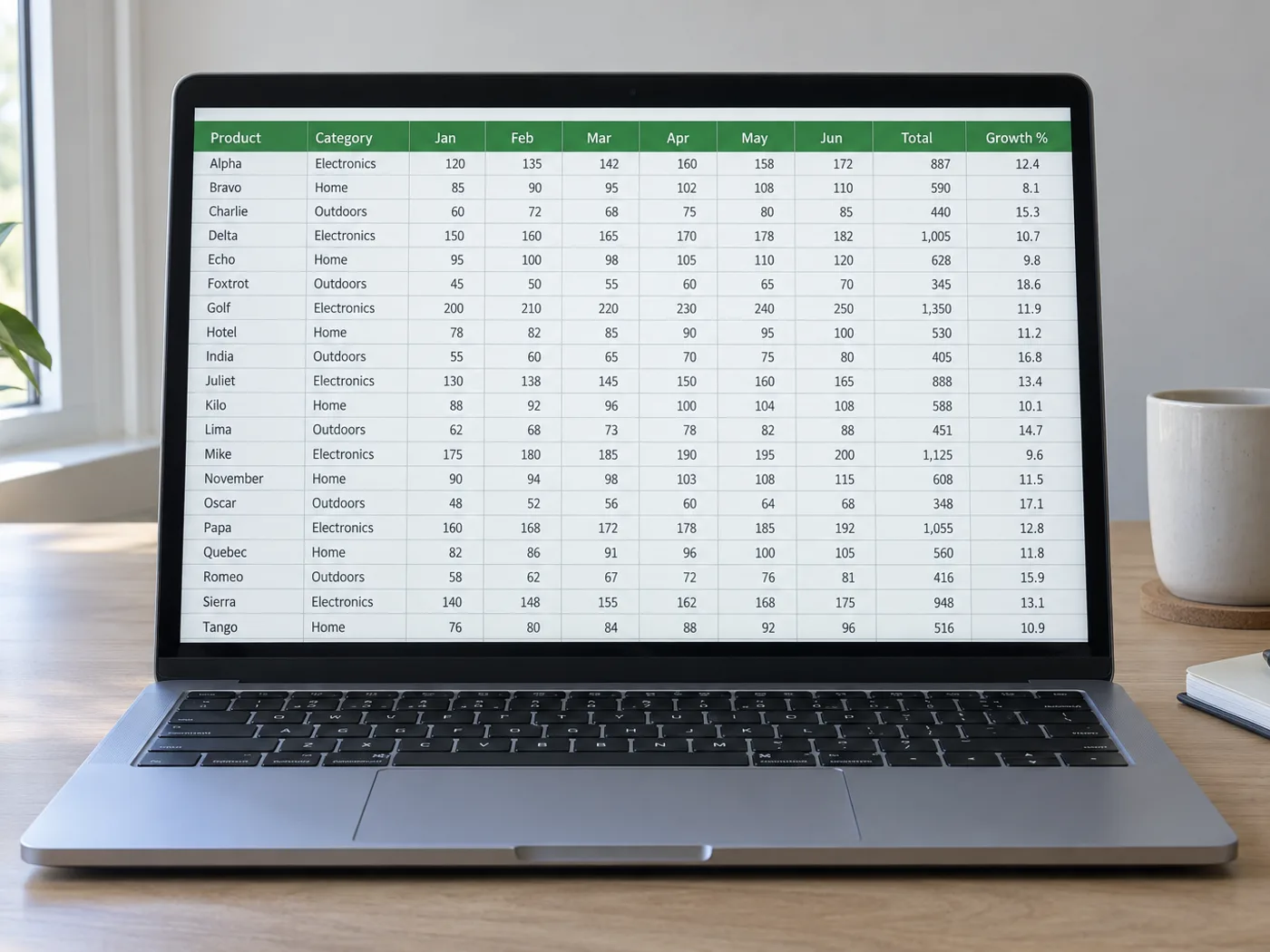
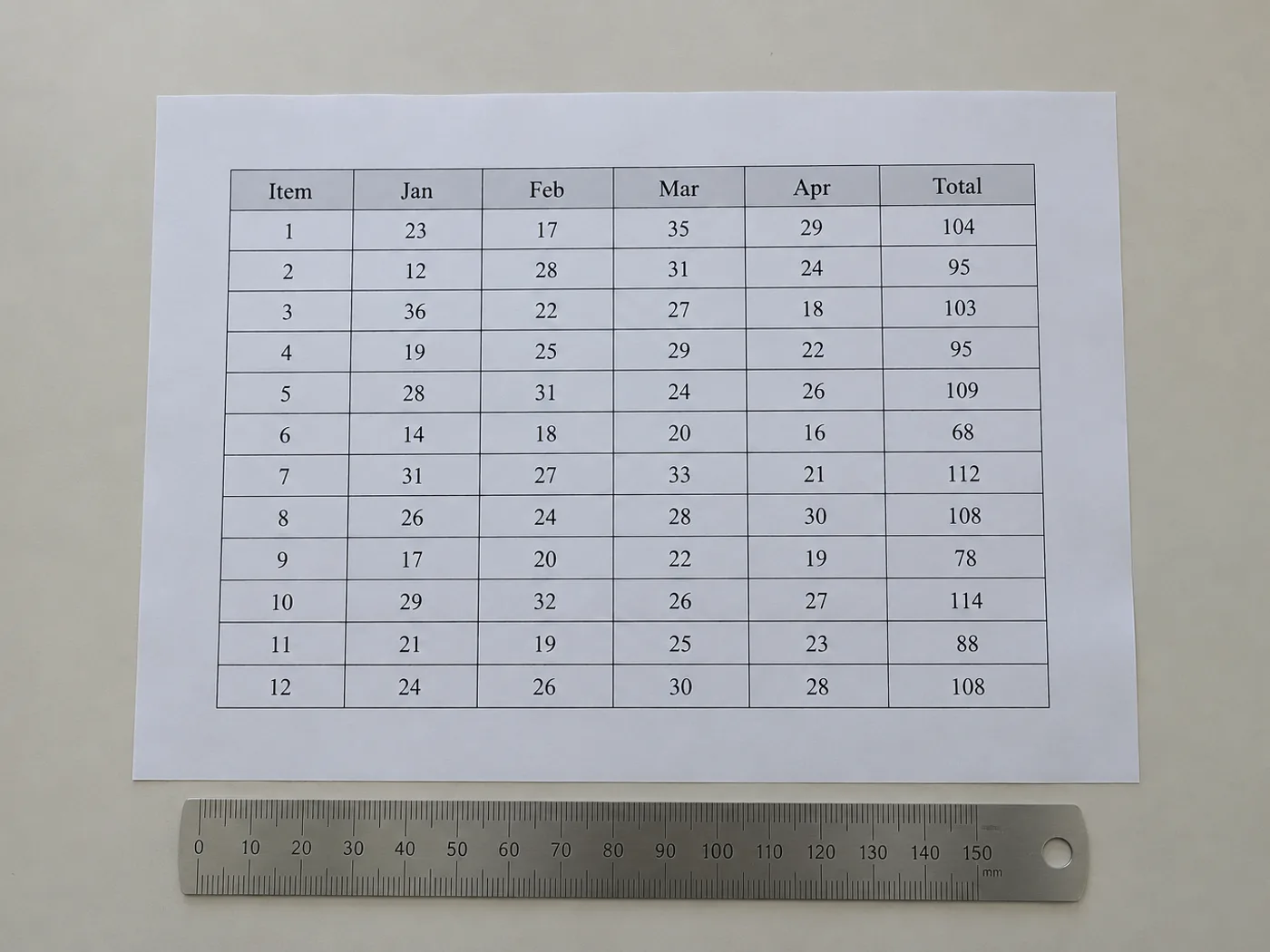
Recover a table's visible cell contents when all you have is an image. The review grid lets you correct the detected structure before export, which is especially useful for borderless columns and headings spanning more than one field.
Published reference tables
Prepare an editable copy of a report table for your own calculations while retaining the original source and unit labels.
Tables without drawn gridlines
Check whether whitespace-aligned values have landed in the right columns before using them as spreadsheet data.
Rebuild the table structure before using its numbers
- Crop to one table and retain captions or units needed to interpret its values.
- Compare detected columns and rows with the image; correct missing or extra grid entries.
- Export the reviewed cells and rebuild any presentation-specific formatting in Excel.
Borderless columns, merged headers and missing rows
- Do table images need visible gridlines for Excel extraction?
- Clear alignment can also indicate columns. Borderless layouts require closer review because wrapped text and uneven spacing can shift detected boundaries.
- Will merged headings remain merged in Excel?
- Do not rely on exact layout reconstruction. Check the extracted headers and combine or separate cells in Excel to suit the table's meaning.
- What if a table image contains footnotes?
- Keep footnotes available as context, but remove any that enter the data grid as false rows. Preserve their meaning in a separate note when needed.
- How can I repair a missing row before exporting XLSX?
- Use the editable review grid to add or correct rows, then compare the row count with the image before downloading the workbook.
- Why does my worksheet have an extra column of empty cells?
- Rows are padded to the widest row and the grid has no column controls, so one wide row leaves empty cells in every other row. Delete the empty column in Excel after you open the workbook, and check that a title or note did not land in the table.
- Can I convert a table that runs across two images?
- Convert each image separately, keeping the same column headings in both, then paste the second table's rows under the first. For a series of related images, signed-in accounts can save each checked table to History and open a combined workbook that stacks them.
- Will numbers with thousands separators work in formulas?
- Not immediately. Cells are text, and a separator or currency sign inside the text can stop Excel from converting it. Remove the sign with Find and Replace, or use Text to Columns with the right locale, then check a total against the picture.
- Is the picture of my table kept in the workbook?
- No. The workbook holds the cell text only and the picture is not embedded. Keep the image next to the file if you need the original appearance, or choose the PDF version of this page to keep the table as a page with searchable text.
- How do I handle units that appear in the table caption?
- Units in a caption arrive as a separate single-cell row above the table. Move them into the column headings, for example Weight kg, before you export, because a workbook cannot carry the caption as meaning for the whole column and later readers may not see it.
- Where do saved tables go, and can I open them again?
- Saved tables are kept in your account under the collection you chose. The History tab lists them by Document date with Open, Mark checked and Remove buttons, and opening one shows its rows so you can compare it with a new conversion.