How to Prepare Amazon Main Images and Secondary Product Photos
Prepare Amazon main images and secondary product photos with Pixoate. Separate product identification from lifestyle scenes and explanatory graphics.
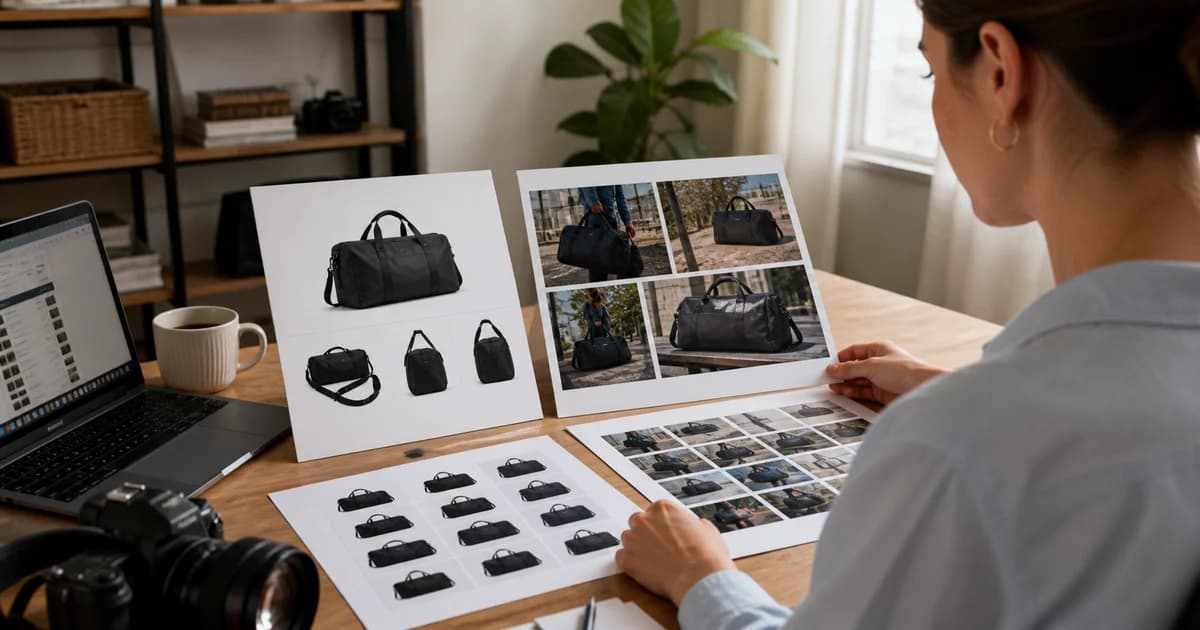
An Amazon main image and a supporting detail image do different jobs. The first must identify the product clearly within the current listing rules. The supporting set can help explain features, dimensions and what is included, subject to the rules for that placement and category.
Pixoate helps prepare those assets through white-background product images, resizing and editable graphics. It does not guarantee marketplace acceptance or automatically publish the files to your listing.
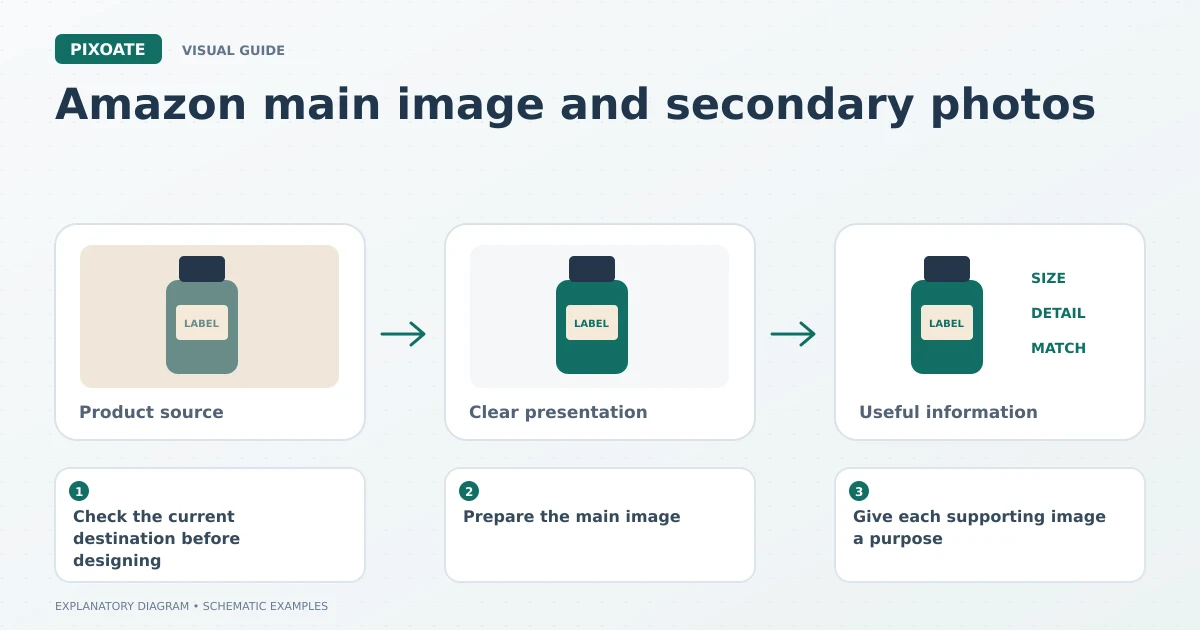
Original explanatory graphic. The scenes and sample records are schematic illustrations, not screenshots or measured tool results.
Check the current destination before designing
Amazon's official product-photography guidance [1] discusses main-image requirements, white backgrounds and accurate presentation. Check the current category and marketplace requirements in your seller workflow before deciding on dimensions, overlays or additional elements.
Keep the main-image brief separate from a promotional banner brief. A useful advertisement may contain text and props that do not belong in the main listing image.
Prepare the main image
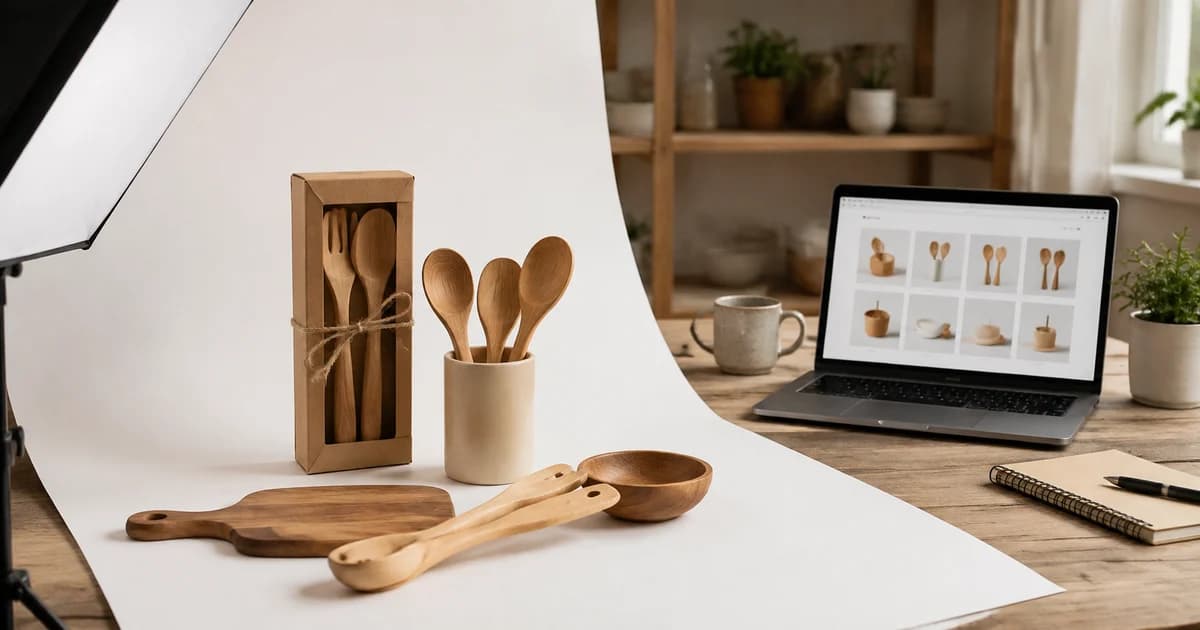
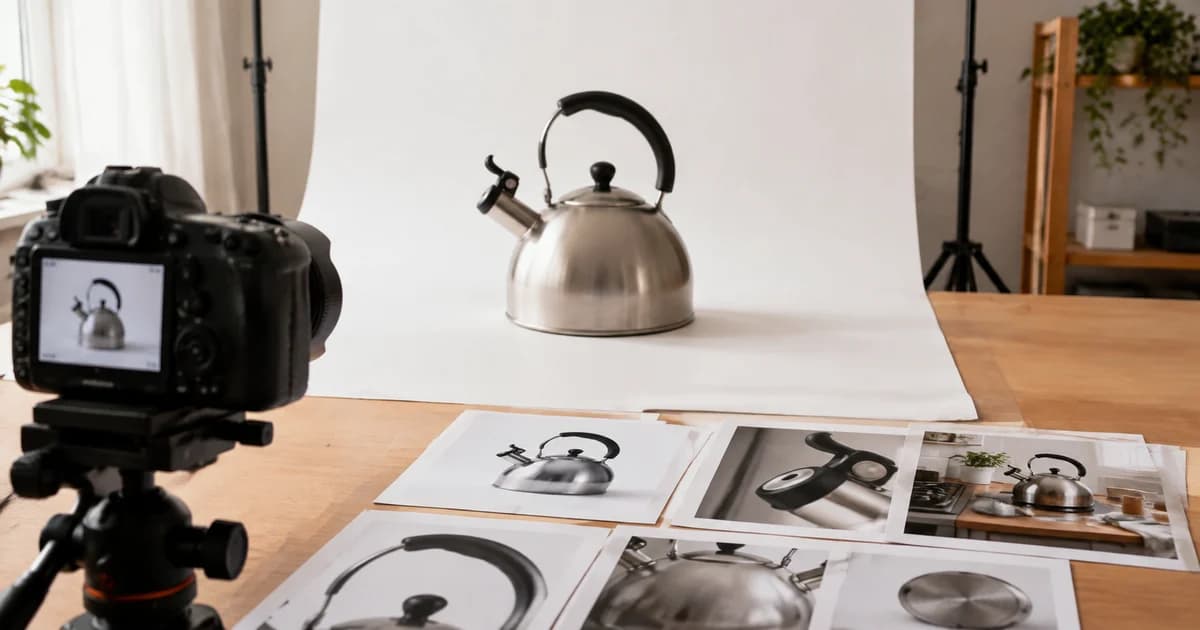
Start with a clear photograph of the actual item and variant. Use White Background when the destination calls for that treatment. Review the product edge, handles, transparent areas and any natural shadow.
Use resize an Amazon product image to prepare the required dimensions without stretching the item. Increasing pixel dimensions cannot establish fine detail that is unreadable in the source, so obtain a better photograph when necessary.
Confirm the image shows the correct quantity and only what the listing represents as included. Packaging, accessories and colour must match the offer.
Give each supporting image a purpose
| Buyer question | Possible supporting image |
|---|---|
| What does the back look like? | An actual rear view |
| How large is it? | Verified dimensions or an accurately scaled reference |
| What is included? | A clear arrangement of the supplied pieces |
| Which detail makes it suitable? | A readable close-up of the relevant feature |
Use Pixoate Photo Editor for detail graphics where the placement permits them. Keep annotations readable on a phone and use verified measurements rather than inferring dimensions from a photo.
AI Product Photos can help explore appropriate contextual scenes. Review the generated product, labels, reflections and scale, and check whether the intended placement allows the result. Preserve straightforward photographs that accurately show the actual item.
Inspect the listing after upload
Preview the main image, supporting gallery and selected variants. A correct exported file can still be attached to the wrong product or shown under an unexpected crop.
Keep the approved source files and a record of which image serves each role. That makes the next catalogue update easier to review.
Can one image do every job?
A single image can show the product, but it may not clearly explain size, included pieces and fine details at once. Plan the set around the questions buyers need answered.
Prepare the clean main image with Pixoate White Background, then create supporting assets with distinct, accurate purposes.
Sources
- official product-photography guidance:
https://sell.amazon.com/blog/product-photos