How to Digitize Restaurant Stock Sheets for Daily Inventory Reviews
Digitize restaurant stock sheets with Pixoate. Turn photographed tables and handwritten notes into reviewed records for daily inventory decisions.
The kitchen finishes service with a paper stock sheet. By the time somebody types it into a spreadsheet, a delivery has arrived, a case has been opened and the next order is already being discussed. The problem is not simply paper. It is the delay between an observation and a usable record.
Pixoate can help convert a photographed restaurant stock sheet to Excel. The worksheet still needs review, but clear tables can move into an editable format without rebuilding every row from scratch.
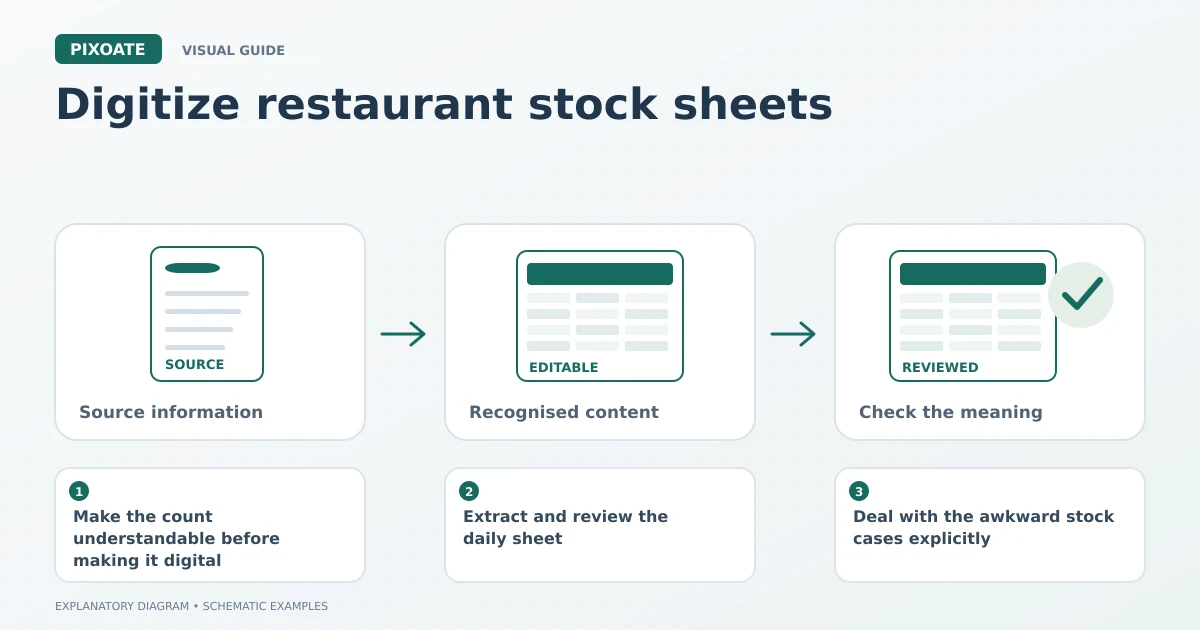
Original explanatory graphic. The scenes and sample records are schematic illustrations, not screenshots or measured tool results.
Make the count understandable before making it digital
Record the date, time, location and counting unit on the sheet. “Tomato sauce: 4” is incomplete if one person means bottles and another means cases. Separate open containers from sealed packs when your stock process requires it.
Use one row for each item and keep the same naming convention between shifts. A shelf photo, a written quantity and a delivery invoice describe different observations. Do not assume that one can automatically reconcile all the others.
Photograph the completed sheet before it is folded, stained or covered by another page. Use even light and keep the camera parallel to the paper. Include the headings and any notes explaining unusual quantities.
Extract and review the daily sheet
- Upload the image to Image to Excel.
- Select the document language and begin with the default table reader.
- Download the worksheet and compare complete rows with the photograph.
- Confirm quantities, units and the stock-count date.
- Add reviewed values to your existing inventory workbook or approved system.
For a handwritten margin note, extract handwriting as editable text separately if that is clearer than forcing it into the table. Difficult writing should be confirmed with the person who recorded it.
Deal with the awkward stock cases explicitly
| Small problem | Practical recordkeeping choice |
|---|---|
| An opened case contains loose units | Record the unit convention clearly instead of guessing a case fraction. |
| The same item appears in two storage areas | Keep location with the quantity until the totals are combined. |
| A delivery arrives during the count | Record the timing and handle the movement in your stock process. |
| Someone writes a dash | Confirm whether it means zero, not counted or not applicable. |
| A product name changes between shifts | Use a stable item identifier alongside the readable name. |
Pixoate extracts what is visible. It does not decide how to value waste, handle recipe usage or reconcile sales with ingredients.
Where object counting can help
For separated, visible items such as bottles or packaged stock, review an object-count estimate from a photo as a supporting check. Inspect the markers and correct the tally using your actual count procedure.
A photograph cannot reveal hidden units behind other products or measure the remaining contents of an opaque container. Comparing two photos also does not prove how much sold: deliveries, transfers, waste and other movements may explain the change.
Keep a short review trail
Store the original photograph with the reviewed sheet and note who checked uncertain entries. Start with one storage area whose stock layout and units are relatively consistent. Once the process is dependable, extend it to more of the kitchen.
Is this a replacement for restaurant inventory software?
It is a document-extraction and visual-review workflow. Your inventory system or spreadsheet remains responsible for records, calculations and operational decisions.
Can it handle handwritten stock quantities?
Clear handwriting may extract, but handwriting and grid structure can each introduce errors. Review uncertain digits against the original and use the handwriting tool for separate notes where helpful.
Use Pixoate Image to Excel to shorten the path from a clear stock sheet to a reviewed worksheet, while keeping the count itself grounded in what staff actually observed.