What to Include on an Invoice: A Plain Checklist and Example
A plain checklist of what an invoice commonly contains, a worked example with the totals shown, and how to build and check the PDF before you send it.
Written by the Pixoate team. We check how each tool behaves before we describe it, and we date any prices or portal rules we quote.
An invoice has two jobs. It asks for payment, and it becomes a record that you and your customer may need to find months later. Small gaps can slow an invoice down: no invoice number to quote, no due date, or no way to see how the total was reached.
Below is a plain checklist of what invoices commonly contain, a worked invoice example with the arithmetic shown, and the steps to build one with the invoice generator. Which details are required depends on your country, your tax status and your customer, so check the rules for your location and customer.
The checklist: what an invoice commonly contains
- The word "invoice" and a unique invoice number you can quote in emails.
- An issue date, and a due date or payment term.
- Your name or business name and contact details, plus any registration or tax number your location expects.
- Your customer's name and billing details.
- A line for each item or service, with a short description, a quantity and a price.
- The subtotal, any discount, any tax and the total, with the currency stated.
- How and where to pay: bank transfer details, a payment link or another method, and any late-payment terms you use.
- A reference your customer asked for, such as a purchase order number.
Not every invoice needs every line, and some places or customers require more. That is the part to check against the rules for your location and customer.
Where each item goes in the generator
Most of the checklist has a field of its own. A few items go in a free-text box.
| Checklist item | Field in the generator |
|---|---|
| Invoice number | Invoice # |
| Issue and due dates | Issue date and Due date |
| Your details | From: Business name and Details |
| Customer details | Bill to: Client name and Details |
| Items and prices | Line items: Description, Quantity and Rate |
| Discount and tax | Discount % and Tax % |
| Currency | The Currency list |
| Payment terms and method | Notes / payment terms |
| Tax number or purchase order reference | Details or Notes, because there is no dedicated field |
Two things to know before you start. The heading on the PDF is fixed as INVOICE, and so are the labels. There is also no logo field and no signature field.
An invoice example with the numbers shown
Here is a made-up invoice for a small web project. Every figure is invented, and the 8% tax rate is only an example, not advice about what applies to you.
- Invoice number: INV-2026-0107
- Issue date: 2026-10-14
- Due date: 2026-11-13
- From: Example Design Studio
- Bill to: Sample Customer Ltd
| Description | Quantity | Rate | Amount |
|---|---|---|---|
| Website redesign | 1 | 2400.00 | 2400.00 |
| Content editing (hours) | 6 | 85.00 | 510.00 |
| Hosting setup | 1 | 150.00 | 150.00 |
The totals follow from that table:
- Subtotal: 3060.00
- Discount at 10%: minus 306.00, which leaves 2754.00
- Tax at 8% of 2754.00: 220.32
- Total: 2974.32 USD
Notes: Payment by bank transfer within 30 days. Please quote the invoice number.
The generator works in that order. It takes the discount off the subtotal first, then applies the tax rate to the reduced amount. It has one tax rate for the whole invoice, so it cannot work out tax per line or on the full amount before the discount. If your customer or local rules expect that, check what you need before you use the result.
Build it in the generator
- Open the invoice generator. It starts with a sample invoice filled in, so replace each field rather than adding to it.
- On the Parties tab, set Invoice #, Issue date and Due date, then fill in From and Bill to.
- On the Items tab, edit the sample lines and add yours. Quick add inserts a starting line such as Consulting hours, and the handle on each row reorders items.
- On the Totals tab, choose the Currency, set Tax % and Discount %, and write payment details in Notes / payment terms.
- Check the live preview, select Create my invoice, then download the PDF from the result page.
The form does not keep your entries between visits. Keep the PDF you download, and create it again after any change.
Check the invoice before it goes out
- Add up the line amounts yourself and compare the total with the preview.
- Read the customer's name, the invoice number and both dates as they will appear.
- Use Latin letters. The PDF uses a standard Western European character set, and characters outside it, such as Cyrillic, Arabic or Chinese, are left out.
- Expect amounts to print with two decimals and no thousands separator, so 2400.00 rather than 2,400.00.
- Open the PDF and keep a copy. Add the invoice number to your own list, because the tool does not number invoices for you.
When a customer pays, you can stamp PAID on your copy so the file shows its status.
When an invoice goes wrong
Most invoice problems are small and avoidable. Here is what to check when one does not behave.
| What happens | Likely cause | What to do |
|---|---|---|
| The customer says the total is wrong | The discount and tax were worked out in a different order than they expect | Show the order on the invoice in Notes, or agree the method before you send |
| The customer cannot match the payment | No invoice number or reference was quoted on the transfer | Put the number in the payment terms and ask them to use it |
| The PDF drops some of a name | A character outside the Western European set | Use Latin letters in every field |
| A late payment has no consequence | No terms were stated | Write your terms in Notes before you send, not afterward |
| Two invoices carry the same number | The tool does not number invoices | Keep your own running list |
Decision guidance: is this the right tool for your invoice?
A simple generator is a good fit when you issue a few invoices a month, have one tax rate, bill in one currency and need a clean PDF. It is a weaker fit if you need recurring billing, automatic numbering, per-line tax, a logo, or a record of who has paid. In those cases, an accounting package or a template you control fits better. There is nothing wrong with starting simple and moving up once the volume or the rules demand it.
Whichever you use, the rule is the same: a customer should be able to read the invoice without asking you a question. If they have to email you to ask what a line means or when it is due, add that detail before you send.
Recording the invoices you receive
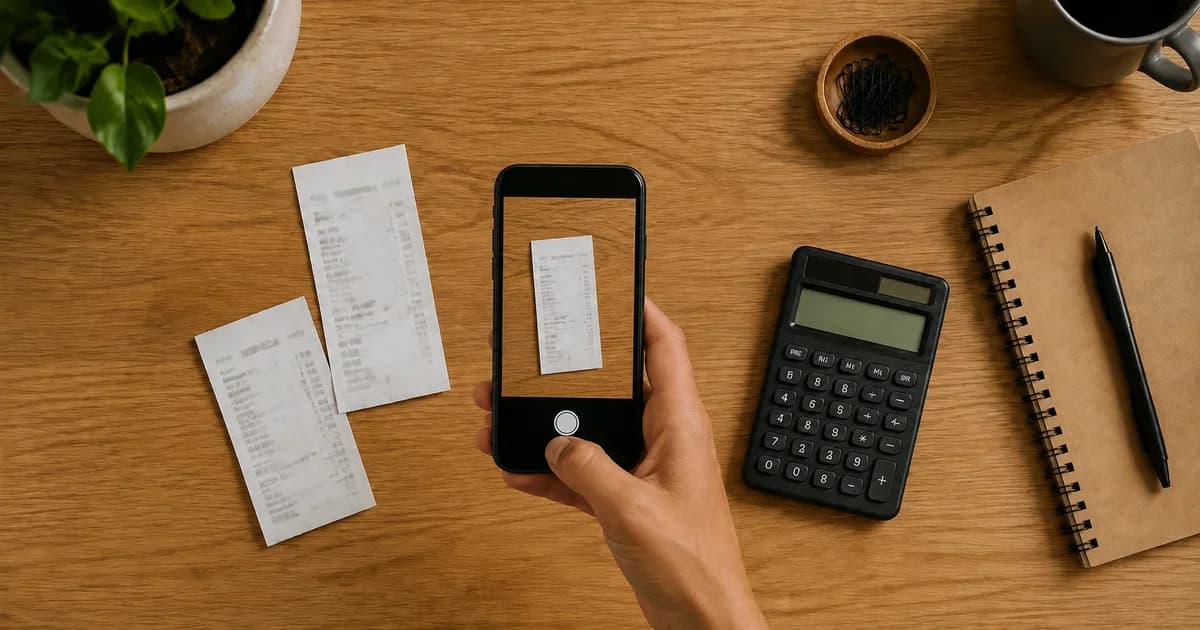
Invoices also arrive. If you need the vendor, date, total, tax and line items from a supplier's invoice or a receipt photo, the receipt extractor reads them into fields you can check and copy as JSON. It reads what is printed and does not verify a supplier or payment details, so compare the figures with the original before you record or pay anything.
Frequently asked questions
Does an invoice need a tax number on it?
That depends on where you and your customer are and on your tax status, so check the rules for your location and customer. The generator has no dedicated field for it. The Details box under From is free text, so a registration or tax number can go there.
Can I add my logo or change the INVOICE heading?
No. The PDF has a fixed INVOICE heading and fixed labels, and there is no logo field. Your business name and details appear at the top of the page, and you can add extra wording in Notes / payment terms.
How should I number invoices?
Pick a simple scheme and keep it in order, for example INV-2026-0107 followed by INV-2026-0108. The Invoice # field takes any text and the tool does not number invoices for you, so keep a list of the numbers you have used.
Can I get the invoice as a Word or Excel file?
No. The generator creates a PDF only, so there is no Word or Excel version to download. To change something, edit the form and create the PDF again.
Fill in your own details and create your invoice as a PDF, then read the totals against your records before you send it.