Extract Receipt Data for Small-Business Expense Records
Extract receipt fields to JSON, review totals, dates and currency, and organise source files for bookkeeping without assuming automatic accounting integration.
The receipt is in a coat pocket, the card payment is in the banking app, and the expense note says only “supplies.” By the end of a busy week, reconstructing a purchase can take longer than entering it would have taken on the day.
Pixoate's receipt data extractor for small-business expenses reads a receipt photo or PDF and returns supported fields as structured JSON. It helps you review information such as the vendor, date, total, tax, currency and line items before moving it into your own recordkeeping process.
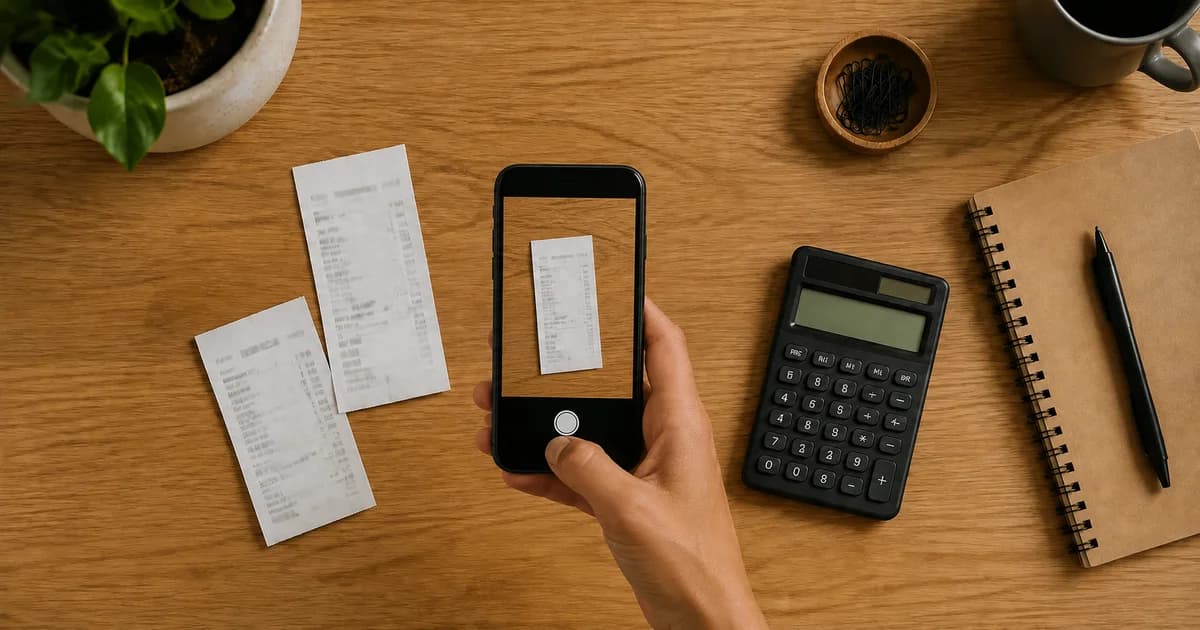
Photograph the whole receipt while it is readable
Flatten the paper, use even light and include the top and bottom. A cropped image can lose the vendor name, payment total or final adjustment. If the receipt is very long, make sure the lettering is still sharp rather than squeezing it into an unreadable thumbnail.
Photograph thermal receipts before they fade. Keep the original record according to your business's requirements. Extracted data is a useful working copy, not an automatic replacement for source evidence.
For a US contractor buying materials or a UK market trader restocking supplies, add a note explaining the business purpose while you still remember it. The extractor cannot infer why you made a purchase.
How to extract and review receipt fields
- Open Pixoate Receipt Extractor and upload the receipt image or PDF.
- Select the appropriate receipt language if needed and run the extraction.
- Compare the vendor, date, total, tax, currency and available line items with the source.
- If the receipt reads poorly, try a clearer photo or an alternative reader engine offered in the interface.
- Use Copy JSON or Download JSON to save the reviewed extraction for your next step.
JSON is a structured text format with named fields and values. This tool's documented export is JSON; it does not promise a one-click Excel export or automatic posting into QuickBooks, Xero or another accounting service. Check what your destination accepts before planning an import.
Review the numbers that are easy to confuse
Subtotal, tax, tip and total may appear close together. A restaurant receipt might show a suggested tip rather than the amount actually paid. A shop receipt might include discounts, a refund or a card transaction line that repeats the total.
Check the currency symbol and any currency code. Do not combine dollars and pounds into a single total without a separate, appropriate conversion process. Likewise, do not interpret a tax field as proof that an amount is recoverable or deductible.
A printed date such as 04/05/2026 can be ambiguous across US and UK conventions. Use the merchant location and original receipt context to confirm the date. Keep the original date string when your own system allows it, alongside any normalised date you have verified.
Extract receipt totals to a spreadsheet and check OCR mistakes
Build a reviewed worksheet from the extracted JSON only after matching the values to the receipt. Keep the source reference, original date string, confirmed date, currency, subtotal, tax, tip and total in separate columns. The Receipt Extractor exports JSON; copying verified fields into your spreadsheet or using its JSON import is a separate step.
Download the receipt review CSV for a fictional training example. It contains a subtotal of 24.50, tax of 1.96, tip of 0.00 and total of 26.46 in USD. These expected values illustrate a check; they are not the output of a measured OCR run and do not establish an applicable tax rate.
| Potential extraction mistake | How to check it |
|---|---|
| Total reads 2646 | Compare the decimal with the source and the payment amount. |
| Total is repeated as a line item | Separate the amount paid from the items being added. |
| Suggested tip is treated as paid tip | Check the actual completed payment record. |
| Date reads 04/05/2026 | Confirm the merchant’s date convention; keep the original string until resolved. |
| Currency is missing | Verify it from the record; do not infer every dollar sign means USD. |
For this example, 24.50 + 1.96 + 0.00 = 26.46. Real receipts may include discounts, inclusive tax or rounding, so use the arithmetic relationship printed on that receipt. A matching total is only one check: the date and vendor can still be wrong.
For your own quality sample, count correct non-empty fields against the fields visible in each source and record missing or uncertain values separately. Keep the original extraction alongside the corrected worksheet so manual corrections are not reported as OCR accuracy.
Build a routine that catches duplicates
Give each source file a stable name, such as a date, vendor and your own expense reference. Keep the JSON beside it. Before adding the purchase to your records, check whether you already entered it from an emailed receipt or card statement.
The extractor reads the file you upload. It is not a duplicate-detection system, bank reconciliation service or tax adviser. Your accounting process still determines how a purchase is categorised and whether the supporting evidence is sufficient.
If you need spreadsheet-style extraction from a clearly tabular image, image-to-Excel conversion is a separate workflow. Test its output on the actual document rather than treating it as a guaranteed receipt-specific export.
What to do with a partial or empty result
Missing fields do not mean the receipt contains no relevant information. Check whether an edge was cropped, the paper was creased or the text was too faint. Retake the image where possible. For an unreadable original, request a replacement from the merchant instead of guessing the total.
Can the tool decide which expenses are allowable?
No. It extracts supported data. Use your accountant's advice and current official guidance for tax treatment.
Should I upload documents containing sensitive details?
Review your organisation's policy and Pixoate's file-handling information first. Share only records you are authorised to process.
Start with one clear receipt and extract its expense details into JSON. The time-saving opportunity comes from a repeatable capture-and-review routine, not from skipping the review.