Why Your Logo Loses Its Transparent Background and How to Fix It
Find out why a logo loses its transparent background. Use Pixoate to review source files, remove unwanted backgrounds and export a suitable PNG.
Your logo looked transparent in the editor. After export, it sits inside a white rectangle. Another version shows a checkerboard pattern that turns out to be part of the image itself.
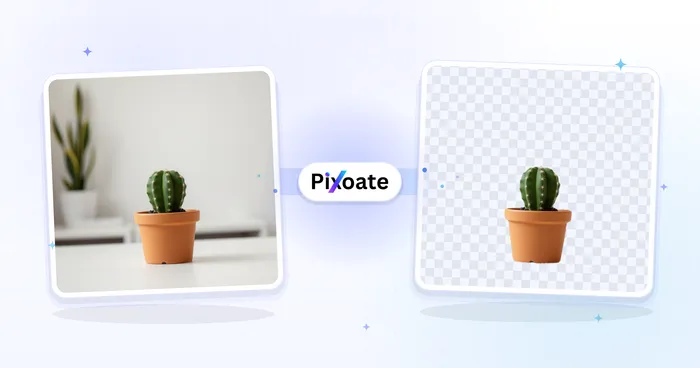
The fix depends on whether transparency was lost during export or never existed in the source. Pixoate Transparent PNG Maker helps create an actual cutout, while format conversion preserves only the transparency the output can support.
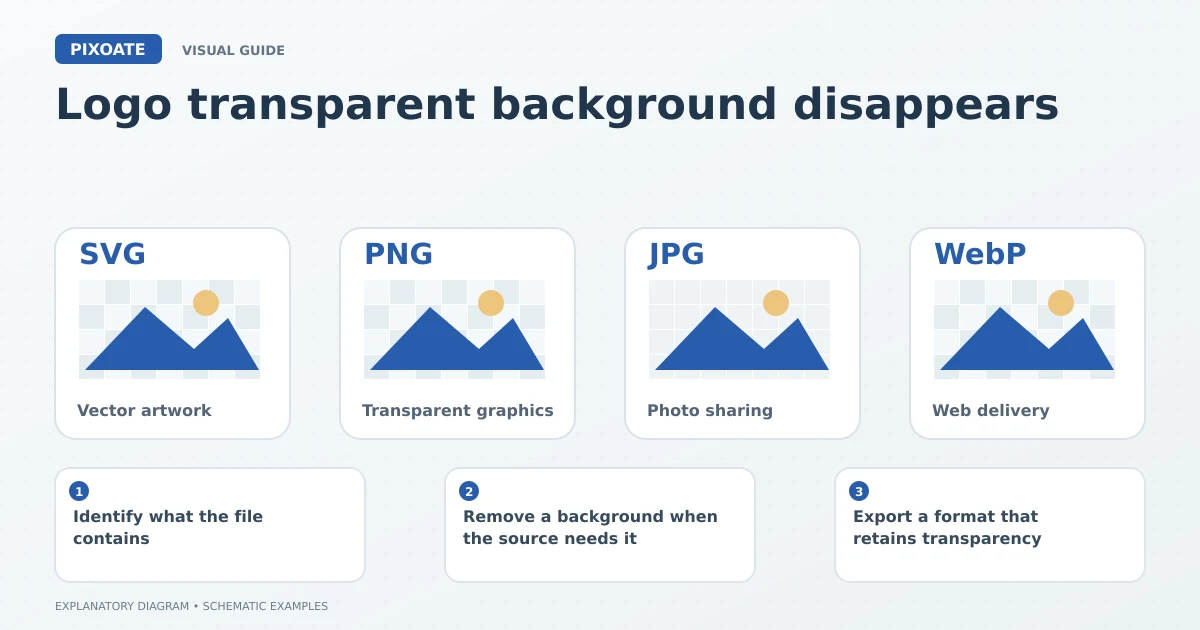
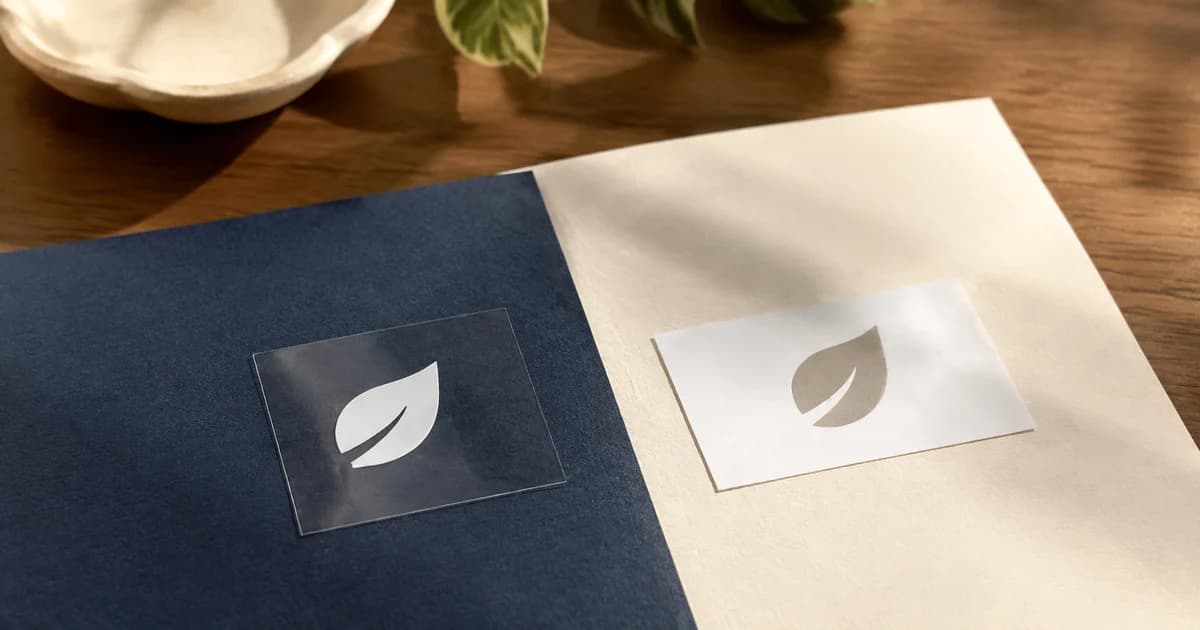
Original explanatory graphic. The scenes and sample records are schematic illustrations, not screenshots or measured tool results.
Identify what the file contains
Place the logo against a contrasting background. Genuine transparent areas let that background show through. A baked-in white rectangle or checkerboard remains visible.
A viewer may display transparency on white even when the file is correct. Check the image in the intended application before removing pixels unnecessarily.
Remove a background when the source needs it
Use Remove Background for a logo image or Transparent PNG Maker. Inspect internal spaces in letters, fine outlines and areas where the logo itself is white.
Automatic removal can confuse a pale part of the logo with its background. Review the cutout on both light and dark backgrounds and refine the result where the tool permits it.
Export a format that retains transparency
PNG supports alpha transparency. JPEG does not, so a transparent design exported as JPG needs a solid background. Changing the filename extension afterward does not restore transparent pixels.
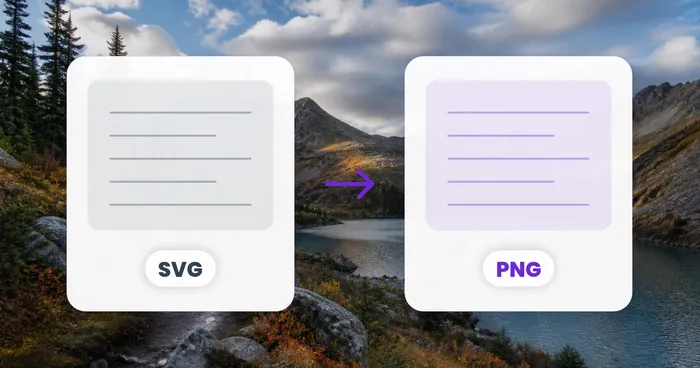
If you have an original vector logo and need a raster file, convert SVG to PNG at suitable dimensions. Check whether the SVG itself includes a background rectangle; a transparent-capable output will still contain a background that belongs to the source artwork.
| Symptom | Likely place to investigate |
|---|---|
| White box appears after JPG export | Output format does not retain alpha transparency. |
| Checkerboard stays visible everywhere | The pattern may be baked into the source image. |
| White letters disappear | Background removal may have removed intended artwork. |
| Dark halo around the logo | Review edge pixels against the destination background. |
Check the real placement
Upload the final file to the presentation, email signature or website where it will appear. Confirm that the application has not added its own background or altered the image.
Does JPG-to-PNG conversion remove white automatically?
No. It changes the format, not which source pixels should be transparent.
Keep the original logo and use Pixoate Transparent PNG Maker when a genuine cutout is required. Review the edges where the logo will actually be seen.