How to Remove the Background from a Picture (Without Photoshop)
Choose a transparent PNG, a white backdrop or a new scene, remove the background from a picture, then check hair, glass and shadow edges first.
Written by the Pixoate team. We check how each tool behaves before we describe it, and we date any prices or portal rules we quote.
You have a picture you like and a background you do not: the clutter behind a portrait, the table under a product, the wall behind a pet. Getting rid of the background is quick. Choosing what should replace it, and checking that the edges hold up on the new backdrop, is where people lose time.
This guide shows how to remove the background from a picture in a browser, with no Photoshop or other installed software, how to choose the outcome first, and how to check the cutout before you use it.
Decide the outcome, then remove the background
Three different results all get called "removing the background," and each needs a different setting. Pick one before you upload.
| You want | Choose | You get |
|---|---|---|
| The subject alone, for slides, posters or web pages | Background set to None | A transparent PNG |
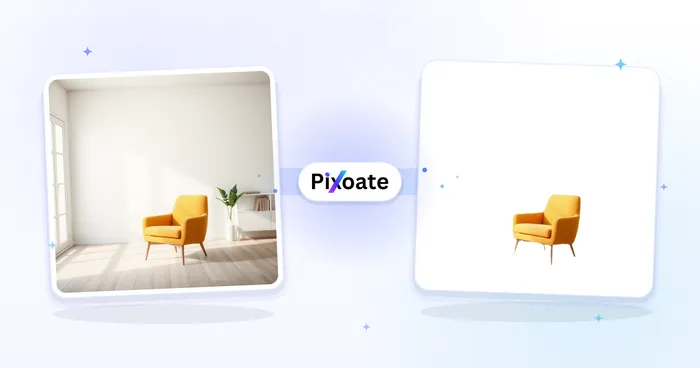
| A plain white backdrop for a store listing | The white background maker | A PNG on pure white |
| The subject in a new setting | The background changer: color, blur, your own photo or a library design | A PNG on the new backdrop |
If a transparent file is all you need, the transparent PNG maker runs the same cutout and opens with transparency already selected.
- Open the background remover and add an image file (JPG, PNG or WebP), or select Try a sample photo to see a clean result first.
- Leave the Engine tab on Engine 1, the default, for the first pass.
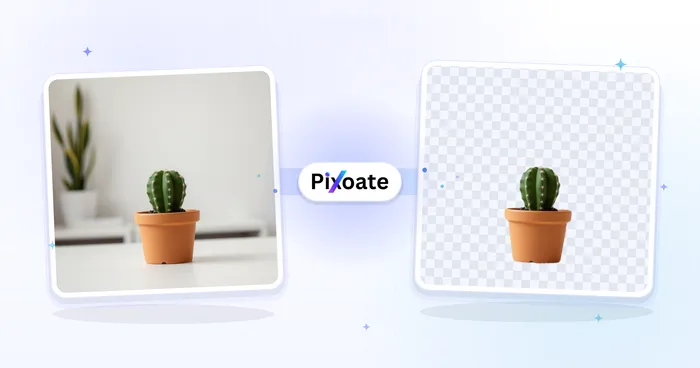
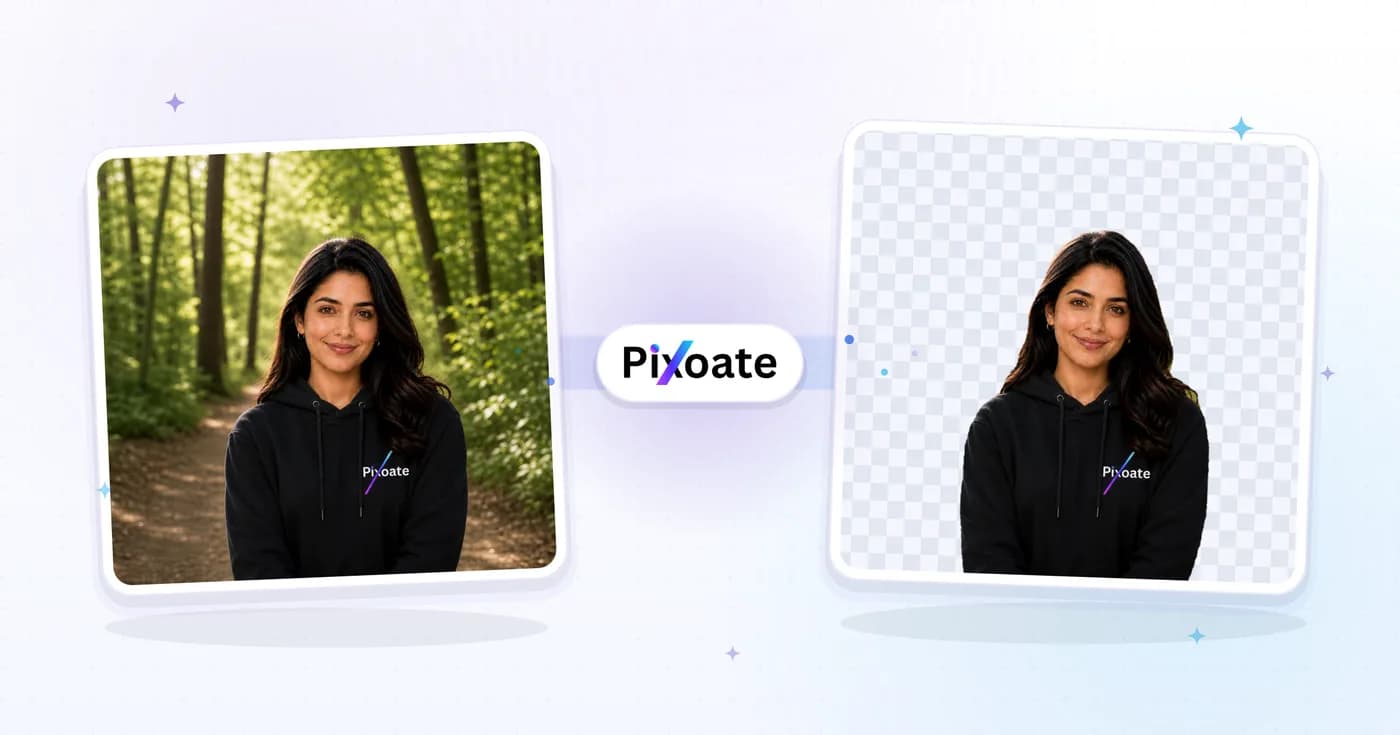
- Run AI Remove Background. The cutout appears over a checkerboard, which shows what is transparent.
- On the Background tab, keep None to make the background transparent, or choose Color, Blur, Photo or Design.
- Check the edges with the steps below.
- Choose See result, then Download.
It works in a phone browser too, so you do not need an app. Only still images are supported; for a GIF or a video, export one frame as a picture first.
Which pictures cut out cleanly, and why some do not
The tool separates one main subject from everything behind it. Results are strongest on a crisp, well-lit photo where the subject differs from the backdrop in color or brightness. A busy background is usually less trouble than a low-contrast one: a cream sweater against a beige wall is harder than a red coat against brick.
To remove a white background from a product photo or a scanned logo, run it like any other picture. The hard case is a pale subject sitting on the white.
Four things are difficult for any automatic cutout, because the picture does not hold a clean answer:
- Hair and fur. Strands are thinner than a pixel, so edge pixels are a blend of hair and backdrop. Dark hair shot against a bright wall can keep a pale fringe.
- Glass and clear plastic. You see the background through the object. A cutout cannot make something both solid and see-through, so a wineglass needs a closer look than a ceramic cup.
- Shadows. A shadow on the floor belongs to the scene, not the subject. It can be dropped or partly kept, so add a soft shadow of your own if you want the subject grounded.
- Gaps and holes. The space between an arm and a body, a bag handle or a chair back is small, and the background inside it has to be cleared on its own.
Photos with several people or objects can need touch-ups, because the tool assumes one main subject.
Check the edges at full size before you rely on the cutout
A cutout that looks fine as a thumbnail can fall apart on a different backdrop. Test it the way it will be used.
- Look at the checkerboard first. Gaps and leftover patches stand out against the pattern.
- Put the subject on black, then on white. Open the Background tab, pick Color and click the black swatch, then the white one. A pale halo shows on black, and dark remnants show on white. Set Background back to None before you download if you want transparency.
- Select Refine edges, switch the editor backdrop to Gray or Dark, and zoom in on hair, shoulders, handles and thin parts. Select Cancel if you only wanted to look.
- After downloading, open the PNG at actual size on a light background and on a dark one.
Do not screenshot the checkerboard. A screenshot saves the pattern as real pixels, and the file is no longer transparent.
Why a transparent picture turns white
A JPG cannot hold transparency. Save a cutout as a JPG and the empty area is filled with a solid color, and renaming a PNG to .jpg does not change what is inside the file. That is why the remover saves a PNG.
A white box around a "transparent" image on a website or slide usually has one of three causes: the file was flattened to JPG, it was a screenshot of a checkerboard, or the destination paints its own background behind it.
If a form accepts only JPG, pick a Color backdrop first so the fill is your decision, then run the PNG through the PNG to JPG converter.
Product photos and portraits
Products. Many marketplaces expect a plain white main image, so the usual route is a cutout on pure white. White or silver items are the weak spot, because their edge sits close to the backdrop color. Add a soft Drop shadow from the Shadow tab so the item does not seem to hover, then compare the result with the real product: color, label text and shape should be unchanged. A clean cutout does not decide acceptance, so read the marketplace's own image rules too.
Portraits. Hair is the test. Check flyaway strands, the hairline, the ears and the arms of glasses. For a profile picture, a solid Color backdrop hides a small fringe better than a detailed scene. If the room is the only problem, Blur keeps it and softens it instead of removing it. A stranger walking through the shot is a different job: AI Object Remover removes a person and fills in the scene behind them.
When the cutout is rough
- Fix small problems in Refine edges. Erase clears leftover patches, Restore brings back parts the cutout trimmed away, and Undo and Reset let you retry without starting over.
- Try the other engine. Engine 2 keeps every original pixel, though its edges may need more cleanup. Engine 1, the default, trades size for AI-refined edges and returns a smaller cutout. Switching clears the result, so run the cutout again.
- Improve the source. Reshoot against a plain, contrasting backdrop in even light, or start from the original instead of a screenshot or a re-sent copy, where compression has already thrown detail away.
- Accept the limit. A wire-thin object, a wineglass or a subject the same color as its backdrop may never be perfect. AI results vary, so review each one, and keep the original background when a clean cutout is not possible.
Here is an invented example
Suppose you sell handmade candles and have a photo of one on a patterned tablecloth. Run the cutout, then place the candle on black and on white. On white, a faint gray fringe shows along the glass jar, which tells you the edges picked up some tablecloth. Use Refine edges to erase those patches, add a soft shadow, and download. Then place the file on your shop page and look again. If it sits well, the work is finished. If the glass still looks wrong, shoot it again against a plain sheet of paper; a better source beats more editing.
Related guides
For marketplace-style images, creating white background product photos goes further into lighting and checks. If you want a new scene instead of a cutout, read creating lifestyle product photos without a photoshoot.
Frequently asked questions
Can a JPG have a transparent background?
No. The JPG format cannot hold transparency. You can still start from a JPG: run the cutout and keep the PNG that comes back. If you must deliver a JPG, add a solid color first and convert, knowing the empty area becomes that color.
Will hair and fur survive the cutout?
Often, but check rather than assume. Test the subject on black and on white, zoom in on the strands, and use Restore to bring back anything that was trimmed. Loose hair against a busy background may still need your attention.
How do I get a larger or HD cutout?
A download without Premium or a credit is web-size. Engine 1 returns a smaller cutout whatever your plan, and full size takes Engine 2 together with Premium or a credit. Before you download, the result screen lists the pixel dimensions of the file, so compare them with what you need.
Can I remove a background without signing up?
You can remove a background and download a web-size PNG without creating an account. Batch mode for many photos, larger downloads and some library designs are Premium options, so check the interface for what your plan includes.
Pick one photo, decide between transparent, white or a new scene, and remove the background; then check it on black and on white before you use it.