OCR a Scanned PDF: Work with Text in Old Manuals
Recognise text in existing scanned PDF pages, review model numbers and fix supported text. Choose the right OCR workflow for PDF documents versus image files.
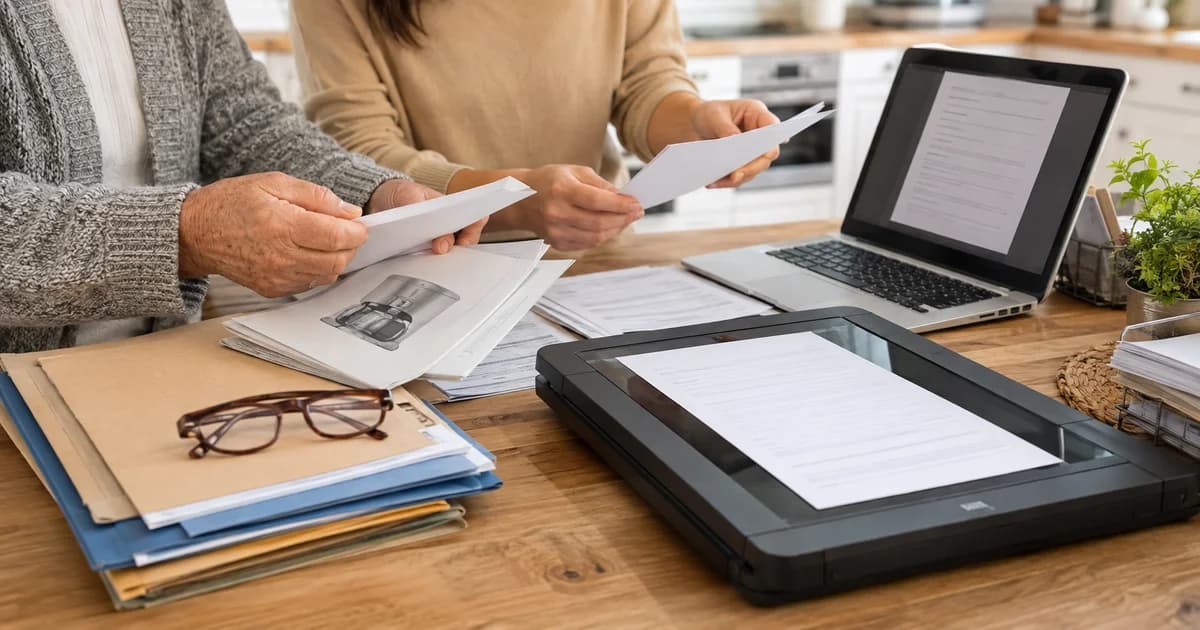
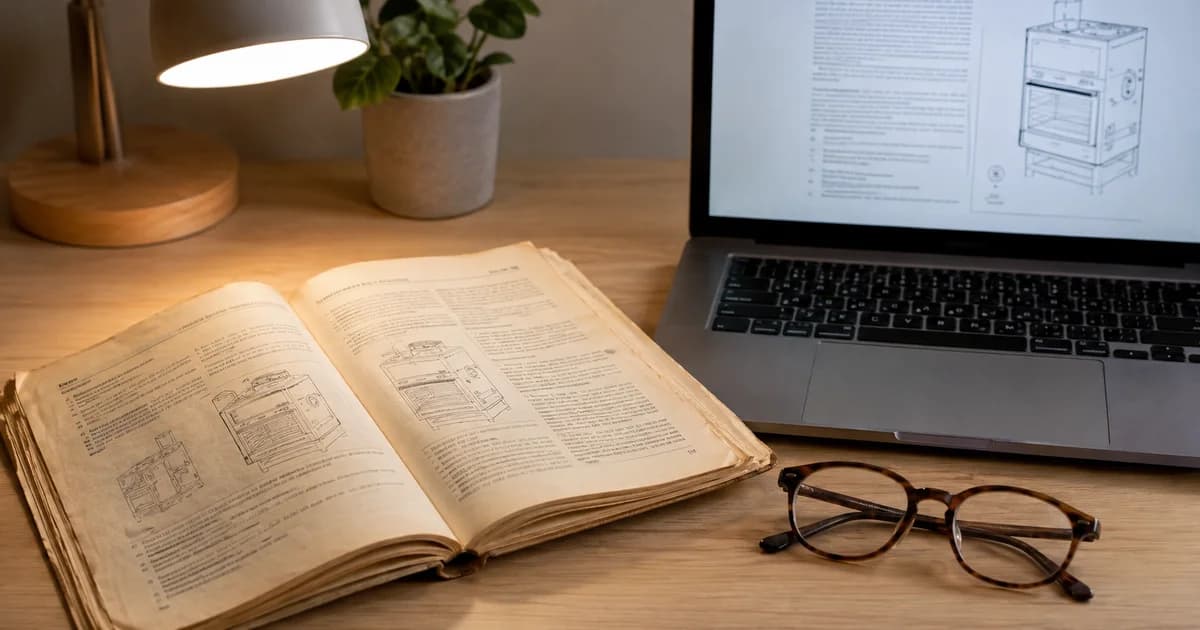
You can see the model number in an old appliance manual, but the computer cannot find it. Copy and paste produces nothing. The PDF looks like text to a person because it contains photographed pages; the software may only see images.
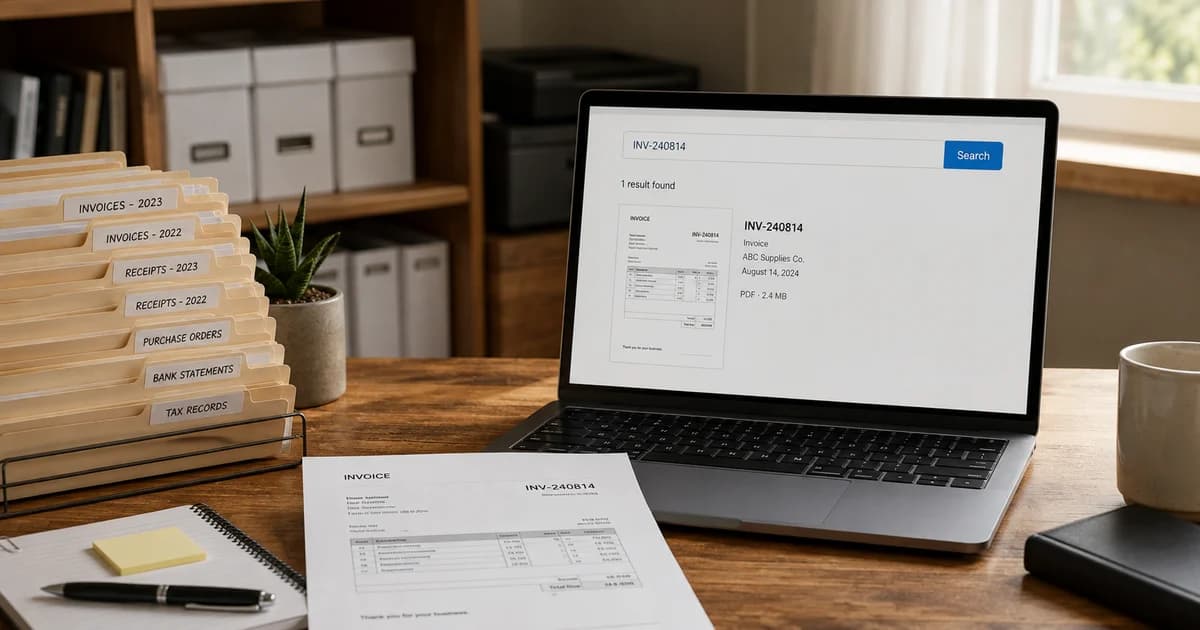
Pixoate's PDF editor with OCR for scanned pages can recognise printed text on a page so you can review and work with the recognised lines. It is a practical starting point when a household manual, club document or business scan needs a small correction and the original editable file is missing.
What OCR does to a scanned page
Optical character recognition estimates characters from the page image. It can turn visible print into machine-readable text, but it can also mistake a zero for the letter O or merge columns in the wrong order.
That distinction matters in a manual. A readable-looking result is not enough if a part number, decimal point or instruction has changed. The source document remains the reference for checking the recognised text.
The W3C's guidance on OCR for scanned PDFs explains the role of actual text and the need to verify conversion and reading order. OCR is one step towards usability; it does not automatically make a document fully accessible.
How to use OCR on an existing scanned PDF
- Keep the original PDF and upload a working copy to the Pixoate PDF editor.
- Open the page you need. If it is a scan, use Run OCR to recognise its text.
- Compare the recognised lines with the original page. Check headings, numbers, units and any text split across columns.
- Make only the authorised correction you need. Supported editing has limits, including font and rotated-page restrictions.
- Download the edited file and reopen it to confirm the page still displays correctly.
For a multipage document, do not assume that recognising one page processes every other page. Check each page you need in the editor's current workflow.
Choose a different route when the input is different
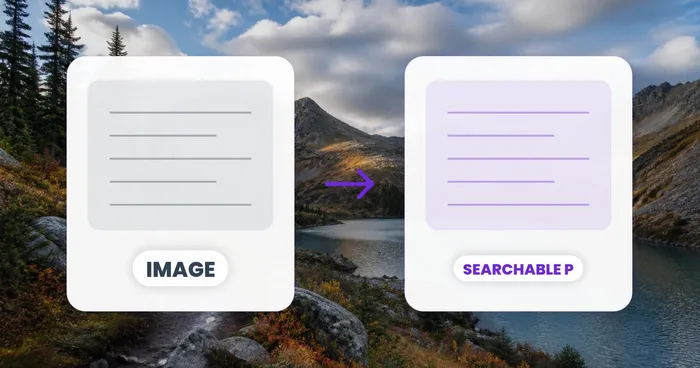
If you have separate photographs or scanned image files and want a searchable PDF, use the searchable PDF maker for image pages. That tool accepts image files, not an existing PDF document.
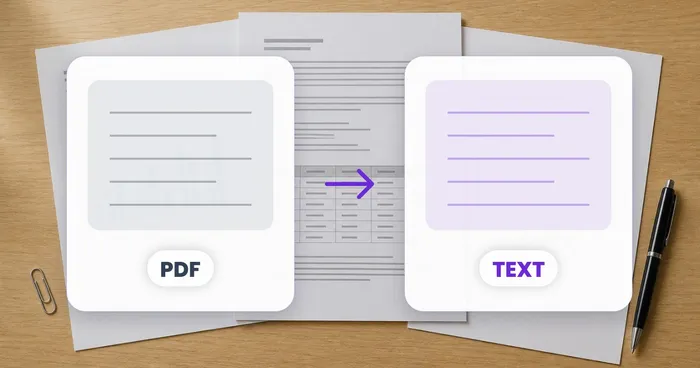
If your main aim is extracting text rather than changing a PDF's appearance, the PDF-to-text tool is a separate option to investigate with your source file. Review its result and available settings; do not assume a text export will preserve the original page layout.
Choosing the tool by input and output avoids a common frustration: uploading a PDF to an image-only converter and wondering why it is rejected.
Inspect the characters that matter most
For an appliance manual, compare the full model and part numbers. For a volunteer rota, check names and dates. For a business document, review addresses, totals and reference codes before copying them elsewhere.
US and UK date conventions can also make a recognised date ambiguous even when every digit is correct. “03/04” needs context. Spell out the month in your own notes if that prevents confusion, while preserving the source document's original wording.
Do not use OCR output as the only authority for medical, electrical or other safety-critical instructions. Obtain the manufacturer's current official document when the information affects safe operation.
What to do when recognition fails
Try a clearer original scan with the page flat, upright and fully visible. Glare, curved pages, handwritten notes and dark photocopies can limit recognition. If the service reports a failure, keep the original and retry only after checking the file or service status; do not assume an empty result means the page contained no text.
Does OCR preserve exact formatting?
Not necessarily. Recognition and layout are separate problems. Tables, footnotes and unusual fonts need close review.
Is OCR the same as editing a Word document?
No. A PDF page has its own layout constraints. If you need substantial rewriting, obtaining the original document may save time.
Start with the page causing the problem and run OCR on your scanned PDF. A checked result is useful; an unchecked transcription is another source of uncertainty.