How to Add Product Dimensions and Detail Callouts to Listing Images
Add product dimensions and detail callouts with Pixoate. Make listing images more informative using verified measurements and readable annotations.
A customer should not need to guess whether a storage box fits a shelf or which connector appears on the back of a device. A clear detail graphic can answer those questions, provided its measurements and labels are verified.
Use Pixoate Photo Editor for product dimension graphics to combine a real product image with editable text and visual callouts. Check the destination's rules before placing annotated graphics in a listing; main images and supporting images may have different requirements.
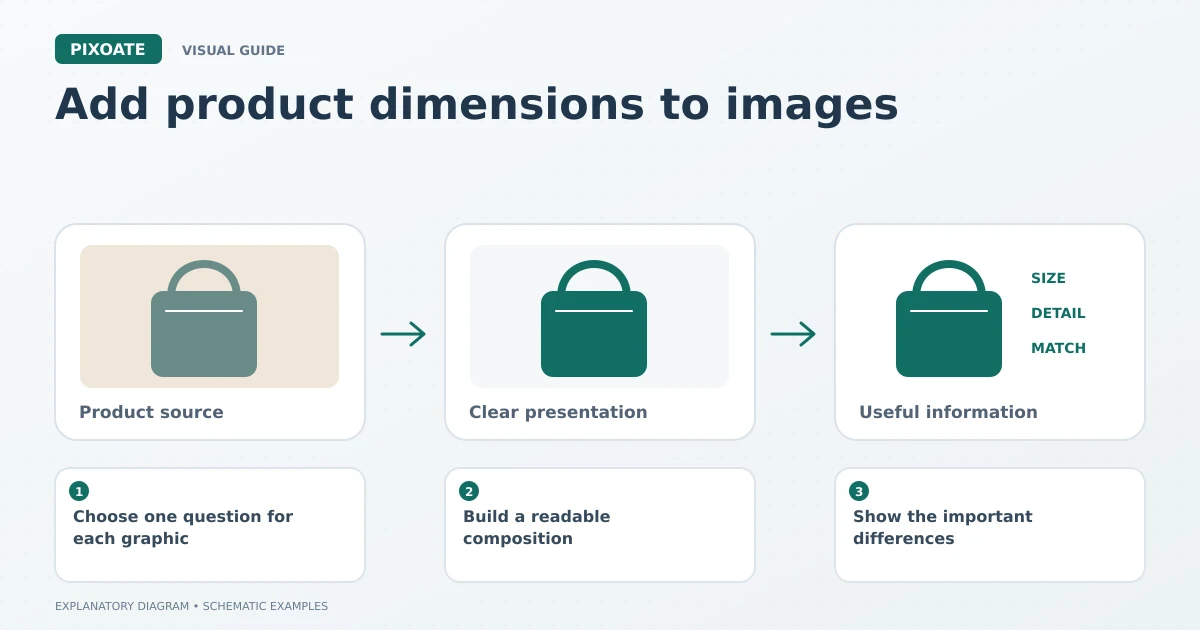
Original explanatory graphic. The scenes and sample records are schematic illustrations, not screenshots or measured tool results.
Choose one question for each graphic
A dimensions image might show width, height and depth. A separate image might explain a clasp, texture or included accessory. Trying to fit every feature into one square often produces tiny text and an unclear hierarchy.
Gather the measurements from the actual product or confirmed specifications. A photograph alone does not establish dimensions, and a generated lifestyle scene is not measurement evidence.
Build a readable composition
Open Photo Editor and place the product on a canvas suited to the intended placement. Add text, lines or appropriate elements without covering the feature being explained. Keep labels close to the relevant measurement or part.
For a simpler annotation task, add text directly to a product photo. Use a consistent type style and enough contrast to read the wording at the size it will appear in the gallery.
If both metric and imperial measurements are useful, verify the conversion and label the units clearly. Avoid rounding a dimension in a way that could mislead someone checking a tight fit.
Show the important differences
| Detail | Make the distinction explicit |
|---|---|
| Outer and inner dimensions | State which measurement is shown. |
| Folded and open size | Label each configuration. |
| Product and package size | Do not substitute shipping dimensions for the item. |
| Included and optional accessories | Avoid an arrangement that suggests everything is supplied. |
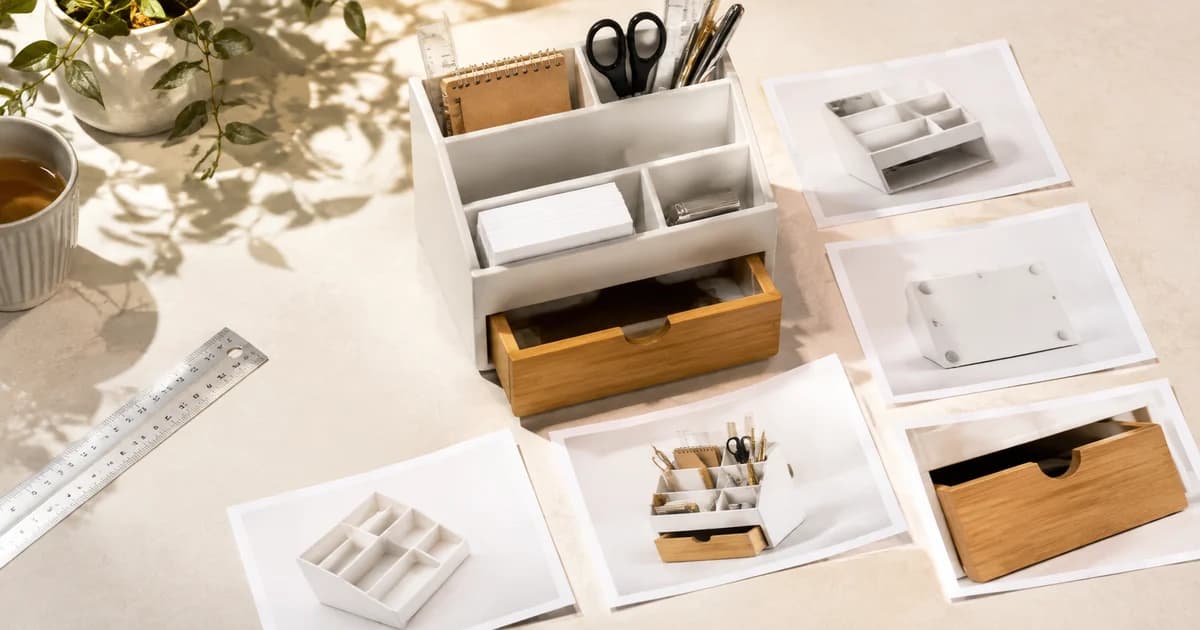
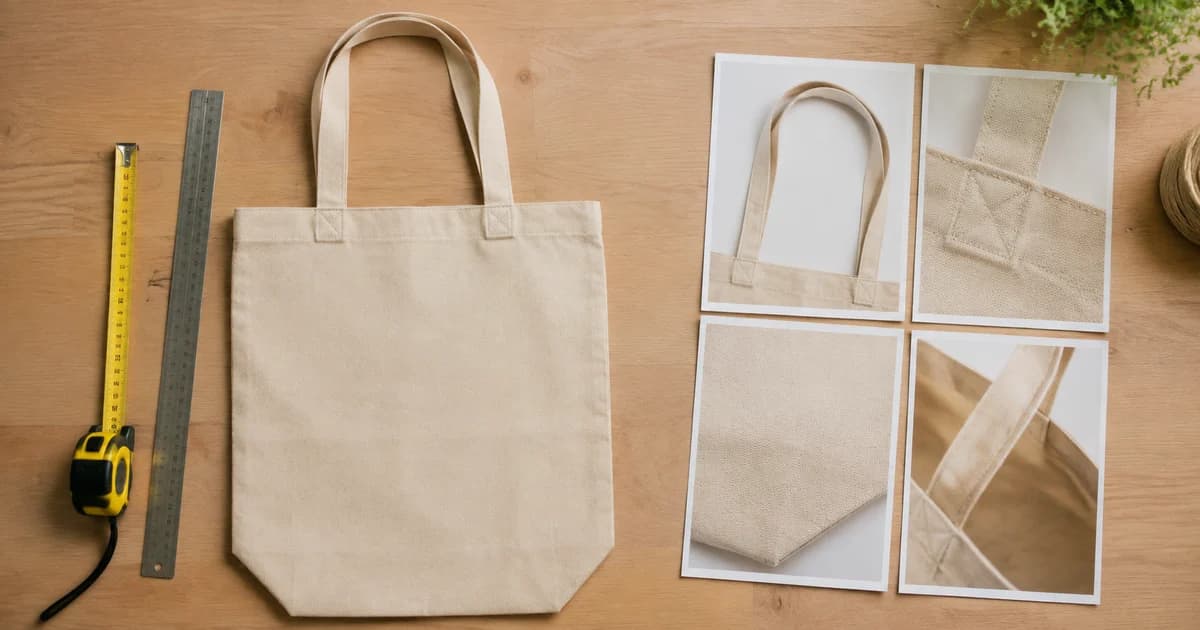
Use Collage Maker for separate detail views when several real photographs explain the product better than one crowded image. Keep each panel large enough to inspect.
Check the export in context
Review spelling, unit symbols, variant names and line placement. Open the downloaded file at a phone-sized display and inspect the actual listing preview after upload.
Keep the editable design and the source of the specifications. When a product changes, an old dimensions graphic can remain persuasive while becoming incorrect.
Can AI estimate dimensions for the graphic?
Do not present an estimate from a photograph as a verified measurement. Supply the real figures yourself and review the final labels.
Start with one buyer question in Pixoate Photo Editor. A clear, accurate answer is more useful than a graphic filled with every possible selling point.