The Crop That Cut Out the Selling Point: Why Product Images Need Room to Adapt
A social ad crop can hide the feature that makes a product worth buying. Explore portrait layouts and Pixoate editing that give important details room.
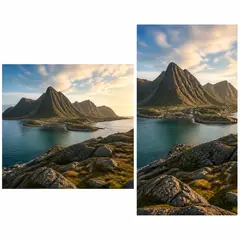
The landscape photograph works beautifully in the catalogue. In a portrait promotion, the crop removes the handle, the label or the extra space needed for the headline. The most useful part of the picture has become the casualty of a new shape.
Adapting a product image is a composition problem as well as a dimension problem. The product, message and surrounding space need to work together in the destination.
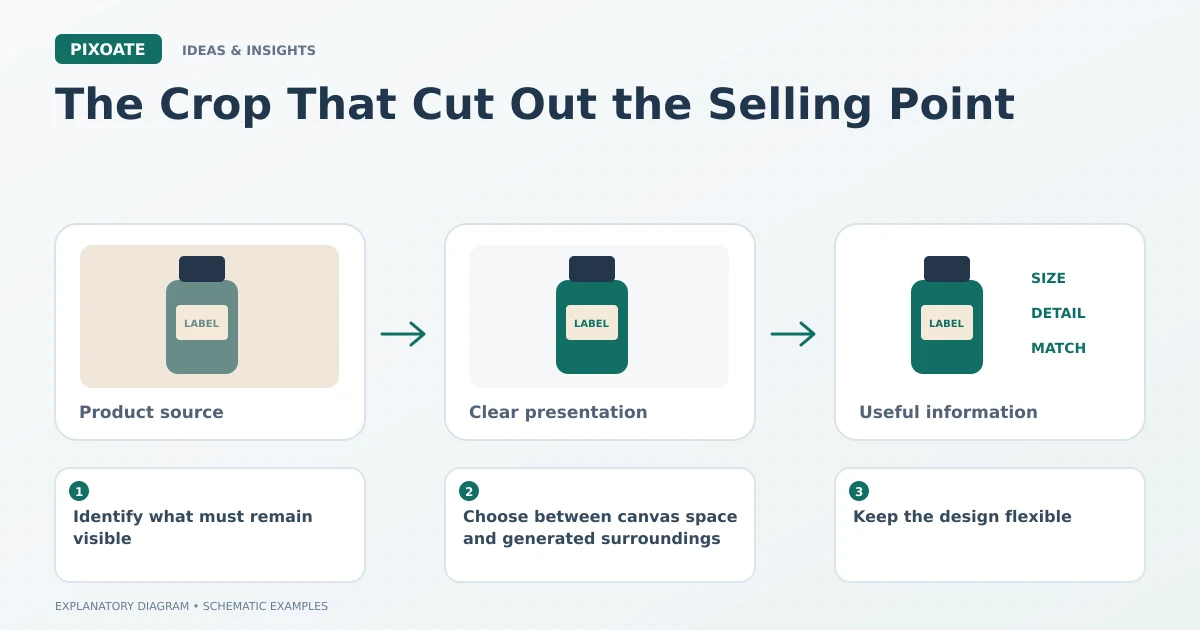
Original explanatory graphic. The scenes and sample records are schematic illustrations, not screenshots or measured tool results.
Identify what must remain visible
Mark the product features the viewer needs to see. Include any detail that explains the offer, such as a fastening, included part or readable label.
Then identify where the headline and supporting text can sit without covering those features. A successful crop is not simply one that fills the available rectangle.
Choose between canvas space and generated surroundings
Pixoate Landscape to Portrait offers ways to adapt image shape, including suitable background treatments and AI scenery options. Choose according to the image's purpose.
A neutral canvas extension may be enough for a product graphic. A generated setting can add context, but it creates new content that needs review. Expanding an image does not recover the factual scene beyond an earlier crop.
Keep the design flexible
Use Pixoate Photo Editor when the composition includes separate text, product and background elements. Resize the canvas, then review and reposition the layout for the new shape.
A square design and a tall story may need different spacing and type sizes. Keeping layers editable makes those changes more manageable than stretching a flattened image.
Review where the platform places its own controls
Inspect the actual preview for the intended placement. Interface elements, captions or crops may cover parts of the design even when the exported file looks complete.
Keep important details away from vulnerable edges according to the destination's current guidance. Verify that the product remains recognisable at the size a viewer will actually see.
The useful adaptation preserves the reason the photograph was chosen in the first place. Start with Pixoate Landscape to Portrait for the image shape, then use Photo Editor to give the message and the product room to work together.