How to Create Before-and-After Renovation Photo Reports for Clients
Create before-and-after renovation photo reports with Pixoate. Organize project images, add useful context and prepare a readable client handover.
A folder of renovation photos can contain a valuable record and still be difficult for a client to understand. Close-ups have no room names, the finished wall appears before the demolition photo, and important work is buried between repeated shots.
Pixoate Job Photo Report Builder organises images with project details, phases and captions, then creates a PDF. Use it to explain the work in a sequence that another person can follow.
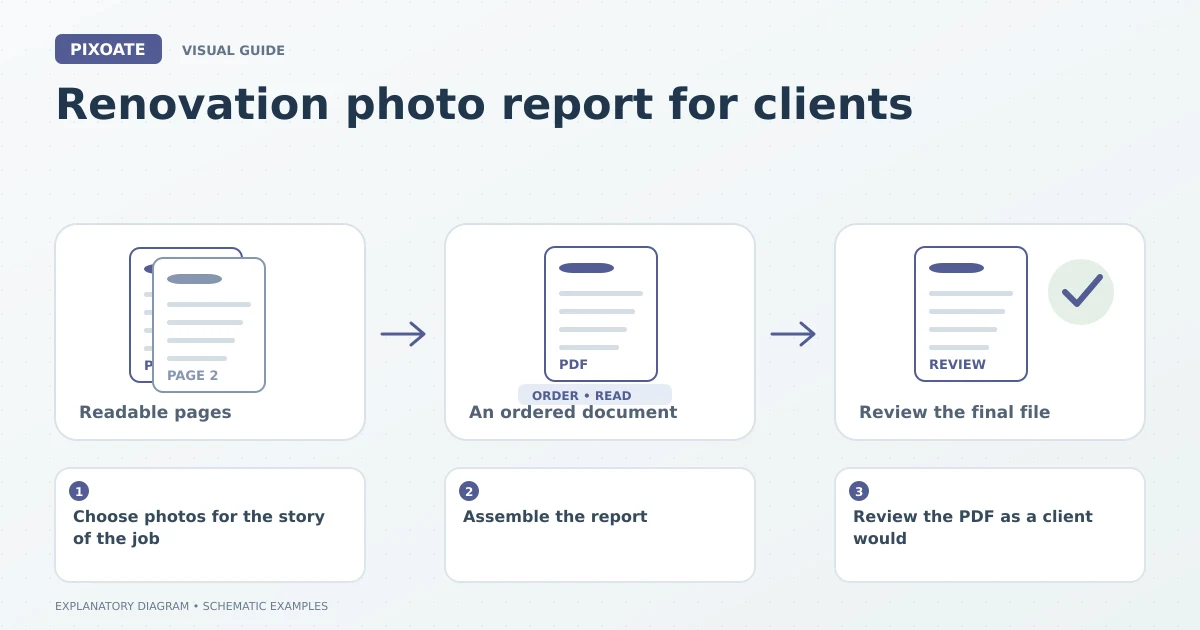
Original explanatory graphic. The scenes and sample records are schematic illustrations, not screenshots or measured tool results.
Choose photos for the story of the job
Select images that show the starting condition, meaningful progress and the completed work. Include relevant details that may be covered later, while keeping the original captures in your project records.
Identify the location and subject of each image. “Kitchen, north wall, before plastering” gives a reader more context than “IMG_4821.” Do not infer a capture date or a condition that the source does not establish.
Assemble the report
Open Job Photo Report Builder and enter the applicable project details. Upload the selected photographs, choose a phase such as Before, During, After or Other, and add concise captions.
Explain what the reader should notice rather than describing everything in the frame. A caption can identify a repaired area, a stage of installation or an issue awaiting a decision. Keep unfinished work and proposed changes clearly distinguished from completed work.
For a useful paired view, compare before-and-after project images. Similar camera positions make the change easier to interpret, but do not present differently framed photos as a precise measurement.
Review the PDF as a client would
Check image order, project identification, captions and page readability. Remove duplicates that add no information. Keep a clear distinction between original documentary photos and any illustrative concepts.
| Report element | Reader's question |
|---|---|
| Project details | Which job does this concern? |
| Phase labels | When in the workflow was this recorded? |
| Location captions | Where should I look? |
| Completion notes | What is finished and what remains open? |
If the file exceeds the recipient's upload limit, compress the photo report PDF. Check that the important details remain visible after compression.
Is the report a certified inspection?
It is an organised photo document. Any inspection, approval or contractual conclusion requires the appropriate separate process and evidence.
Should I enhance construction evidence photos?
Keep original records. If a presentation image is adjusted, identify that where relevant and avoid edits that change the recorded condition.
Start with one complete project phase in Pixoate. A short, well-captioned report often communicates more than a large unlabelled photo dump.