Evidence is scattered
Before photos sit in the camera roll, progress shots in a text thread, and the final condition in another folder.

Up to 30 images per report. Source photos are used to generate the report, not saved as a project archive.
Your work is documented, but the proof is buried among personal photos and message threads. Organize before, during, and after photos, add plain-English captions, and hand the client one clean PDF.
These details become the report cover. Empty optional fields are simply left out.
Add 1–30 images. Captions should state the fact the reader cannot infer from the image alone.
The Job Photo Report Builder turns site photos into one PDF: a cover page with the project details, then one page per photo labeled Before, During, After or Other, with a caption you write. Contractors, property inspectors and restoration teams use it to show a client what was found and what was done, or to give an adjuster or manager a clear record. You build it on the page, so no word processor or page layout is needed.
Start with the report title, which is required, then add the client, job location, report date and a work summary. These become the cover page, and optional fields you leave empty are left out. Add 1 to 30 photos from your device. The first photo shows in the preview, and a counter shows how many of the 30 you have added.
Pages follow the order of the list, not the phase label, so use the up and down arrows to move each photo into place with the Before photos first. Every photo starts as During until you change it. The phase prints at the top of its page beside a count such as Photo 3 of 12, so a reader can see where each photo sits in the sequence.
A caption can be up to 500 characters in the form, but the page shows up to 5 lines of it, and the cover shows up to 13 lines of the work summary, so keep both short. Name the room or component, the problem and the repair, since a close-up means little six months later. Put the date and place on the cover rather than repeating them in every caption.
The report has a cover page plus one page per photo, so 12 photos make a 13-page PDF. Photos are turned upright and scaled to fit, so the PDF is a viewing copy, not an archive of the original files. Each photo page ends with a small footer that reads Generated with Pixoate, then the report title, and a page number. The date and captions are what you typed, so the PDF does not prove when or where a photo was taken; an EXIF viewer shows the details stored in the photo itself. A large report can be compressed for email.
The real problem
Contractors already take photos. The bottleneck is turning those photos into something a client, adjuster, manager, or future technician can understand without a phone call.
Before photos sit in the camera roll, progress shots in a text thread, and the final condition in another folder.
A close-up means nothing six months later if no caption explains the room, component, problem, or repair.
Dragging photos into Word and fighting page breaks is low-value work after a long day in the field.
How Pixoate helps
Add the project details once, label each photo by phase, write the caption while the context is fresh, reorder with two taps, and let Pixoate lay out a consistent PDF.
Enter the report title, client, address, date, and a short work summary.
Mark each image Before, During, After, or Other; add the fact the reader needs to know.
Pixoate produces a cover page and one clearly labeled evidence page per photo.
Show completed scope, concealed work, discovered damage, and final condition.
Create readable move-in, turnover, maintenance, or unit-condition evidence.
Package date-labeled loss, mitigation, progress, and completion images for the claim file.
A report can contain 1 to 30 images. Each photo gets its own page so details stay readable instead of being squeezed into a collage.
Yes. Use the move-up and move-down controls before generating the report. Captions and phase labels stay attached to their photo.
Choose Before, During, After, or Other for every photo. The selected phase appears clearly on its evidence page.
The first page contains the project title, image count, and any client, location, report date, and summary details you provide. Each following page contains one labeled image, its caption when provided, a small footer reading Generated with Pixoate followed by the report title, and a page number.
Not in this version. The uploaded photos are processed to create the downloadable report under Pixoate's normal temporary-file handling; they are not turned into a long-term project archive.
No. The entered report date and caption are user-provided, and the PDF does not independently authenticate capture time, GPS location, or chain of custody.
The layout is fixed: a cover with the project details, then one page per photo. There is no logo upload or custom header in the form. If your client expects branding, add it to the finished PDF in the PDF Editor.
One report holds up to 30 photos. Pick the 30 that tell the story, or build 2 reports and join them with Merge PDF, giving each its own title such as Part 1 and Part 2. Each report keeps its own cover page.
Photos are turned upright and scaled to fit the page, then stored as compressed pictures, so the PDF is for viewing and sharing rather than archiving. Keep the original files if you may need full resolution later.
Only the report title is required. Client, job location, report date and work summary are optional, and an empty field is left off the cover instead of printing a blank label. The photo count is printed on the cover automatically.
Edit the caption or the phase in the form and select Generate job report again. The result is a new PDF, not an edit of the old one, so download the new file when it is ready.
When the build finishes, the page opens the download page by itself, and you save the PDF from there. If the form stays open, it says your report is ready and shows See result, which opens the download page. The file is named after your report title.
Yes. The builder works in a phone browser, so you can add photos from the camera roll, set each phase and type captions while the details are fresh. The photos are uploaded to build the PDF, so you need a connection when you select Generate job report.
The builder works as the template. You fill in the title, client, location and date, add photos and captions, and the page layout is created for you, so there is no Word or Excel template to download and format. The layout itself is fixed.
Bill for the same job with an invoice that adds up line items and tax, then put the report and invoice into one PDF. A report with many full-page photos can be compressed for email, and a signature can go on the cover page if the client expects one.
Tools for common next steps after Job Photo Report Builder.
Creative & Design
Arrange photos in a grid, side-by-side layout or stacked strip with adjustable spacing and borders.
Try it nowPDF & Documents
Combine images into a multi-page PDF. Optionally add recognized text for search and copying.
Try it nowVirtual Staging & Property
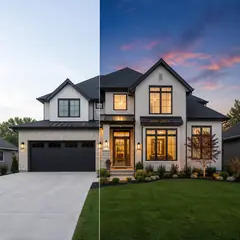
Edit real-estate photos with AI: add furniture or a TV, paint walls, remove clutter, replace skies, improve landscaping, and create twilight exteriors.
Try it nowEvery photo crosses the slash untouched and comes out the other side finished.