How to Make Scanned Business Records Searchable by Name or Invoice Number
Make photographed business records searchable with Pixoate. Find names and invoice numbers while preserving a readable copy of the original page.
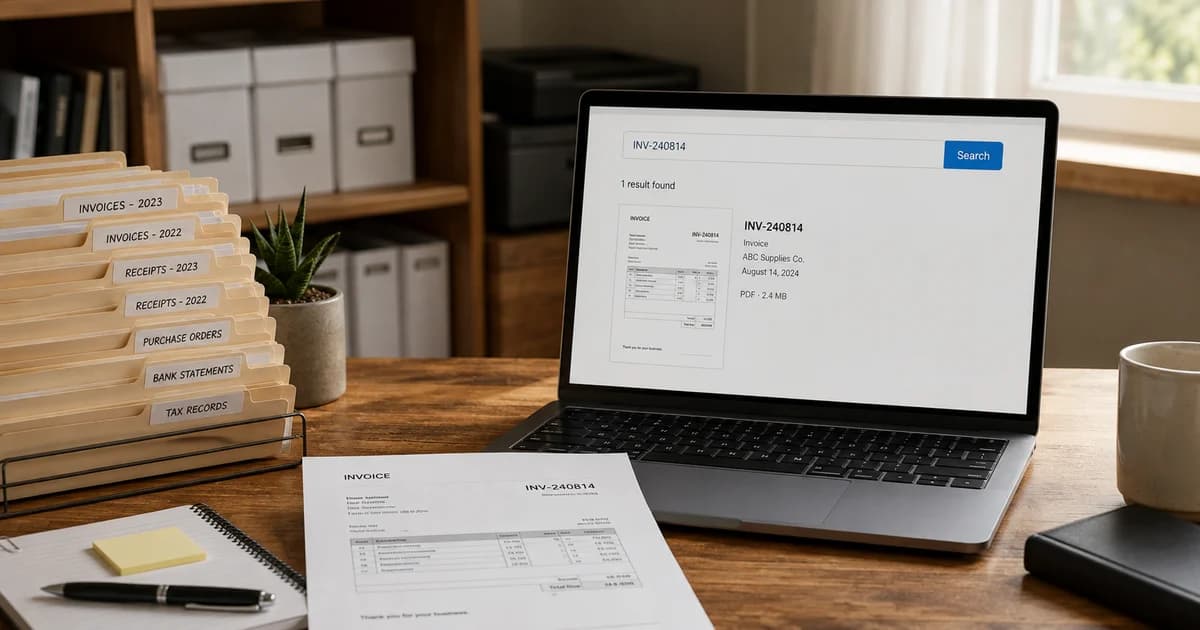
A folder can be neatly named and still take too long to search. “Supplier paperwork September” tells you where the documents might be, but it does not help you locate a particular invoice number inside forty photographed pages.
A searchable PDF adds recognised text to visible document pages. Pixoate can make business document images searchable, helping you find words while retaining the page image for comparison.
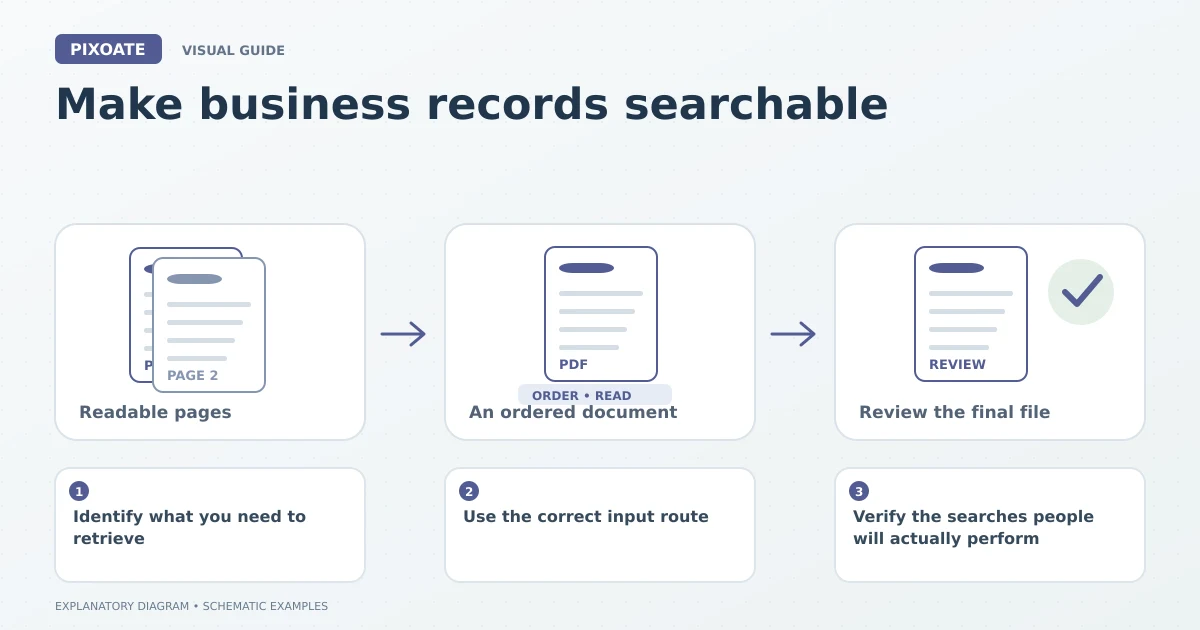
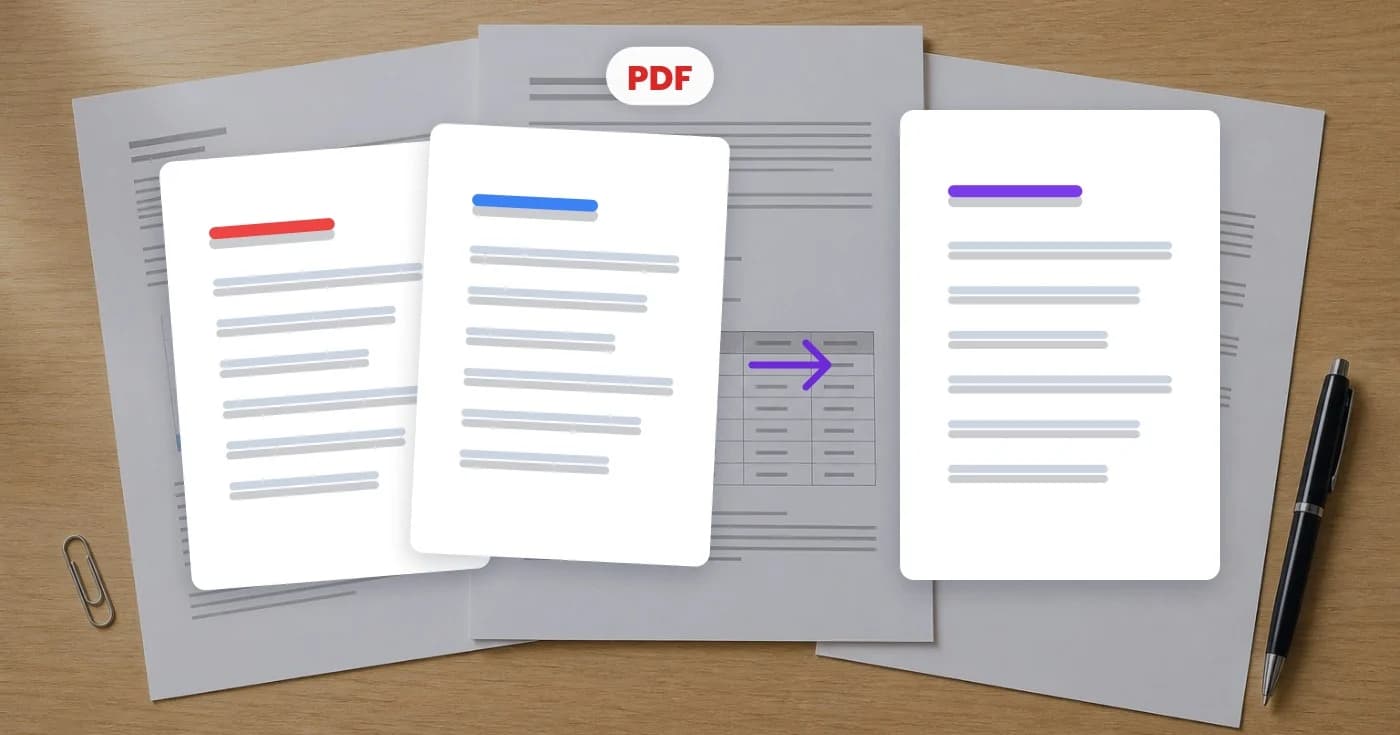
Original explanatory graphic. The scenes and sample records are schematic illustrations, not screenshots or measured tool results.
Identify what you need to retrieve
Choose a small group of records with a common purpose, such as supplier documents for a project. Decide which terms colleagues normally search for: names, dates, job references or invoice numbers.
Keep a useful filename and folder structure. OCR complements that organisation; it does not automatically create a company-wide document management system or decide who should have access.
Use the correct input route
For photos and scanned image files, open Searchable PDF, add the images, choose the language and arrange the pages. Generate the PDF and inspect both the visible page and the recognised text.
For an existing PDF, use the supported OCR functions in Pixoate PDF Editor. Do not assume an image-upload tool will accept a PDF simply because the PDF contains pictures of pages.
When several related PDFs need to travel together, merge the document files after preparing them. Check the final combined file rather than relying only on the individual inputs.
Verify the searches people will actually perform
Search for a known supplier name, a reference number and a word from a later page. Check whether the highlighted result corresponds to the visible text. Copy a short passage and review spacing and characters.
Identifiers deserve special attention. A misread letter in an invoice number can make an otherwise useful document fail the exact search someone needs. Retain a clear filename or index reference where appropriate so one OCR error does not become the only route to finding a record.
Handle the small archive problems
| Archive problem | Practical response |
|---|---|
| Similar invoices from the same supplier | Keep dates and references explicit. |
| A faint or damaged page | Obtain a better source or record the unresolved reference separately. |
| Pages in several languages | Check supported reader/language choices and review each relevant section. |
| Mixed records in one large file | Consider smaller logical documents with meaningful filenames. |
| A search finds nothing | Check spelling, recognition and whether the file has an OCR text layer. |
Will this make every scanned record accessible?
Searchable text is one useful feature. Accessibility can also require correct document structure, reading order and other remediation. Those are separate checks.
Can OCR prove that a document is authentic?
No. It reads visible content. Your document verification and retention processes still determine how the record may be used.
Begin with one small group of business records. Confirm that the resulting files answer real retrieval questions before applying the same approach to a larger archive.