Image to Text for Business: Extract Content into PDF, Excel or CSV
Extract text from business images into PDF, Excel or CSV with Pixoate. Choose an output that fits your records, calculations and next handoff.
A business can have plenty of information and still struggle to use it. Prices arrive as screenshots, delivery notes arrive as phone photos, and a useful paragraph sits inside an image that cannot be copied. The difficulty is often the format in which the information arrived.
Image-to-text extraction turns recognised content into something you can work with. The best output depends on the next job: reading, calculating, importing or keeping a searchable record. Pixoate provides separate tools for those destinations so you can choose deliberately.
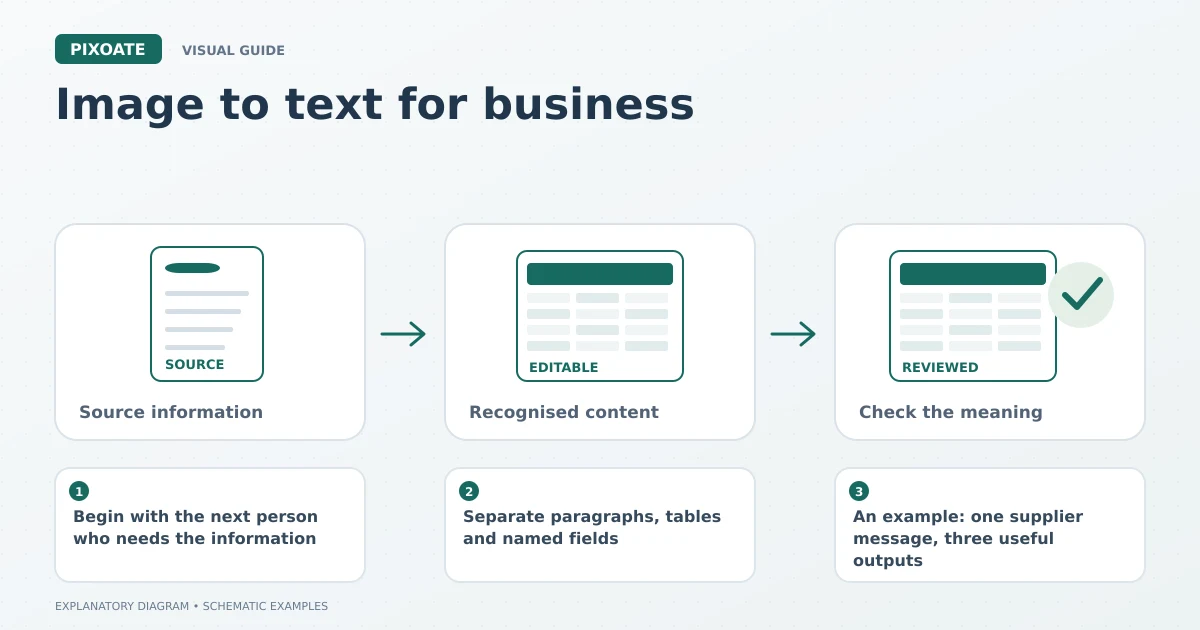
Original explanatory graphic. The scenes and sample records are schematic illustrations, not screenshots or measured tool results.
Begin with the next person who needs the information
An administrator copying a reference number does not need the same file as a purchasing manager comparing fifty rows of prices. Ask what someone must do after extraction.
| Next job | Pixoate starting point | Review before using it |
|---|---|---|
| Copy or rewrite paragraphs | Image to Text | Wording, names and line breaks |
| Sort or calculate a table | Image to Excel | Columns, numeric values and units |
| Import rows into another system | Image to CSV | Required headers, identifiers and date handling |
| Find words while keeping the source page visible | Searchable PDF | Search results against the original image |
This avoids a common detour: extracting everything as plain text and then spending time rebuilding the table that was already visible in the source.
Separate paragraphs, tables and named fields
OCR recognises text, but different business documents need different structures. A service letter is mainly paragraphs. A stock sheet is a table. An invoice may contain both a table and named fields such as invoice number, supplier and due date.
For a repeatable set of named fields, use extract selected document fields as JSON. Define the fields you need, review the returned values and pass the verified data to the next process. A JSON result is not an automatic connection to accounting software; any import or integration must match that system's requirements.
Use the smallest suitable workflow. A person who only needs one address may find copy selected text from an image more convenient than exporting an entire document.
An example: one supplier message, three useful outputs
Imagine a supplier sends a photographed price table with a paragraph about a delivery change. The purchasing team needs editable prices, the warehouse needs the delivery instructions, and the office needs a source record.
Extract the table to Excel and check pack sizes before comparing costs. Extract the paragraph as text and verify the date before adding it to the order notes. Keep the source image in a searchable PDF if that helps the team retrieve the original message later.
These are illustrative applications of the tools, not evidence that every mixed-layout document will extract perfectly in one pass. Separate sections where the source is crowded or the outputs serve different purposes.
Give uncertain values somewhere to go
The most dangerous result is often a plausible mistake. A misread quantity can look ordinary. A date can be valid in two different regional formats. An identifier can lose a leading zero during spreadsheet import.
Create a simple review column or note for uncertain values. Preserve the source filename and page reference so the next person can check the original. Confirm important amounts and references before using them in payments, orders or customer communications.
Can I extract text from several images?
Several Pixoate extraction tools offer batch modes. Availability and limits depend on the tool and account. Group similar sources together and review each result rather than treating a batch as one accuracy decision.
Which format is best for businesses?
There is no universal winner. TXT is useful for words, XLSX for spreadsheet work, CSV for compatible row imports, JSON for named data and searchable PDF for readable source pages.
Start with the document that causes the most repeated handling. Use Pixoate's image-to-text workflow or the more specific table and PDF tools to move that information into the format the next task actually needs.