

Count chocolates in a tray from a photo
Works with JPG, PNG, WEBP · Free up to 20 MB, Premium 50 MB
Spread the chocolates one layer deep on a tray or flat surface and photograph from directly above — counted detections receive dots for review. Built for bakeries, caterers and food producers — review and correct each photo before adding it to a CSV or PDF tally.
- Review the photo, then count visible chocolates
- Upload a photo and get an automatic count
- Review the markers to catch chocolates counted twice or missed
- Free to use · No signup required · Without watermark
Upload Image
Tips for an accurate count
• Use an even, well-lit photo with the chocolates fully in frame
• Keep your chocolates visible and avoid overlapping items
• Dots and heatmap show retained detections — review and correct the tally
About the Chocolates Counter
The chocolates counter counts visible chocolates from your photo and marks detections for review. Counting starts automatically once the photo and item are ready. Visibility, overlap and similar-looking items can affect the total. Built for bakeries, caterers and food producers.
How It Works
1. Photograph your chocolates
2. Upload your photo to count chocolates automatically
3. Review the markers and correct the tally if needed
4. Add to the tally sheet and export your count as CSV
Perfect For
• Production tallies before boxing and packing
• Checking gift and event orders against the spec
• Seasonal stock counts through a short selling window
• Reconciling finished pieces against ingredient batches
Counting chocolates in molds, trays and assortment boxes
Chocolates are counted in confectionery kitchens before boxing and packing, against the spec for gift and event orders, and through a short seasonal selling window when stock moves fast. They are small, glossy and often sit in paper cups or plastic cavities, so the main job is making sure the counter sees each piece rather than each cup or cavity.
Soft, diffused light from overhead comes first, because a shiny tempered surface throws a bright spot that can hide the edge of a piece. Foil-wrapped chocolates reflect even more, so a light tent or a north-facing window helps. An assortment of truffles, squares and shells needs up to three examples in Similar items. In a mold or cavity tray, mark a filled cavity rather than the plastic surround so empty cavities are less likely to be read as pieces.
Paper cups close in color to the chocolate are where review matters most; check those markers, then add each tray as a labelled tally row. Cookies from the same kitchen can share the tally, and finished gift boxes ready to ship are a separate box count.
Before photographing chocolates
- Soft light, no single lamp over the glossy tops
- A filled cavity or whole piece marked as the example
- One example per shape in an assortment
- Tray photographed before it goes into boxes
Frequently asked questions
- Do the items need to be separated before counting?
- Slight touching can work, but full overlaps hide items and make the result less reliable. Spread them one layer deep under even light, mark a clear example, and review every result marker.
- What if the photo has more than just chocolates in it?
- The counter automatically looks for chocolates in your photo. Similar-looking distractors can still affect the result, so review every marker before using the total.
- Can I count several photos into one total?
- Yes — count each photo and add every reviewed result to the tally sheet as a labelled row. Export the tally as CSV or a PDF report, or save it to your account.
- Is it free and private?
- Yes. You can count, review and download a free result without an account. Downloads are free without a watermark. No signup required. Server-processed photos are encrypted in transit and removed under our Security policy.
What you can do with AI Inventory Counter
Review the main capabilities before you begin.
- Count shelves, stacks, crates and pallets from photos
- Review and correct photo tallies before export
- Export your stock-take to a CSV file
- Run a full audit shelf by shelf
- Optionally mark an item to target one SKU
- Combine bulk photos into one inventory total
- Ignore small stray detections for accuracy
Settings reference
15 settings
Available controls for AI Inventory Counter.
Upload
- Single photo / Bulk auditPresets
- Choose a single-photo count or a Premium bulk audit. Review every result.Options: Single photoBulk audit
Count
- Included markersSliderRange: 0–1 · Default: 0.21
- Starts at 21%; slide toward Show more to include weaker markers or Only strongest to hide them.
- Overlay stylePresets
- Choose dots, a heatmap, both or a clean preview.Options: BothDotsHeatNone
- What to countText input
- Enter the item to count, then press Enter or leave the field to start automatically. Review every result marker.
Advanced
- Result overlayDropdown
- Choose how count markers appear in the on-screen preview; the download keeps its own markers.Options: Dots + heatmapDots onlyHeatmap only
Tally
- Add to tallyOne-click
- Add this count to the tally sheet under the name of the object that was counted. Signed-in accounts add finished counts automatically unless that is turned off under Account settings; in bulk mode every photo also has its own Add to tally button.
- LabelText input
- Rename a tally row. Edits and removals wait until you choose Save changes, so you can fix several rows at once.
- CountNumber input
- Correct a row's count; totals, the chart and exports follow once the change is saved.
- Save changesOne-click
- Apply every edited or removed tally row in one step, or choose Discard changes to leave the sheet as it was.
Chart
- By objectPresets
- The chart is the same in every counting tool and covers the tallies of all of them. By object draws a separate line chart for each tally name, such as pipes and people. By tool draws a chart for each counting tool.Options: By objectBy tool
- PeriodPresets
- Choose how far back the chart looks. Days without a count appear as zero.Options: 7 days30 days90 days12 months
History
- Counting setupGallery
- Keep comparable counts together. A first setup is created for you, so the first count can be saved straight away.
- Observed atText input
- The date and time of the count, shown as a date and a time field.
- NotesText input
- Starts with every detected object and its count, one per line, such as Pipes - 11. Edit it before saving.
- Save countOne-click
- Save the count to your account history. Open a saved count later to correct it or download its source photo.
Related tools for AI Inventory Counter
Tools for common next steps after AI Inventory Counter.
Counting & Inventory
Object Counter
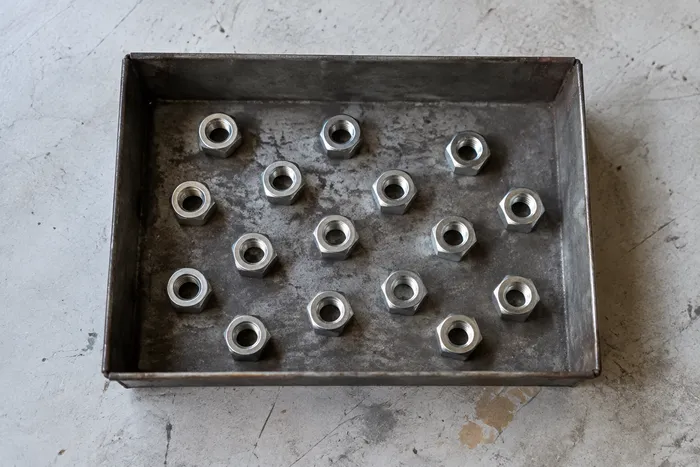
Estimate an object count from a photo. Review and correct the numbered markers before using the count.
Try it now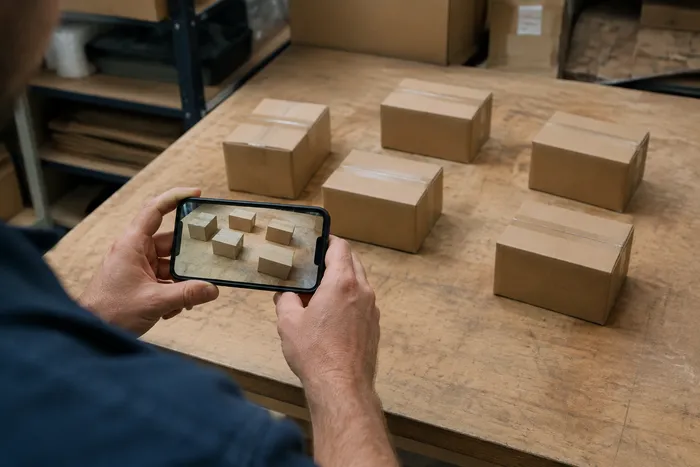
Counting & Inventory
Live Object Counter
Aim your phone at separated, fully visible items and review the detector markers as the count updates in real time.
Try it now
Counting & Inventory
Bottle Counter
Count bottles on shelves, in crates, or in cold rooms from one photo, with counted detections marked for review.
Try it nowHow AI Inventory Counter helps you get it done
Real problems it solves every day — for businesses, creators, and everyday tasks. Find the use case that fits you and start.
Multi-Location Retail Cycle Counts
Managers can use Bulk audit to run Distinct objects mode across every shelf photo, review every tally, and save each store's corrected session separately.
Warehouse Goods-In Receiving Audits
Warehouse staff photograph each pallet, mark 1-3 example items in Examples — one per SKU in the shot — and export the reviewed tally as a CSV to match against the purchase order.
Pharmacy Controlled-Stock Review Trails
Pharmacies can create a shelf-by-shelf AI draft by marking 1-3 example items in Examples — one per SKU — then have a qualified person review and correct it under the required manual procedure. The export supports review but is not a compliance record by itself.
Loss-Prevention & Shrinkage Spot Checks
Store managers can compare reviewed, corrected photo tallies over time as a preliminary shrinkage screen, then physically verify discrepancies before taking action.
Small Manufacturer & Workshop Parts Counting
Machine shops photograph bins of screws, fasteners or gaskets and mark 1-3 example parts in the Examples setting — one per part type in a mixed tray — before counting for build planning or reordering.
Watch each transformation land
Every photo crosses the slash untouched and comes out the other side finished.























