
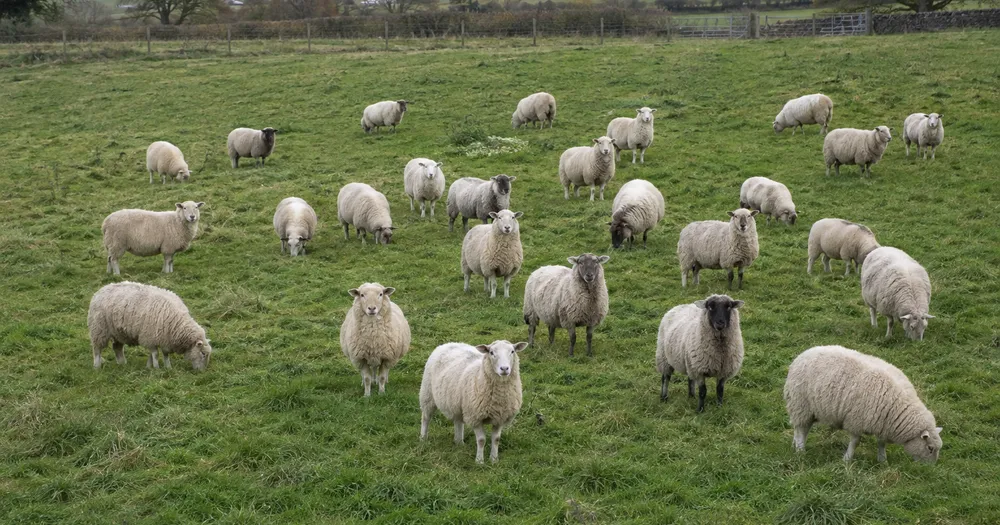
Sheep Counter — Count sheep in a flock from a photo
Works with JPG, PNG, WEBP · Free up to 20 MB, Premium 50 MB
Shoot from a vantage point — a gate platform, slope or drone — so the sheep do not fully hide each other; moderate bunching is handled by the density engine. Built for farmers, ranchers and livestock markets — review and correct each photo before adding it to a CSV or PDF tally.
- Review the photo, then count visible sheep
- Upload a photo and get an automatic count
- Review the markers to catch sheep counted twice or missed
- Free to use · No signup required · Without watermark
Upload Image
Tips for an accurate count
• Use an even, well-lit photo with the sheep fully in frame
• Keep your sheep visible and avoid overlapping items
• Dots and heatmap show retained detections — review and correct the tally
About the Sheep Counter
The sheep counter counts visible sheep from your photo and marks detections for review. Counting starts automatically once the photo and item are ready. Visibility, overlap and similar-looking items can affect the total. Built for farmers, ranchers and livestock markets.
How It Works
1. Photograph your sheep
2. Upload your photo to count sheep automatically
3. Review the markers and correct the tally if needed
4. Add to the tally sheet and export your count as CSV
Perfect For
• Flock headcounts after gathering or moving between fields
• Checking numbers loaded against the movement licence
• Lambing-season counts without disturbing the flock
• Draft figures for an insurance or subsidy record needing sign-off
Counting a flock of sheep after gathering or before loading
Shepherds count after gathering a hill, after moving a flock between fields and before a load leaves, and each time the figure has to match the movement record. A gathered flock in a pen turns into a packed carpet of woolly backs; from a raised point such as a trailer, a hurdle stand or a drone, each back reads as a separate oval. On open grazing, wait until the flock has spread out to feed instead of shooting while they run together.
Lambing time brings the hardest scene, because lambs tuck under or behind ewes and disappear. Mark one ewe and one lamb as separate examples, and the Found per example list shows how the result divides between them. Freshly shorn sheep look very different from those still in full fleece, so a mixed group may also need one example of each. Heavy mud, or fleece the same shade as the ground, can blend sheep into the background.
Review the dots along gates and walls, where sheep crowd tightest, and correct the total in the tally before writing it on a record. Anything that matters for insurance or subsidy paperwork still needs a physical check. Goats are handled on the goat counter, and cattle on the same holding on the cattle page.
Before you photograph the flock
- Raised viewpoint over the pen, or a drone above open grazing
- Flock settled and spread, not streaming through a gateway
- One ewe and one lamb marked as examples at lambing time
- Sheep packed against walls and gates reviewed dot by dot
Frequently asked questions
- What if the animals are bunched together?
- The crowd-density engine can estimate moderate bunching, but occlusion still causes errors. Higher and wider shots (or a top-down drone pass) reduce animals hiding each other. Review the retained markers, correct the tally, and physically confirm exceptions before acting.
- What if the photo has more than just sheep in it?
- The counter automatically looks for sheep in your photo. Similar-looking distractors can still affect the result, so review every marker before using the total.
- Can I count several photos into one total?
- Yes — count each photo and add every reviewed result to the tally sheet as a labelled row. Export the tally as CSV or a PDF report, or save it to your account.
- Is it free and private?
- Yes. You can count, review and download a free result without an account. Downloads are free without a watermark. No signup required. Server-processed photos are encrypted in transit and removed under our Security policy.
What you can do with Livestock Counter
Review the main capabilities before you begin.
- Count cattle, sheep, goats and poultry from a photo
- Run fast herd checks in the field
- Tally market lots and sale pens from images
- Optionally mark an animal to target one type
- Review each counted-animal marker in the overlay
- Add multiple field photos into one running tally
- Filter tiny detections, then review the remaining markers
Settings reference
14 settings
Available controls for Livestock Counter.
Upload
- Single photo / Bulk auditPresets
- Choose a single-photo count or a Premium bulk audit. Review every result.Options: Single photoBulk audit
Count
- Included markersSliderRange: 0–1 · Default: 0.21
- Starts at 21%; slide toward Show more to include weaker markers or Only strongest to hide them.
- Overlay stylePresets
- Choose dots, a heatmap, both or a clean preview.Options: BothDotsHeatNone
Advanced
- Result overlayDropdown
- Choose how count markers appear in the on-screen preview; the download keeps its own markers.Options: Dots + heatmapDots onlyHeatmap only
Tally
- Add to tallyOne-click
- Add this count to the tally sheet under the name of the object that was counted. Signed-in accounts add finished counts automatically unless that is turned off under Account settings; in bulk mode every photo also has its own Add to tally button.
- LabelText input
- Rename a tally row. Edits and removals wait until you choose Save changes, so you can fix several rows at once.
- CountNumber input
- Correct a row's count; totals, the chart and exports follow once the change is saved.
- Save changesOne-click
- Apply every edited or removed tally row in one step, or choose Discard changes to leave the sheet as it was.
Chart
- By objectPresets
- The chart is the same in every counting tool and covers the tallies of all of them. By object draws a separate line chart for each tally name, such as pipes and people. By tool draws a chart for each counting tool.Options: By objectBy tool
- PeriodPresets
- Choose how far back the chart looks. Days without a count appear as zero.Options: 7 days30 days90 days12 months
History
- Counting setupGallery
- Keep comparable counts together. A first setup is created for you, so the first count can be saved straight away.
- Observed atText input
- The date and time of the count, shown as a date and a time field.
- NotesText input
- Starts with every detected object and its count, one per line, such as Pipes - 11. Edit it before saving.
- Save countOne-click
- Save the count to your account history. Open a saved count later to correct it or download its source photo.
Related tools for Livestock Counter
Tools for common next steps after Livestock Counter.

Counting & Inventory
Object Counter
Estimate an object count from a photo. Review and correct the numbered markers before using the count.
Try it now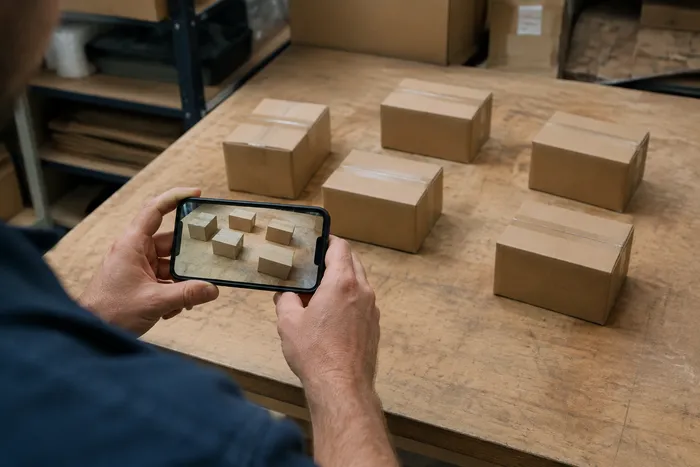
Counting & Inventory
Live Object Counter
Aim your phone at separated, fully visible items and review the detector markers as the count updates in real time.
Try it now
Counting & Inventory
Bottle Counter
Count bottles on shelves, in crates, or in cold rooms from one photo, with counted detections marked for review.
Try it nowHow Livestock Counter helps you get it done
Real problems it solves every day — for businesses, creators, and everyday tasks. Find the use case that fits you and start.
Daily Herd Head Counts
Photograph the pen or paddock each morning for a preliminary head-count estimate, then review the markers and physically confirm any apparent missing or strayed animal before acting.
Market Lot Review for Buyers and Sellers
Both sides of a livestock sale can use separate AI-assisted drafts, then jointly check and correct them against the physical lot before closing. A marked image can support that review but is not a verified sale record by itself.
Transport Load-Out Manifest Review
Use the marked result as a preliminary transport estimate, then have qualified staff complete the required physical and manifest checks and correct the tally. The AI image alone is not a compliance or load record.
Drone Pasture Surveys at Scale
Fly a top-down drone pass over open pasture for a large-area estimate, then review the markers and physically confirm exceptions before using the tally for herd decisions.
Multi-Species Farmyard Inventory
Set Counting mode to Distinct objects on a mixed paddock of cattle, sheep or poultry so each animal is boxed; for a species-by-species farm inventory, mark one example of each species in Similar items and read Found per example.
Watch each transformation land
Every photo crosses the slash untouched and comes out the other side finished.























