
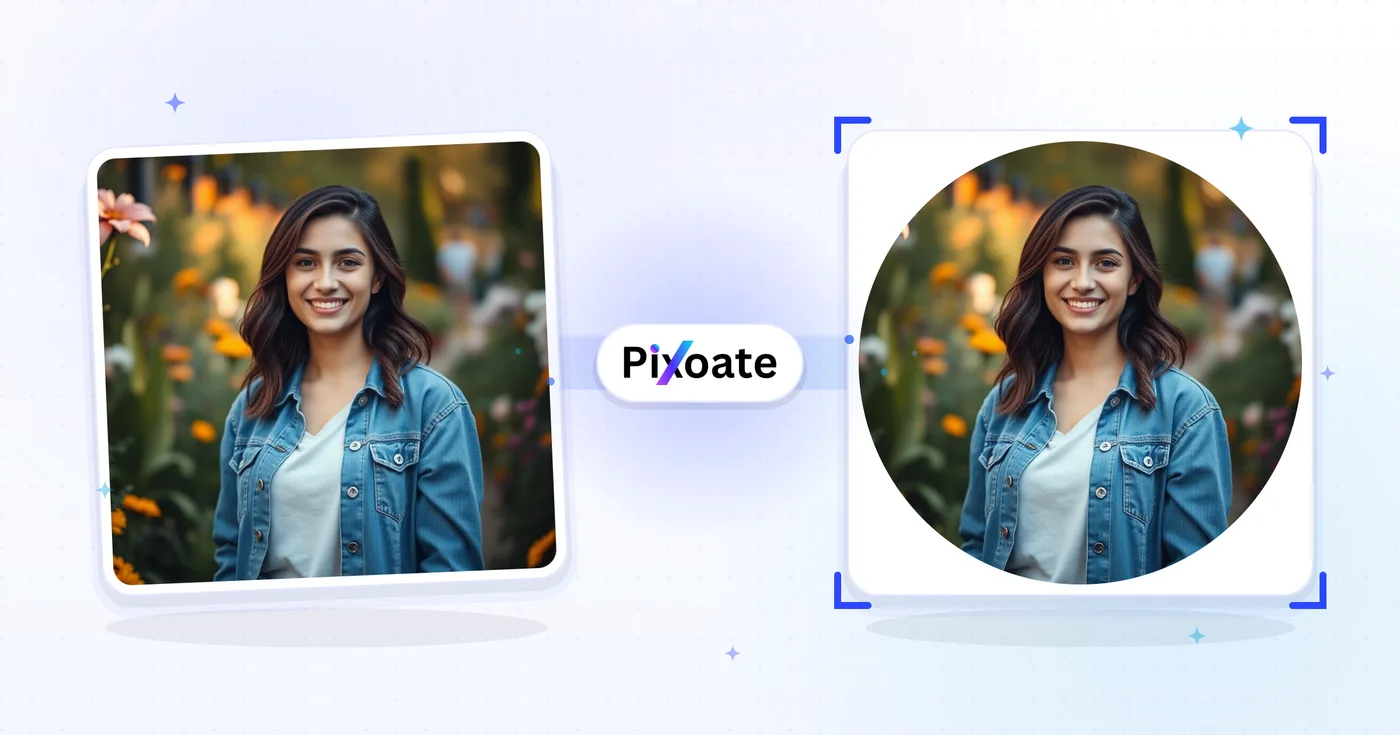
Circle Crop Image — Crop a Photo Into a Circle Online Free
Profile pictures shouldn't ship in a white box. Position a clean circular cutout live and download it as a transparent PNG.
Drop a photo — get a circular cutout on a transparent PNG
Circle Crop
Circle Crop
Create circular crops for profile pictures, avatars and design layouts.
How to Use
Upload your image, adjust the crop area, and download your circular image.
Circle crop capabilities
Circular output
Position the circular crop and review its edges in the preview before download.
Direct controls
Move and resize the crop area with the controls provided.
Security and retention
Server-processed files are handled under our Security policy.
Circle crop image online: crop a photo into a circle with a transparent background
This circle cropper cuts a photo into a round shape and saves it as a transparent PNG, so a profile picture or avatar does not carry a white box. Drag the circle over the part you want, set its size, and download the result. A solid background color is available when a site needs a flat image. It works in any browser, on a phone or a computer.
Crop a photo into a circle in 5 steps
The circle starts as large as the shorter side of your photo allows, centered. Drag it to center the face or subject, and drag an edge handle or press the Radius − and + buttons to make it larger or smaller. The crop view dims everything outside the circle, and the Output tab shows the round result as it will be saved, with the area outside the circle left empty.
- Upload the photo you want to make round.
- Drag the circle over the part to keep.
- Resize it with the edge handles or the Radius buttons.
- Select See result to run the crop.
- Download the circle as a transparent PNG.
Choose the Profile, Large, Medium or Small preset
Quick Circle Presets set the circle in one click. Profile covers 80% of the shorter side and suits headshots, Medium covers 70%, and Small covers 50% for a tight close-up. Large spans the longer side, so the circle can reach past the edges of the photo. Pick a preset first, then move the circle to fine-tune the framing.
Save the circle as a transparent PNG or on a solid color
PNG (Transparent) is the default Output Format, so the corners around the circle are empty. Switch to JPEG when a site rejects transparency: a Background Color swatch and a Quality slider from 1 to 100 appear. WebP is also available. The saved file is a square whose side equals the circle's diameter in pixels, with the picture clipped to the circle.
Make a round profile picture from any photo
To circle crop a photo for a profile picture, start with the Profile preset, move the circle so the face sits in the middle, and keep PNG for transparent corners or choose JPEG with a color that matches the site. If an app adds its own profile picture circle on top, keep the face away from the edge of yours. For an automatic head-and-shoulders square, use the Instagram resizer's profile preset.
Turn a square image into a circle
To turn a picture into a circle, think of the circle as a round frame laid over the photo: whatever sits outside it is left out. On a square picture, choose Large and the circle touches all 4 sides, so only the corners are cut away. This tool makes circles only. For an oval, heart or star outline, open the shape cropper; for a plain rectangular crop, use the image cropper.
Before you download the circle
- Use PNG for transparent corners, because JPEG fills them with the Background Color you pick.
- Check Diameter on the Info tab, because it is the size of the saved picture in pixels.
- Keep faces and logos away from the edge in case an app adds its own circle.
- Large lets the circle extend past the photo, and those areas turn transparent or take the background color.
Using a round cutout
The circle downloads as a transparent PNG, so you can position it over a banner or another photo without a white box; to change what sits behind the face first, make a profile picture with a blurred or replaced backdrop. For outlines other than a circle, crop to a triangle, star or custom shape, or cut around the person's real outline.
What you can do with Circle Crop
Review the main capabilities before you begin.
- Crop a supported photo into a circle
- Make round profile pictures and avatars
- Download a transparent PNG with no white box
- Position and resize the circle before saving
- Set a solid background color behind the circle
- Save the circle crop as PNG or JPG
Settings reference
6 settings
Available controls for Circle Crop.
- Processing modePresets
- Process one input, or switch to Premium batch mode to process multiple inputs with shared settings. Available input types depend on the tool.Options: Single imageBatch
Crop
- Quick Circle PresetsPresets
- One-tap centered circle sizes: Profile is 80% of the shorter side for avatars, Large spans the longer side edge-to-edge, Medium is 70%, and Small is 50% for a tight close-up.Options: ProfileLargeMediumSmall
- RadiusOne-click
- Minus and plus buttons shrink or grow the crop circle in 5% steps of the photo's shorter side, giving precise sizing without dragging the on-canvas edge handles.
Output
- Output FormatDropdown
- Chooses the saved file type. PNG is always the starting choice and keeps everything outside the circle transparent, as does WebP; only JPEG fills that area with a solid background color.Options: PNG (Transparent)JPEGWebP
- QualitySliderRange: 1–100% · Default: 92%
- Sets JPEG compression from 1% to 100%; higher values keep the circle's edge crisp at the cost of a larger file. Appears only when JPEG is the output format.
- Background ColorColor picker
- Picks the solid color that fills the corners outside the circle when exporting to JPEG, which cannot store transparency; hidden for PNG and WebP, which keep those corners transparent.
Related tools for Circle Crop
Tools for common next steps after Circle Crop.
Photo Editing & Utilities
Crop Image
Drag to crop an image. Choose a preset ratio or enter exact dimensions.
Try it now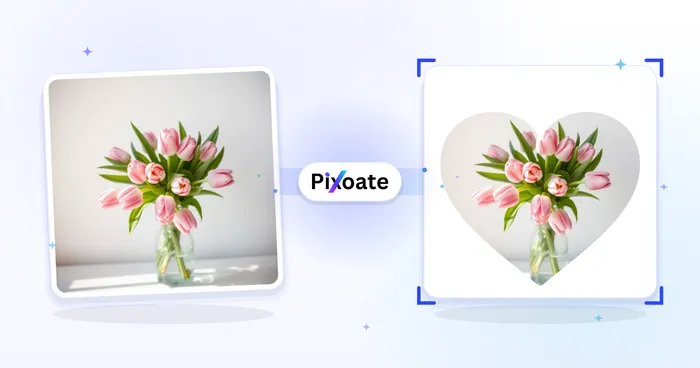
Photo Editing & Utilities
Crop by Shape
Crop a photo into a heart, star, circle, triangle or custom shape and download a transparent PNG.
Try it now
Background Studio
Remove Background
Remove a photo background and download a transparent PNG. Review hair and edges before use.
Try it nowFrequently Asked Questions
How Circle Crop helps you get it done
Real problems it solves every day — for businesses, creators, and everyday tasks. Find the use case that fits you and start.
Instagram & WhatsApp Profile Pictures
Create perfect circular profile pictures for Instagram, WhatsApp, LinkedIn, Discord, and Telegram that look professional
Logo Design
Design circular logos and brand elements for businesses and organizations
Instagram Stories & Highlights Covers
Create circular highlight covers for Instagram stories, profile badges, and social media story content that stands out
Website Design
Design circular elements for websites, including team photos, testimonials, and feature highlights
App Icons
Create circular app icons and interface elements for mobile applications
Artistic Compositions
Create artistic circular compositions for digital art and creative projects
Personalized Photo Buttons & Pins
Circle-crop a photo to fill a print-on-demand button, pin or keychain template exactly, so the die-cut round product doesn't clip faces or logos at the edge.
Professional Video-Call Avatar
Crop a headshot into a clean circle sized for Zoom, Microsoft Teams, Slack and Google Meet, all of which display profile photos inside a circular frame — get the framing right before you upload instead of letting the app auto-crop it.
Realtor Headshot Badges for Signs & Cards
Circle-crop your agent headshot for yard-sign inserts, business cards and email signature badges, using the Profile preset to keep the face centered the way MLS and brokerage templates expect.
Wedding Favor & Ornament Photo Inserts
Crop a couple's photo into a circle sized for photo ornaments, round wedding-favor tags or party keepsakes that require a round insert rather than a square crop.
Company Directory & Team Page Headshots
Circle-crop a batch of employee or founder headshots to the same size and framing for a website's About or team page, matching the circular avatar style most agency, startup and SaaS team pages use instead of mismatched rectangular photos.
Watch each transformation land
Every photo crosses the slash untouched and comes out the other side finished.























