
Trade Show Booth Designer
Generative output can vary; review the full result before publishing
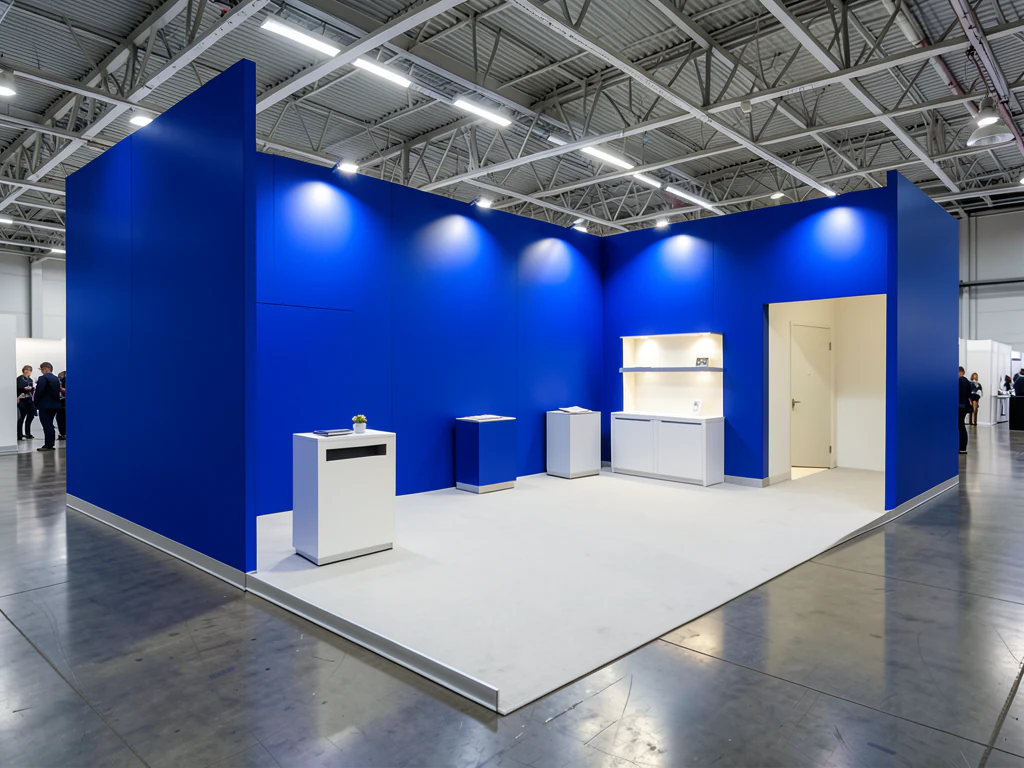
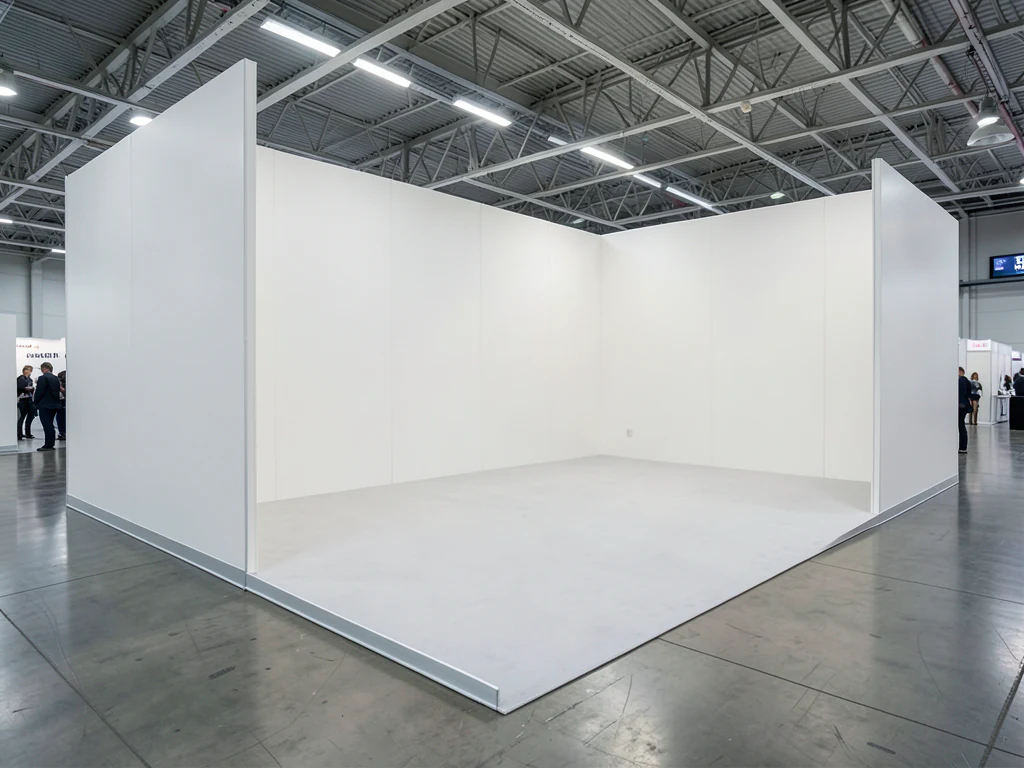
Trade show RFPs are won by whoever helps the client see the booth first — and exhibit teams burn days per concept waiting on outside render iterations. Start from the floor or space photo: a booth concept at realistic scale in the actual hall, structure and flow visible, panels left clean for the exhibitor's approved branding rather than invented logos.
- Prepared Trade Show Booth direction
- Editable prompt
- Full-result review required
Choose a source image for Trade Show Booth
JPG, PNG, WebP, HEIC, and other supported formats. Free up to 20 MB; Premium and higher up to 50 MB for this tool.
Trade show booth concepts from a photo of the hall
Booths are usually designed before the show floor exists, so use a photo from last year's edition or one the organizer shares with exhibitors, taken from an aisle at walking height. Say which booth type you have: an inline booth with one open side, a corner with two, a peninsula with three or an island open all around.
Describe the structure and the flow: back wall height, a reception counter at the aisle, a demo station, a meeting pod with a door, a hidden storage closet, the flooring. Organizers publish rules on height and open sides in the exhibitor manual, so check the concept against it before a fabricator quotes. For the stage presentations that often run beside the booth, see the product launch page.
Check the render for invented neighbor booths, aisle carpets that change color and panels that picked up stray lettering. Fascia and wall panels are meant to stay clean so the exhibitor's artwork can go on afterward; overlay the approved graphics for the client presentation. Premium or a credit returns the original resolution for a print-ready proposal.
Set up for Trade Show Booth Designer
Prepared settings
- Starting point
- Upload one source image
- The page opens on the correct edit workflow; upload is the only required setup step.
- Prepared workflow
- Prepared Trade Show Booth event type
- Trade Show Booth Designer opens with the Trade Show Booth direction preselected, so there is no need to find the operation manually.
- Output shape
- Same as your upload
- The result keeps the shape of the image you upload.
- Review rule
- Review the complete generated result before use
- Generated imagery can vary; the final result stays under the user's approval before download.
Best-fit uses
- Render RFP booth concepts in the real hall
- Test open versus enclosed booth layouts
- Align exhibitor and fabricator on one visual
Frequently asked questions
- Can we use the concept in an RFP response?
- That is the intended job — a booth rendered at realistic scale in a real hall reads far better than a floor plan. Pair it with your specs; the visual carries the pitch, the documents carry the detail.
- Does it add the exhibitor's logos for us?
- No — the prompt asks for clean panels and fascia so your designers can apply the exhibitor's approved artwork after generation. Check each concept for anything that looks like an invented mark before it reaches a client.
- What should I review in a Trade Show Booth result?
- Inspect faces, hands, object geometry, small details, perspective, readable marks, and any claim implied by the scene. Regenerate or reduce the requested change when something is inaccurate.
- What rights checks apply to a Trade Show Booth client project?
- Use only source material and references you have rights to, follow the destination platform rules, and obtain any required person or property permissions. Generated output still needs a human accuracy and rights review.
What you can do with AI Image Editor
Review the main capabilities before you begin.
- Expand photos into square, portrait, or landscape layouts
- Fill a painted area with newly described content
- Remove or replace selected objects in a photo
- Change skies, backgrounds, weather, or scene styling
- Stage empty rooms while retaining their architecture
- Place product photos into studio or lifestyle scenes
- Protect original pixels outside a painted local edit
Settings reference
5 settings
Available controls for AI Image Editor.
Edit
- Edit typeDropdown
- Choose the focused editing workflow so the image, prompt, optional selection, and output shape are handled consistently.Options: Watermark removalScratch repairText-based editGenerative fillMagic eraserObject replacerBackground changerProduct backgroundAI expandUncrop imageLandscape to portraitPortrait to landscapeSky replacementRoom stagingProduct sceneProfessional headshot
- Describe the editText input
- Describe the visual change in up to 1000 characters; object removal, replacement, and scene changes require it, while expansion can run without extra direction.
Selection
- Selection brush sizeSliderRange: 16–160px · Default: 64px
- Generative fill and object replacement require a painted area. Automatic cleanup, background, sky, and staging modes expose the same brush only through Refine area manually; pixels outside a manual selection are restored from the prepared source.
Output
- Expanded aspect ratioPresets
- Choose the new canvas shape for expand and uncrop workflows while retaining the original image inside the generated frame.Options: Square 1:1Portrait 4:5Story 9:16Wide 16:9Portrait 3:4Landscape 4:3
- Ask AI to preserve subject identity and product detailsOn / Off
- Ask the editor to retain the main subject's shape, identity, logos, labels, and readable text unless your instruction explicitly changes them.
Related tools for Trade Show Booth Designer
Tools for common next steps after Trade Show Booth Designer.
AI Image Studio
AI Image Generator
Generate AI images from text prompts in square, landscape, portrait, or wide formats and download the result as PNG.
Try it now
Photo Editing & Utilities
Online Photo Editor
Crop and resize photos. Add text, shapes, effects and templates, or use AI editing tools.
Try it now
Creative & Design
Add Text to Image
Add styled text with custom fonts, colors and outlines to supported image formats, then download the edited image.
Try it nowGuides for this tool
Watch each transformation land
Every photo crosses the slash untouched and comes out the other side finished.























