A dashboard without an export button should not mean manual entry
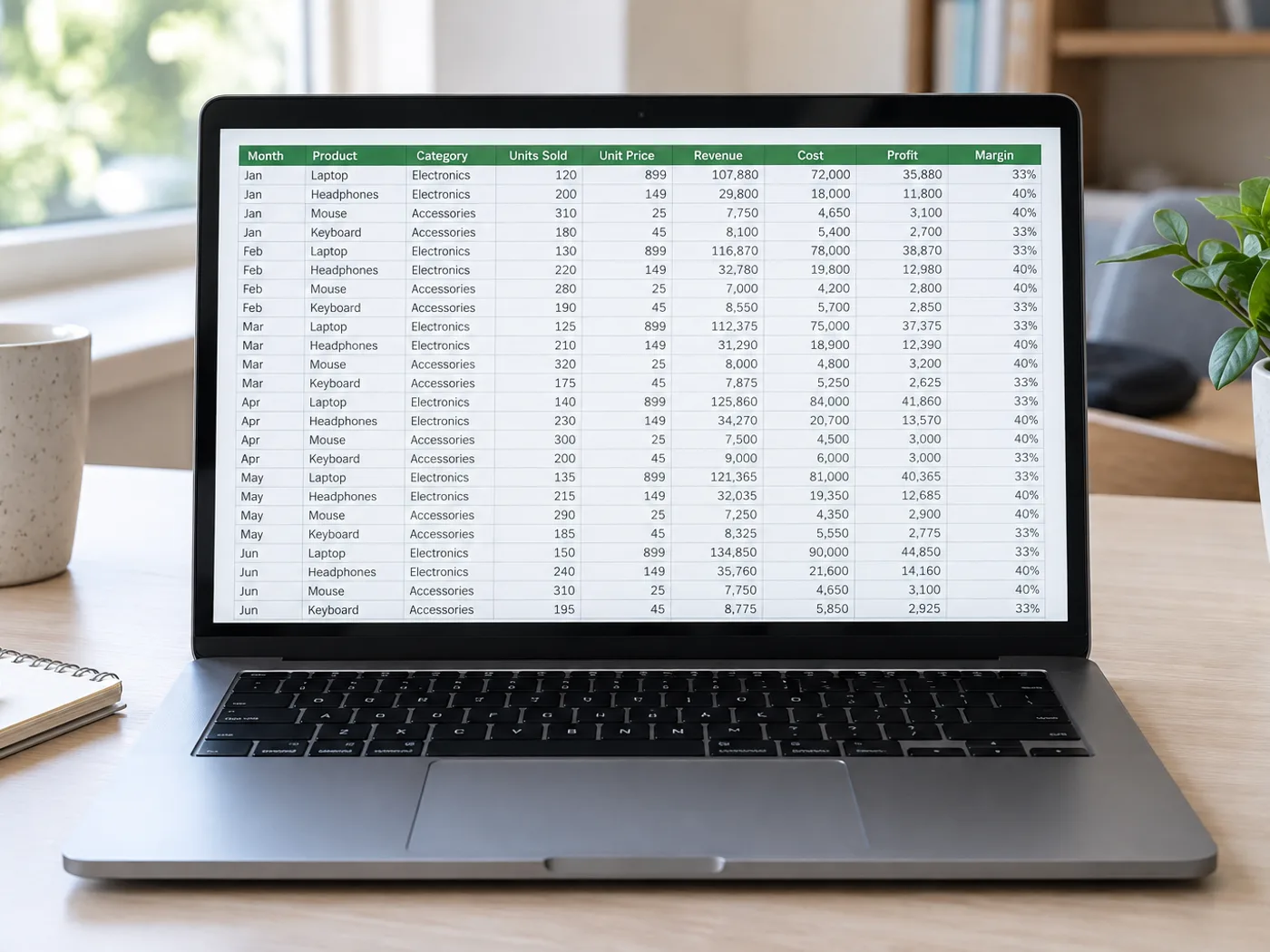
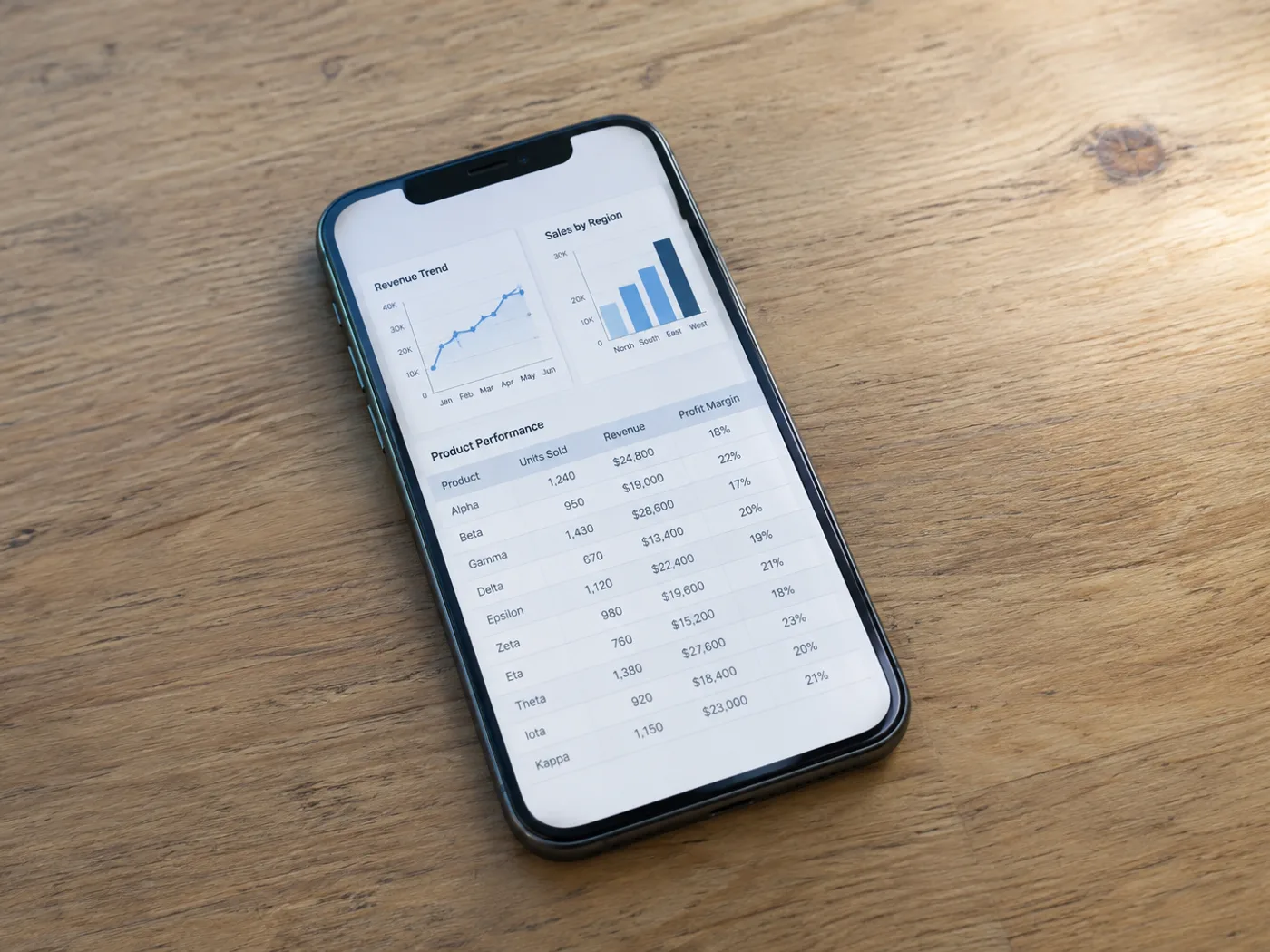
When a dashboard shows a table but offers no spreadsheet export, capture the visible rows and extract them into Excel. Keep the headers in the screenshot so you can identify the columns and check the resulting grid.
Dashboard figures for a weekly report
Recover a visible metrics table from a reporting interface and check its date range before combining the numbers with your own worksheet.
Comparison tables in presentations
Move a table from a slide screenshot into editable cells without retyping every displayed option or price.
Capture complete screen rows before creating Excel cells
- Capture the table at a readable browser zoom, including headers and the last complete row.
- Extract the screenshot and remove interface labels or extra rows from the review grid.
- Check against the displayed report, then export the corrected Excel workbook.
Clipped rows, overlapping captures and dashboard access
- Can screenshot to Excel recover rows below the screen?
- No. OCR can only read pixels in the uploaded screenshot. Capture additional sections separately or use the application's own export if available.
- How do I avoid duplicate rows across overlapping screenshots?
- Include a recognizable row identifier and check overlaps when you combine the resulting worksheets. This page does not automatically reconcile separate captures.
- Should dashboard menus stay in the screenshot?
- Crop unnecessary navigation while retaining table headers. Extra interface text can be mistaken for table content and may need removal during review.
- Will extracting a screenshot connect to my dashboard account?
- No. The input is the image you provide. The converter does not log into the dashboard or fetch underlying account data.
- Why are the numbers from my dashboard screenshot left-aligned in Excel?
- Excel left-aligns text, and every value is written as text. Select the column, convert it to numbers with the warning menu or Text to Columns, and the values will align right and add up. Do this before you use any total, because a sum over text cells returns zero.
- Can I convert a chart or KPI card from a screenshot into cells?
- No. The reader looks for tables. A line, bar or card shows summaries, not the rows behind them, and numbers printed on a chart come out as scattered text. Use the table view of the application, or its export, for the data series.
- How do I keep a screenshot table and its source together?
- Name the workbook with the report and the capture date, and save the screenshot beside it. Signed-in accounts can also save the checked table to History, where each saved table keeps its Document date and the source file name for later reference.
- Why is there a blank row in the middle of my worksheet?
- A blank row separates two tables that the reader found in one screenshot, such as a summary block above a detail table. Delete it, or split the sheet there. Rows are also padded to the widest row, so short rows get empty cells at the end.
- Can I read a screenshot taken in another language?
- Yes. Set Language in Settings to the language of the text on screen before you convert; the list changes with the Engine you choose. Changing either setting clears the grid, so convert again after switching.
- What should I do with a very wide screenshot table?
- Capture the columns you need in two or more images, repeating one identifying column in each, convert them separately and join them in Excel by that column. Shrinking a wide table to fit one screenshot makes its text too small to read.