
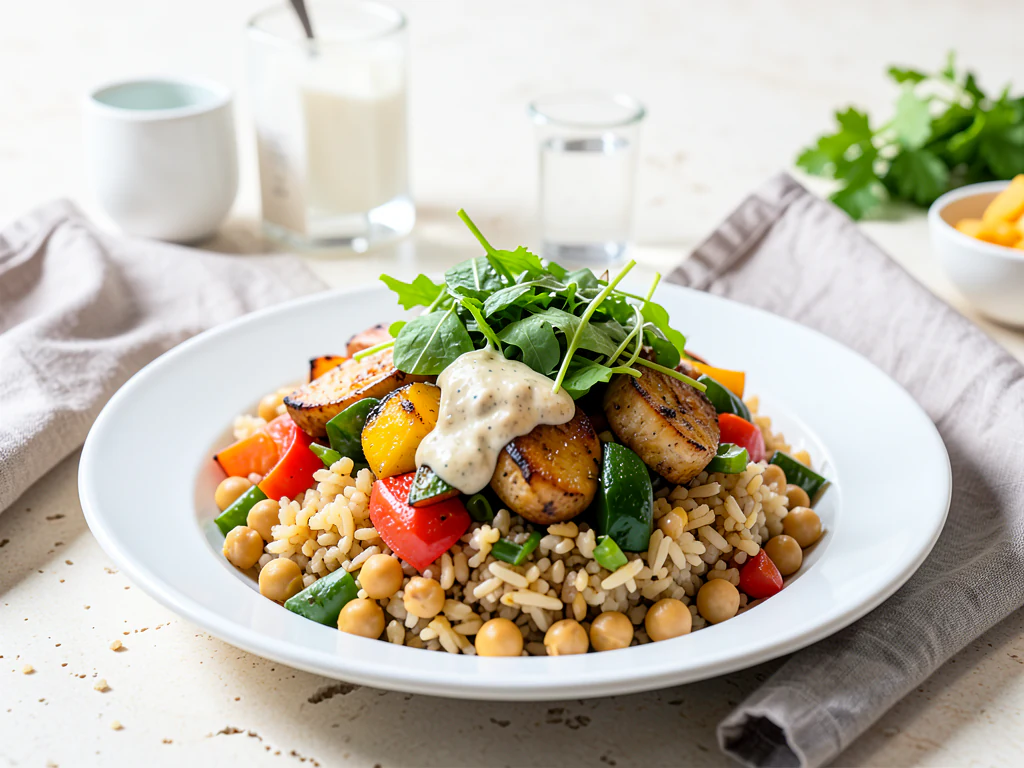
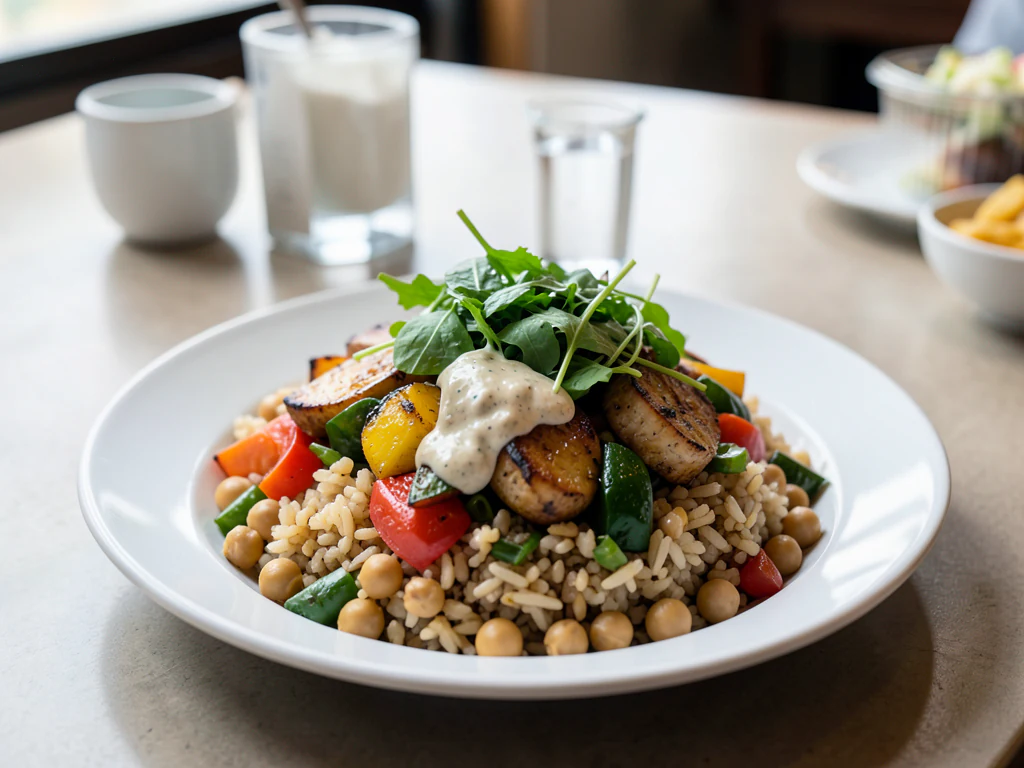
AI Food Photography
Generative output can vary; review the full result before publishing
Food photography is mostly styling and light, and both are hard to justify for a menu that changes weekly. This direction generates the setting — surface, props, window light, depth — around your dish while asking the AI to keep the dish itself as shot, which keeps the image honest about the thing a customer is about to order. The whole frame is re-rendered, so compare the result with the real plate.
- Prepared AI Food Photography direction
- Editable prompt
- Source-detail review required
Generative output can vary; review the full result before publishing
Choose a source image for AI Food Photography
JPG, PNG, WebP, HEIC, and other supported formats. Free up to 20 MB; Premium and higher up to 50 MB for this tool.
From a quick phone shot of a plated dish to a usable food photo
Most kitchens already own the hard part of a food photo: the dish itself. What they lack is a clean surface, good light and the time to set both up before the food goes cold. Upload a photo of the plate as it left the pass and the AI is asked to keep the food as shot and to rebuild only the table, backdrop and light around it. Four ready looks sit under the prompt box (Rustic table, Bright marble, Dark and moody, Café table), and every one of them can be rewritten in plain words.
Shoot next to a window with the light coming from the side, and take the picture within a minute of plating, before sauces dull and herbs wilt. This page does not ask for an output shape, so frame the source the way you want the finished picture, or trim the result to a square or portrait crop afterward. Use an ordinary photo; a cut-out with a transparent background is rejected.
Generated scenes vary from run to run. Hold the result next to your source and look at the garnish, the sauce line and the plate rim, since those are what a guest compares. Dish-by-dish advice lives on pages such as staging a whole pizza or a pulled slice and laying out a full thali from above. Free results download at web size without a watermark; Premium or a credit unlocks the original resolution when a printer needs it.
AI food photography: turn a phone photo of a dish into a styled shot
This AI food photography page is an AI food image generator that starts from your own dish: it takes a photo of a real dish and rebuilds the table, backdrop and light around it, so a quick phone shot looks styled for a menu, a delivery listing or a social post. It does not invent a plate. Choose one of 4 looks, check the plate against your photo and download the PNG.
Food photography lighting setup: a window and a sheet of card
You do not need special equipment to start. A plate on a table beside a window with the ceiling lights off is a simple setup. Side light shows texture, light from behind makes sauces and drinks glow, and a sheet of white card or a folded napkin on the far side lifts the shadows. If the sun is harsh, tape baking paper over the glass to spread it.
The AI works from your photo, so the light and color cast of the original can carry into the new setting. This step matters even though the page changes the table and backdrop, because a dish shot under mixed bulbs can pass that tint into every look.
Choose a look: Rustic table, Bright marble, Dark and moody or Café table
Each look rebuilds the whole setting. Rustic table is a dark wooden table with warm side light and a linen napkin. Bright marble is a pale marble counter in clean daylight. Dark and moody sets a slate surface under one warm light from behind. Café table is a window-side tabletop with a softly blurred interior. Bright looks tend to suit salads, cakes and breakfast plates, and dark ones tend to suit steak, chocolate and slow-cooked dishes. Try 2 on one photo and keep the one where the food is the first thing you see.
Make menu and delivery app photos from your own dishes
For a menu, consistency matters more than drama, so use one look for every dish and keep each plate centered with a little margin. When a delivery app or a printed menu asks for a plainer, listing-style image, the delivery app food photos page and the menu photo generator start from that presentation. To polish photos of the dishes you already serve, the restaurant photo editor is the matching start. A whole menu can go through Batch images, a Premium option, with one look applied to every file and the results returned in one ZIP.
Style a dish photo in 5 steps
The page returns one image per run, in the shape of the photo you upload, so frame the plate the way you want it shown before you start. A square crop suits a feed post, and a wide one suits a banner or a menu header.
- Upload a photo of the plated dish, taken from above or at a 45-degree angle.
- Under Styles, choose Rustic table, Bright marble, Dark and moody or Café table.
- Select Generate Product scene.
- Compare the garnish, the sauce line and the plate rim with your photo.
- Download the PNG, or select Edit again to try another look.
Set up for AI Food Photography
Prepared settings
- Starting point
- Upload one source image
- The page opens on the correct edit workflow; upload is the only required setup step.
- Prepared workflow
- Prepared AI Food Photography scene direction
- AI Food Photography opens with the AI Food Photography direction preselected, so there is no need to find the operation manually.
- Output shape
- Same as your upload
- The result keeps the shape of the image you upload.
- Review rule
- Preserve the source subject and verify factual details
- Generated imagery can vary; the final result stays under the user's approval before download.
Best-fit uses
- Menu and social photography for a changing kitchen
- Lifting phone photos of dishes into usable imagery
- Consistent food imagery across a whole menu
Frequently asked questions
- How do I photograph food so it looks appetizing?
- Natural window light from the side or behind, never a direct flash, which flattens food and makes sauces look plastic. Shoot immediately while it is fresh, from a 45-degree angle for most plated dishes and from directly above for bowls and flat-lays.
- Does it change the food itself?
- It is not meant to. The AI is asked to keep the dish as shot and to generate the setting around it, which matters more here than in most categories, because a customer ordering from the picture expects to receive what the picture showed. AI can still soften or shift small details such as garnish, so compare the result with the real plate before you publish.
- Can I make a dish look bigger or better than it is?
- You should not. Exaggerating portion size or appearance misleads customers, and many markets have advertising rules about it, so check what applies to you. Improve the styling around the plate; do not misrepresent what lands on the table.
- What props suit food photography?
- Ones that support the story without competing: a linen napkin, a matte surface, a scattering of the actual ingredients, a partial glass at the edge. Anything shiny or brightly colored pulls the eye away from the food, which is the one thing that must hold attention.
- Will the AI change my dish or the garnish?
- It can. The page asks the AI to keep the dish as you photographed it, but the whole picture is generated again, so a garnish, a sauce line or a portion can come out different. Compare the plate with your photo at full size, generate again if something changed, and do not publish food you do not serve.
- Can AI food pictures be created from text alone?
- Not on this page, which needs a photo of a real dish. A text prompt can create a concept image with the AI Image Generator, but that picture is not your food, so label it as a concept and keep it off menus and delivery listings.
- Does this work for drinks, cocktails and desserts?
- Yes, it works from any dish or drink photo, and the site has pages for coffee, tea, cocktails, juice, cake and ice cream. Clear glassware is the hardest case, because it shows whatever is behind it, so shoot drinks against a plain wall and check the rim and the liquid line in the result.
- Can I add my restaurant name or a price to the picture?
- Add them after generating. The prepared direction asks for no readable text, so the picture should come back without lettering, and generated lettering is unreliable. Use Add Text to Image for a name or a price, so the spelling and numbers stay exact.
- Can I use these pictures on a delivery app or a printed menu?
- For dishes you really serve, yes. Delivery apps and print shops publish their own image rules for size, background and lettering, so check the current ones before you upload. Download the PNG at original resolution with Premium or a credit when a platform asks for a larger file than the web-size copy.
What you can do with AI Product Scene Generator
Review the main capabilities before you begin.
- Build a scene around your product from a single photo
- Create editorial, ecommerce, and social campaign concepts
- Generate coherent props, surfaces, lighting, and shadows
- Ask the AI to keep the product as photographed
Settings reference
4 settings
Available controls for AI Product Scene Generator.
Workflow
- Single image or Batch imagesPresets
- Process one image, or use Premium Batch images to apply the same automatic recipe to a set and download one ZIP.Options: Single imageBatch images
Scenes
- One-tap presetsPresets
- Pick a ready-made direction with one tap; generation uses the selected preset automatically.Options: Bathroom counterKitchen lifestyleOutdoor lifestyleEditorial podiumSocial ad
- Custom instructions (optional)Text input
- Describe the requested change, relevant materials, lighting, perspective, and details that must remain unchanged.
Selection
- Selection brush sizeSliderRange: 4–160px · Default: 32px
- The subject area is found automatically. This brush appears only if that automatic area could not be found; paint the area to edit, then generate again.
Related tools for AI Food Photography
Tools for common next steps after AI Food Photography.

Product Photography Studio
AI Product Photos
Generate a background scene around your product. Describe the setting and review the result.
Try it now
Background Studio
Remove Background
Remove a photo background and download a transparent PNG. Review hair and edges before use.
Try it now
Background Studio
Background Changer
Replace a background with a photo, color, gradient or library design. Choose from 21,000+ backgrounds.
Try it nowWatch each transformation land
Every photo crosses the slash untouched and comes out the other side finished.























