
Restaurant Photo Editor
Generative output can vary; review the full result before publishing
Restaurant photography is usually taken by whoever had a phone free during service, under whatever light the dining room has. This direction rebuilds the presentation around the plate — surface, light quality, background clutter — while asking the AI to keep the dish as shot, because a diner comparing plate to picture is the whole test.
- Prepared Restaurant Photo Editor direction
- Editable prompt
- Source-detail review required
Choose a source image for Restaurant Photo Editor
JPG, PNG, WebP, HEIC, and other supported formats. Free up to 20 MB; Premium and higher up to 50 MB for this tool.
Fixing dish photos snapped on the pass during a busy service
Photos taken mid-service carry the restaurant with them: the orange cast of heat lamps, a ticket rail, steel shelving, a server's sleeve at the edge. This page asks the AI to keep the plate and replaces what surrounds it, so describe the setting you want in the prompt, for example "plain oak table, soft daylight from the left, dining room softly out of focus".
Some problems live on the plate and stay there, because the AI is asked to preserve the dish. A sauce smear on the rim, a garnish that has slid, or gravy that has split will all survive the edit. Wipe the rim with a clean cloth and nudge the garnish back before you press the shutter. If one object on the table needs to go while the rest of the scene stays, erase a single stray item with the object remover instead.
Before the new photo goes on a review site or your own booking page, stand it beside the plate the kitchen actually sends. A garnish that has grown, a component that vanished or a portion that looks bigger means another run. When the goal is one look across the whole card, build a matching set for a menu layout, and shrink oversized files before they go on your website.
Set up one shooting spot near the pass
- Pick a spot with window light and switch off the heat lamp above it
- Wipe drips from the rim before every shot
- Shoot each dish from the same height and angle
- Keep phones, tickets and hands out of the frame
Restaurant photo editor: restyle dish photos for your menu and website
This restaurant photo editor takes a photo of a dish you already serve and rebuilds the table, backdrop and light around it, so a phone shot from the pass looks styled for a menu, a website or a listing. It does not invent a plate, retouch the food or add words. You choose one of four looks, compare the plate with your original and download a PNG.
Restyle a dish photo in 5 steps
One dish photo goes in and one PNG comes out, in the shape of the photo you upload, so frame the plate the way you want it shown. Clean the rim and straighten the garnish before you shoot, because the page changes the setting, not the cooking.
- Pick the dish and upload its photo, shot from above or at a slight angle.
- Open Styles and select the look that matches your room.
- Select Generate Product scene.
- Compare the garnish, the sauce and the portion with your original.
- Download the PNG, or select Edit again to try another look.
Choose a look that matches your dining room
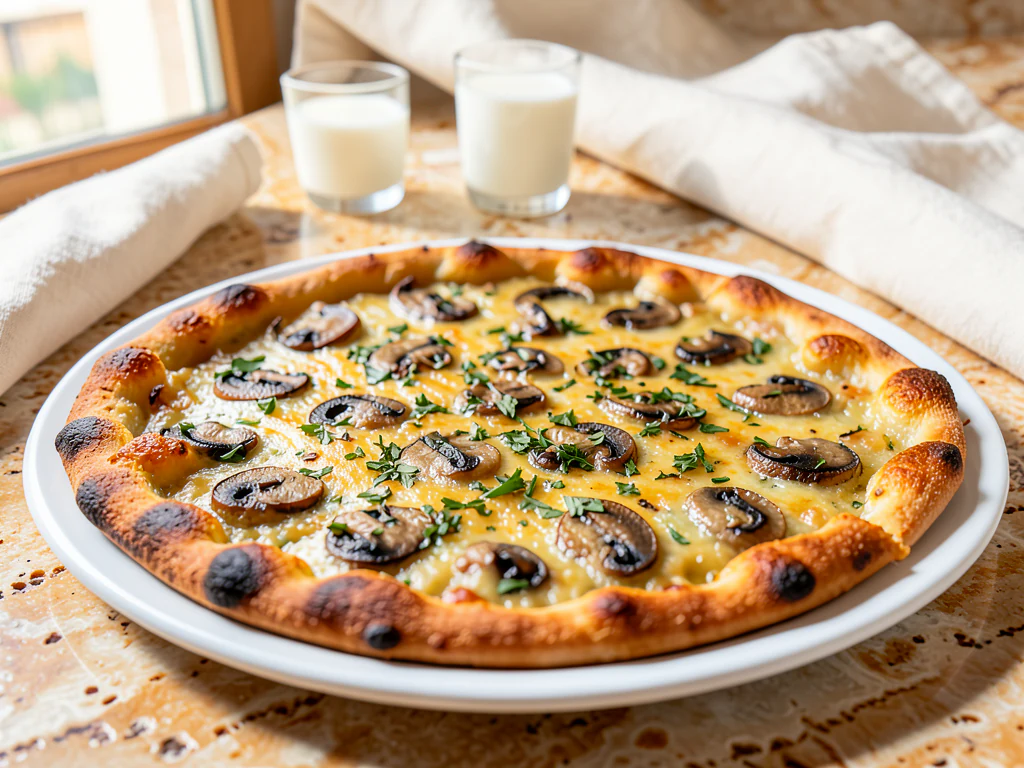
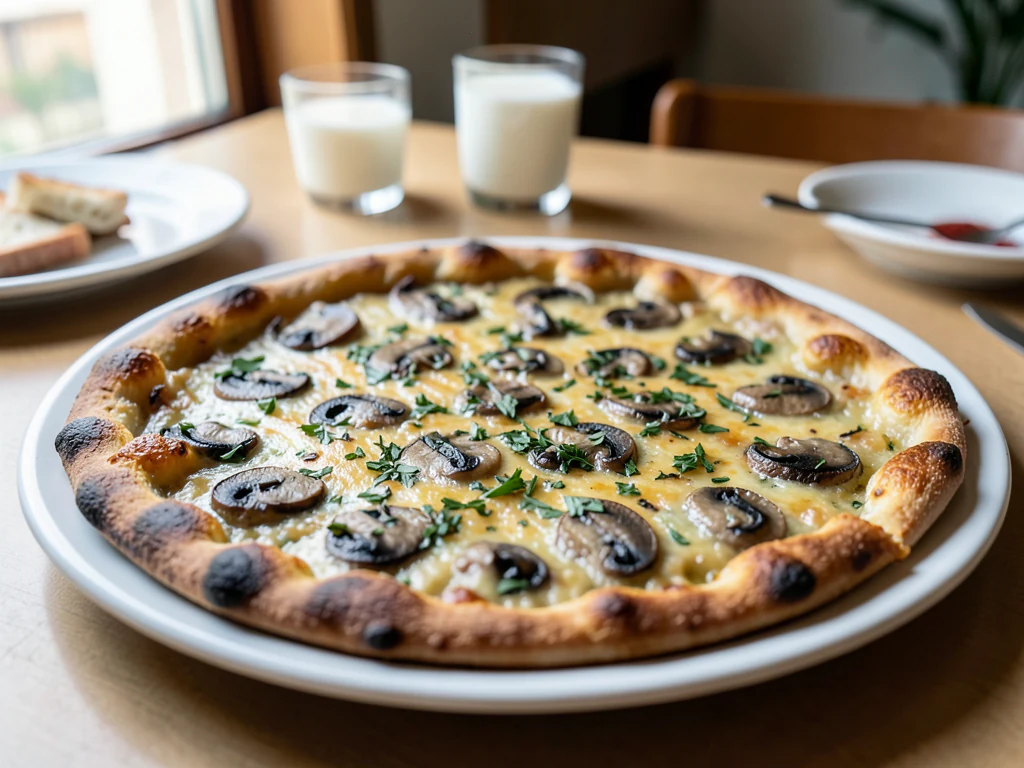
The four looks suit different rooms. Rustic table is a dark wooden table with warm light from one side and a linen napkin nearby. Bright marble is a pale marble counter in clean daylight. Dark and moody sets the plate on slate under one warm light from behind. Café table is a window-side tabletop with a softly blurred interior. Pick the one that resembles your real room, so the website photo does not promise a different venue.
Check the plate against what the kitchen sends out
A guest compares the picture with the plate that reaches the table. The picture is generated again with a request to keep the dish, so a garnish can grow, a component can move and a portion can look larger. Count items, check the sauce line and the sides against your original, and generate again if anything changed. Keep the original photo with the result so a manager can compare them.
Process a full card from one shooting spot
Choose one spot with window light, shoot every dish from the same height and run each photo with the same look, so the set reads as one kitchen. Batch images, a Premium option, applies one look to many photos and returns a ZIP of PNGs. For a printed or QR menu layout, the menu photo generator starts from that grid, and the delivery app page does the same for listing tiles.
Set up for Restaurant Photo Editor
Prepared settings
- Starting point
- Upload one source image
- The page opens on the correct edit workflow; upload is the only required setup step.
- Prepared workflow
- Prepared Restaurant Photo Editor scene direction
- Restaurant Photo Editor opens with the Restaurant Photo Editor direction preselected, so there is no need to find the operation manually.
- Output shape
- Same as your upload
- The result keeps the shape of the image you upload.
- Review rule
- Preserve the source subject and verify factual details
- Generated imagery can vary; the final result stays under the user's approval before download.
Best-fit uses
- Menu photography shot during service
- Consistent imagery across a full menu
- Refreshing listings on review and booking sites
Frequently asked questions
- How do I photograph dishes during a busy service?
- Set up one spot near a window with a neutral surface and use it every time. Consistency of position beats perfection of any single shot, and it takes seconds once established. Shoot before the dish goes out rather than trying to stage it later.
- Can I remove things from the table in the photo?
- Distractions like a stray cloth, a phone or a cluttered background, yes. What must not change is the dish: portion, plating, garnish and how it is actually served. That distinction is exactly where menu photography becomes misleading.
- Should every menu item be photographed?
- Start with the dishes you most want to sell, then work through the rest as you can keep the quality up. A strong photo of a bestseller does more than a weak photo of every dish, and a badly lit image can put people off the dish it was meant to sell.
- Do food photos need to match what is served?
- Yes. A diner who receives something different from the picture feels misled, and many markets have advertising rules about misrepresenting food, so check what applies where you trade. This direction asks the AI to keep the dish as shot while it edits the surroundings, but the whole frame is re-rendered and AI can still alter small details, so compare the result with the real plate.
- Can I use restyled dish photos on a Google listing, Instagram and my website?
- Yes, they are ordinary PNG files, so use them wherever you show your food. Each platform has its own size and content rules, so crop or resize the file for the placement. Keep the picture true to what you serve, because a diner compares it with the plate.
- Can I restyle a set menu or a thali with several dishes on one table?
- Photograph the whole table or tray as one picture. The page rebuilds the surroundings for the full frame, so count the items in the result against your original: every bowl, side and garnish should still be there in the same arrangement.
- What if my photo has a heat lamp tint or a ticket rail in the shot?
- Move or crop what you can before you upload, and expect the page to rebuild the surroundings rather than grade the food. A strong orange tint in the original can carry into the result, so shoot where the light is neutral when you can, then compare the plate's color with the real dish.
- Can my kitchen staff use this without training?
- Yes: one upload, one look, one button. The skill is in the original: a plate with a clean rim, shot from the same spot and angle each time. Write that routine down once and anyone on the team can produce photos that match.
- Can the page add my restaurant name or a price to the photo?
- No. The page leaves lettering out. Stamp your name afterward with Watermark Image, where you set position and opacity, and set prices as live text in your menu or listing, where they stay sharp and can be changed.
What you can do with AI Product Scene Generator
Review the main capabilities before you begin.
- Build a scene around your product from a single photo
- Create editorial, ecommerce, and social campaign concepts
- Generate coherent props, surfaces, lighting, and shadows
- Ask the AI to keep the product as photographed
Settings reference
4 settings
Available controls for AI Product Scene Generator.
Workflow
- Single image or Batch imagesPresets
- Process one image, or use Premium Batch images to apply the same automatic recipe to a set and download one ZIP.Options: Single imageBatch images
Scenes
- One-tap presetsPresets
- Pick a ready-made direction with one tap; generation uses the selected preset automatically.Options: Bathroom counterKitchen lifestyleOutdoor lifestyleEditorial podiumSocial ad
- Custom instructions (optional)Text input
- Describe the requested change, relevant materials, lighting, perspective, and details that must remain unchanged.
Selection
- Selection brush sizeSliderRange: 4–160px · Default: 32px
- The subject area is found automatically. This brush appears only if that automatic area could not be found; paint the area to edit, then generate again.
Related tools for Restaurant Photo Editor
Tools for common next steps after Restaurant Photo Editor.

Product Photography Studio
AI Product Photos
Generate a background scene around your product. Describe the setting and review the result.
Try it now
Background Studio
Remove Background
Remove a photo background and download a transparent PNG. Review hair and edges before use.
Try it now
Background Studio
Background Changer
Replace a background with a photo, color, gradient or library design. Choose from 21,000+ backgrounds.
Try it nowWatch each transformation land
Every photo crosses the slash untouched and comes out the other side finished.























