How to Convert Table Screenshots to CSV for Spreadsheet Imports
Convert a table screenshot to CSV with Pixoate. Review headers, delimiters and leading zeros so extracted data is ready for your spreadsheet import.
A spreadsheet import can fail even when the source table looks simple. Perhaps the data arrived as a screenshot, the receiving system requires particular column names, or a product code begins with zeros that disappear when the CSV is opened.
Pixoate's table screenshot-to-CSV converter extracts recognised rows and columns from an image. Treat the download as a starting dataset: review the values, then align the file with the destination's import requirements.
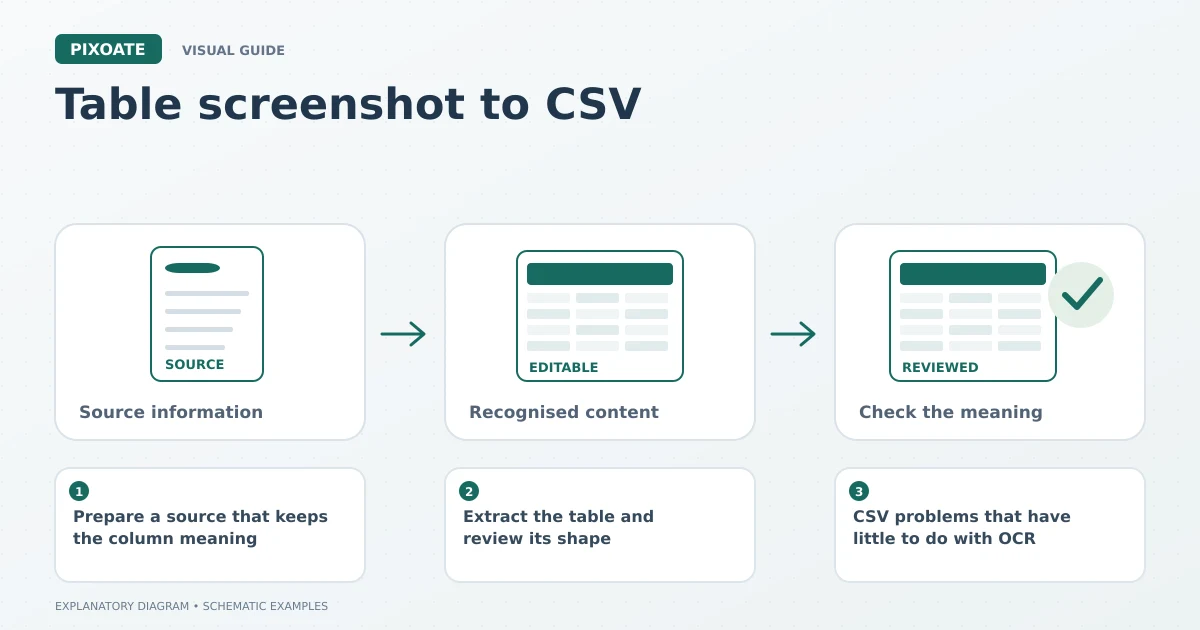
Original explanatory graphic. The scenes and sample records are schematic illustrations, not screenshots or measured tool results.
Prepare a source that keeps the column meaning
Capture the complete table, including headings. Avoid a screenshot with a floating menu covering the final column or a mobile view that truncates long product names. If necessary, crop around the table while retaining units, dates and footnotes that explain the values.
A table labelled “price per pack” should keep that wording through extraction. Renaming it simply “price” may make the data look cleaner while removing information someone needs to interpret it.
Extract the table and review its shape
Open Image to CSV, upload the screenshot and choose the main document language. Begin with the default reader. If rows merge or a complicated header becomes a separate data row, compare another available table reader.
After extraction, check the number of columns and the alignment of a few complete rows. Follow one row from its identifier to its final value. This catches shifted cells that a quick glance at the first column will miss.
If you prefer to review in a workbook first, convert the table image to Excel. Make your corrections in a spreadsheet application and export the reviewed data in the format the receiving system accepts.
CSV problems that have little to do with OCR
CSV stores text values separated into fields; it does not provide all the formatting and type information of a workbook. The application opening it may make its own interpretation.
| Value in your source | Possible problem | Review decision |
|---|---|---|
| 00047 | Imported as 47 | Treat the identifier column as text. |
| 04/05/2026 | Interpreted with a different month/day order | Use the destination's explicit date format. |
| 1,250.50 | Separators interpreted incorrectly | Confirm decimal and thousands conventions. |
| A description containing a comma | Split into extra columns if the CSV is edited carelessly | Use a proper spreadsheet import/export workflow. |
| A blank quantity | Replaced with zero | Decide whether blank means missing, unknown or none. |
These examples are illustrative. Inspect the import preview before saving changes to an operational system.
Match the receiving system deliberately
Ask for its template or documented field list. Match the required header names, remove irrelevant columns and confirm which identifiers link to existing records. Import a small reviewed sample before processing a large dataset, using the destination's preview or non-production workflow where available.
Pixoate extracts the source table; it does not decide how another system should update inventory, contacts or prices. Keep the reviewed CSV alongside the original screenshot so an unexpected result can be traced back.
Can I turn the table into JSON instead?
Use Table to JSON for a compatible table-to-structured-data step, or Extract Data when you need named fields rather than a grid. Check the resulting keys and values before handing them to another application.
Why did opening and saving the CSV change my codes?
A spreadsheet application may infer numeric or date types as it opens a CSV. Import the file with explicit column settings where available, and check identifiers again after saving.
Start with Pixoate Image to CSV, then give the import preview the same attention as the extraction preview. Both stages can change the meaning of your data.