Remove Shopify Product Photo Backgrounds in Bulk
Prepare consistent Shopify product images with Premium bulk background removal. Review cutouts, match variants and check real storefront crops before publishing.
One supplier sends product photos on grey, another on cream, and your own photographs include the edge of a kitchen table. Each image may show the product clearly, yet the collection page feels inconsistent. Cleaning those backgrounds one file at a time can become the slowest part of a catalogue update.
Pixoate can remove backgrounds from Shopify product photos in bulk. You prepare a batch, review the cutouts and download the processed images for your own Shopify upload workflow. The full batch ZIP run is a Premium feature; check the current plan and batch limits in the interface before starting a large job.
Decide your catalogue standard before processing
Choose a background, canvas shape and consistent amount of space around the product. Background removal alone does not guarantee that a mug and a tall vase will look balanced on the same product grid.
Shopify's product-media guidance recommends a consistent aspect ratio for product images. It does not mean every merchant must use a white background. Choose the treatment that suits your theme and any additional sales channels you use.
For a US homeware store or UK handmade-gift shop, a clear standard might be a square canvas, a neutral background and enough padding to avoid clipped handles or packaging. Test it on your actual collection page before processing the full range.
How to remove product backgrounds in bulk
- Gather the original product images in a working folder. Name them so you can match each output to its product and variant.
- Open the bulk product background remover and select the batch workflow.
- Add the files within the limits shown for your plan. Choose the background and available product-layout settings you need.
- Review the representative preview before running the whole queue. Inspect a difficult product as well as an easy one.
- Run the supported Premium batch export, download the ZIP and inspect the individual outputs before uploading them to Shopify.
This is a file-preparation workflow. It does not imply that Pixoate signs into Shopify, matches variants or publishes product media automatically.
Inspect the products most likely to need attention
Start your review with glass, transparent packaging, jewellery chains, fluffy fabrics and objects whose colour resembles the original background. Check handles, holes, thin wires, labels and shadows.
If a cutout removes part of the product or leaves a distracting edge, correct the result with the available controls or retake the photograph. Avoid approving the entire batch because the first solid-coloured box looks good.
Do not change the apparent colour, shape, included accessories or packaging quantity. A clean background should help buyers understand the item, not imply a different product.
Remove backgrounds from jewellery photos without losing thin chains
Choose a chain, clasp and open link as the difficult sample before approving a jewellery batch. Photograph the actual piece sharply enough to distinguish metal from the background. A distant image in which a chain occupies only a few pixels gives the reviewer very little evidence to work with.
Compare the source and cutout at the same zoom. Follow the chain continuously from one end to the other; do not inspect only the pendant. Check the opening inside each visible link and the join between a clasp and its chain. Review the transparent output over a light and a dark background so leftover source colour and missing metal are easier to spot.
| Finding | Next action |
|---|---|
| Chain has a gap absent from the original | Reject that output; refine the mask with the available controls or retake a clearer source. |
| Hole between links is filled | Review that area separately before approving the cutout. |
| Gold edge has a coloured fringe | Compare with the source background and inspect the mask before compression. |
| Fine detail is uncertain in both files | Obtain a sharper photograph; do not invent the missing link. |
Use Image Compare for the visual check and retain a transparent master before creating a white-background JPEG. These are acceptance checks, not a measured promise that every chain will survive extraction. Approve each difficult item individually, even when simpler product cutouts pass.
Match each file to the correct variant
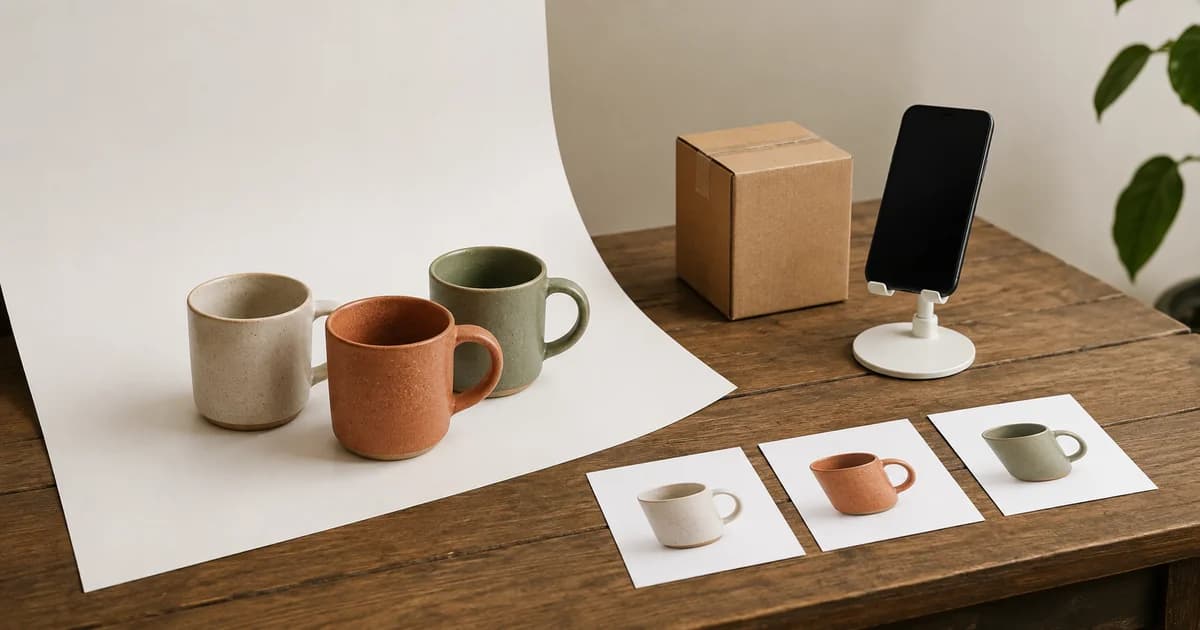
Keep a simple mapping between product reference, variant and final filename. Two mugs that differ only in handle colour can be easy to confuse after a batch export.
Upload a small sample first and check the product page and collection grid on desktop and mobile. Confirm the main image order, variant associations and crop behaviour. A correct cutout can still be displayed poorly by a theme's image settings.
If you want a dedicated white result, Pixoate's white-background product photo tool is another relevant option. If a finished file is unnecessarily heavy, compress the product image and compare it with the larger version before publishing.
Keep useful detail when reducing file size
Zoom in on labels, stitching and small surface details. Do not reduce every image to an arbitrary file-size target without considering what shoppers need to see. Shopify's delivery and resizing features do not remove the need for a good source image.
Use descriptive alt text for the actual product view. A string of repeated background-removal keywords is less useful to shoppers than a clear description of the item and angle.
Is the full bulk workflow free?
The full queue ZIP run is Premium. Preview access and final output entitlements can differ; check the current interface rather than assuming unlimited free batches.
Will consistent backgrounds guarantee more sales?
No. They can improve visual consistency, but this guide does not claim a measured conversion lift.
Begin with a representative set and prepare consistent Shopify product backgrounds in bulk. Approve the exported files on your real storefront before expanding the batch.