iPhone Property Photos Won't Upload to an Estate Agent's Website
Prepare iPhone property photos for a UK estate agent's upload system. Check HEIC compatibility, file size and room detail before sending the full gallery.
Pixoate publishes practical guides to image and document workflows. This guide links to the destination's documentation and explains what to check in your own files.
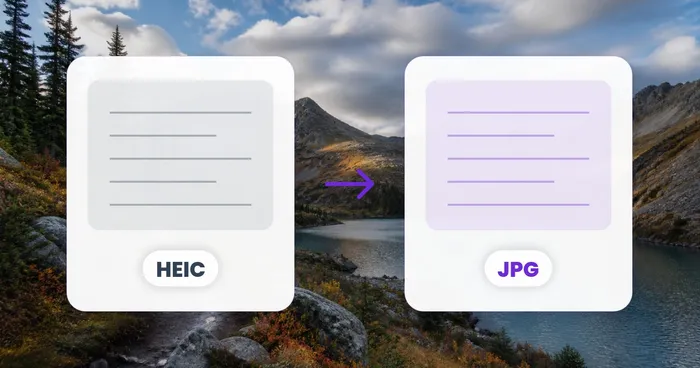
A negotiator sends property photographs from an iPhone, but the files will not open in the agency's Windows workflow or upload through the normal listing system. Start with the file format. A HEIC photograph is not a broken JPG, and changing its name does not make it one.
Prepare copies for the handoff while keeping the original captures with the instruction. This guide addresses file preparation; Pixoate does not publish listings to an estate-agency CRM or property portal.
Confirm that the file arrived intact
Save the actual attachment rather than taking a screenshot of its preview. Check that the transfer completed and that the file has a sensible size. If the original will not open on the sender's device either, ask for another copy before attempting to repair it through conversion.
Note which application refuses it. An image might work in one viewer but fail in the agency's upload field because the two support different formats.
Make a compatible JPG copy
Open HEIC to JPG, choose the original photo, convert it and download the result. Open that JPG in the receiving application before changing anything else.
Review orientation, colour and important room detail. A compatibility conversion should not become an excuse to remove a permanent feature or conceal the property's condition. Keep the converted file separate from the original so you can return to the capture if needed.
Apple explains HEIF compatibility and conversion options in its media-format guidance. Its Most Compatible camera setting can affect future captures on supported devices; it does not convert the existing folder.
Check the agency's actual upload specification
Get the current dimensions, byte-size limit and accepted formats from the publishing system you use. Treat an old portal presentation guide as background information rather than a substitute for that current specification.
Use Resize Image only when the agreed dimensions require it. Preserve the room's proportions and choose an appropriate crop. If the accepted JPG is too large in bytes, compress a delivery copy and inspect it again.
Verify the final listing handoff
Open the output set and match it to the correct property. Inspect the lead photograph, interior sequence, exterior photographs and any detail images. Check the actual listing preview after the agency's system has processed the files.
Keep a small handoff note:
- Which originals were supplied and where they are stored.
- Which files were converted, resized or compressed.
- Which settings were used for the approved delivery set.
- Which listing preview was checked and what needs follow-up.
If the JPG opens correctly but upload still fails, investigate the destination's other requirements or the connection. Repeat conversion is unlikely to help a file that already has the correct format.
Use the UK estate-agent photo workflow for the wider preparation and review sequence.