Make a Landscape Photo Portrait Without Cropping People
Fit a horizontal group photo into a vertical canvas with background fills. Keep faces visible, choose suitable dimensions and review generated scenery carefully.
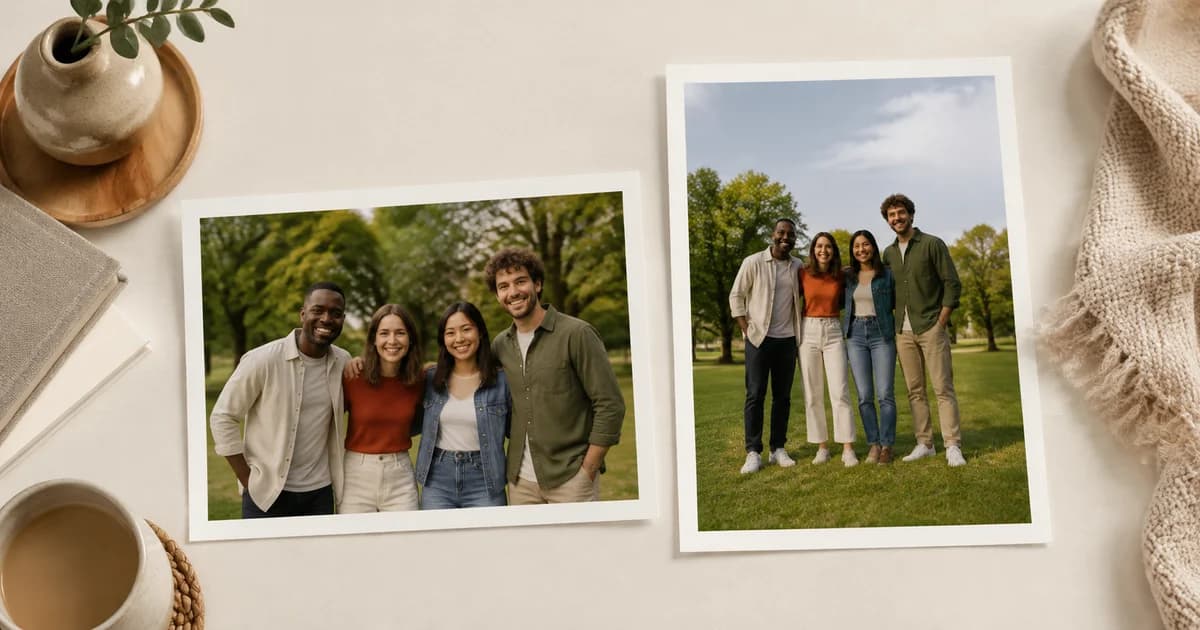
The whole family fits in the original photograph. In the vertical preview, the people at both ends disappear. Rotating the image makes everyone sideways, and stretching it makes faces look wrong. The problem is the canvas shape, not the orientation of the people in the photo.
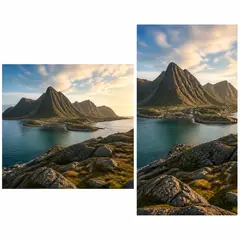
Pixoate's landscape-to-portrait converter without cropping can fit the complete prepared photograph into a taller canvas using background fills or AI-generated scenery. It is useful for group pictures, shop announcements and wide photographs that need a vertical presentation.
Choose what should fill the extra space
A landscape photo and a portrait canvas have different proportions. To keep the entire image visible without stretching it, you need space above and below, or another background treatment around it.
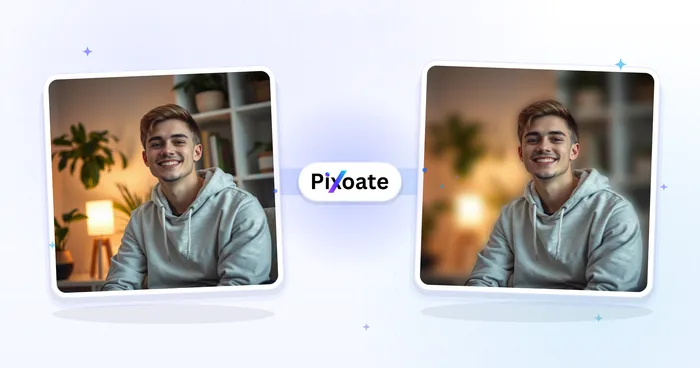
Use a plain colour for a straightforward announcement, a blurred background for a photo-led design, or a gradient when it suits the presentation. AI-generated scenery is a creative option, but it adds invented content and needs a more careful review.
For a family group or documentary photograph, a simple fill is often easier to evaluate because the added area is visibly a background rather than a continuation of the real scene.
How to make a horizontal photo vertical
- Open Pixoate's landscape and portrait photo converter and upload the original.
- Choose a portrait preset or enter the dimensions required by your destination. The tool includes tall 9:16 and vertical 4:5 options, among others.
- Select a background treatment that keeps the whole prepared photo in view. If you previously cropped the source, return to the original when you want those edges preserved.
- Check every face, sign and product near the image boundary. Keep the subject's proportions unchanged.
- Apply the conversion and download the result. Preview the exported file in the place you intend to use it.
A 9:16 canvas is a shape choice, not a guarantee that every platform will display every pixel. Interface buttons, captions and placement-specific crops may cover part of an upload. Check the destination's current preview.
Keep group members visible at a useful size
Keeping everyone in frame can make the original image occupy a smaller part of the new canvas. If faces become too small, consider a different layout rather than forcing the same picture to serve every purpose.
For a US family reunion or a UK club celebration, a photo collage with a group shot and closer portraits can communicate more than one tiny wide image. Keep the group photograph intact in one panel and use separate detail photos where appropriate.
If the canvas needs an event title, leave clear space for the words instead of covering faces. Add text after you have decided the final layout and verify dates and spelling manually.
Use generated backgrounds thoughtfully
AI scenery can invent walls, landscape features or objects outside the original frame. Review building lines, hands near the border and repeated details. Do not use an invented extension as evidence of what existed beyond the camera's view.
For product listings, property documentation or a photograph whose factual context matters, use a clearly decorative fill or keep the original aspect ratio. A more immersive image is not always a more useful one.
Solve the right problem before printing
If you are preparing a portrait print, get the printer's required dimensions and check its crop preview. A border around the image can be preferable to losing relatives at the edges. US and UK print services may offer different named sizes, so work from the actual dimensions rather than the name alone.
Changing the canvas does not create genuine detail in a low-resolution source. Ask the photographer for the original file before enlarging a small message attachment.
Why not just rotate the photo?
Rotation changes which way the content points. It does not make an upright group fit a vertical canvas naturally.
Can I preserve every part of the image?
Use the full original and a fit-with-background treatment, then inspect the preview. Any earlier crop has already removed information from that working file.
Try converting your wide photo to portrait with a background fill. Start with the version that keeps the people and details you care about easy to see.