Make a Family Milestone Photo Collage That Is Easy to Read
Create a birthday, retirement or anniversary collage with clear faces and a meaningful layout. Check captions, viewing size and print crops before ordering.
You have decades of family photographs and one birthday card, retirement board or anniversary print to fill. Choosing a layout can be harder than choosing the pictures. Too many images make every face tiny; too few leave out people who matter.
Pixoate's photo collage maker for family milestones lets you bring selected photos into one composition. A little preparation helps the result tell a story that a relative can follow at a glance, whether they see it on a phone or across a room.
Decide where the collage will be seen
A card held in someone's hands can carry more small detail than a celebration board viewed from several feet away. A vertical phone image needs a different composition from a wide mantelpiece print.
Choose the destination first and get any required dimensions from the printer or recipient. Avoid treating “high resolution” as a guarantee: each photograph still needs enough useful detail for the space it occupies.
For an older relative, favour larger faces, clear spacing and short captions over a dense wall of tiny images. Ask what they would enjoy seeing rather than assuming everybody wants the same kind of family timeline.
Choose a story before a template
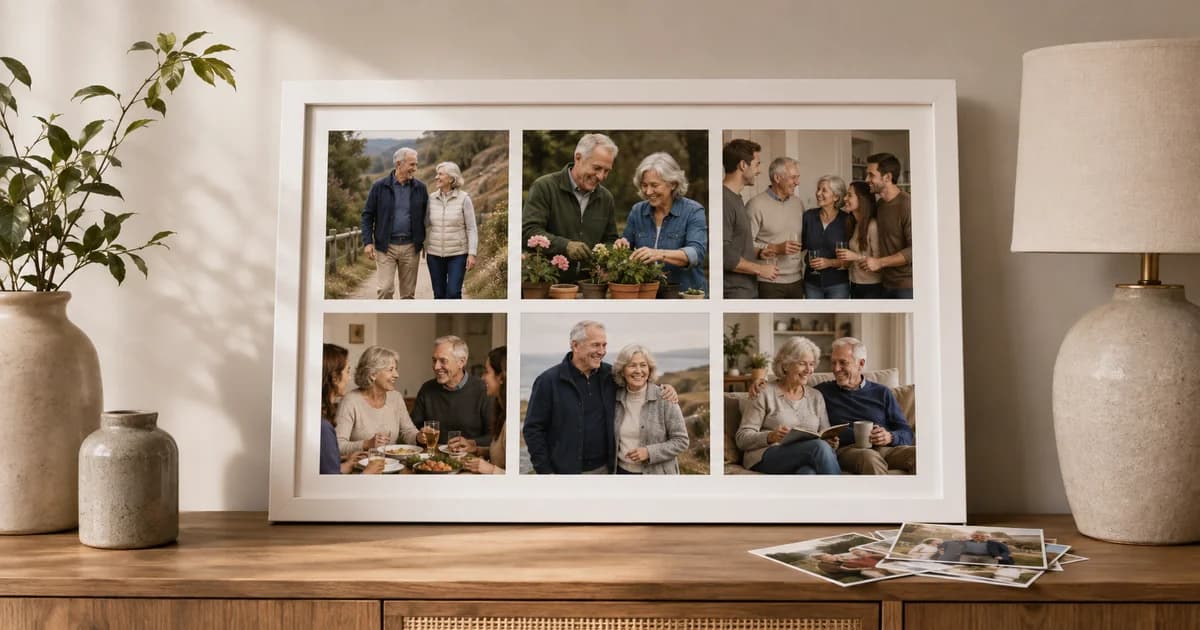
For a retirement collage, you might choose one central portrait with a few important workplaces or colleagues around it. For an anniversary, a sequence from early years to the present can work well. A family reunion might need equal-sized panels so no household feels hidden in the background.
Choose photographs with a clear subject and remove accidental duplicates. Keep track of names and dates separately while you gather them. Do not guess a year because the image looks old.
How to create the collage in Pixoate
- Open the online family photo collage maker and add your chosen images.
- Pick a layout suited to the number and shape of your photographs.
- Adjust each image within its panel, checking heads, hands and important background details near the crop.
- Set spacing and background treatments so the pictures remain distinct and easy to read.
- Preview the full composition, choose the available export settings and download the result. Review any plan requirements shown for the chosen output.
Inspect the downloaded file rather than relying only on the editor preview. Check the final dimensions and open it at a realistic viewing size.
Make mixed photographs feel intentional
Old square prints, modern phone portraits and panoramic group shots will not naturally share one shape. Let the layout accommodate the photos rather than cropping every image until it fits an unsuitable grid.
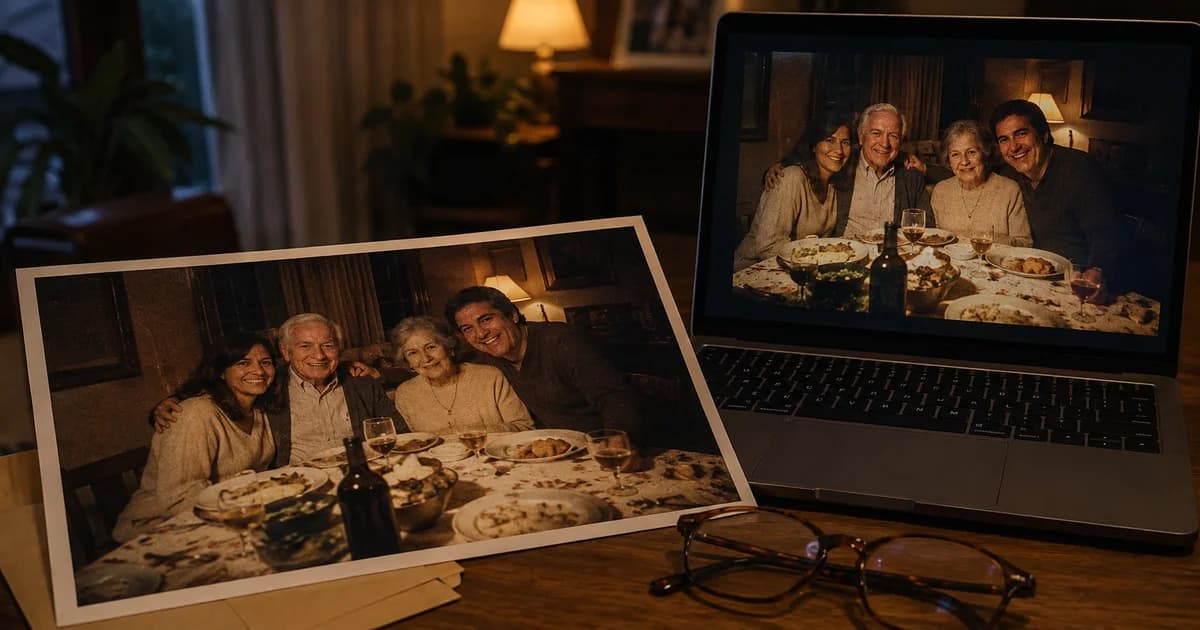
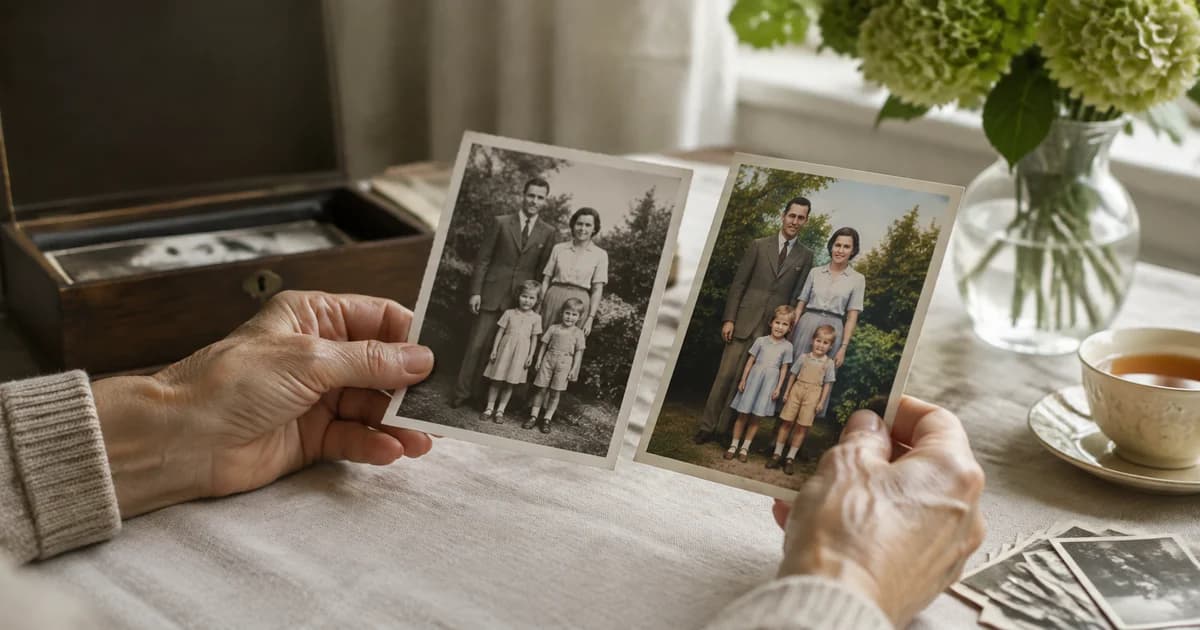
If one photograph is dark or grainy, try a restrained AI photo enhancement for an old family image, then compare it with the original. Keep any version that changes a person's appearance out of the final collage unless that creative change is intentional and understood.
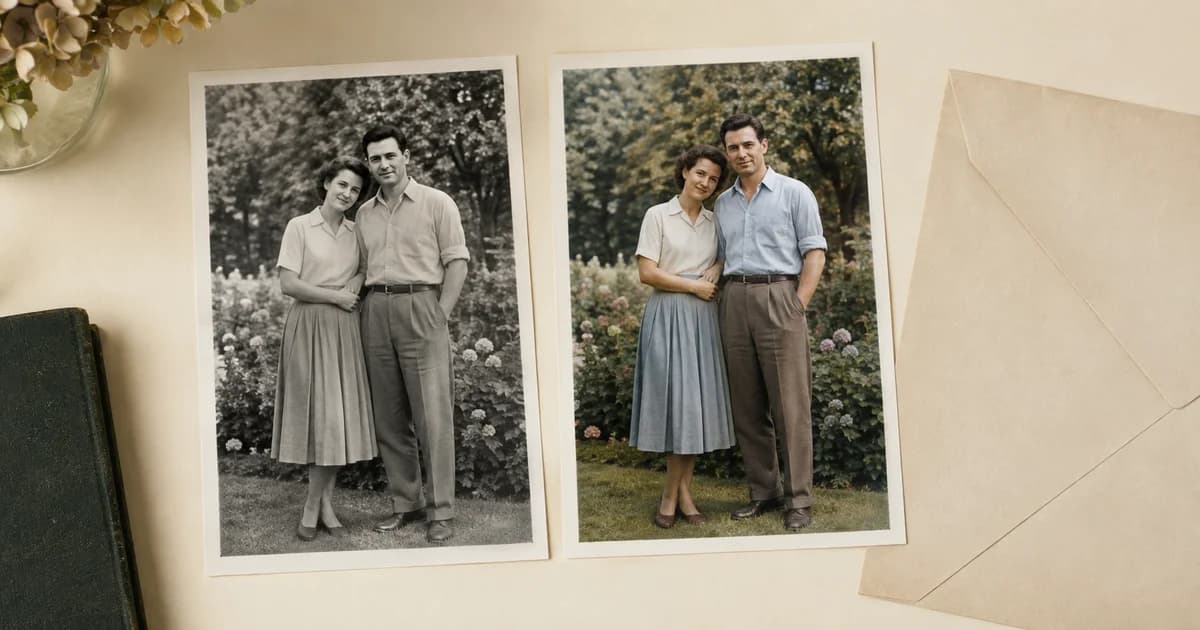
A black-and-white photo colorizer can create an optional interpretation of an old print. Keep the original and label the colour version when appropriate; estimated colours are not historical evidence.
Check captions with someone who knows the story
Names, relationships and dates carry more meaning than a decorative border. Ask a family member to review those details before printing. If you add text, make it large enough for the intended viewer and keep it off busy faces or clothing.
For a US celebration, the print shop may ask for dimensions in inches. A UK printer may list centimetres or A-series paper sizes. Use the shop's actual specification and inspect its crop preview before ordering.
Avoid the last-minute printing surprise
Do a small proof if time allows. A photograph that looks bright on a backlit screen may print darker, and faces that seem adequate while zoomed in may be too small on the finished board.
How many photos should I include?
Use as many as remain readable at the final size. There is no useful universal number; a clear six-photo story can work better than a crowded twenty-photo design.
Can a collage recover detail from tiny images?
No. Ask relatives for original files where possible. A layout cannot restore detail lost from a small screenshot.
Choose the photographs that carry the story and make a milestone collage your family can comfortably view.