Renamed HEIC to JPG but It Still Won't Open? Convert the File
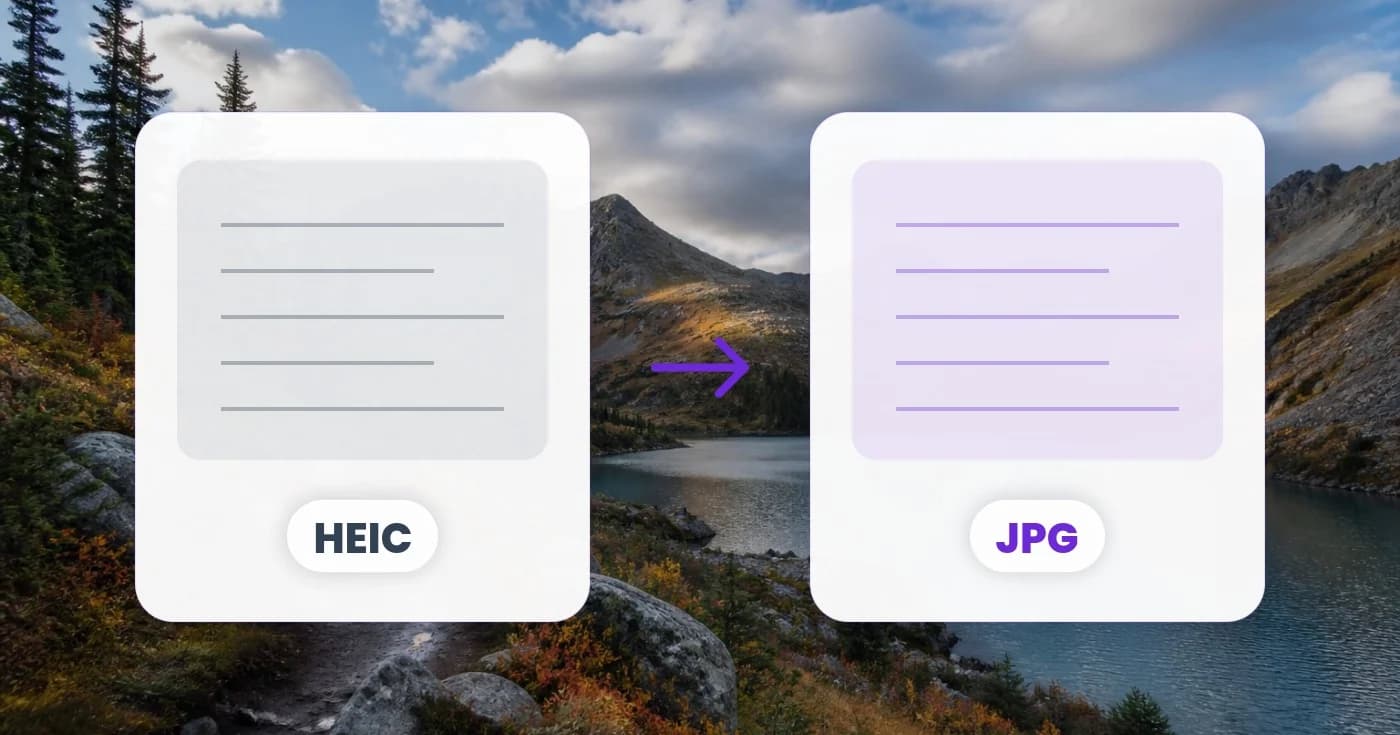
Renaming a HEIC file does not turn it into a JPEG. Convert the original, test the downloaded JPG and keep a source copy for Windows and website uploads.
Pixoate publishes practical guides to image and document workflows. This guide links to the destination's documentation and explains what to check in your own files.
You change a photo's filename from .heic to .jpg, but Windows or an upload form still refuses to open it. The name changed; the encoded image did not. A format conversion has to read the original image and write a new file in the format the destination accepts.
Keep the original file and work on a copy while you check what happened.
Identify the file you actually have
Show file extensions in your file manager and inspect the whole name. A file named photo.jpg.heic is still presented as HEIC. A file renamed to photo.jpg can still contain HEIC data internally.
An application that checks the encoded content may reject a mismatch even when another application guesses how to open it. That is why a filename change can appear to work in one place and fail elsewhere.
Run a conversion and test its result
Open Pixoate HEIC to JPG and choose the original HEIC file. Convert it, download the output and open that output in the application that needs it. Compare it with the original for orientation, colour and important detail.
This check distinguishes two failures: a source that cannot be decoded and a converted file that the destination refuses for another reason. If the source is incomplete, recover or transfer it again. If the JPG opens correctly, investigate the destination's size or content requirements rather than repeating the same conversion.
Expect file size to change
HEIC and JPG use different encoding. A larger JPG is not, by itself, evidence that conversion failed. Use Compress Image when the receiving system imposes a smaller byte limit, and inspect the resulting copy before sharing it.
Do not confuse bytes with pixels. A file can have acceptable dimensions but exceed a byte limit. Conversely, a tiny file may upload but contain too little useful detail for its purpose.
Keep a useful original and delivery copy
Use separate names or folders for the source and final export. Repeatedly re-saving a JPG can introduce additional loss, so begin another edit from the master when it is available.
For future captures, Apple documents compatible-format options on supported iPhone and iPad devices. That is a separate decision from converting photographs already in your archive.
| Situation | Useful next step |
|---|---|
| Only the extension was changed | Convert the original encoded file |
| The original cannot be read | Check transfer completion and recover a valid source |
| The JPG opens but upload fails | Inspect the receiving system's other requirements |
| The JPG is too large in bytes | Compress a reviewed delivery copy |
Use the Windows HEIC conversion workflow when you need the complete sequence from an iPhone original to an approved JPG handoff.