
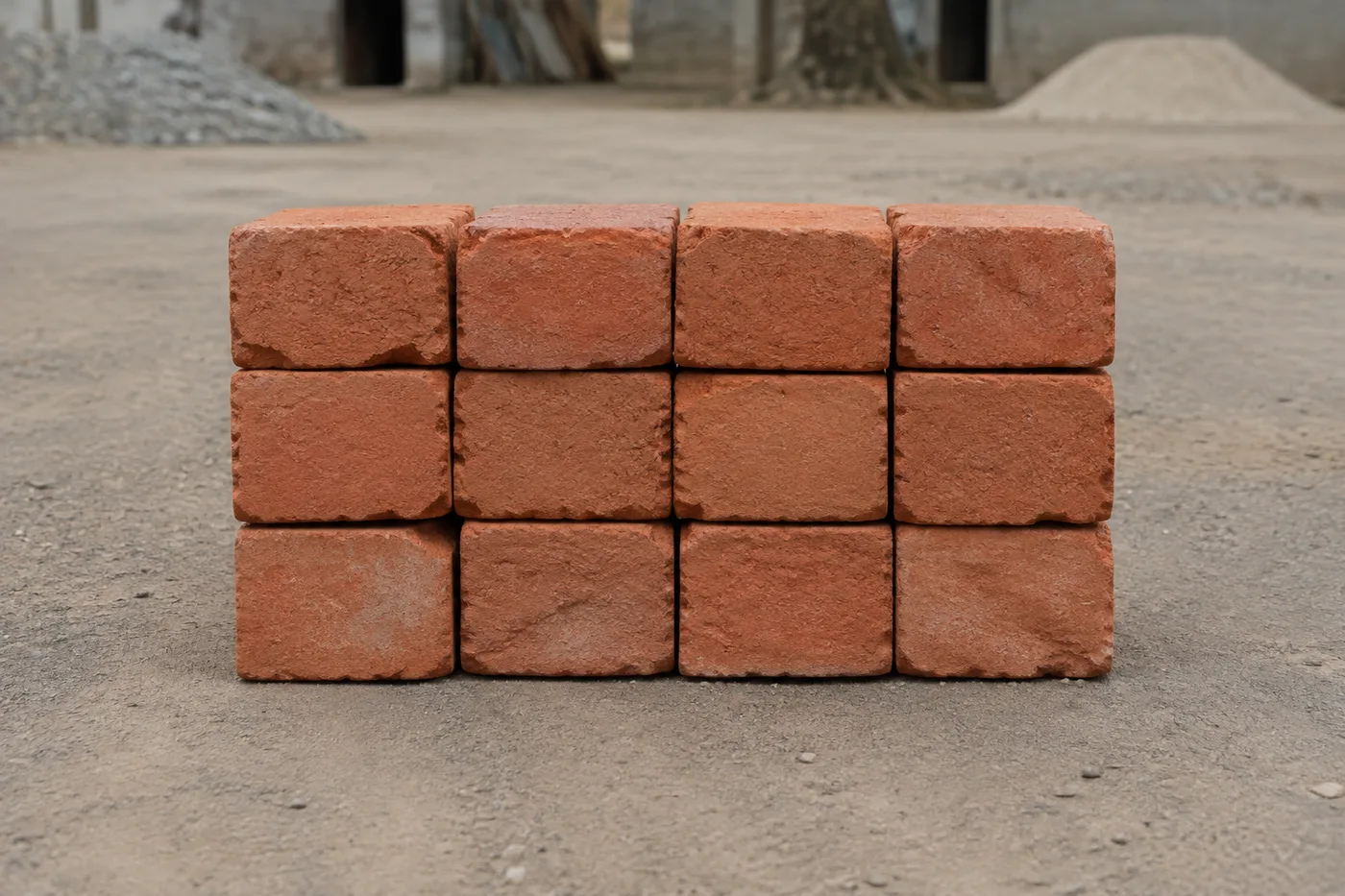
Count Bricks in a Photo — AI Brick Counter for Blocks
Works with JPG, PNG, WEBP · Free up to 20 MB, Premium 50 MB
Photograph the stack, pallet or delivery, upload the photo and review the tally markers against the photo. Built for delivery checks, site stock counts and yard audits.
- Review the photo, then count visible bricks
- Upload a photo and get an automatic count
- Review the markers to catch bricks counted twice or missed
- Free to use · No signup required · Without watermark
Works with JPG, PNG, WEBP · Free up to 20 MB, Premium 50 MB
Upload Image
Tips for an accurate count
• Use an even, well-lit photo with the bricks fully in frame
• Keep your bricks visible and avoid overlapping items
• Dots and heatmap show retained detections — review and correct the tally
About the Brick Counter
The brick counter counts visible bricks from your photo and marks detections for review. Counting starts automatically once the photo and item are ready. Visibility, overlap and similar-looking items can affect the total. Built for builders, site managers and building-material suppliers.
How It Works
1. Photograph your bricks
2. Upload your photo to count bricks automatically
3. Review the markers and correct the tally if needed
4. Add to the tally sheet and export your count as CSV
Perfect For
• Reviewed brick and block delivery drafts
• Site stock counts between phases
• Builders' merchant yard audits
• Estimating remaining material
How to count bricks and blocks on a pallet or in a stack from a photo
Photograph the stack front-on and this brick counter marks the brick faces it can see. You review each marker, correct the total and log it against the delivery or the site. It counts visible bricks only, so a full pallet needs a photo of each face, or a known depth to turn one reviewed face into an estimate.
Count bricks in a stack from the front
Stand square to the stack in daylight and fill the frame with its face. Shooting from a corner makes the courses slope and the end bricks narrow, which makes the dots harder to check against the real stack.
- Photograph one face of the stack square on, with the whole face in frame.
- Upload the photo to start counting automatically.
- Scan each course for a dot on every brick and none on mortar, straps or gaps.
- Fix missed or extra dots with Included markers.
- Add the face to the tally, labeled with the pallet and which side it was.
Turn a reviewed face into a pallet estimate
If every course is the same depth, multiply the reviewed count of one face by the number of bricks deep and record it as an estimate, with the method beside it. A row for each face you can photograph gives a better audit trail, because nobody has to take the multiplication on trust. Stacked concrete blocks follow the same method, and have a page to count concrete blocks from a photo.
Get a clean photo on a dusty site
Dust, shadow and mixed rubble are the usual problems. Shoot in daylight, brush loose dust off the face if you can and keep broken bricks and offcuts out of the frame. If shadowed bricks are missed, drag Included markers toward Show more. If debris picks up dots, drag toward Only strongest.
Check a delivery before you accept it
Give each pallet a row, retype the Count if you correct it and Export CSV for the delivery record; pallet totals and costs come from your own sums on those rows. The marked image from See result shows which bricks were counted, and you can put it in a captioned photo report with the delivery note. For several pallets, Bulk audit, a Premium feature, counts the set in one run using automatic counting. Other finishes on the same delivery, such as tiles, have their own page to count tiles from a stack.
Before you accept the delivery
- Compare the reviewed total with the delivery note and write any difference into the row label.
- Count the empty pallets going back from the same delivery in their own photo.
- Keep the original photo with the marked image in case the count is questioned.
- Count steel delivered with it separately, because bar ends in a bundle need their own end-on photo.
After checking the brick delivery
Rebar on the same site is photographed end-on, so count bars from the bundle ends, and pallets going back to the supplier can be tallied in the yard from one photo. To send the delivery evidence on, build a captioned photo report as a PDF.
What you can do with Brick Counter
Review the main capabilities before you begin.
- Count bricks and blocks on stacks and pallets
- Review delivery and on-site stock estimates quickly
- Inspect each counted-brick marker and correct the total
- Audit multiple pallets in one bulk pass
- Keep a running tally across labelled loads
- Review tightly packed rows for missed or duplicate bricks
Settings reference
7 settings
Available controls for Brick Counter.
Upload
- Single photo / Bulk auditPresets
- Choose a single-photo count or a Premium bulk audit. Review every result.Options: Single photoBulk audit
Count
- Add to tallyOne-click
- Add this photo as a row in the current stock-take.
- Included markersSliderRange: 0–1 · Default: 0.21
- Starts at 21%; slide toward Show more to include weaker markers or Only strongest to hide them.
- Overlay stylePresets
- Choose dots, a heatmap, both or a clean preview.Options: BothDotsHeatNone
Tally
- LabelText input
- Rename this row so it is identifiable in the exported stock-take.
- CountNumber input
- Correct this row's count; totals and exports update automatically.
Advanced
- Result overlayDropdown
- Choose how count markers appear in the on-screen preview; the download keeps its own markers.Options: Dots + heatmapDots onlyHeatmap only
Related tools for Brick Counter
Tools for common next steps after Brick Counter.

Counting & Inventory
Object Counter
Estimate an object count from a photo. Review and correct the numbered markers before using the count.
Try it now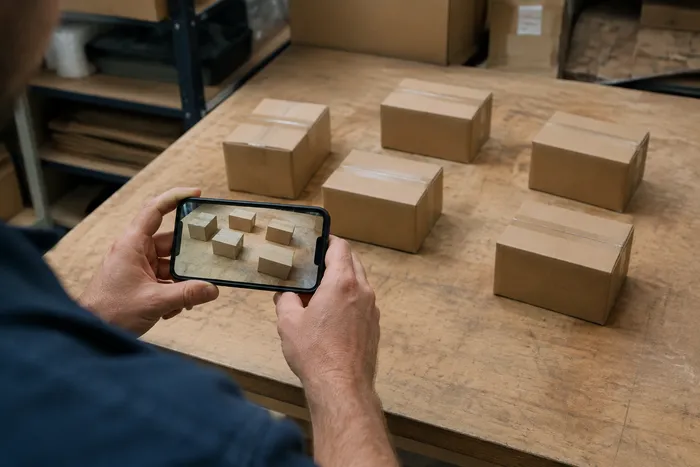
Counting & Inventory
Live Object Counter
Aim your phone at separated, fully visible items and review the detector markers as the count updates in real time.
Try it now
Counting & Inventory
Bottle Counter
Count bottles on shelves, in crates, or in cold rooms from one photo, with counted detections marked for review.
Try it nowFrequently Asked Questions
How Brick Counter helps you get it done
Real problems it solves every day — for businesses, creators, and everyday tasks. Find the use case that fits you and start.
Review a Brick Delivery Before Unloading
Photograph the pallet for a draft brick tally, then review the physical delivery, correct the markers, and complete the normal delivery-note check before the truck leaves.
Track Remaining Material Between Phases
Photograph the leftover stack for an AI-assisted estimate, then review and correct it against the physical stock before planning the next build phase.
Audit a Whole Yard in One Batch
Open Bulk audit to run Distinct objects mode across every stack photo, then review every result before using the combined yard total.
Count Site Stock from Your Phone
Walk the site snapping each stack with your phone camera, add every result to the Tally sheet, and export the day's site stock as a CSV or PDF report for the site manager.
Separate Bricks from Mixed Site Debris
Mark one complete brick in the Examples setting before the count runs so blocks and rubble aren't mistaken for bricks, then review every marker before using the total.
Estimate a Full Pallet Total from a Single Face Photo
Count the bricks visible on one face of a rectangular stack, then multiply by the known depth for a fast estimate of the whole pallet — useful when climbing around a stack to photograph every face isn't practical on a busy site.
Watch each transformation land
Every photo crosses the slash untouched and comes out the other side finished.























