
Count People in a Hotel Lobby from a Photo
Works with JPG, PNG, WEBP
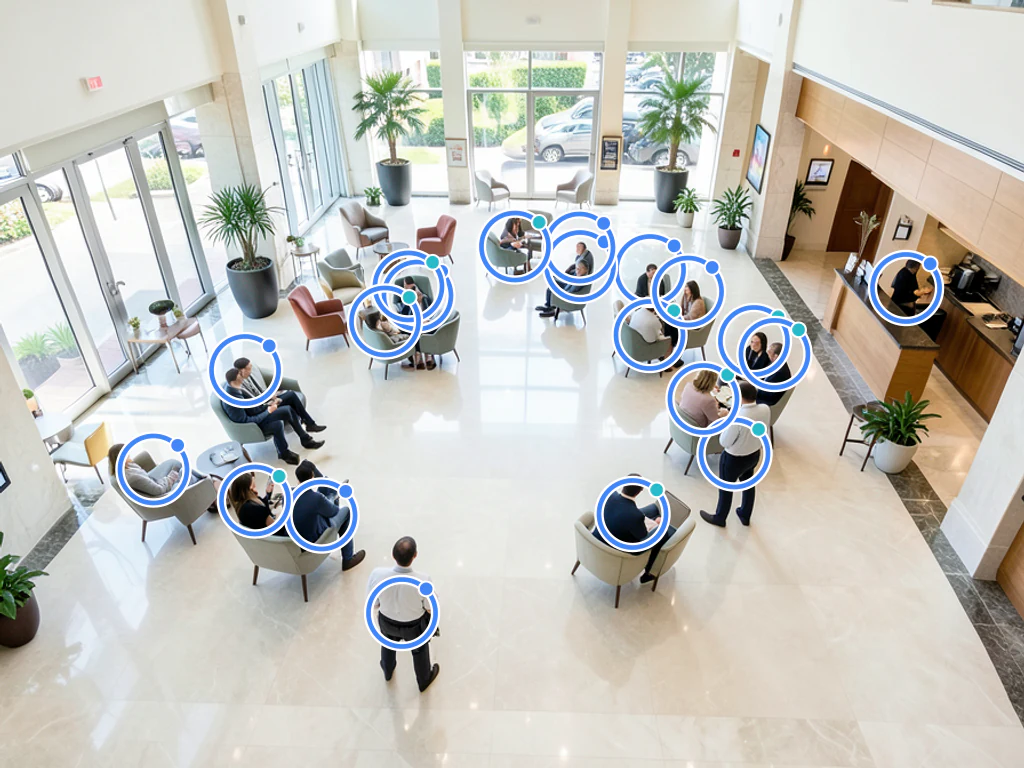
Check-in queues and lobby congestion are the first impression a hotel makes, and front-desk staffing lives or dies on knowing the peaks. Upload a photo of the lobby and get a headcount with every person marked for review.
- Counts dense crowds as well as small groups
- Built for hotel and front-office managers
- Stop recounting because someone moved halfway through
- Review every detected person directly on the marked result
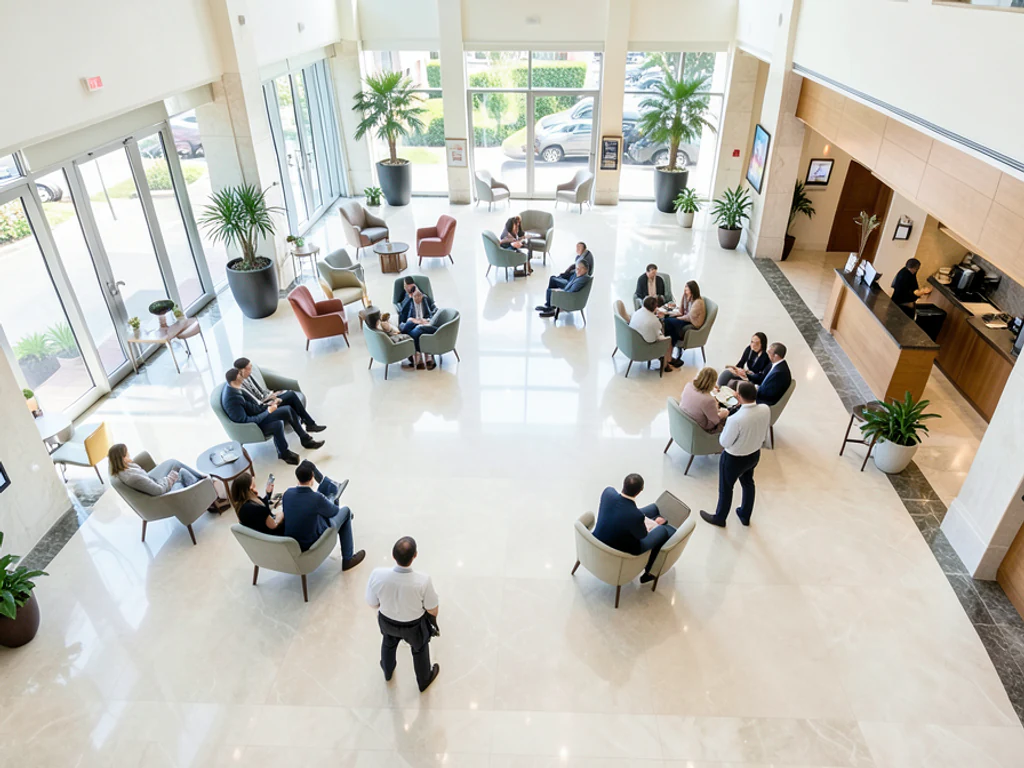
Drop a photo of the lobby — get back a headcount with every person marked
Tips for an accurate count
• An elevated corner angle — mezzanine or a high camera position — covers the desk queue and the seating areas together.
• Raise sensitivity if some people are missed in small groups
• If people are turned away or in profile, turn on “Include people facing away” — it counts them too, not just visible faces; check the markers for any duplicates
About the People Counter
Check-in queues and lobby congestion are the first impression a hotel makes, and front-desk staffing lives or dies on knowing the peaks. The people counter picks the right engine for the photo: small groups are detected person by person with verifiable numbered boxes, while dense scenes switch to an AI crowd-density engine built for gatherings where bodies overlap and detectors undercount. An elevated corner angle — mezzanine or a high camera position — covers the desk queue and the seating areas together. Review the marked result, correct anything it missed, then download the annotated image as your record.
How It Works
1. Upload a photo of the group or crowd
2. AI detects each person
3. Adjust sensitivity to catch more or fewer
4. Read the headcount and download the marked image
Perfect For
• Check-in and check-out peak staffing decisions
• Lobby congestion snapshots during group arrivals
• Queue-length evidence for front-desk rota planning
• Marked photo records you can file or share
Lobby and check-in line counts for front office staffing
Front office managers plan the desk schedule around arrival peaks: the airport shuttle drop, the tour bus, the Sunday checkout wave. A lobby photo at those moments shows how many guests are waiting, and whether the problem is the desk line or a lobby simply full of people waiting for rides.
An elevated angle from the mezzanine, a stair landing or a high corner covers the desk line and the seating together. Luggage carts, pillars and big floral displays hide guests standing behind them. Polished stone floors and glass walls produce strong reflections that can earn their own marker, and the bright entrance behind arriving guests can leave their faces dark. For a desk-only figure, frame the line tightly or crop the wide shot down to the desk area and count that version as well.
Review each marker, take off staff behind the desk and any reflections, and log the line figure and the lobby total separately with the time. A month of these counts makes a solid case for an extra agent at peak. Office buildings with a single front desk are covered on the reception visitors page, and pool and beach areas on the same property can be counted the way the resort guest guide describes.
Peak moments worth a photo
- The morning checkout wave
- A group or tour bus arrival
- The afternoon check-in opening
- Late-evening arrivals from delayed flights
Set up for Count People in a Hotel Lobby from a Photo
Prepared settings
- Starting point
- One wide photo of the lobby
- An elevated corner angle — mezzanine or a high camera position — covers the desk queue and the seating areas together.
- Prepared workflow
- Count lobby guests
- People mode and automatic scene routing are already selected; there is no detector to find manually.
- Reviewable output
- A marked headcount and downloadable record
- Detected people are marked so the total can be checked against the source instead of accepted as a black box.
- Review rule
- Review every marker before using or sharing the total
- Occlusion, blur, and people at the frame edge can affect a count; correct any missed or duplicate marker first.
Best-fit uses
- Check-in and check-out peak staffing decisions
- Lobby congestion snapshots during group arrivals
- Queue-length evidence for front-desk rota planning
Frequently asked questions
- How do I count lobby guests from a photo?
- Upload one clear photo of the lobby and the AI marks every person it detects, with the total shown on top. An elevated corner angle — mezzanine or a high camera position — covers the desk queue and the seating areas together. Review the markers and adjust sensitivity before you rely on the number.
- Does it work when the scene is packed?
- Yes — dense scenes switch automatically to a crowd-density engine built for gatherings where people overlap, with a heatmap and dots showing where the estimate comes from. Occlusion still hides people, so treat busy-scene results as reviewed estimates and use a higher, wider vantage when you can.
- Can I count the check-in queue separately from the lobby?
- Frame a photo that covers just the desk area for the queue number, and a wider one for total lobby occupancy. Counting both at your known peak times shows whether congestion is a desk problem or an arrivals-volume problem.
- Is the people counter free, and what happens to my photo?
- Yes — count, review and download the marked-up result without creating an account, and the headcount itself is identical on every plan. Downloads are free without a watermark. No signup required. Photos are encrypted in transit, processed to produce the count, and removed under our Security policy.
What you can do with People Counter
Review the main capabilities before you begin.
- Count people in a crowd without losing your place
- Estimate event attendance from a single image
- Tally heads in classrooms and gatherings
- See each counted person marked on the image
- Include people facing away from the camera
- Turn on max accuracy for dense crowds
- Fine-tune detection for small or distant faces
Settings reference
16 settings
Available controls for People Counter.
- Processing modePresets
- Process one input, or switch to Premium batch mode to process multiple inputs with shared settings. Available input types depend on the tool.Options: Single photoBulk audit
Count
- Included markersSliderRange: 0–1 · Default: 0.21
- Starts at 21%; slide toward Show more to include weaker people markers or Only strongest to hide them. The headcount updates instantly.
- Overlay stylePresets
- Sets how counted people appear on the preview — dots, a density heatmap, both, or a clean image — so you can verify the headcount visually.Options: BothDotsHeatNone
- Include people facing awayOn / Off
- Counts people turned away, in profile, or whose face is hidden — not just visible faces — while never counting one person twice and never counting legs alone as a person. For genuinely dense crowds it escalates to a density estimate.
- Max accuracy (slower)On / Off
- Runs every counting engine on the photo and cross-checks their results for the most dependable headcount, taking a little longer to process.
- Detection sensitivitySliderRange: 0–1 · Default: 0.5
- Controls how eagerly people are marked, from Strict to Lenient — raise it if people in small groups are missed, lower it if things that are not people get counted.
Tally
- Add to tallyOne-click
- Add this count to the tally sheet under the name of the object that was counted. Signed-in accounts add finished counts automatically unless that is turned off under Account settings; in bulk mode every photo also has its own Add to tally button.
- LabelText input
- Rename a tally row. Edits and removals wait until you choose Save changes, so you can fix several rows at once.
- CountNumber input
- Correct a row's count; totals, the chart and exports follow once the change is saved.
- Save changesOne-click
- Apply every edited or removed tally row in one step, or choose Discard changes to leave the sheet as it was.
Chart
- By objectPresets
- The chart is the same in every counting tool and covers the tallies of all of them. By object draws a separate line chart for each tally name, such as pipes and people. By tool draws a chart for each counting tool.Options: By objectBy tool
- PeriodPresets
- Choose how far back the chart looks. Days without a count appear as zero.Options: 7 days30 days90 days12 months
History
- Counting setupGallery
- Keep comparable counts together. A first setup is created for you, so the first count can be saved straight away.
- Observed atText input
- The date and time of the count, shown as a date and a time field.
- NotesText input
- Starts with every detected object and its count, one per line, such as Pipes - 11. Edit it before saving.
- Save countOne-click
- Save the count to your account history. Open a saved count later to correct it or download its source photo.
Popular presets
Related tools for Count People in a Hotel Lobby from a Photo
Tools for common next steps after Count People in a Hotel Lobby from a Photo.
Counting & Inventory
Object Counter
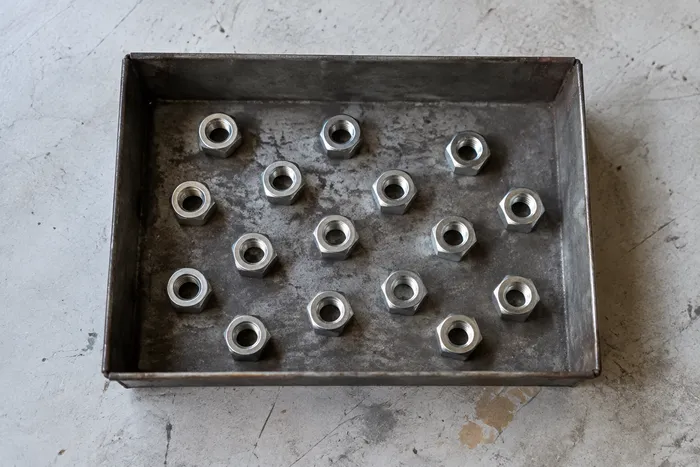
Estimate an object count from a photo. Review and correct the numbered markers before using the count.
Try it now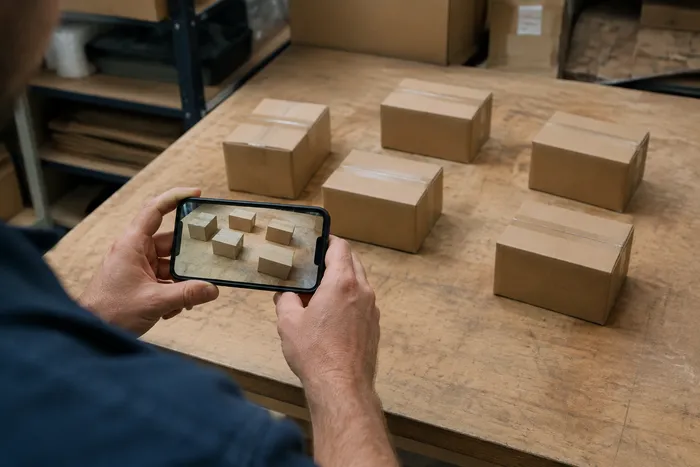
Counting & Inventory
Live Object Counter
Aim your phone at separated, fully visible items and review the detector markers as the count updates in real time.
Try it now
OCR & Data Extraction
Image to Text (OCR)
Extract editable text from a screenshot, photo or scan in 30+ supported languages.
Try it nowHow People Counter helps you get it done
Real problems it solves every day — for businesses, creators, and everyday tasks. Find the use case that fits you and start.
Event & Conference Attendance Reconciliation
Photograph the room or venue for a preliminary attendance estimate, then review the result and use an approved manual or ticketing count for reconciliation.
Crowd-Size Estimates for Rallies & Protests
Generate a rough crowd-size estimate from an overhead or wide photo, review the uncertainty, and corroborate it with other evidence before publishing or making decisions.
Retail Footfall & Queue Snapshots
Count shoppers in a queue or at a storefront from one photo to spot-check footfall or queue length at a specific moment, with no camera system required.
Classroom & Meeting Attendance Registers
Use one room photo for a preliminary head-count estimate, then have an authorised person complete or reconcile the attendance register manually.
Preliminary Venue Occupancy Estimates
Use a photo estimate only as an early warning, then complete the approved physical or official occupancy check before opening. The AI result is not a fire-safety or capacity-compliance record.
Transit Platform & Waiting-Area Crowd Checks
Photograph a train platform, bus stop or waiting area for a preliminary density estimate, then corroborate it with approved operational checks before making safety or capacity decisions.
Guides for this tool
- A Busy Café Photo Tells One Part of the Demand StoryA busy cafe photo captures occupancy at one moment. Explore Pixoate people counts, their limits and how reviewed snapshots can inform demand discussions.
- Count Restaurant Customers from CCTV Photos: A Practical GuideUse café and restaurant photos to review occupancy and queues. Learn a checked headcount workflow and why snapshots cannot measure unique daily visitors.
Watch each transformation land
Every photo crosses the slash untouched and comes out the other side finished.























