
Make written stock counts usable in your inventory workbook
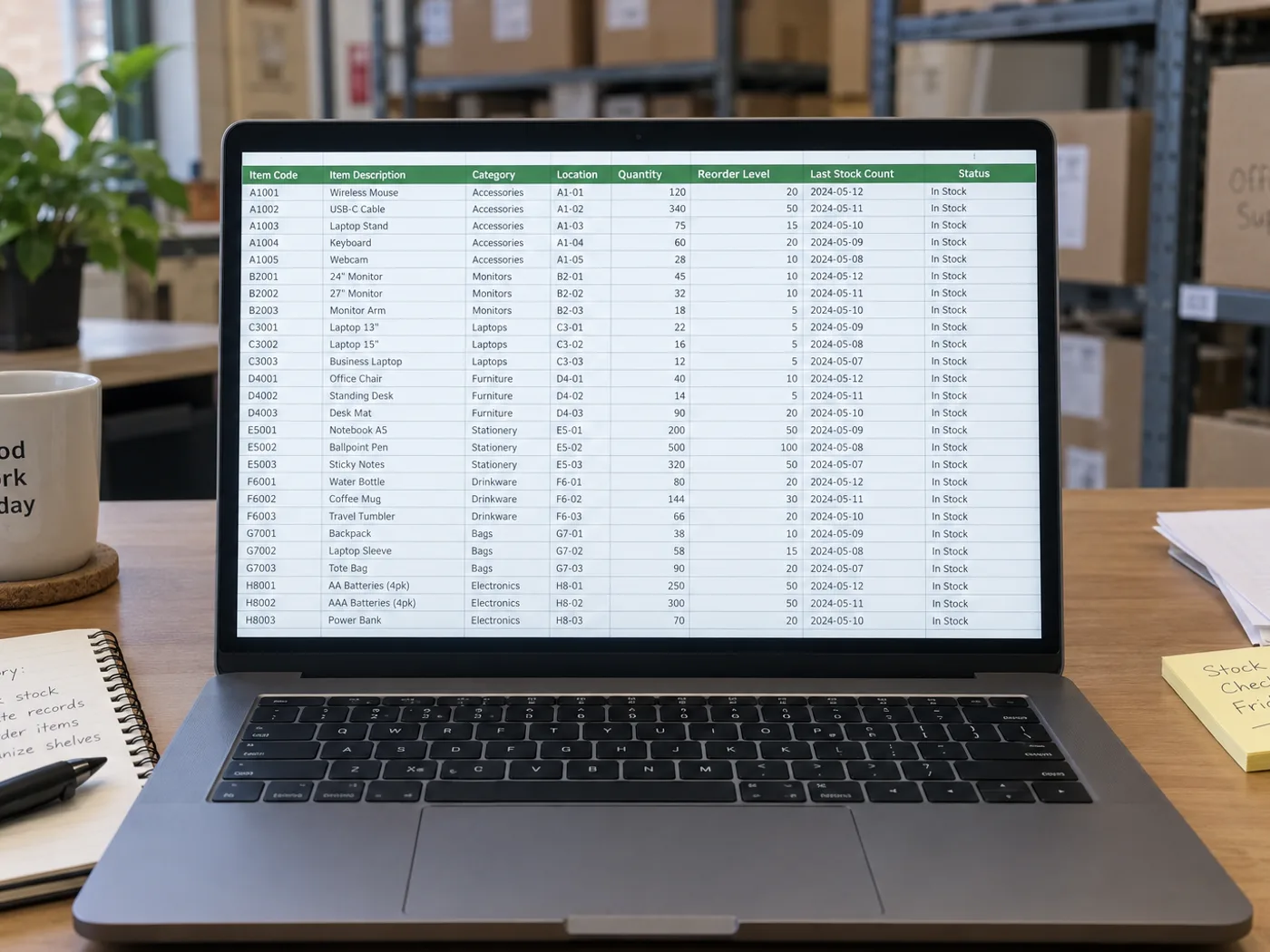
Bring a photographed stock-count sheet into Excel without retyping each visible entry. Check SKU spelling, count units and handwritten corrections before combining the extracted rows with your inventory workbook.
Warehouse count-sheet preparation
Convert one completed count sheet at a time, then check bin references and quantities before comparing physical counts with system stock.
Kitchen and retail stock reviews
Recover recorded counts for a workbook, keeping cases, individual units and weights distinct when planning replenishment.
Check codes and count units before comparing stock
- Photograph the flat count sheet and include the SKU, location and quantity headers.
- Review ambiguous handwriting and check whether each count means pieces, cases or another unit.
- Download XLSX and reconcile the checked rows with your existing stock records.
Handwritten counts, repeated SKUs and inventory updates
- Does inventory sheet to Excel count objects in a photograph?
- No. It reads a sheet that already contains recorded counts. Use an object-counting tool when the photograph shows products rather than written inventory rows.
- Can handwritten stock quantities be extracted?
- Clear handwriting may be readable, but crossed-out or overlapping numbers need manual checking. Confirm the intended final count from the original sheet.
- Will extracting a sheet update my inventory system?
- No. You receive a workbook to review. Importing or updating stock remains a separate action in your inventory system.
- How should repeated SKUs in different bins be treated?
- Keep the location column with each row. Do not combine repeated item codes until you have decided whether the bins should be summed or tracked separately.
- Why does the inventory chart show the latest sheet instead of a daily total?
- A stock count is a position, not a flow, so adding two sheets from one day would double the stock. The inventory chart therefore shows the total of the latest sheet saved for each date. Receipts and invoices, by contrast, are added up.
- Can I save sheets from different warehouses in one collection?
- Only the latest sheet saved for a date appears in the chart, so two warehouses saved on the same day would replace each other there. Create one collection per location to keep each location's totals apart, and keep the same column order in all of them.
- How do I remove a ruled line or repeated heading that became a row?
- Use the trash icon at the start of that row in the grid before you export or save. Deleted rows are not in the workbook or in the saved table, and Reset brings back the original reading if you remove the wrong one.
- Will SKUs and bin locations keep their leading zeros in the workbook?
- Yes, because every cell is written as text, so 00417 stays 00417. The flip side is that quantities are text too, so convert the quantity column to numbers in Excel before you sum it or compare it with system stock.
- Can one workbook hold several sheets from a stack of count pages?
- One image gives one workbook with one worksheet. Batch mode, a Premium option, returns a ZIP with one workbook per image and no review step. To combine checked sheets into one workbook, save each to History and open the combined workbook for the period.
- Do I need an account to save inventory sheets to History?
- Yes. History belongs to a signed-in account, and a signed-out visitor sees a prompt to sign in instead of the collection controls. Reading a sheet into the grid and correcting it does not depend on History.