


Label Packaging Mockup Generator
Generative output can vary; review the full result before publishing
A label approved flat is a label unjudged — adhesive branding only exists on its product. Apply a test print to the product, photograph it, and this direction builds a shelf setting around it: the AI is asked to keep curvature and material interaction as photographed, the design evaluated where it will actually live rather than in the artboard's flattery.
- Prepared Label direction
- Editable prompt
- Source-detail review required
Choose a source image for Label
JPG, PNG, WebP, HEIC, and other supported formats. Free up to 20 MB; Premium and higher up to 50 MB for this tool.
Label mockups across several containers and label stocks
This page suits a label system rather than a single label: one design that has to work on a round jar, a square bottle and a tin. Print the artwork at real size, apply it to each container and photograph them one at a time under the same light. Running every photo through one look shows whether the system holds together or breaks on the odd shape.
Label stock changes the result more than most designs expect. Clear labels let the container show through, kraft stock mutes colors, and metallic stock flares in direct light. Test on the stock you plan to buy, because the AI is asked to keep what you photographed and is not built to swap one stock for another.
Smooth out air bubbles and lifted corners on the real label before shooting; they survive into the mockup. In the result, read every line of text against the print file and look for any extra mark the scene placed nearby. Test one label close up on its own container, or try sleeve mockups for wraps that cover the whole body.
Set up for Label Packaging Mockup Generator
Prepared settings
- Starting point
- Upload one source image
- The page opens on the correct edit workflow; upload is the only required setup step.
- Prepared workflow
- Prepared Label scene direction
- Label Packaging Mockup Generator opens with the Label direction preselected, so there is no need to find the operation manually.
- Output shape
- Same as your upload
- The result keeps the shape of the image you upload.
- Review rule
- Preserve the source subject and verify factual details
- Generated imagery can vary; the final result stays under the user's approval before download.
Best-fit uses
- Label approval on the target product
- Surface-material interaction checks
- Multi-product label system previews
Frequently asked questions
- Why do labels look different on-product than flat?
- Curves compress, materials tint, light interrupts — the artboard shows intent, the product shows truth. On-product preview is the only honest approval stage.
- Can one label system preview across products?
- Yes — photograph the label on every SKU shape it must serve and stage each in the same setting. Label families fail at the odd bottle; the multi-product preview finds it early.
- What should I review in a Label result?
- Check the subject, product geometry, colors, labels, logos, identity-relevant details, shadows, and edges against the source. Reject any output that changes a factual detail.
- What rights checks apply to a Label client project?
- Use only source material and references you have rights to, follow the destination platform rules, and obtain any required person or property permissions. Generated output still needs a human accuracy and rights review.
What you can do with AI Product Scene Generator
Review the main capabilities before you begin.
- Build a scene around your product from a single photo
- Create editorial, ecommerce, and social campaign concepts
- Generate coherent props, surfaces, lighting, and shadows
- Ask the AI to keep the product as photographed
Settings reference
4 settings
Available controls for AI Product Scene Generator.
Workflow
- Single image or Batch imagesPresets
- Process one image, or use Premium Batch images to apply the same automatic recipe to a set and download one ZIP.Options: Single imageBatch images
Scenes
- One-tap presetsPresets
- Pick a ready-made direction with one tap; generation uses the selected preset automatically.Options: Bathroom counterKitchen lifestyleOutdoor lifestyleEditorial podiumSocial ad
- Custom instructions (optional)Text input
- Describe the requested change, relevant materials, lighting, perspective, and details that must remain unchanged.
Selection
- Selection brush sizeSliderRange: 4–160px · Default: 32px
- The subject area is found automatically. This brush appears only if that automatic area could not be found; paint the area to edit, then generate again.
Related tools for Label Packaging Mockup Generator
Tools for common next steps after Label Packaging Mockup Generator.

Background Studio
Remove Background
Remove a photo background and download a transparent PNG. Review hair and edges before use.
Try it now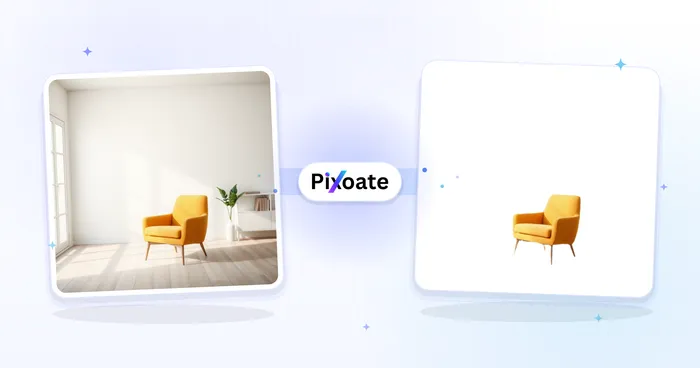
Background Studio
White Background Maker
Replace a photo background with white for product listings.
Try it now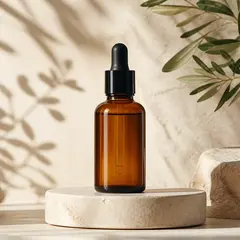
Product Photography Studio
AI Product Photos
Generate a background scene around your product. Describe the setting and review the result.
Try it nowWatch each transformation land
Every photo crosses the slash untouched and comes out the other side finished.























