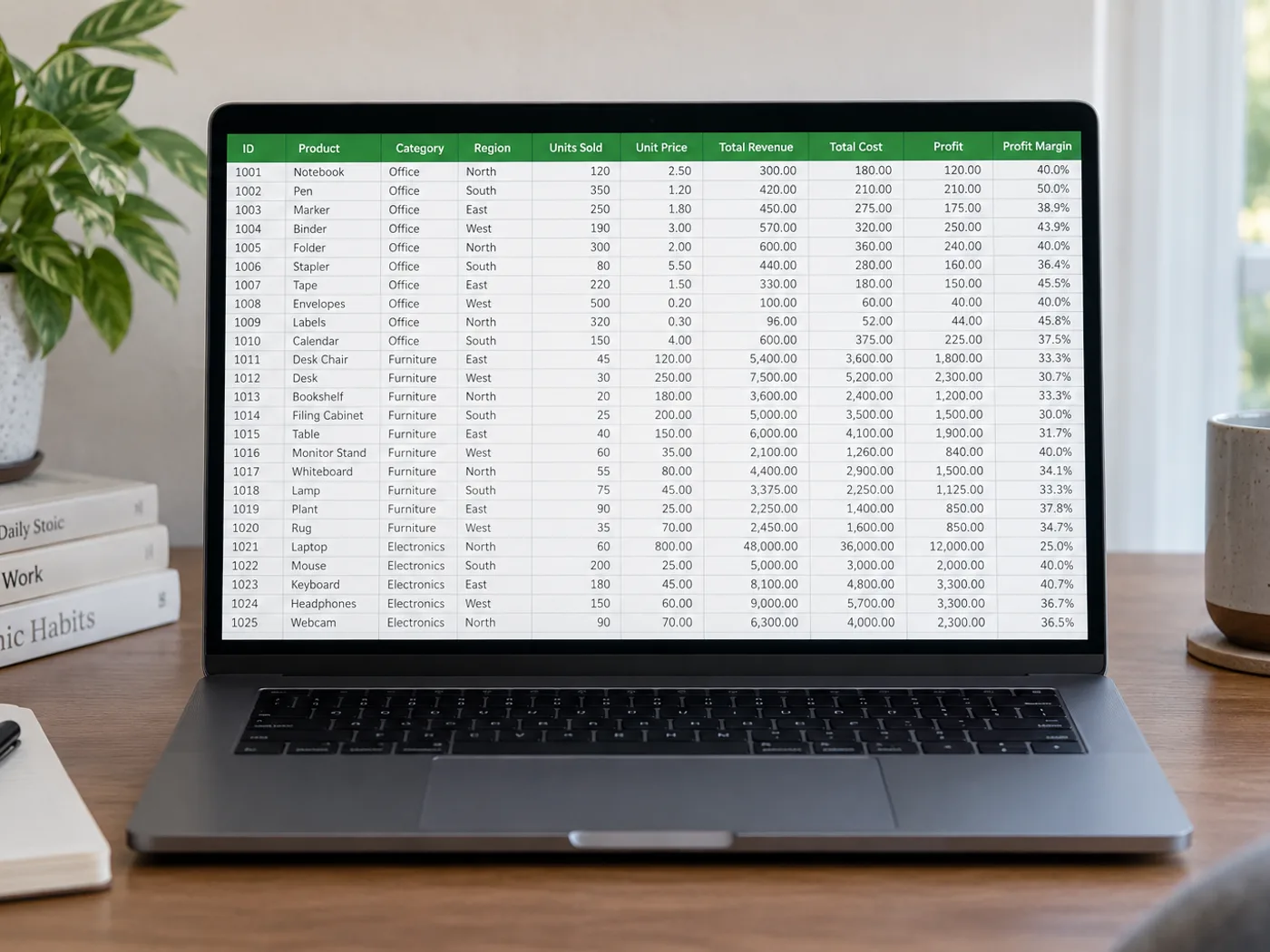
Extract a table from a PNG image into XLSX cells. Check small text, column alignment and leading zeros before downloading an editable Excel worksheet.
Report tables exported as PNG
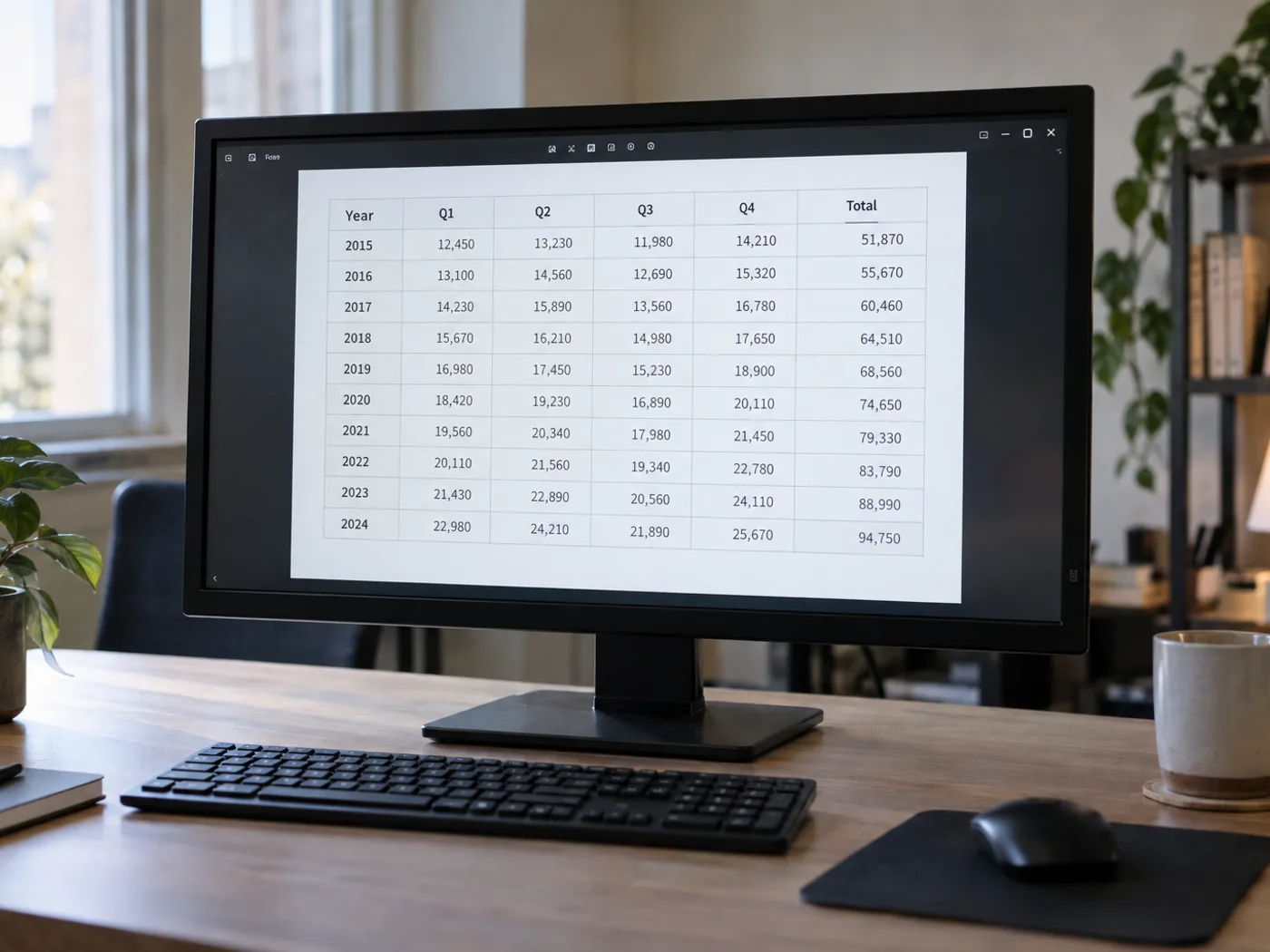
Reference tables with product identifiers
Upload
Drop a file here, or click to browse
All image formats (JPG, PNG, WEBP, HEIC, TIFF…) · PDF
Convert a PNG table to an Excel workbook you can edit
This PNG to Excel converter reads a table from a PNG image and shows it as editable cells before anything is exported. Check the grid, fix the cells it flags, and download an .xlsx workbook that Excel and Google Sheets open. It is built for tables in screenshots and exported reports, and the review grid is a free preview before any export.
Convert a PNG table into an Excel worksheet
Once the PNG is loaded, select Convert file and the recognized table opens in an editable grid, with the first row treated as the header. Nothing is exported yet, which gives you a chance to correct the cells before they become a workbook. A table in a photo or a scan, in any other image format, goes through the general image to Excel converter.
Upload the PNG that holds the table.
Open Settings to choose the Language and Engine if the default does not fit.
Select Convert file and wait for the grid.
Correct the shaded cells, then select See result.
Select Download to save the workbook.
Fix cells in the review grid before you export
A cell the reader doubted is shaded amber, and one it could not read holds the placeholder [Unreadable]. Click a cell and type over it; the shading clears once you edit it. Use the trash icon at the start of a row to delete it, Add row to append a blank one at the bottom, and Reset to return to the original reading.
Pick an engine for a tricky PNG layout
Default handles most tables. Table AI (beta) is worth trying when Default misreads a layout with merged headers, and Engine 1 and Engine 2 suit simple grids. Changing the Engine or the Language clears the grid, so select Convert file again after you switch.
Know what the Excel file contains
The workbook holds one sheet. Every value is saved as text, so leading zeros and long codes survive, but numbers need converting in Excel before you add them up. Cell colors, borders and fonts from the PNG are not recreated, so format the sheet after you have checked the data. Lines outside the table, such as a title or footnote, arrive as single-cell rows, and two tables in one PNG are stacked with a blank row between them. This PNG to XLS converter still ends as .xlsx, the current Excel format. For a table inside a PDF, pull it out of the PDF into Excel.
Combine tables from several PNG files
Batch mode, a Premium option, converts a set of PNG files with the same settings and returns a ZIP with one workbook per image, with no review step. To build one sheet from several tables instead, sign in, open History, save each checked table to a collection, and open the combined workbook for the period you choose. For plain records, export the same table as CSV rows.
Before you use PNG to Excel
Crop to the table so captions, logos and browser frames do not turn into rows.
Choose the language of the table text, because the Language list changes with the Engine.
Count the rows in the grid against the PNG before you export.
Keep the PNG beside the grid and compare every amount, date and code.
Your PNG table is clear, but its cells are still locked in an image
PNG exports often preserve sharp table lettering, but the cells are still pixels. Read a saved PNG table into a worksheet and review the extracted columns before opening it in Excel for sorting, filtering or further cleanup.
Report tables exported as PNG
Rebuild the visible data from an image-only report attachment when the author has not supplied the underlying workbook.
Reference tables with product identifiers
Bring names and codes into a worksheet, checking leading zeros and letter-number combinations before joining them to your existing records.
Recover worksheet cells from the original PNG
Save the PNG at its original dimensions instead of enlarging a small thumbnail.
Read the table and inspect narrow columns, wrapped headers and identifier fields.
Edit misread cells, export XLSX and verify identifier formatting when opening Excel.
Handling transparent PNGs, charts and leading zeros
Should I convert a PNG to JPG before extracting Excel cells?
No. Upload the PNG directly. Converting it to JPG can introduce compression artifacts around small characters without adding information.
What if my PNG table has a transparent background?
Text must remain clearly distinguishable from the background. If the preview is difficult to read, prepare a copy with a contrasting background before extraction.
Does a PNG containing a chart become a data worksheet?
This page is intended for visible table cells. A plotted line or bar does not supply the original data series; use the source table where available.
How should I handle codes such as 00127 in the workbook?
Compare the extracted code with the PNG and verify its cell format in Excel. Treat identifiers as text when leading zeros carry meaning.
Why do numbers in the converted workbook behave like text?
Every value is written as text, which protects leading zeros and long codes. To calculate with a column, select it in Excel and convert the values to numbers, using the green warning or Text to Columns, then check the totals against the PNG.
How do I add or remove a column in the review grid?
The grid has no column controls: you can edit any cell, delete rows and add rows at the bottom. Fix a split or extra column in Excel after the download, or edit the cell values so the data lines up before you export.
What does it cost to download the converted workbook?
Downloading the workbook is the export step, and the button shows what it costs before you press it. Workbook exports require Premium or credits. Reviewing the table in the grid comes first and is a free preview.
How do I add a row the converter missed?
Select Add row under the grid and type the missing values into the new row. It is added at the bottom, so move it into place in Excel after the download. Compare the row count with the PNG before you export.
Convert an image to an Excel table you can check
For a photographed stock list, keep the column headings, product codes and units in the frame. A clear grid gives you a better starting point for an editable workbook.
Upload a sharp, straight-on image and select its language. Run the table reader, then review the extracted rows.
Check that product code, description, quantity and price occupy separate columns. Compare the first and last rows with the photograph to catch missing records.
Download the XLSX and open it in your spreadsheet app. Keep identifiers such as 00128 as text, quantities as numbers and uncertain cells marked for review.
A blank cell is not necessarily zero. If headings merge or a decimal is unclear, check the source or retake the photo before placing an order. The image contains displayed values, not the original spreadsheet formulas.