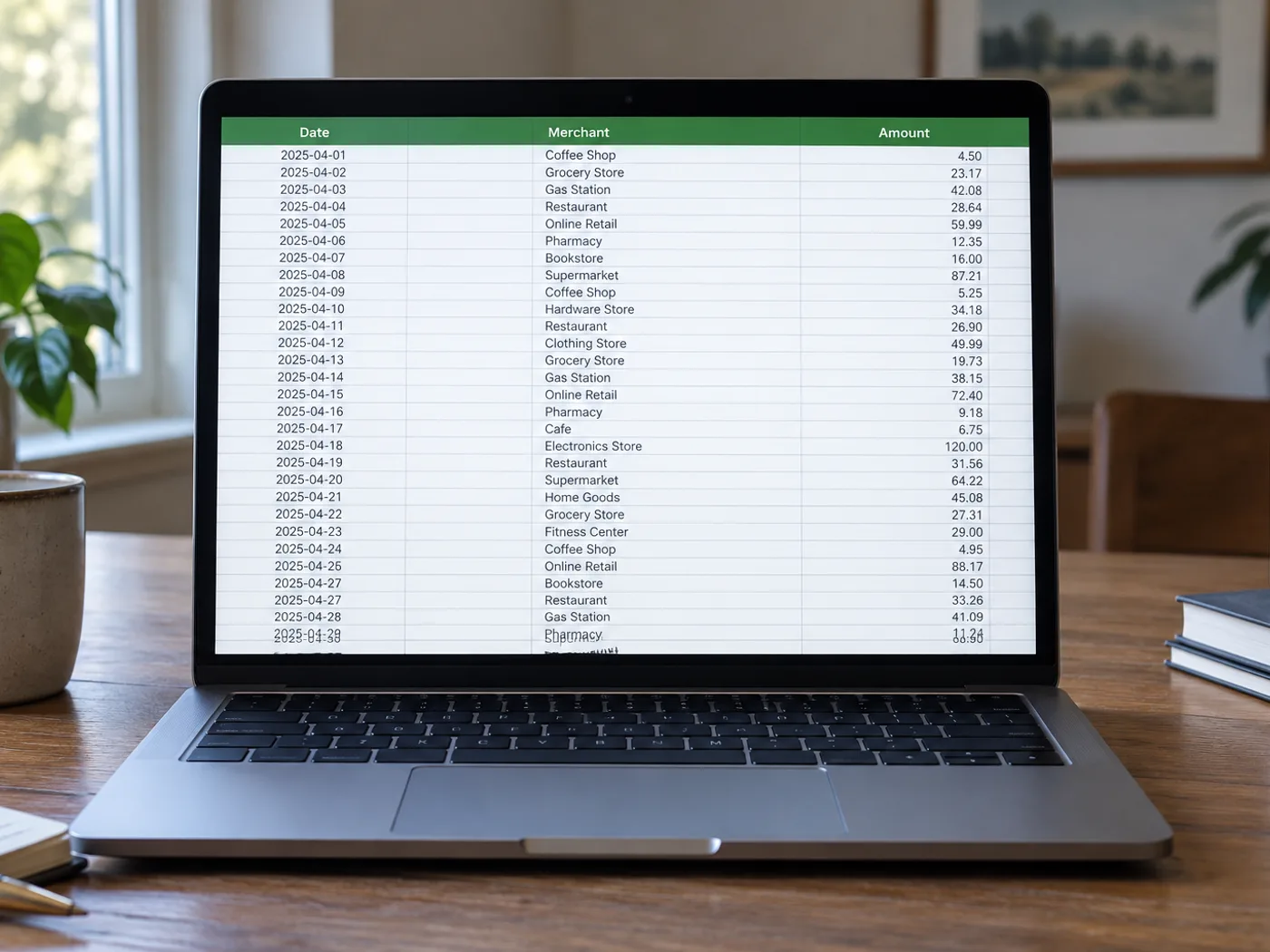
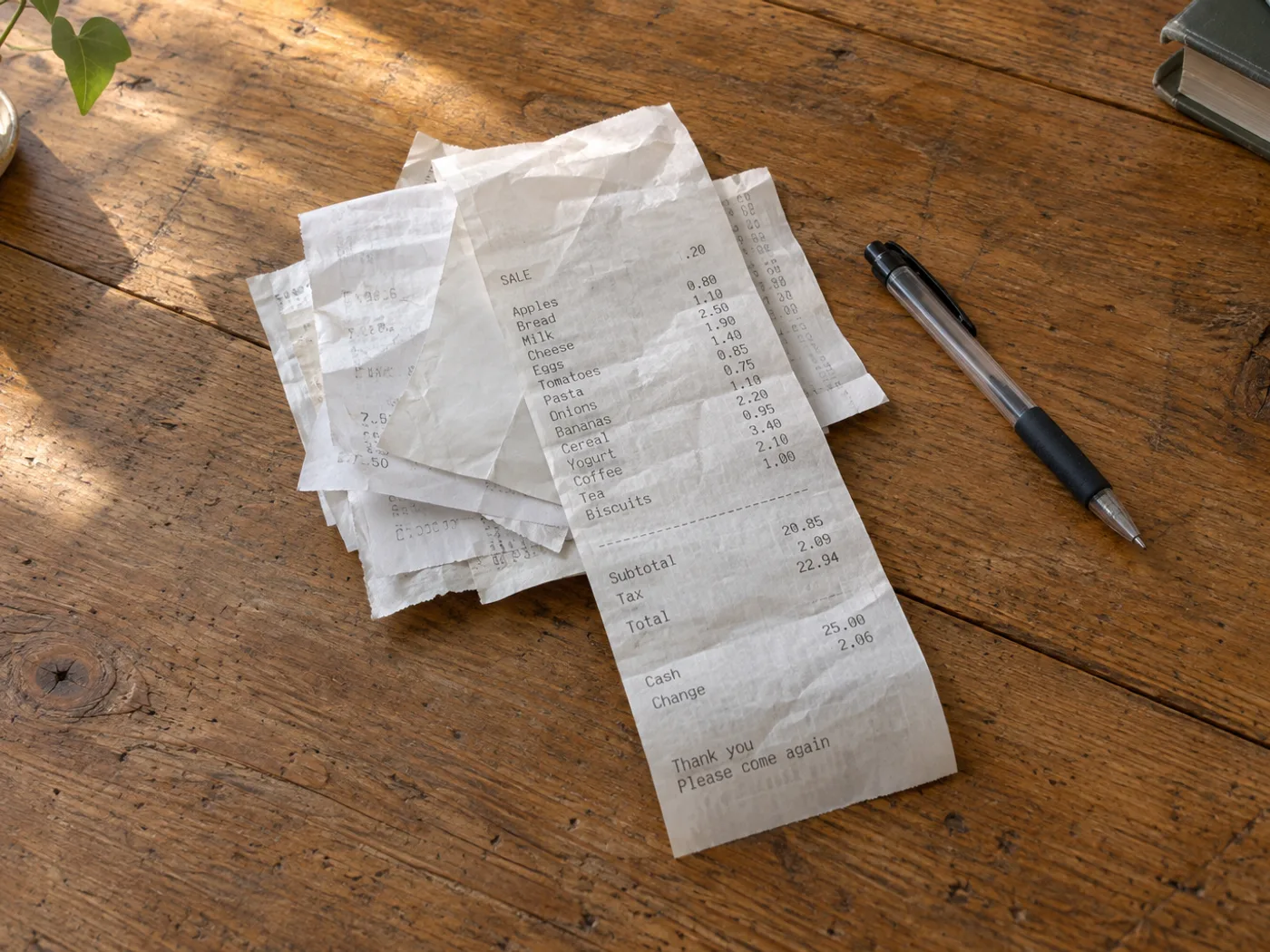
Illustration: The receipts as an Excel expense spreadsheet on a laptop.
Receipt to Excel — Review Purchase Line Items — convert receipt photos to an Excel expense spreadsheet — After
Receipt to Excel — Review Purchase Line Items — convert receipt photos to an Excel expense spreadsheet — Before

Illustrative preview

Image to Excel

Receipt to Excel — Review Purchase Line Items

Upload a clear receipt photo with the line items and totals visible

Extract receipt image line items into an Excel workbook. Check quantities, discounts, tax and totals against the original before using the XLSX data.

  • Itemized travel expense review
  • Comparing repeated purchases

Upload

Drop a file here, or click to browse

All image formats (JPG, PNG, WEBP, HEIC, TIFF…) · PDF

Receipt to Excel: itemized purchases in a worksheet with daily totals

This receipt to Excel page reads a receipt photo into an editable grid of items and prices, then saves a worksheet you can sort and total. Signed-in accounts can also save each checked receipt into a collection, see daily spending on a chart and open one combined workbook for a month. The grid is where you separate purchases from tax and payment lines, so the numbers you add up are the ones you meant.

Clean the grid until it holds purchases only

A receipt photo arrives with the store header as single-cell rows, then the item lines, then subtotal, tax, total and payment lines. Delete the header rows and the payment lines, keep each discount with its sign, and bring a wrapped product name back onto one line by typing over the cell. Cells shaded amber are the reader's doubts, and faded thermal print is where most of them appear, so check prices there first.

Save each receipt and chart daily spending

The History tab keeps receipts in a collection that starts with the name Receipts. Pick the Amount column that holds line prices, enter one currency, set the Document date to the day printed on the receipt, tick the checked box and choose Save to history. The chart then shows a daily total. Under Rows that look like totals, lines such as Total, Subtotal and Amount due are left out by default so the same money is not counted twice, and tax lines are listed so you decide.

  1. Delete header, payment and change lines in the grid.
  2. Open History and create a collection with one currency.
  3. Choose the Amount column and the Document date.
  4. Review Rows that look like totals, tick the checked box and save.

Combine a month of receipts into one workbook

Set the From and To dates in History and choose the combined workbook button. It stacks every checked receipt in the period and adds the Document date and Source file to each row, so you can pivot by shop, week or category in Excel. Receipts you have not marked as checked stay out unless you tick Include unchecked tables. Saving the same receipt twice triggers a warning before the second copy goes in.

Photograph long receipts so nothing is cut off

Long receipts tempt you to photograph only the middle. Move back until the whole strip fits, including the total and payment block, or take two photos and treat each as its own table. Keep the paper flat on a plain surface in even light, and set Language to the language printed on the receipt so names with accents are read as written. Values in the workbook are text, so convert prices to numbers before you total them.

Before you save receipts to History

Turn a pile of itemized purchases into a reviewable worksheet

Turn the itemized section of a receipt photograph into spreadsheet rows for expense review. Thermal printing, discounts and wrapped product names can confuse recognition, so compare every important amount with the original receipt.

Itemized travel expense review

Separate purchased items from tax and payment lines before assigning your own expense categories in a workbook.

Comparing repeated purchases

Collect receipt line items over time, then normalize product names manually before comparing unit prices in Excel.

Check receipt items before adding expense categories

  1. Flatten the receipt and photograph it in even light so faded digits remain visible.
  2. Extract and review wrapped descriptions, negative discounts and quantity-price pairs.
  3. Keep subtotal and tax rows distinguishable from items, then export the checked workbook.

Faded receipts, discounts and totals that look like items

Will receipt to Excel classify expenses automatically?
It extracts visible table data. Assign accounting categories and decide which purchases belong in an expense claim after reviewing the workbook.
Can a faded thermal receipt still be converted?
Only legible marks can be recognized reliably. Try a better-lit close-up and correct uncertain amounts; missing print cannot be reconstructed with certainty.
Why does my receipt total appear as another item?
Receipts often separate totals through spacing rather than clear columns. Review the grid and distinguish subtotal, tax, tips and payment rows before analysis.
Is the extracted workbook a replacement for the receipt?
Keep the original receipt as supporting evidence. The workbook is a transcription for review and may contain recognition errors.
What are Rows that look like totals in the History panel?
They are lines whose label starts like a total, such as Total, Subtotal or Amount due. The chart adds up the whole amount column, so those lines are left out by default to avoid counting the same money twice. Tick one to include it, and check the line under How values will be read.
Can I total a month of receipts in one workbook?
Yes, once you are signed in. Save each checked receipt to a collection, choose a From and To period in History and open the combined workbook. Each row carries its Document date and Source file, so a single table can be summed or pivoted.
Does Excel read the prices as numbers?
Not at first. Every cell is saved as text, which keeps item codes intact, so convert the price column to numbers in Excel before you add it up. The History chart does its own reading of the amount column, using the decimal separator you choose for the collection.
Why does the panel warn me that a receipt was already saved?
It found the same source file or a table with the same contents in that collection, and it shows the date of the earlier save. Choose Save anyway only when it is a different receipt, such as two identical coffees bought on one day, so your daily total is not doubled.
How do I separate store header lines from the items?
Lines outside the item list come through as single-cell rows at the top of the grid. Delete them with the trash icon, or keep the store name as a note in your own column. History stores the Document date separately, so the date does not need to stay in the table.
Can I process receipts in other languages or currencies?
Yes. Set Language to the language printed on the receipt, convert, and enter the matching currency as the unit when you create a collection. Set the decimal separator to a comma for receipts that print 1.234,56, and keep one currency in each collection.

Convert an image to an Excel table you can check

For a photographed stock list, keep the column headings, product codes and units in the frame. A clear grid gives you a better starting point for an editable workbook.

  1. Upload a sharp, straight-on image and select its language. Run the table reader, then review the extracted rows.
  2. Check that product code, description, quantity and price occupy separate columns. Compare the first and last rows with the photograph to catch missing records.
  3. Download the XLSX and open it in your spreadsheet app. Keep identifiers such as 00128 as text, quantities as numbers and uncertain cells marked for review.

A blank cell is not necessarily zero. If headings merge or a decimal is unclear, check the source or retake the photo before placing an order. The image contains displayed values, not the original spreadsheet formulas.

Check stock-list columns and leading zeros
Free to use · No signup required · Without watermarkUploads are encrypted in transitRemoved under our retention policy

Watch each transformation land

Every photo crosses the slash untouched and comes out the other side finished.