

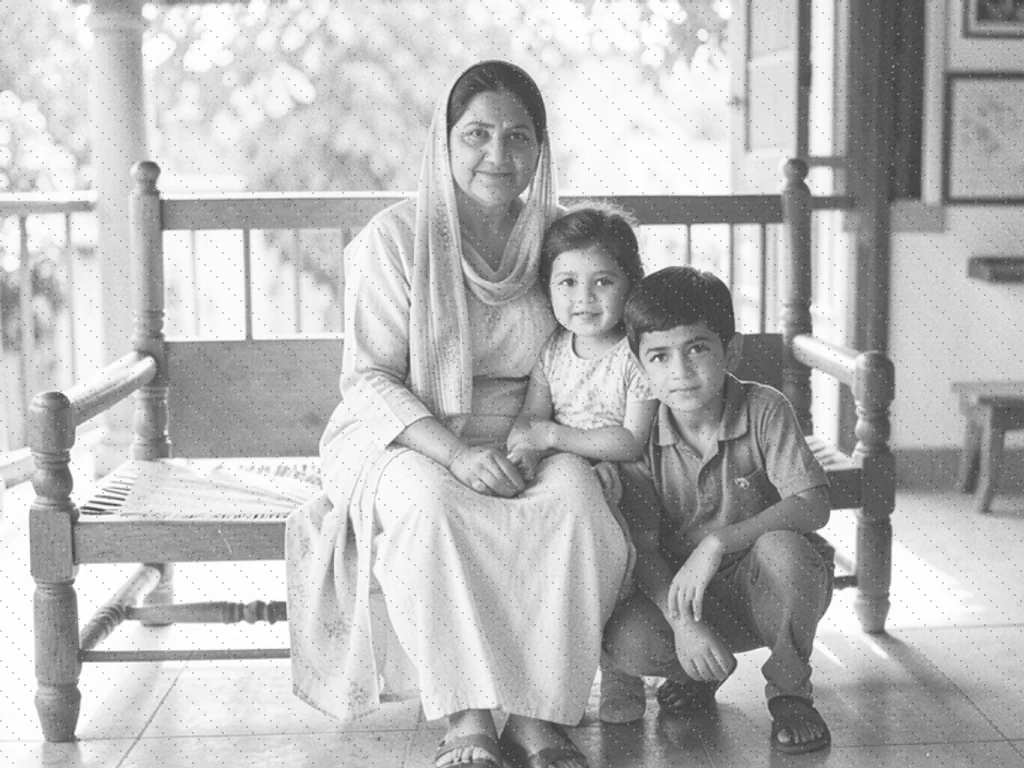
Restore Old Photo — Repair and Colorize Faded Family Pictures
Works with JPG, PNG, WEBP
The print has faded, the scan is soft, and the only copy is the one in the album. Restore it, then look at the result before you keep it.
- Reads your photo and picks the right treatment for it
- Adds natural color to black-and-white and sepia prints
- Sharpens, cleans and re-lights a faded color photo
Drop a scan or photo of an old print
Getting the best out of an old print
• Scan or photograph the print flat, in even light, with no glare across the surface
• The Restore tab shows which treatment was chosen and why — switch it if the photo is not what it looked like
• On a black-and-white photo, turn on 4× Resolution Boost in the Upscale tab (Premium) for a print-ready copy
About Photo Restoration
Restoration reads the photo and applies one of two treatments. A black-and-white or single-tone print is colorized, which estimates colors that were never recorded, so the result is a plausible version rather than the original colors. Improve clarity reduces noise, sharpens detail, and rebalances light and color. For cracks, torn sections, or stains, use Repair selected scratches, tears, or stains in the Restore tab. Either way the original is left untouched and you review the result before downloading.
How It Works
1. Upload a scan or photo of the old print
2. The photo is read and a treatment is chosen
3. Adjust the strength, or switch the treatment
4. Review the result and download it
Perfect For
• Black-and-white and sepia family photographs
• Faded color prints from the 1970s to the 1990s
• Scanned album pages and shoebox negatives
• Reprinting a keepsake at a size worth framing
Restore old photos online: add color or sharpen a faded print
This AI photo restoration tool reads your scan of an old print, decides whether it needs color or clarity, and applies that fix for you. A black-and-white or sepia photo gets color added, while a faded color photo is cleaned, sharpened and re-lit. Standard use is free and needs no account, within the processing allowances. You review the result before you keep it and can switch the treatment if the guess is wrong.
Restoring old photographs from a scan or a phone photo
The photo is measured when it uploads: little or no color, or a single faded tone such as sepia, sets Add color, and a real spread of colors sets Improve clarity. The note under What this photo needs says which one was chosen and why. To restore old pictures from an album, a phone gallery or a drive, the steps are the same, and your uploaded file is left untouched. The restored copy downloads as a separate JPG.
- Scan the print flat, or photograph it in even light with no glare.
- Upload the file and read the note under What this photo needs.
- Switch between Add color and Improve clarity if the choice looks wrong.
- Set Restoration strength from Gentle to Full, then select Restore.
- Review the result, select See result and download it.
Add color to a black and white or sepia photo
Add color estimates colors that were not recorded, so the result is a plausible version of the scene and not a record of the original. Only color is added: the brightness, grain and detail of your scan stay in place. Check clothing, uniforms and signs where the true color matters. On Premium, 4× Resolution Boost in the Upscale tab also enlarges the print in the same run.
Fix old photos that are faded, soft or grainy
To fix old pictures that have faded or turned soft, use Improve clarity: it reduces noise, sharpens detail and rebalances light and color without repainting tones that were already right. It will not make old photos look new, but it suits faded color prints from the 1970s to the 1990s and soft album scans. Restoration strength sets how far it goes: lower keeps the result close to the print, higher pushes harder but can look overworked. For a recent photo that is simply dull or grainy, clean it up with the photo enhancer instead.
Repair old photos with scratches, tears and stains
Improve clarity reduces grain and softness, while Add color only adds color, so cracks, tears and missing corners are damage to the print itself that neither treatment rebuilds reliably. For a single crack or stain, paint over just that damage and repair it, and keep this tool for overall color and clarity. A badly torn, one-of-a-kind print may still be better placed with a professional restorer.
Restore photos on a phone or computer with nothing to install
This runs as a web page, so there is no program to download and no app to keep updated. Open it in the browser on a phone or a computer, upload the scan and download the result. It does not repair torn paper or physically damaged prints; it adds color or improves clarity, and you review the result on screen before you keep it.
Picture restoration for a whole family album
Restoring starts from a file, so scan or photograph each print first. For a whole album, restore print by print, or use batch mode on Premium, which applies one strength to a set. Keep your original scans in a safe place.
Print a restored photo at a larger size
A small scan can look soft once it is printed. Improve clarity can return a small photo at a larger size, and Add color offers the 4× Resolution Boost on Premium. To choose an exact enlargement afterward, enlarge the restored photo to 2x, 3x or 4x.
Before you restore an old photo
- Scan at the highest quality you can and crop away the album page, so the print fills the frame.
- Skip Add color on a photo that already has color, because it can repaint tones that were correct.
- Treat every added color as an estimate and compare faces with the original scan.
- Keep your original scan; the restored copy is saved as a separate file.
More help for old and damaged photos
For one crack, tear or stain, paint over just that area and repair it; if only color is missing, add estimated color to a black-and-white scan. To share the result, reveal the original under the restored copy with a slider or add a frame for a printed keepsake.
What you can do with Restore Old Photo
Review the main capabilities before you begin.
- Review and download the edited image
- No installs — start editing directly in your browser
- Download results in high resolution
- Works with JPG, PNG and WebP files
Settings reference
3 settings
Available controls for Restore Old Photo.
- Processing modePresets
- Process one input, or switch to Premium batch mode to process multiple inputs with shared settings. Available input types depend on the tool.Options: Single imageBatch
Restore
- What this photo needsPresets
- Chooses the treatment. Add color suits a black-and-white or single-tone print, where color is estimated because it was never recorded. Improve clarity suits a photo that already has color: noise is reduced, detail sharpened and light rebalanced, without repainting tones that were already right. The photo is measured on upload and the likely treatment is preselected.Options: Add colorImprove clarity
- Restoration strengthSliderRange: 0–100% · Default: 70%
- Sets how far the restoration goes. Lower keeps the result close to the original print, which suits a photo that is only slightly faded; higher pushes color and detail further, which suits a badly faded or very soft scan but can look overworked on a photo that did not need it.
Related tools for Restore Old Photo
Tools for common next steps after Restore Old Photo.

Creative & Design
Repair Photo Damage
Repair selected scratches, small tears, and stains in old photographs while keeping surrounding areas protected.
Try it now
Photo Enhancement
Colorize Photo
Add AI-generated color to black-and-white photos. Colors are estimates of the original scene.
Try it now
Photo Enhancement
AI Photo Enhancer
Adjust noise, sharpness, color and scale in one enhancement workflow, then compare the result with the original.
Try it nowFrequently Asked Questions
How Restore Old Photo helps you get it done
Real problems it solves every day — for businesses, creators, and everyday tasks. Find the use case that fits you and start.
Family albums and shoeboxes
Bring a faded print back to something worth looking at, and see a grandparent in color for the first time.
Funerals and memorial boards
The only photo of someone is often small, soft and decades old. Restore it before it is enlarged for a memorial print or a slideshow.
Genealogy and family history
Repair scanned album pages so faces are legible in a family tree, a printed history or an archive submission.
Reprinting a keepsake
A print-ready copy of a small old photo, so a framed enlargement holds up instead of going soft at size.
Faded 1980s and 1990s color prints
Color prints from that era shift and fade in the album. Repair rebalances the light and color without repainting tones that were already correct.
Local history and community archives
Clean up donated photographs for an exhibition or a local history page, with the caveat that colorized tones are plausible rather than documented.
Guides for this tool
Watch each transformation land
Every photo crosses the slash untouched and comes out the other side finished.























