
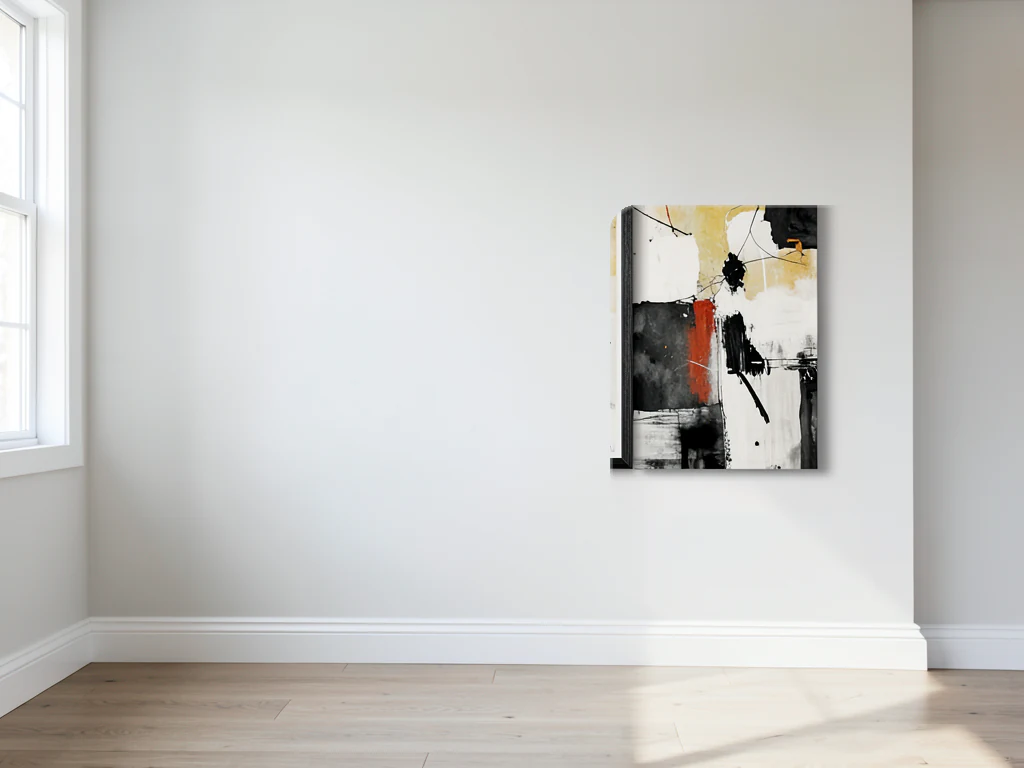
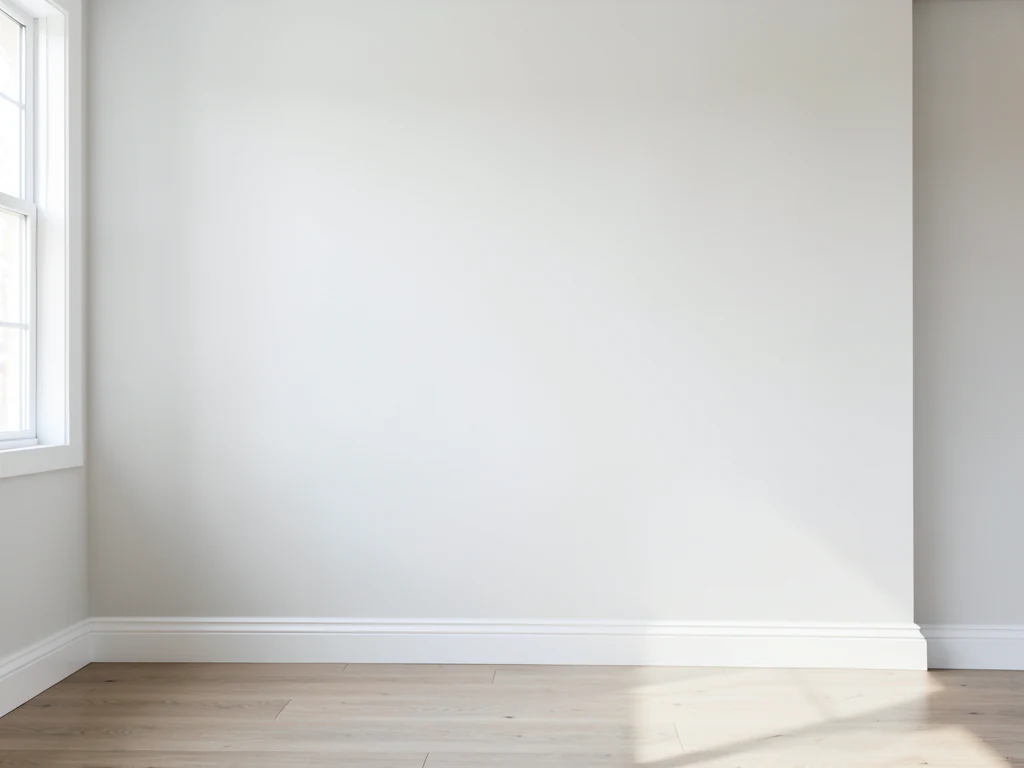
AI Generative Fill — Replace Any Selected Area
Use Exact painted area when every brush boundary matters
Mark where you want a change and describe what belongs there. The edit area can expand to fit the new content, or choose Exact painted area for strict boundaries.
- Start with a rough mark or a precise selection
- Surroundings restored from the prepared source
- Repair, replace, extend, or add new content
Choose an image for generative fill
JPG, PNG, WebP, HEIC, and other supported formats. Free up to 20 MB; Premium and higher up to 50 MB for this tool.
How to use AI generative fill to fill, repair or replace part of a photo
AI generative fill changes only the part of an image that you paint. Brush over an area, describe what should appear there, and the tool fills it to match the surrounding scene, whether that is a gap to repair, a bare wall that needs more detail or an empty spot where something belongs. The rest of the photo is restored from your upload, so you can judge the new area against the original.
Fill an area of an image with AI
Generative fill needs 2 things before Generate turns on: a painted selection and a description. Brush over the area, or click once on a small spot, then answer What should appear in the selection? The presets in the Presets tab fill that box for you: Add matching detail, Repair missing area, Add décor and Extend a surface. Edit the sentence so that it says what you actually want, such as a stone path or a wooden shelf.
- Upload an opaque photo.
- Paint the area to change, using Erase and Undo to correct strokes.
- Choose a preset, or describe what should appear in the selection.
- Select Generate to fill the selection.
- Check the filled area and its edges, then download the PNG.
Choose a rough mark or Exact painted area
By default the edit area can grow around your mark, so a quick brush over the spot is enough for a complete object and its shadow. Switch on Exact painted area when the boundary matters, for example a patch beside a window frame, and the edit stays inside the strokes you painted. If the tool says no clear change was made, describe a specific replacement or adjust the mark, then generate again. Your selection and description stay in place for the retry.
Repair a gap or extend a surface
Repair missing area rebuilds damaged or blank pixels from the surrounding textures, lines and lighting, and Extend a surface continues a wall, floor, sky or backdrop through your selection. Paint a little beyond the damaged edge so that the join falls on clean pixels, and keep strokes inside one surface where you can. A patch that crosses a face or a line of text asks the tool to invent detail, so review those results closely.
Remove, replace, add or extend: which page
Generative fill is the general tool, and a focused page asks for less when the job is narrower. To make something disappear, erase the object and rebuild the background. To swap one existing item for another, replace a marked object with something new. To put a new item into empty space with its own shadow, add an object to the photo. To grow the canvas rather than fill inside it, extend the photo beyond its edges.
Before you download the filled photo
- Look at the filled area and its edges at full size for repeated texture or a visible seam.
- Use an opaque photo, because AI edits do not keep transparency.
- Batch images is not offered here, because every photo needs its own painted area.
- With Premium, uploads above 2048 px on the longest side are prepared at 2048 px, and the result keeps that size. Without Premium the result is a web-size copy.
Choosing the right edit for the marked area
If the area should simply disappear, erase the object and rebuild what was behind it; to swap one item for another, replace a marked object with something new.
For a new item in an empty spot with its own contact shadow, insert an object where nothing stands, and scratches or tears in an old print go to the scratch and stain repair brush.
What you can do with AI Generative Fill
Review the main capabilities before you begin.
- Fill a marked area with content that matches the scene
- Repair missing or damaged parts of a photo
- Expand a rough mark to fit new content
- Keep strict boundaries with Exact painted area
Settings reference
4 settings
Available controls for AI Generative Fill.
Presets
- One-tap presetsPresets
- Pick a ready-made direction with one tap; generation uses the selected preset automatically.Options: Add matching detailRepair missing areaAdd décorExtend a surface
- What should appear in the selection?Text input
- Describe the requested change, relevant materials, lighting, perspective, and details that must remain unchanged.
Selection
- Selection brush sizeSliderRange: 4–160px · Default: 32px
- Set the brush width used to mark the exact add, fill, or replacement area required before generation.
Output
- Ask AI to preserve subject identity and product detailsOn / Off
- Adds an explicit instruction to retain the main subject, shape, branding, labels, and readable text unless the request changes them.
Related tools for AI Generative Fill
Tools for common next steps after AI Generative Fill.
AI Image Studio
Add Object to Photo with AI
Add furniture, plants, people, products, and décor to photos with AI. Paint the placement area and preserve the prepared source outside it.
Try it now
AI Image Studio
AI Object Replacer
Select and replace an object in a photo with AI. Swap furniture, products, plants, décor, and more while keeping surrounding pixels protected.
Try it now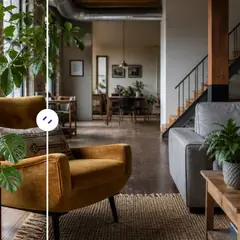
AI Image Studio
AI Object Remover
Remove unwanted people, objects, cables, signs, and clutter from photos automatically, with optional manual refinement for precise cleanup.
Try it nowFrequently Asked Questions
Watch each transformation land
Every photo crosses the slash untouched and comes out the other side finished.























