

AI Image Editor — Edit, Replace, Expand, and Restage
Built for precise, high-quality edits · AI results can vary
Describe the result and let automatic edit-area detection handle complete scene changes. Use the brush only for exact placement, object replacement, or optional refinement.
- Focused edit modes in one workflow
- Automatic staging, cleanup, sky, and background workflows
- Outpaint and aspect conversion copy the prepared source frame exactly
Choose an image
JPG, PNG, WebP, HEIC, and other supported formats. Free up to 20 MB; Premium and higher up to 50 MB for this tool.
Purpose-built AI editors
Choose a focused image-editing workflow
Every workflow uses the same protected editing engine, with task-specific controls, prompts, and guidance.

Watermark Remover
Upload a photo and let automatic detection locate the overlay and repair its area.
Open workflow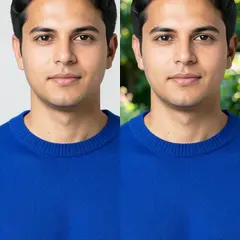
AI Portrait Background Changer
Choose a setting that fits the lighting in your portrait, then inspect the subject edges.
Open workflow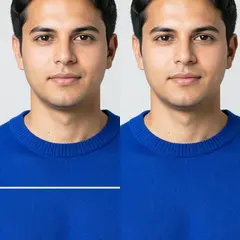
Repair Photo Damage
Use a narrow brush to cover each crack and its pale edges. Choose Torn area for a larger missing section.
Open workflow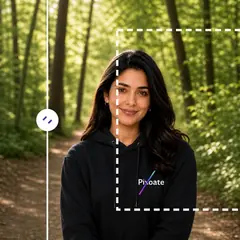
AI Image Extender
Choose a target aspect ratio, optionally describe the missing scene, and generate a larger composition around the original photo.
Open workflow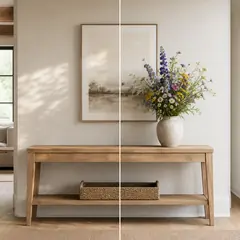
AI Generative Fill
Paint a selection, describe the replacement, and review the result before downloading.
Open workflow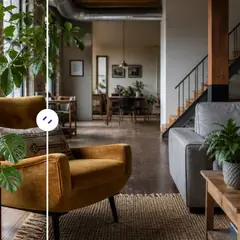
AI Object Remover
Describe the object and its location, then generate a clean reconstruction automatically or refine the area manually.
Open workflow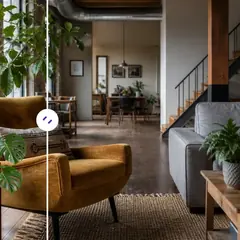
AI Object Replacer
Mark an object and describe what should take its place. Review the replacement and its surroundings before downloading.
Open workflow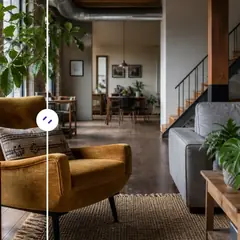
Add Object to Photo with AI
Select an empty area, describe the object, and generate it inside the chosen space.
Open workflow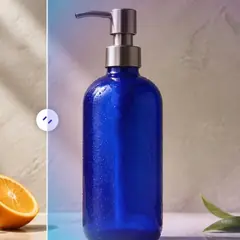
AI Background Changer
Choose a scene preset or describe a completely new setting; the main subject is isolated automatically.
Open workflow
AI Product Background Generator
Choose a setting and generate a scene around your product. Review its edges and details before use.
Open workflow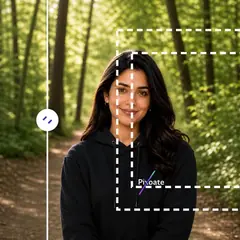
AI Uncrop Image
Choose a larger aspect ratio and reconstruct plausible space around the current crop.
Open workflow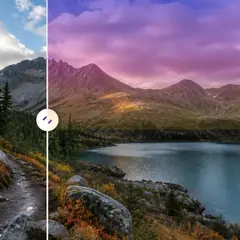
AI Sky Replacement
Choose a sky preset or describe the sky atmosphere you want.
Open workflow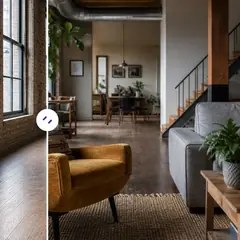
AI Room Staging
Choose a room style, adjust the prompt, and generate a complete staged concept automatically. Refine the editable area only when needed.
Open workflow
AI Product Scene Generator
Choose a lifestyle or campaign setting and generate it around your product.
Open workflow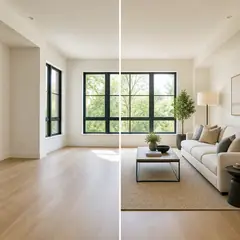
Virtual Staging AI
Choose the room purpose and style, then generate a complete listing concept automatically. Manual refinement remains available for unusual layouts.
Open workflow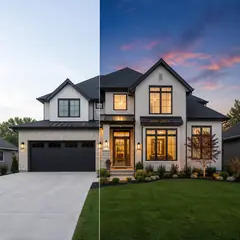
AI Real Estate Photo Editor
Choose a real-estate task preset; automatic workflows run without painting, while placement-sensitive edits request a precise area.
Open workflowEdit photos with AI by describing the change or painting an area
This AI image editor changes a photo from a written instruction. Choose an edit type, describe the result, and paint a selection where the edit needs one or you want exact boundaries. It covers object removal and replacement, generative fill, new backgrounds and skies, expanding a canvas, staging rooms and placing products in scenes. AI results can vary, so review the output before you publish it.
Edit a photo with AI by describing the change
Describe one focused change and say what should stay the same, for example making the sky a warm sunset while keeping everything else unchanged. The instruction can run to 1000 characters. Ask AI to preserve subject identity and product details is on by default, and the surroundings of a painted area are restored from your prepared photo.
- Upload an opaque JPG, PNG or WebP photo.
- Choose an Edit type, or keep Text-based edit.
- Write the change in the Describe the edit box.
- Select Generate and compare the result with your original.
- Download the PNG, or adjust the instruction and generate again.
Pick the edit type that matches the job
Cleanup edits are Watermark removal, Scratch repair and Magic eraser. Change edits are Text-based edit, Generative fill and Object replacer. Scene edits are Background changer, Sky replacement, Product background, Product scene and Room staging. Shape edits are AI expand, Uncrop image, Landscape to portrait and Portrait to landscape, and Professional headshot restyles a portrait.
Paint an exact area for precise edits
Generative fill and Scratch repair require a painted area. Watermark removal, Magic eraser, Object replacer, Text-based edit, Sky replacement and Room staging find the area on their own and offer Refine area manually, and the background edits open the brush only when they cannot separate the subject. For Generative fill and a painted Object replacer area, Exact painted area keeps strict boundaries; leave it off and a rough mark can grow to fit a complete object and its shadow. Pixels outside the final area stay as they were in your prepared photo.
Edit product, listing and room photos for business use
For business photos, the scene edits do the heavy lifting. Product background asks the AI to keep the product, packaging and labels as photographed while a new backdrop is generated, Product scene places the product in a commercial lifestyle setting, and Room staging furnishes a complete room while asking the AI to keep its walls, windows and camera perspective. Run one edit at a time, review logos and small product details, and keep the original for comparison.
Edit many photos or use a more focused page
Batch image processing is not offered here. It appears on the focused workflow pages that have one operation and no painted area, such as removing objects from several photos at once, which ends in one ZIP on Premium. For crop, resize, text and layers by hand, open the full photo editor. To change the color of one object, describe the object and its new color, and for ready-made looks, browse the photo effects.
Before you download an AI edit
- Review logos, text, faces, edges and small product details, because AI edits can vary.
- Use an opaque photo, since transparent images are rejected for every edit except the headshot.
- With Premium, uploads above 2048 px on the longest side are prepared at 2048 px, and new detail is synthesized at up to 1024 px.
- For a Professional headshot, compare the face, hair and skin tone with your source before use.
Focused editors for single jobs
If all you need is to erase one thing, describe the object and let AI remove it; for listing photos, stage rooms and swap skies in one property workspace.
A person's backdrop has its own presets when you put a portrait in a studio, office, or garden, and a picture from scratch starts with a text prompt instead of a photo.
What you can do with AI Image Editor
Review the main capabilities before you begin.
- Expand photos into square, portrait, or landscape layouts
- Fill a painted area with newly described content
- Remove or replace selected objects in a photo
- Change skies, backgrounds, weather, or scene styling
- Stage empty rooms while retaining their architecture
- Place product photos into studio or lifestyle scenes
- Protect original pixels outside a painted local edit
Settings reference
5 settings
Available controls for AI Image Editor.
Edit
- Edit typeDropdown
- Choose the focused editing workflow so the image, prompt, optional selection, and output shape are handled consistently.Options: Watermark removalScratch repairText-based editGenerative fillMagic eraserObject replacerBackground changerProduct backgroundAI expandUncrop imageLandscape to portraitPortrait to landscapeSky replacementRoom stagingProduct sceneProfessional headshot
- Describe the editText input
- Describe the visual change in up to 1000 characters; object removal, replacement, and scene changes require it, while expansion can run without extra direction.
Selection
- Selection brush sizeSliderRange: 16–160px · Default: 64px
- Generative fill and object replacement require a painted area. Automatic cleanup, background, sky, and staging modes expose the same brush only through Refine area manually; pixels outside a manual selection are restored from the prepared source.
Output
- Expanded aspect ratioPresets
- Choose the new canvas shape for expand and uncrop workflows while retaining the original image inside the generated frame.Options: Square 1:1Portrait 4:5Story 9:16Wide 16:9Portrait 3:4Landscape 4:3
- Ask AI to preserve subject identity and product detailsOn / Off
- Ask the editor to retain the main subject's shape, identity, logos, labels, and readable text unless your instruction explicitly changes them.
Related tools for AI Image Editor
Tools for common next steps after AI Image Editor.
AI Image Studio
AI Image Extender
Expand an image beyond its borders with AI. Convert photos to square, portrait, story, or widescreen layouts without cropping the original frame.
Try it nowAI Image Studio
AI Generative Fill
Paint part of an image and fill it with new AI-generated content. Repair gaps, add details, or replace selected areas while protecting nearby pixels.
Try it nowAI Image Studio
AI Object Remover
Remove unwanted people, objects, cables, signs, and clutter from photos automatically, with optional manual refinement for precise cleanup.
Try it nowFrequently Asked Questions
Guides for this tool
Watch each transformation land
Every photo crosses the slash untouched and comes out the other side finished.























