How to Create AI Lifestyle Product Photos Without a Studio Photoshoot
Create AI lifestyle product photos with Pixoate. Explore settings for small business campaigns and review product shape, colour and scale before use.
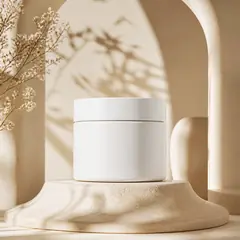
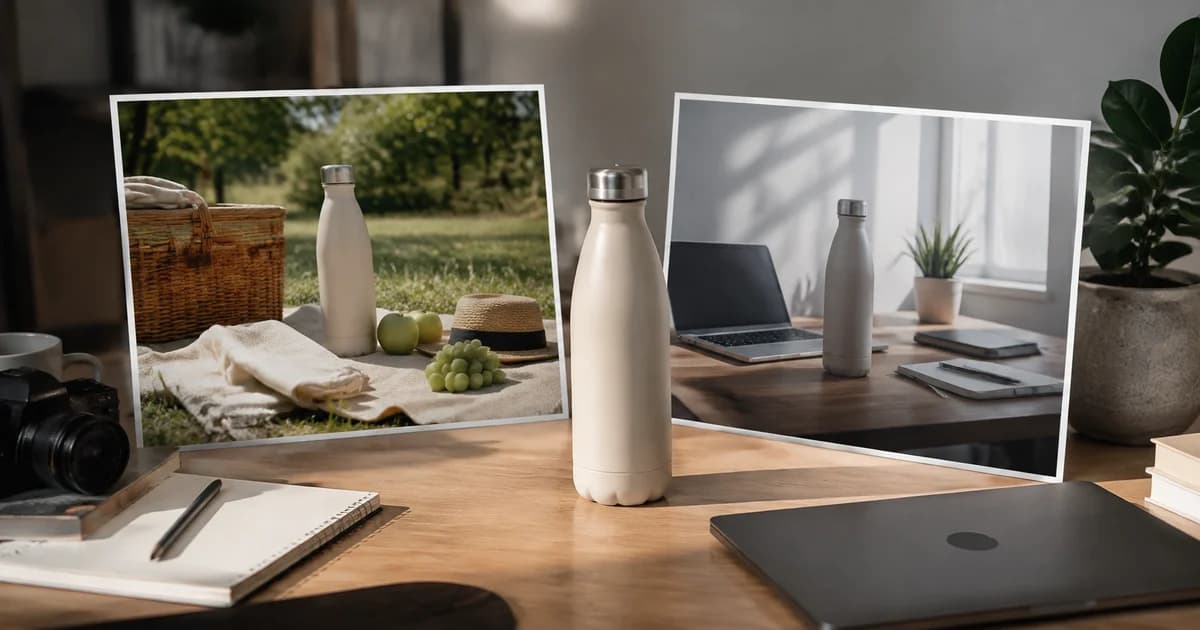
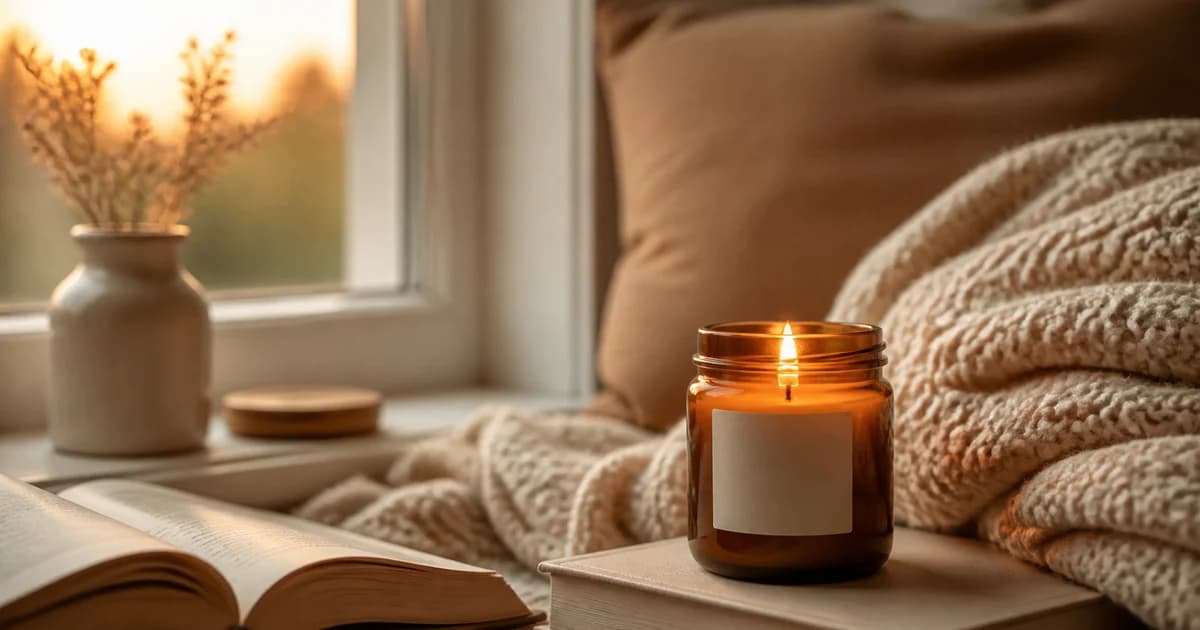
A clear product cutout shows what an item is. A suitable setting can help someone imagine where it belongs: a lamp on a desk, a planter on a shelf or a bottle beside a bathroom basin.
Pixoate AI Product Photos creates listing and contextual scenes around an uploaded product. It is useful for exploring campaign imagery, provided you review the product and the scene before using the result commercially.
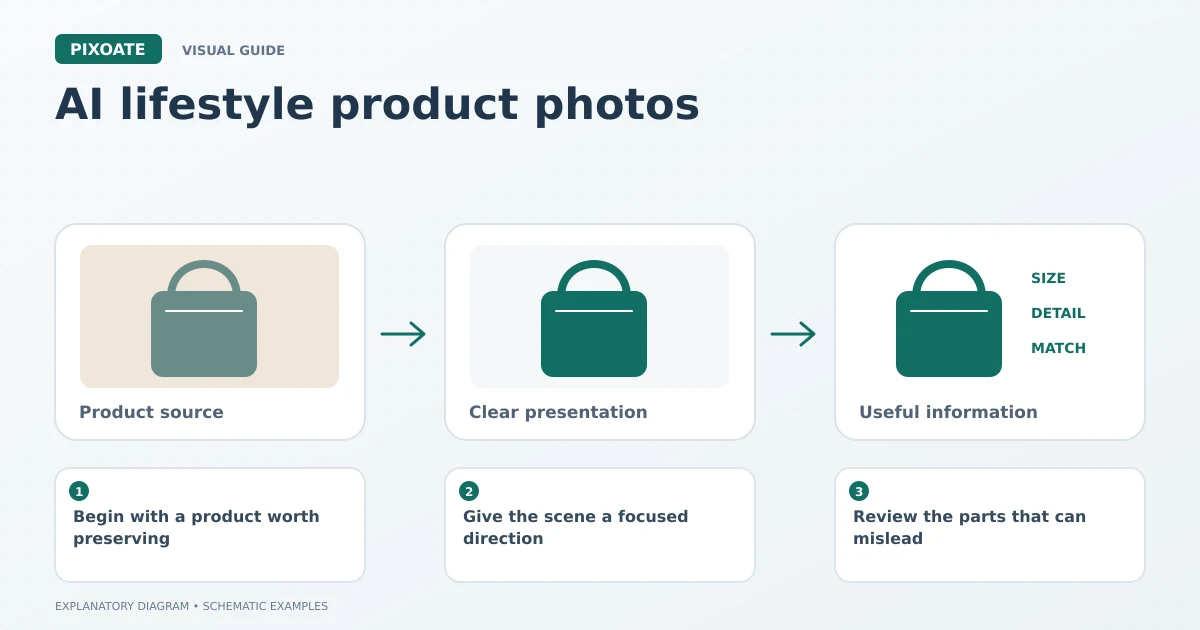
Original explanatory graphic. The scenes and sample records are schematic illustrations, not screenshots or measured tool results.
Begin with a product worth preserving
Upload a clear image of the actual product. Keep branding, labels, shape and material visible. A source with an obscured handle or unreadable packaging gives you less reliable detail to review later.
Choose a scene that answers a practical question. A desk lamp needs believable surface placement and scale; a skincare bottle may need a clean setting that does not introduce unsupported claims about its use.
Give the scene a focused direction
Select an appropriate preset or describe the environment, lighting and composition. Ask for the relevant product details to remain unchanged. Preservation instructions are useful, but the final image still needs inspection.
For background-focused work, generate an AI product background. Avoid requesting a crowded scene when the product should remain easy to identify at thumbnail size.
If batch mode is available for your account, group products that suit the same scene direction. A prompt designed for a small cosmetic bottle may not suit a floor lamp.
Review the parts that can mislead
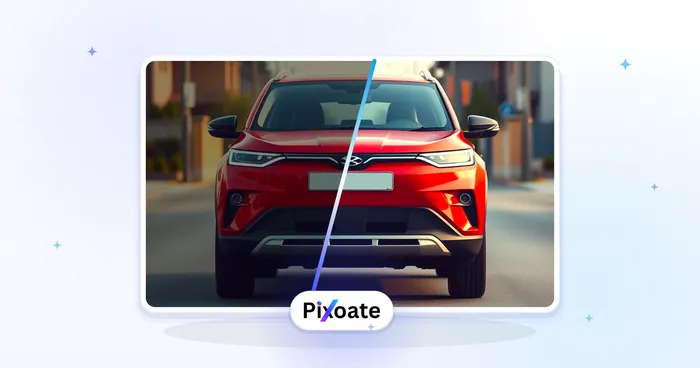
Use Image Compare to inspect the original product against the generated result. Check label text, logos, shape, quantity, colour and reflections. Look for added accessories that a customer might assume are included.
Scale deserves its own review. A plant, hand or chair in the scene can make the product appear larger or smaller than it is. Use verified measurements in a separate graphic when size is important; a generated scene is not dimensional evidence.
Choose the right placement
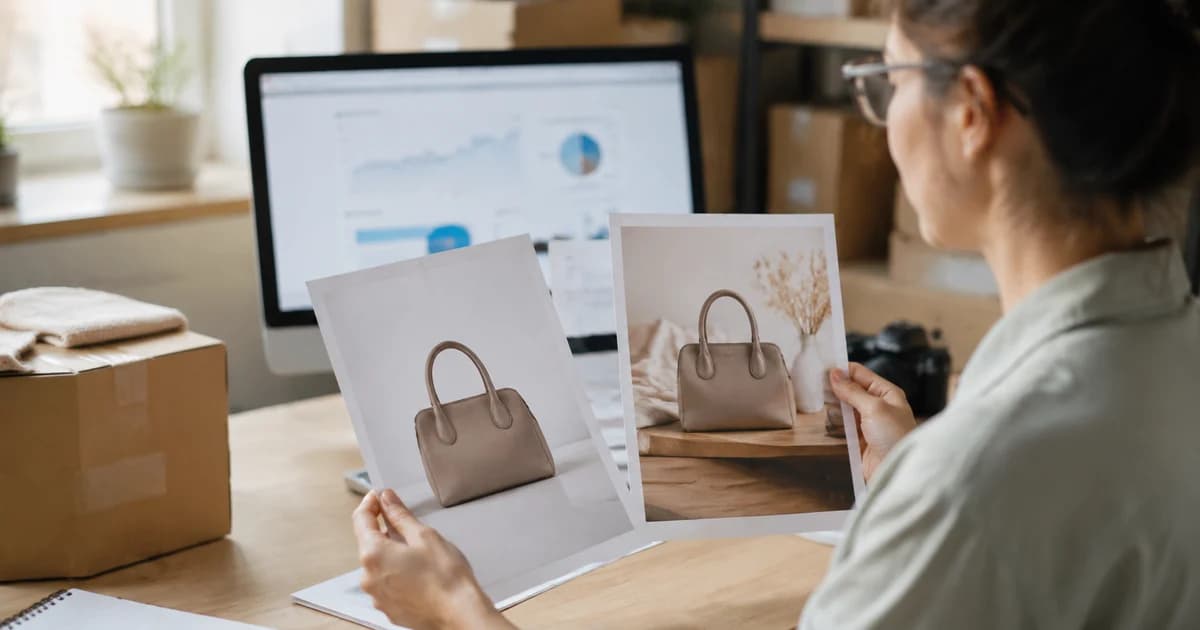
Keep campaign images separate from factual product evidence. Check the destination's current rules for the relevant image placement, and retain clear photographs of the actual item.
Compare candidate scenes at the intended display size. The most dramatic image may be less useful than a quieter scene that keeps the product legible and recognisable.
Can this replace every photoshoot?
It can help create some contextual assets. Actual product views, verified condition details and accurate measurements may still require real photography.
Will AI lifestyle images increase sales?
The tool creates images, not guaranteed business outcomes. Judge whether the result answers a buyer question, then measure its effect in your own store with appropriate context.
Start with one product and one focused scene in Pixoate. Review it carefully before turning the same direction into a wider campaign.