How to Create Consistent Staff Headshots for a Company Website
Create consistent staff headshots for a company website with Pixoate. Coordinate framing and backgrounds while keeping each person's likeness clear.
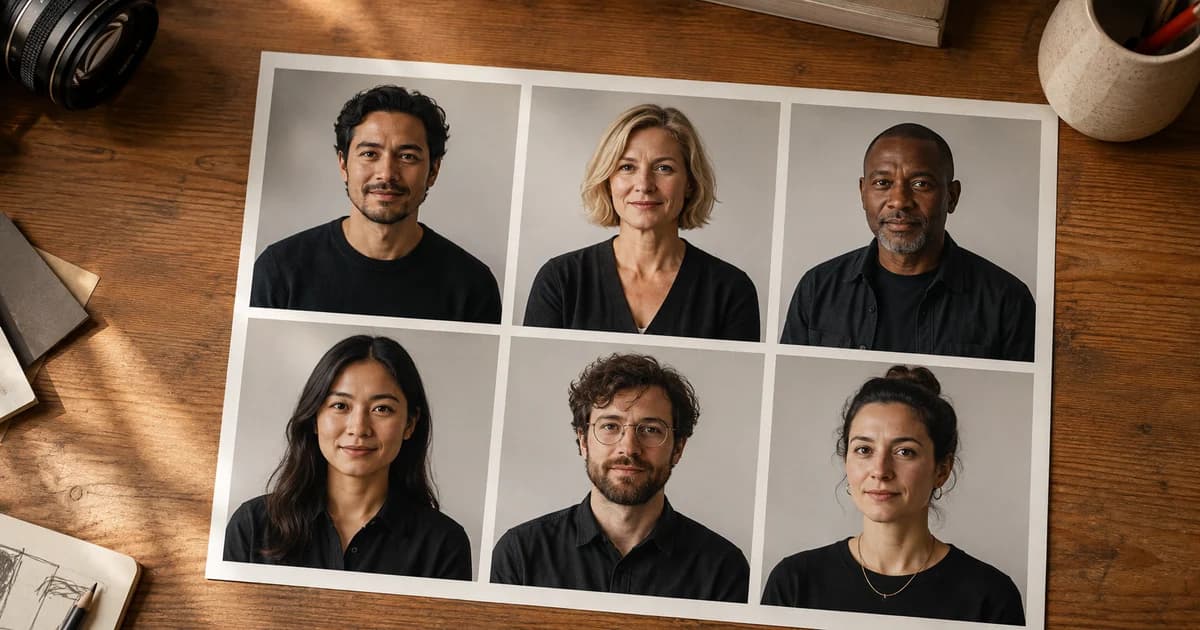
A company team page often grows one employee at a time. One photo has a dark office background, another is cropped from a wedding and a third places the face much farther from the camera. The page needs a shared presentation without making people look interchangeable.
Pixoate LinkedIn Headshot Generator and Profile Picture Maker provide focused portrait workflows. Use them with suitable source photos and the person's approval of the result.
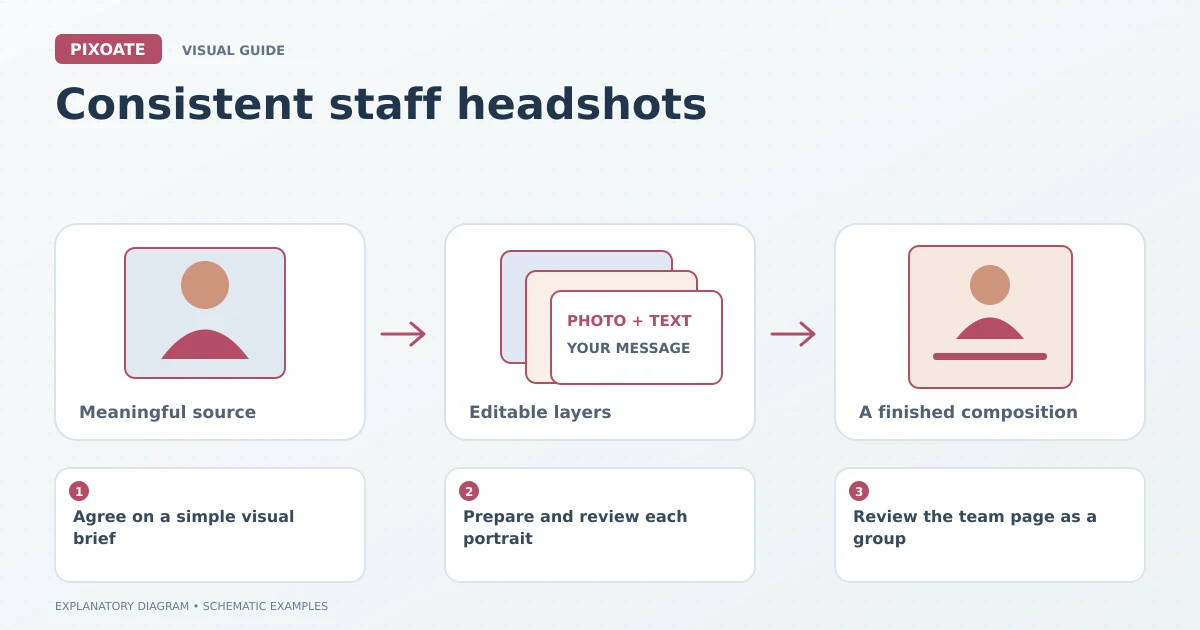
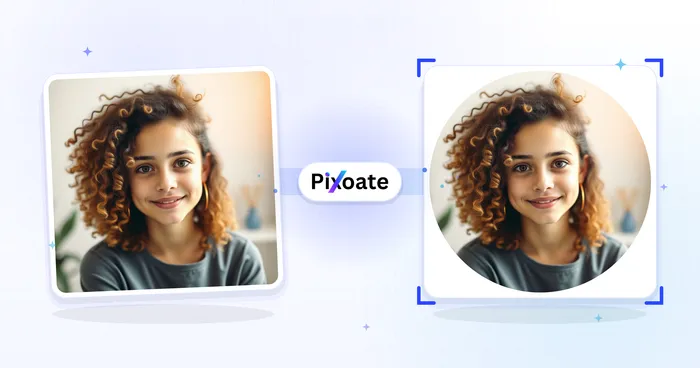
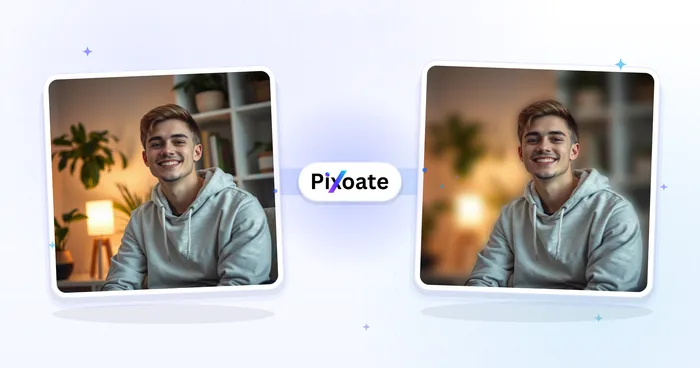
Original explanatory graphic. The scenes and sample records are schematic illustrations, not screenshots or measured tool results.
Agree on a simple visual brief
Choose framing, background direction and a consistent output shape. Decide how much of the shoulders should appear and where faces should sit in the frame.
Ask for clear, front-facing source photographs with readable facial detail and even light. A group-photo crop or heavily filtered selfie may provide less reliable material for a professional portrait.
Prepare and review each portrait
Upload a source to the appropriate portrait tool, choose a suitable background and review any available retouching options. Keep the person's recognisable appearance central to the decision.
Inspect hair edges, glasses, facial features, clothing and skin texture. Generated or retouched details should not be accepted merely because the result looks polished. Have the person review the image before it represents them publicly.
Use Resize Image to prepare consistent dimensions for the website. Preserve proportions and avoid cropping hair or shoulders inconsistently.
Review the team page as a group
| Shared decision | Individual review |
|---|---|
| Background family | Does the background suit this portrait? |
| Crop and dimensions | Is the face comfortably framed? |
| General brightness | Does the image retain natural detail? |
| Website placement | Is the correct photo attached to the correct person? |
A common style does not require identical facial positioning to the pixel or the same skin-tone treatment. Aim for coherent presentation that respects real differences.
Check desktop and mobile layouts, including circular crops if the website uses them. Keep the approved originals and export settings for future team additions.
Can I use one person's photo to represent another employee?
Use the correct person's approved portrait. A polished image should still represent the real team member accurately.
Will headshots alone build trust?
They are one element of a team page. Clear names, roles and truthful company information also matter.
Start with a small set of approved portraits in Pixoate, establish the presentation and apply it consistently as the team grows.