How to Extract Invoice Numbers, Due Dates and Totals from Images
Extract invoice numbers, due dates and totals from images with Pixoate. Define useful fields and review the results before updating business records.
An invoice can contain more information than an administrator needs for the next task. Perhaps the office only needs the supplier, invoice number, due date and total. Copying the entire page into a text file creates another search job rather than a usable record.
Pixoate's custom invoice-field extractor lets you specify the fields to read and returns recognised values as JSON. It is useful when the desired result is a set of named facts rather than a reproduction of the document's layout.
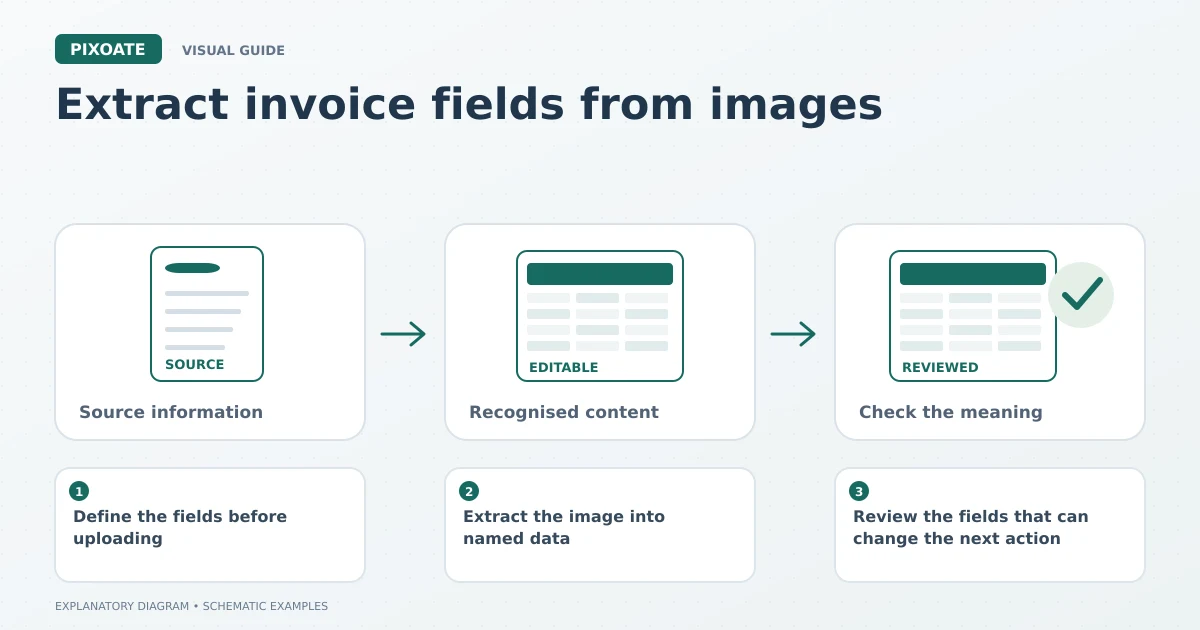
Original explanatory graphic. The scenes and sample records are schematic illustrations, not screenshots or measured tool results.
Define the fields before uploading
Begin with the invoice template or enter the fields your workflow actually uses. Keep distinct concepts separate: invoice date is not due date, order number is not invoice number, and subtotal is not necessarily the amount payable.
For a simple review record, you might request supplier name, invoice number, invoice date, due date, currency and total. If you need a tax amount, specify it rather than assuming every visible percentage describes tax.
This is extraction, not accounting interpretation. An unclear or absent field should remain a question for the supplier or your internal process.
Extract the image into named data
Upload a readable invoice image and choose the document language. Select the template or custom field set, run extraction and review the returned values against the page.
Preserve the source filename alongside the result in your own records. If an invoice spans several pages, check where the relevant total and payment details appear. A first-page subtotal can be mistaken for a document total if the source is incomplete.
For an ordinary passage that needs copying, extract invoice text from an image. For text in an existing PDF, use PDF to Text. Choose a table extractor when the goal is line-item rows rather than a small set of named fields.
Review the fields that can change the next action
| Field | A small error with a large practical consequence |
|---|---|
| Invoice number | One changed character can link the record to the wrong document. |
| Due date | A day/month ambiguity can change the apparent deadline. |
| Currency | An amount without its currency is incomplete. |
| Total | A subtotal, balance or amount already paid can be confused with the requested amount. |
| Supplier | A trading name and a payment recipient may require separate verification. |
Verify payment instructions through your established controls. OCR does not authenticate a document or establish that bank details are legitimate.
Use JSON deliberately
JSON pairs field names with values, making the result useful for a reviewed data workflow or a compatible integration. It is not automatically a CSV file, an Excel workbook or a posted transaction.
If another system needs particular field names or date formats, map the reviewed output to that system's requirements. Keep uncertain values out of automatic actions until a person resolves them. For an individual office task, a small verified record may be all you need.
Will the extractor calculate missing values?
Do not rely on it to infer a missing due date, tax treatment or balance. Extract what the document states and handle calculations or interpretation in your approved process.
Can a scanned invoice have perfectly readable text but still extract incorrectly?
Yes. Layout, multiple totals and ambiguous labels can cause a recognised value to be assigned to the wrong field. Review the association between each field and its source, not only the spelling of the value.
Start with Pixoate Extract Data and one invoice you understand. A small, well-defined field set is easier to review and reuse than a large collection of unverified output.